The following sections describe the access point licenses and expiration details for these Wi-Fi management types:

Applies To: WatchGuard Cloud-managed Access Points (AP130, AP230W, AP330, AP332CR, AP430CR, AP432)
These licenses are available to manage access points in WatchGuard Cloud:
- WatchGuard Standard Wi-Fi Management
- WatchGuard USP (Unified Security Platform) Wi-Fi Management
You cannot manage the new Wi-Fi 6 access points (AP130, AP230W, AP330, AP332CR, AP430CR, and AP432) with the Gateway Wireless Controller on a Firebox or with Wi-Fi Cloud. You cannot use WatchGuard Cloud to manage previously released access points (AP125, AP225W, AP325, AP327X, AP420) that are currently managed by the Gateway Wireless Controller on a Firebox or with Wi-Fi Cloud.
This table lists the features of each license:
|
Feature |
WatchGuard Standard Wi-Fi | WatchGuard USP Wi-Fi
|
|---|---|---|
| Inventory management in WatchGuard Cloud | ✓ | ✓ |
| Configure SSIDs, device settings, radio settings, and captive portal | ✓ | ✓ |
| Firmware upgrades | ✓ | ✓ |
| CLI/SSH access for troubleshooting | ✓ | ✓ |
| 24/7 support and hardware warranty | ✓ | ✓ |
| Reporting visibility for past 24 hours | ✓ | ✓ |
| Reporting visibility for past 30 days | ✓ | |
| Syslog server support | ✓ | |
| SNMP monitoring | ✓ | |
| VPN to Firebox capabilities | ✓ | |
| Advanced security features (Airspace Monitoring) and alerts | ✓ | |
| ThreatSync integration | ✓ | |
| Guest analytics report | ✓ | |
| Future features in development, including advanced security and analytics features * | ✓ |
* Features included in the Unified Security Platform license will be determined by WatchGuard. Some features may require additional products from WatchGuard.
License Key
After you purchase an access point license, you receive a license key to use when you activate the access point.
To activate your access point, you need both the serial number of the access point and the license key. For more information, see Activate an Access Point for WatchGuard Cloud.
Access Point License Expiration
When an access point license subscription expires:
- The access point continues passing wireless traffic with the last received configuration from WatchGuard Cloud.
- Access point device information and summary are available.
- SSH access to the access point CLI is available for diagnostics.
- You cannot modify the configuration except for SSID security passphrases and the device password for CLI access.
- There is no access to firmware upgrades to any firmware released after the access point license expires.
- Advanced features such as Access Point VPN and Captive Portal no longer work.
- No new visibility and report data is available for expired access points. Older reports might still be available based on the data retention of the license before expiration.
- Technical support is not available for access points with expired licenses.
To add a valid license for an expired access point, you must purchase and apply a new license to the access point in your WatchGuard account.
MSSP Subscription Expiration
For MSSP subscriptions, if the access point license expires (for example, if no more points are applied for the next month), or if the access point has reached its end-of-life date:
- The access point continues passing wireless traffic with the last configuration received from WatchGuard Cloud.
- The access point will no longer connect to WatchGuard Cloud, and you can no longer manage the access point from WatchGuard Cloud.
- Command line interface (CLI) access to the device is still available to download and update the access point feature key if there is a temporary feature key or a renewal applied. For more information, go to Access Point Command Line Interface.
Access Point End of Life
For information on access points that are end-of-life and no longer supported, go to the End of Life Policy page on the WatchGuard web site.
If the access point has reached its end-of-life date:
- The access point continues passing wireless traffic with the last configuration received from WatchGuard Cloud.
- The access point will no longer connect to WatchGuard Cloud, and you can no longer manage the access point from WatchGuard Cloud.
- Command line interface (CLI) access to the device is still available to download and update the access point feature key if there is a temporary feature key or a renewal applied. For more information, go to Access Point Command Line Interface.
Applies To: Gateway Wireless Controller-managed Access Points (AP125, AP225W, AP325, AP327X, AP420)
You must activate your access point with a valid license subscription to enable your hardware replacement warranty, receive technical support, and get access to the latest software updates for your AP. You cannot manage or monitor the AP with the Gateway Wireless Controller until the AP is activated with a Basic Wi-Fi AP subscription and an AP feature key is imported to your Firebox.
You cannot manage WatchGuard Wi-Fi 6 APs (AP130, AP230W, AP330, AP332CR, AP430CR, AP432) with a Gateway Wireless Controller on a Firebox or WatchGuard Wi-Fi Cloud. If you are looking for information about how to manage Wi-Fi 6 APs in WatchGuard Cloud, go to About Wi-Fi in WatchGuard Cloud.
WatchGuard offers these types of wireless security subscriptions for Gateway Wireless Contoller and Wi-Fi Cloud managed access points:
Basic Wi-Fi
Use the Gateway Wireless Controller on your Firebox to configure, manage, and monitor WatchGuard APs directly from the Firebox.
Secure Wi-Fi and Total Wi-Fi
Use WatchGuard Wi-Fi Cloud for WatchGuard AP management, security, and monitoring. A Total Wi-Fi subscription provides additional tools for guest user engagement, analytics, social media integration, captive portals, and splash page design. For more information, go to About WatchGuard Wi-Fi Cloud. For license subscription and expiry information for Wi-Fi Cloud, go to About Wi-Fi Cloud AP Licenses.
AP License Enforcement on the Gateway Wireless Controller
Beginning with the Fireware v12.5.1 release, WatchGuard enforces licensing requirements for Basic Wi-Fi APs. Each WatchGuard AP managed by a Gateway Wireless Controller on a Firebox must be activated with a Basic Wi-Fi subscription.
As of January 15th, 2020, WatchGuard has modified the licensing policy to allow full management of Basic Wi-Fi APs after an AP license subscription expires. The AP license expiry date will indicate a future date of 3/1/2027 in Fireware v12.5.x or lower, or “never” in Fireware v12.6 and higher to indicate an extended management license for current APs and APs that have reached their End of Life (EOL) date.
Caution: As of Fireware v12.11 and higher, only AP125, AP225W, AP325, AP327X, and AP420 devices that run firmware v11.0.0-36-4 are supported. You can no longer manage AP120, AP320, AP322 devices, or previous end-of-life devices on Fireware v12.11 or higher. Devices will still operate with their last known configuration, but can no longer be updated from the Gateway Wireless Controller.
AP Subscription Expiry on the Gateway Wireless Controller
When a Basic Wi-Fi AP subscription expires:
- The expired AP will continue to broadcast SSIDs and allow wireless access to the network.
- You can still manage, configure, monitor, and perform software updates on an expired WatchGuard AP.
- There is no technical support provided for an expired AP or an AP that has reached their End of Life date.
If the Firebox has an active support subscription, you can receive support for issues specific to the Gateway Wireless Controller. Support issues specific to APs managed by the Gateway Wireless Controller require a valid AP subscription.
How to Activate New APs
You can activate your new APs at https://myproducts.watchguard.com/activate.
Log in to your WatchGuard account, then add the serial number of your AP to your account. Make sure the AP you want to activate has a Basic Wi-Fi subscription. (Total and Secure Wi-Fi subscriptions are for cloud-managed APs.)
AP Activation Status and AP Feature Key Management
After you successfully activate an AP, the Gateway Wireless Controller continuously monitors the status of your AP subscription and expiry date. You can view the current license status of your APs in the Gateway Wireless Controller, and you will receive notifications in the user interface when an AP has less than 90 days remaining until expiry. When you activate or renew a WatchGuard AP subscription with a Basic Wi-Fi subscription in your WatchGuard account, you can update the AP license status and AP feature key in the Gateway Wireless Controller.
Automatic AP feature key synchronization enables the Gateway Wireless Controller to retrieve the license status and AP feature keys for your APs from WatchGuard servers. This synchronization occurs on a periodic basis to make sure the Gateway Wireless Controller has the latest activation status and AP feature key for your AP. This option is enabled by default. For more information, go to Configure Gateway Wireless Controller Settings.
You can also manually update the AP license status and AP feature key for an AP.
For more information on how to monitor and manage your AP license status and AP feature keys with the Gateway Wireless Controller, go to Monitor AP Status.
How to View and Manage your AP License Subscription Status
You can view the current license status and expiry date of your APs, and manage your AP license subscriptions in your WatchGuard Support Center account.
- Log in to the WatchGuard Support Center at login.watchguard.com.

- Select My WatchGuard > Manage Products.
- On the Secure Wi-Fi tile, click View Products.
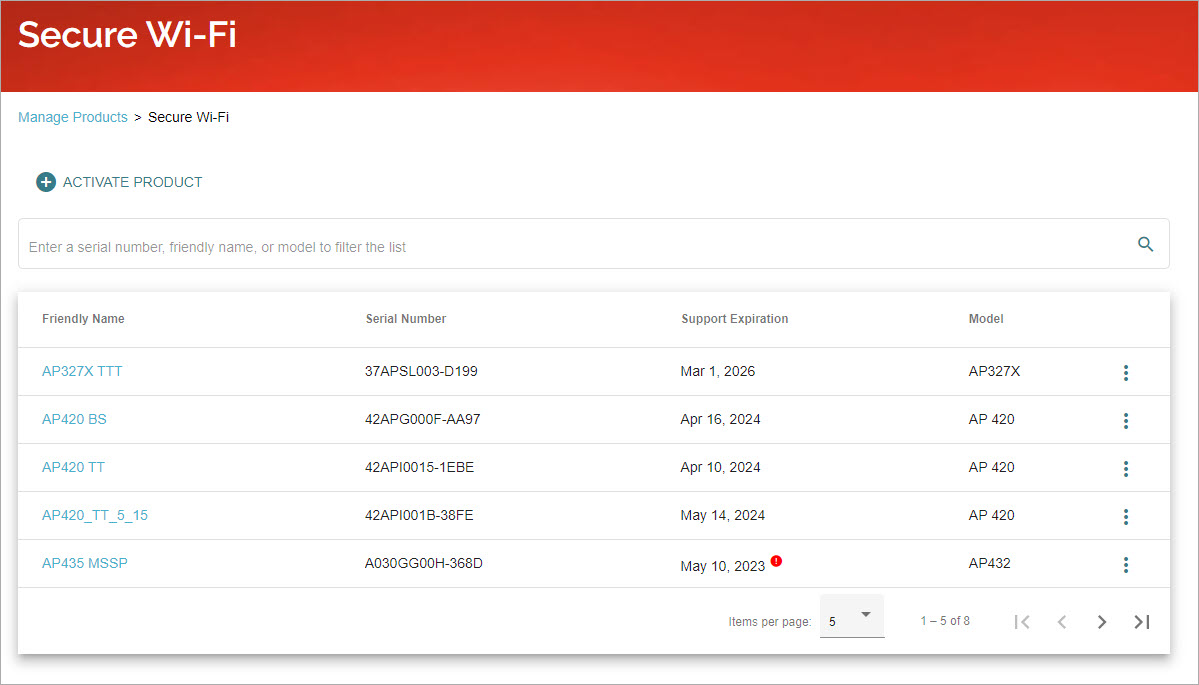
You can view your expiration date in the Support Expiration column.
- Select an AP to view the product and license details.
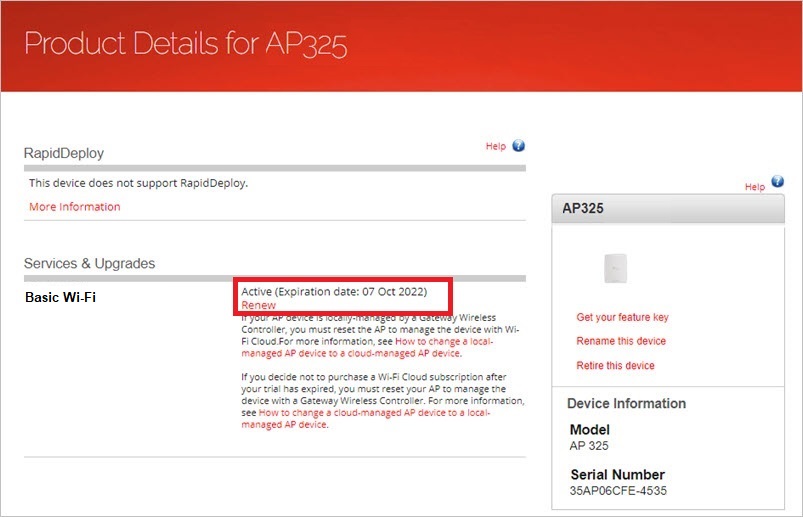
- Expand the Device Services list to see information about the services associated with your device.
- Click Retire this Device if there is an activated AP in your account that you no longer use. When you retire an AP:
- WatchGuard no longer sends you renewal reminders for Support and other subscription services for the AP.
- The AP is not eligible for technical support.
- The AP continues to function based on the last configuration applied to the AP.
- If you retire an AP, you can later remove it from retirement, as long as the product has not reached end of life. To remove a device from retirement, contact WatchGuard Customer Care.
- Click Get Feature Key if you want to manually download your Basic Wi-Fi AP feature key to import to your Firebox. Automatic feature key synchronization is enabled by default on the Firebox, and feature key updates to APs in your WatchGuard account are automatically downloaded to your Firebox. Only perform a manual update if you do not have connectivity to WatchGuard servers or if you have disabled automatic feature synchronization.
AP End of Life Information
For information on WatchGuard's End of Life policy information for APs, including a migration path to current access point models managed by WatchGuard Cloud, go to End of Life Policy on the WatchGuard web site.
Applies To: Wi-Fi Cloud-managed Access Points (AP125, AP225W, AP325, AP327X, AP420)
All WatchGuard APs managed by Wi-Fi Cloud must have an active Secure Wi-Fi or Total Wi-Fi license subscription.
You cannot manage WatchGuard Wi-Fi 6 APs in Wi-Fi Cloud. If you are looking for information about how to manage an AP130, AP230W, AP330, AP332CR, AP430CR, or AP432 in WatchGuard Cloud, see About Wi-Fi in WatchGuard Cloud.
For license subscription and expiry information for APs managed by a Gateway Wireless Controller on a Firebox, see About Gateway Wireless Controller AP Licenses.
About AP License Subscriptions
Secure Wi-Fi and Total Wi-Fi AP subscriptions include these features:
- Manage APs with Wi-Fi Cloud
- 24x7 technical support with unlimited support cases, advanced hardware replacement service, and access to software updates.
- Patented WIPS security protection, intelligent network visibility, and troubleshooting.
- Enable a Trusted Wireless Environment.
In addition, a Total Wi-Fi AP subscription enables additional tools for:
- Guest user engagement
- Location-based analytics
- Social media integration
- Captive portals
- Splash page design
When you activate an AP and Wi-Fi Cloud subscription in your account for the first time, you activate a Total or Secure Wi-Fi subscription type. All future APs that you activate in your account must also have this same subscription type. Total Wi-Fi subscriptions provide several additional features that cannot be provisioned in the same account as Secure Wi-Fi APs. For more information, see Total Wi-Fi and Secure Wi-Fi AP subscription activations.
About AP License Subscription Expiry
You must make sure to renew your AP subscriptions before they expire. When a Wi-Fi Cloud AP subscription expires:
- The expired AP will continue to broadcast SSIDs and allow wireless access to the network based on the most recent configuration applied to the AP.
- Captive portal splash pages will still be available for guest access based on the most recent configuration applied to the AP, but you cannot change the URL or other configuration options.
- You cannot perform further configuration or software updates to an expired AP.
- Reduced monitoring, analytics, and reporting data will be available for expired APs.
- WIPS security detection and prevention capabilities will be available based on the offline WIPS configuration in Wi-Fi Cloud that you configured before the subscription expired.
- In the default WIPS Offline Configuration, only classification features are available, and all prevention measures are disabled.
- You can configure the WIPS Offline Configuration in the device settings. For more information, see Configure Device Settings.
- You will not receive technical support for an expired or end of life AP.
A banner message will appear in the Wi-Fi Cloud Dashboard if any APs in your account expire in 30 days or less.
How to View and Manage your AP License Subscription Status
You can view the current license status and expiry date of your APs, and manage your AP license subscriptions in your WatchGuard Support Center account.
- Log in to the WatchGuard Support Center at login.watchguard.com.
- Select My WatchGuard > Manage Products.
- On the Secure Wi-Fi tile, click View Products.
You can view your expiration date in the Support Expiration column.
You will receive an email notification from WatchGuard if any of your APs will expire within the next 90 days. Wi-Fi Cloud will also display a banner warning after you log in if you have any APs in your account that are expired or will expire within the next 90 days.
- Select an AP to view the product and license details.
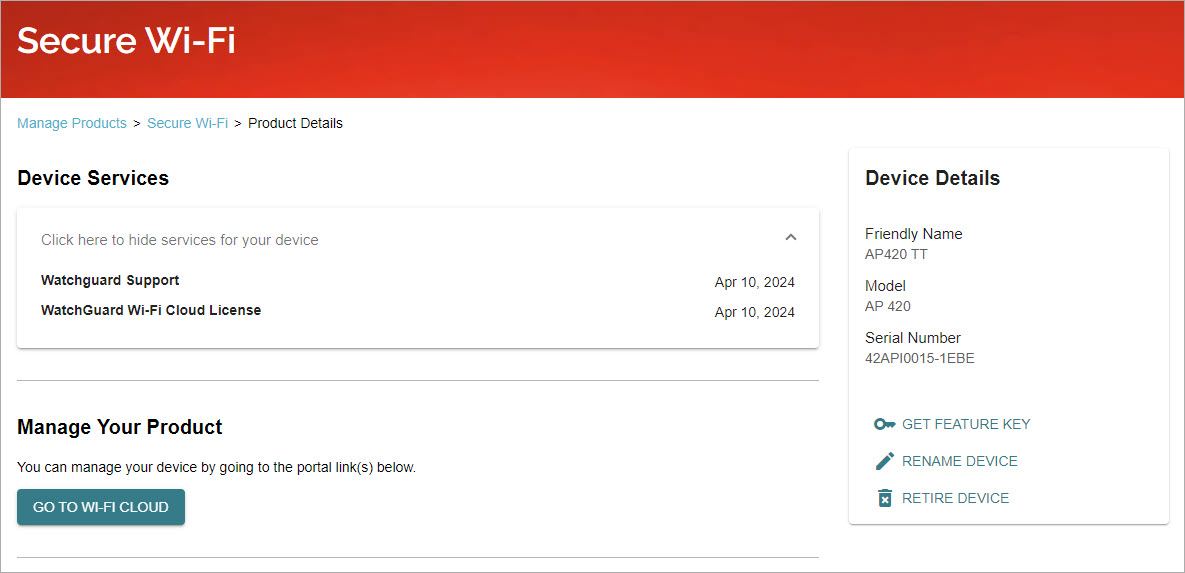
- Expand the Device Services list to see information about the services associated with your device.
- Click Retire this Device if there is an activated AP in your account that you no longer use. When you retire an AP:
- WatchGuard no longer sends you renewal reminders for Support and other subscription services for the AP.
- The AP is not eligible for technical support.
- The AP continues to function based on the last configuration applied to the AP.
- If you retire an AP, you can later remove it from retirement, as long as the product has not reached end of life. To remove a device from retirement, contact WatchGuard Customer Care.
You do not have to download or import the generated feature key that appears in your WatchGuard account for your Total or Secure Wi-Fi AP into Wi-Fi Cloud. The expiry date information is automatically communicated from WatchGuard servers to Wi-Fi Cloud.
What Happens After You Renew an Expired AP License
When you renew a license for an AP that has expired and removed from Wi-Fi Cloud:
- The AP will be automatically provisioned back to your Wi-Fi Cloud account in the original location where the AP was located.
- Note that the default device settings template for the folder will be applied to the AP.
- If the original location folder of the AP does not exist, it will be placed in the Staging Area folder.
- The name of the AP will be reset to the default format (WatchGuard xx:xx:xx). Any custom name you specified for the AP is not retained.
How to Activate New APs
Before you can manage and monitor your AP with WatchGuard Wi-Fi Cloud, you must activate the AP. When you activate your AP, you also enable your hardware replacement warranty, receive technical support, and get access to the latest AP firmware updates.
You can activate your new APs at https://myproducts.watchguard.com/activate.
Log in to your WatchGuard account, then add the serial number of your AP to your account. Make sure the AP you want to activate has the appropriate subscription type (Secure Wi-Fi or Total Wi-Fi).
You do not have to download or import the generated feature key that appears in your WatchGuard account for your Total or Secure Wi-Fi AP into Wi-Fi Cloud. The expiry date information is automatically communicated from WatchGuard servers to Wi-Fi Cloud.
AP End of Life Information
For information on WatchGuard's End of Life policy information for APs, including a migration path to current access point models managed by WatchGuard Cloud, see End of Life Policy on the WatchGuard web site.