Applies To: Endpoint Security Elite, Endpoint Security 360, Endpoint Security Prime, WatchGuard EDR, WatchGuard EDR Core, Endpoint Security Basic
To open the multi-tenant management UI for endpoint security, your Service Provider account must have an active Endpoint Security product license in its inventory.
As a Service Provider, you can review the security status of your managed accounts on the Security dashboard.
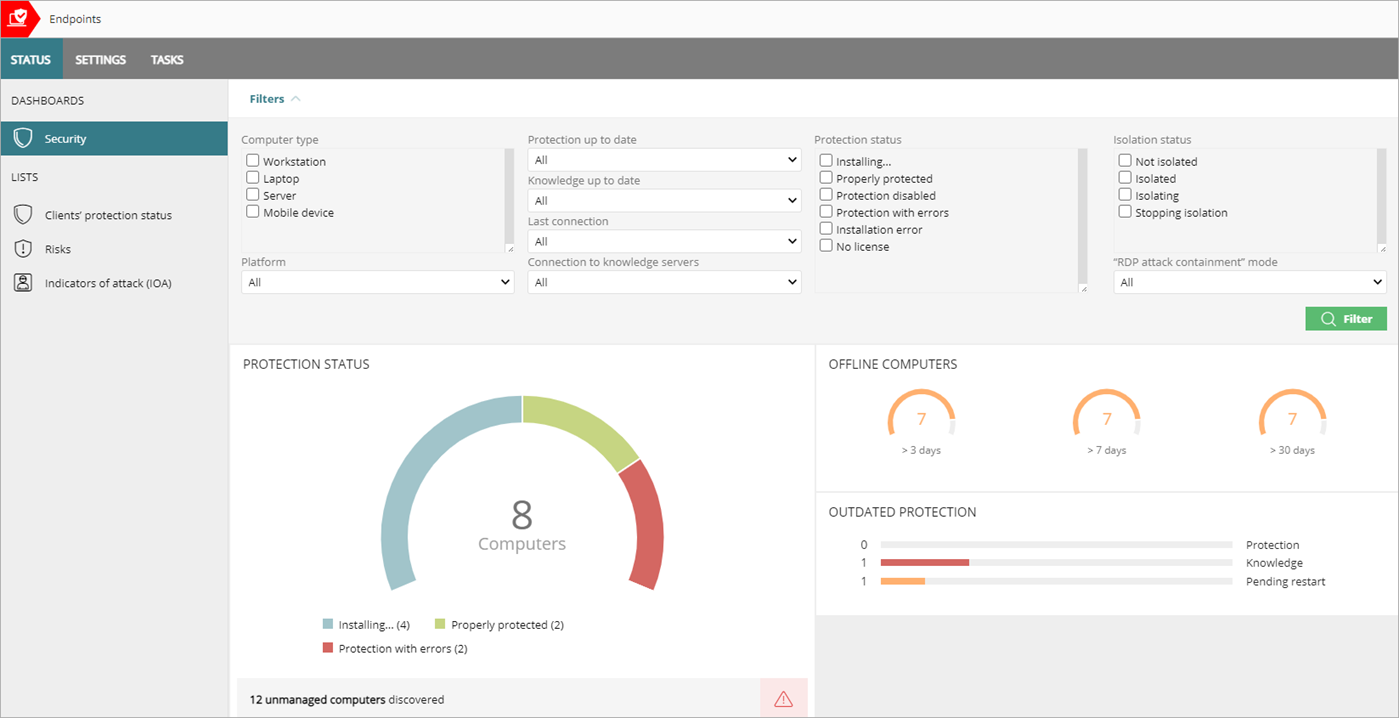
To filter the Security dashboard, from WatchGuard Cloud:
- From Account Manager, select a Service Provider account.
To select your own Service Provider account, select Overview. Or, select a tier-2 Service Provider account.
 - Select Monitor > Endpoint Security.
- On the Status page, select Security.
- Expand Filters.
- Select parameters to filter the information that shows on the dashboard.
- In the Computer Type list, select the type of endpoint you want to filter the list for.
- From the Platform drop-down list, select the operating system.
- From the Protection Up to Date drop-down list, select whether the endpoint security software is Up to Date, Pending Restart, or Out of Date.
- From the Knowledge Up to Date drop-down list, select whether the signature file is Up to Date or Out of Date.
- From the Last Connection drop-down list, select when the last connection occurred (less than 24 hours ago up to more than 30 days ago).
- From the Connection to Knowledge Servers drop-down list, select whether the connection to the server was OK or With Problems.
- From the Protection Status list, select the check boxes for the statuses you want to include on the dashboard.
- From the Isolation Status list, select the check boxes for the statuses you want to include on the dashboard.
- From the RDP Attack Containment Mode drop-down list, select All, No, or Yes.
- Click Filter.
To download a partner-level version of the Zero-Trust Application Service report to review the numbers in your customer accounts, click  ZTAS Report in the upper, right corner. For more information on the report, go to Zero-Trust Application Service Report.
Tiles on the Security Dashboard
Several tiles show important information and provide links to more details.
Protection Status
The Protection Status tile shows:
- Computers where Endpoint Security operates correctly and where it does not.
- Computers with installation errors or problems.
- Computers where Endpoint Security is not installed (unmanaged).

Click the tile to open the Computer Protection Status list. Unmanaged computers that Endpoint Security discovered show as an error. To open a list of the undiscovered computers, click the error message.
The total number of computers and devices at the center of the tile includes iOS devices. The tile includes no other information about iOS devices. iOS devices do not have advanced or antivirus protection. For more information, go to Configure iOS Device Settings.
Offline Computers
The Offline Computers tile shows the number of computers that have not connected to the cloud for a number of days.
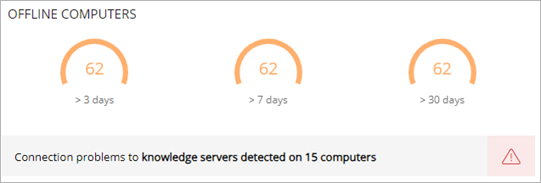
Click the tile to review details of the computers that might be susceptible to security problems and require attention.
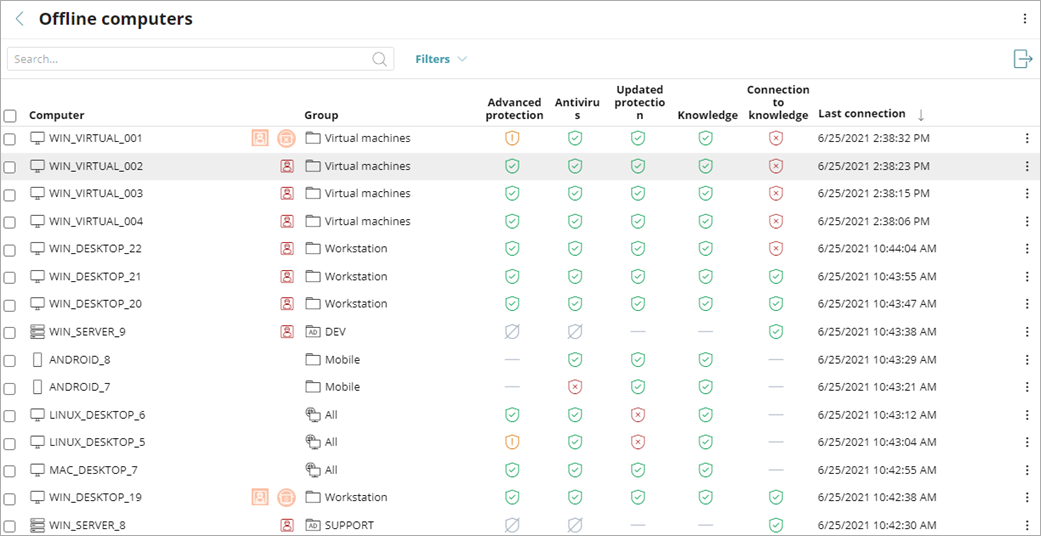
For more information on the icons used in this list, go to Icons.
Outdated Protection
The Outdated Protection tile shows the number of computers with a signature file that is more than three days older than the latest released file. The tile also shows the number of computers with an antivirus engine that is more than seven days older than the latest released engine.
- Protection — The computer has had a version of the antivirus engine older than the latest released engine for at least seven days.
- Knowledge — The computer has not updated its signature file for at least three days.
- Pending Restart — The computer requires a restart to complete the update.
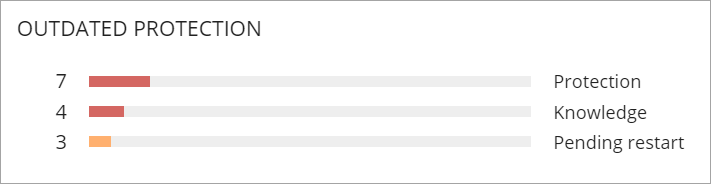
To go to the list of computers associated with each status, click a progress bar in the tile:
- Computers with out-of-date protection software
- Computers with out-of-date knowledge
- Computers pending restart