Applies To: WatchGuard Cloud
WatchGuard Cloud enables you to see and manage your products and services in one place. Different areas of the WatchGuard Cloud interface provide information on your products and services.
WatchGuard Cloud supports the most recent version of these web browsers: Google Chrome, Microsoft Edge, Mozilla Firefox, and Safari.
For information on how to change the color theme of the WatchGuard Cloud interface, go to Change the User Interface Theme.
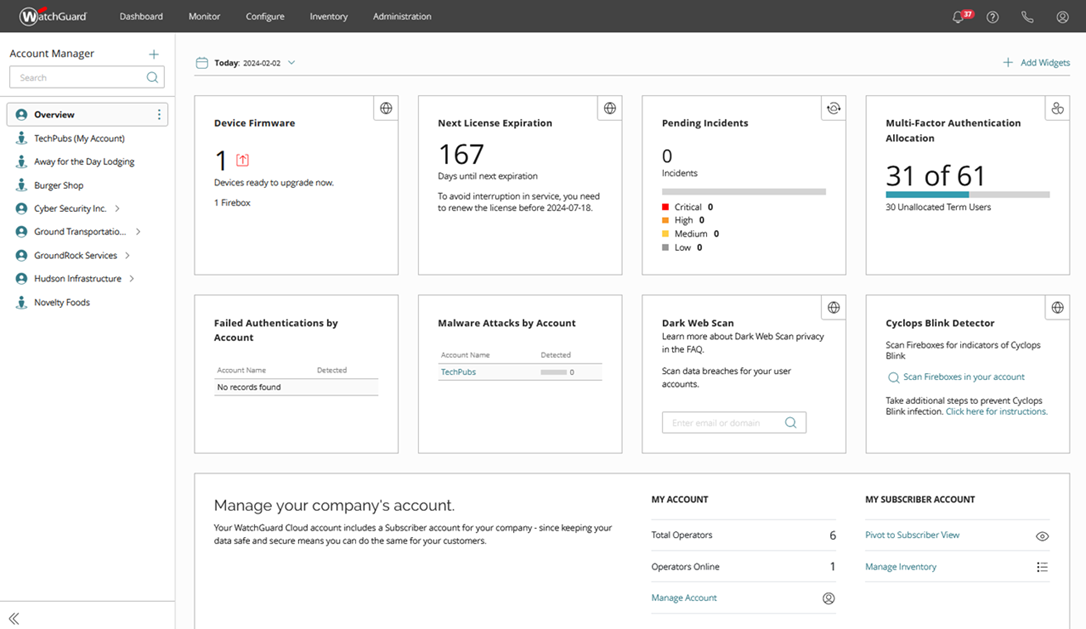
From the left pane of the user interface, Service Provider operators use Account Manager to navigate their managed accounts and devices. Subscriber operators use Device Manager to view and manage their devices. For more information, go to:
- About WatchGuard Cloud Device Manager (Subscribers)
- About WatchGuard Cloud Account Manager (Service Providers)
When you select an account, folder, or device, the page displays content specific to the selection. For more information, go to Device and Account Management.
Menus
At the top of the window, select a menu to view different areas of WatchGuard Cloud.
Dashboards
From the top menu, when you select Dashboard, the Home dashboard shows content specific to the account, folder, or device selected in the left pane.
There are different dashboards for Service Providers and Subscribers:
Service Provider Dashboards
For Service Provider accounts, the dashboards show a quick overview of your Service Provider account and your managed Service Provider and Subscriber accounts.
The Home dashboard provides a quick status view of the products, endpoints, and users in your account and accounts you manage. To open the Subscriber version of the Home dashboard for your account, in Account Manager, select My Account. On the Home dashboard, several widgets show important information and provide useful links. For more information, go to About the Home Dashboard for Service Providers.
The Threats dashboard provides an overview of incident activity in your account and the accounts you manage. An incident is activity that is confirmed to be malicious, and can be as simple as an indicator of compromise, or as complex as an indicator of attack that sequences behaviors to determine malicious intent. On the Threats dashboard, several widgets show important information and provide useful links. For more information, go to About the Threats Dashboard.
For more information, go to About Service Provider Dashboards.
Subscriber Dashboards
For Subscriber accounts, the dashboards show aggregated information to give you a quick overview of a single account. Several widgets on the page display key metrics and important information. Click the title of any widget to see more detailed information.
For more information, go to About the Dashboards for Subscriber Accounts.
Monitor and Configure Menus
The Monitor and Configure menus provide direct access to your WatchGuard products. The options available in each menu depend on the account, folder, or device selected in the left pane.
From the Monitor menu, you can monitor ThreatSync, Fireboxes, access points, endpoints, and products such as AuthPoint, Endpoint Security, CloudDR, and NDR. You can monitor the live status and activity of all connected devices (Fireboxes and access points).
From the Configure menu, you can manage and configure ThreatSync, devices, products such as AuthPoint, Endpoint Security, CloudDR, and FireCloud, deployment of the WatchGuard Agent, and shared configurations such as access point sites, directories and domain services, Firebox templates, splash pages, and VPNs.
Inventory Menu
The Inventory menu is only available to Service Provider accounts. Product or service licenses activated at www.watchguard.com show in your WatchGuard Cloud inventory.
From the Inventory menu, Service Providers can review inventory summaries, allocated and unallocated devices and products, as well as license information. They can allocate users and endpoints from available licenses and specify the license expiration date. The options available depend on the account, folder, or device selected in the left pane.
For more information, go to Inventory Management.
Administration Menu
From the Administration menu, you can configure settings for your WatchGuard Cloud account, and see license information about the products you manage in WatchGuard Cloud.
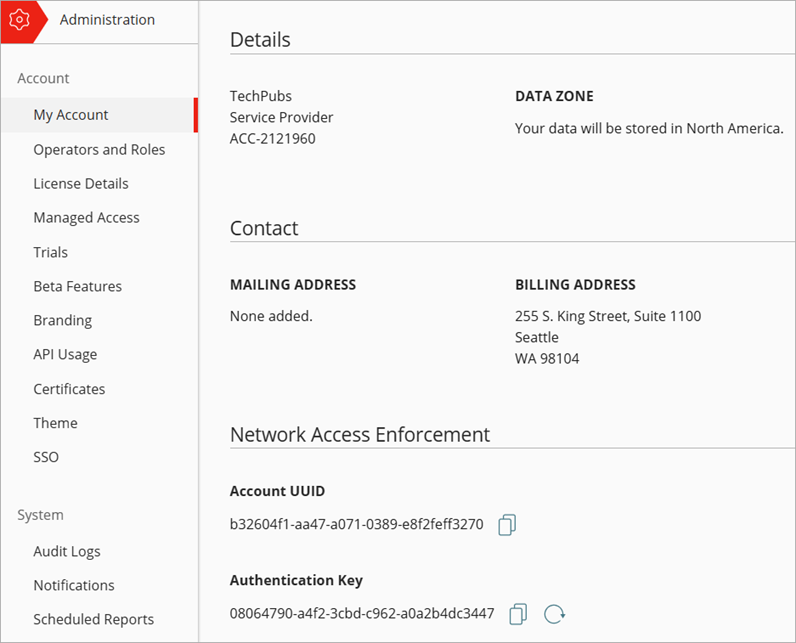
You can also configure account-level features for:
- Managed access — On the Managed Access page, you manage external access to your WatchGuard Cloud account and services.
- Trials — On the Trials page, Service Providers can start free 30-day product trials for their account and accounts they manage.
- Beta features — On the Beta Features page, you can preview new functionality and applications.
- Custom branding — On the Custom Branding page, you can brand WatchGuard Cloud with your own logos and images to communicate with clients and users and make sure they know who to contact in the event of service issues.
- API usage — On the API Usage page, you monitor WatchGuard public API usage statistics for your account.
- Certificates — On the Certificates page, you manage your account level certificates.
- Audit logs, notifications, and scheduled reports — On the Audit Logs, Notifications, and Scheduled Reports pages, you can monitor your account, products, and services. You can view announcements, and add and download scheduled reports.
In the Operator Preferences section, you can specify a color theme and language for the WatchGuard Cloud interface. For more information, go to:
Alerts
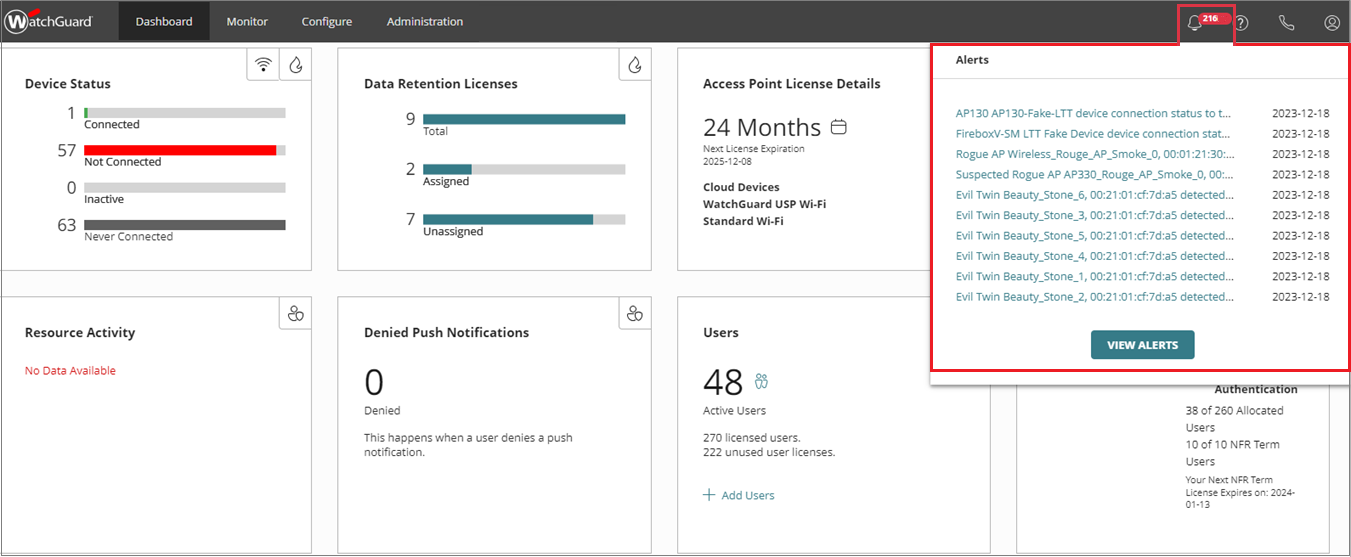
Alerts are notifications about your account or about specific events that occur in WatchGuard Cloud, products, or devices. For example, you can receive an alert for events such as when you successfully delegate your account or when a Firebox feature key will expire. Alerts make sure that you are aware of any significant changes that affect your account, licenses, products, or devices.
For more information, go to Manage WatchGuard Cloud Alerts for Subscribers.
In the top menu, if there are active alerts for your account, you see a red indicator next to the alerts icon ( ) located in the top, right corner. This shows the number of active alerts.
Help Resources Menu
To access the help resources menu, make sure that you first enable analytics cookies in WatchGuard Cloud. To enable analytics cookies, from the Account menu, select Cookie Settings. Enable the Analytics Cookies toggle.
In the top menu, click  to open the help resources menu. Click × to close the menu.

If the browser has an ad-blocker enabled, the help resources menu might not open. Disable the ad-blocker to open the menu.
From this menu, you can select:
- Help Center — Opens the corresponding help page for the current user interface.
- Announcements — Shows a list of the most recent WatchGuard Cloud announcements. You can search for a keyword in an announcement.
- Release Notes — Opens the general Release Notes page at WatchGuard.com.
- Technical Search — Opens the Technical Search page at WatchGuard.com. Technical Search is a tool that searches all of WatchGuard's technical content, including the Knowledge Base, Help Center, videos, the WatchGuard Community, blog posts, and more.
- System Status — Opens the Status page for WatchGuard global services and core systems (status.watchguard.com).
- Give Feedback — Opens the WatchGuard Idea Portal where you can provide feedback on ideas, see where ideas are in the development roadmap, and submit new ideas and suggestions.
- Feedback Email Settings — You can specify email notification settings for feedback provided in the Idea Portal. Enter an email address to receive email updates from our product team on features you voted on or feedback you submitted through the Idea Portal. For information on how to request enhancements or new features through the Idea Portal, go to the Knowledge Base article.
- Integration Guides — Opens a list of all integration guides available in Help Center.
Access to the WatchGuard Idea Portal
To open the Idea Portal, click the ? icon in the upper-right corner of the WatchGuard Cloud window and select Give Feedback.
If the Idea Portal does not open, make sure that you have enabled analytics cookies in WatchGuard Cloud. To enable analytics cookies, from the Account menu, select Cookie Settings. Enable the Analytics Cookies toggle.
If you use the Microsoft Edge browser with strict tracking prevention enabled to block third-party cookies, you must add exceptions to allow the third-party cookies required by the Resource Center.
Go to edge://settings/privacy/trackingPrevention/trackerExceptions and add these exceptions:
- www.watchguard.com
- usa.cloud.watchguard.com
Account Information
In the top menu, click  to open My Account information. From this drop-down menu, you can view the User Name and Account Name.

To open the My Account page, click My Account. For more information, go to See My Account Information.
You can also change the account password and change the email address. For more information, go to Change Your User Account Password and Change Your User Account Email Address.
To log out the current operator from WatchGuard Cloud, click Log Out. For more information, go to Log In and Log Out of WatchGuard Cloud.
About Cookie Settings
WatchGuard Cloud stores cookies on your browser to collect information that might relate to you, your preferences, or your device. This information is mostly used to make WatchGuard Cloud work as you expect it to and to provide a more personalized experience.
To review and update the cookie security settings, click Cookie Settings. (To open Cookie Settings, WatchGuard Cloud must be able to access cdn.cookielaw.org.)
For more information on cookies in WatchGuard Cloud, go to this Knowledge Base article: WatchGuard Cloud Service Cookie Notice. (external link)
Get Started in WatchGuard Cloud