Applies To: PSInfoViewer
The Product Support Info Viewer (PSInfoViewer) enables you to open reports generated by the Product Support Info (PSInfo) tool. For information on how to get started with PSInfoViewer, go to Install and Open PSInfoViewer.
PSInfo creates .7Z files with information from the affected endpoint. For information on PSInfo, go to About PSInfo.
With PSInfoViewer, you can review this information to help troubleshoot problems on your endpoints that run supported WatchGuard products. If you cannot resolve or determine the issue from the data available in PSInfoViewer, you can open a support case. For more information, go to Create a Support Case in PSInfoViewer.
PSInfoViewer Window
PSInfoViewer displays support-related information from the .7Z file on the Overview, Basic, and Advanced pages. To open a .7Z file, click  . For more information, go to Install and Open PSInfoViewer.
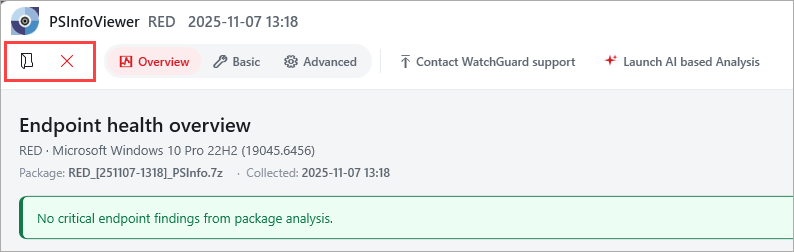
By default, the date and time of the information in the .7Z file is based on the local time of the endpoint device. For information on how to set the time zone, go to Set the Time Zone in PSInfoViewer.
In a future version of PSInfoViewer, you will be able to click Launch AI Based Analysis to start an AI analysis of the PSInfo file.
Overview
The Overview page shows an endpoint health overview for the endpoint in the PSInfo file. You can quickly review open issues, agent status, protection status, and the number of collected files. Expand the System, WatchGuard Agent, and Protection sections for more details. The Overview page also includes Important Conditions, URL Connectivity, and summary sections for event logs, patch and software status, and disk usage.

System
Review computer name, operating system, last boot time, domain DNS, and region information for the endpoint.
WatchGuard Agent
Review the WatchGuard Agent version, service status, Account ID, Device ID, Site ID, and install path. To open related agent files from the PSInfo package, click Open Agent Files.
Protection
Review the installed protection product, protection version, service status, and account ID.
Important Conditions
Review findings that indicate potential issues on the endpoint. Each finding shows a severity level and a short description. Select a finding to review more details.
URL Connectivity
Review the results of URL connectivity checks required for WatchGuard products. The summary shows how many URL checks passed, failed, or returned notices across each category. To review the full results, click Open URL Connectivity.
Event Log Snapshot
Review a summary of errors and warnings from the Windows event log. This includes the top error source and top error overall, and the top WatchGuard-related error source and error.
Patch & Software
Review the number of available Windows updates and the installation status of related WatchGuard products and features, such as AuthPoint and FireCloud.
Disk Usage
Review free and total disk space on the system drive and additional volumes, and the number of collected files in the PSInfo package.
Basic
On the Basic page, review detailed support information from the PSInfo package.
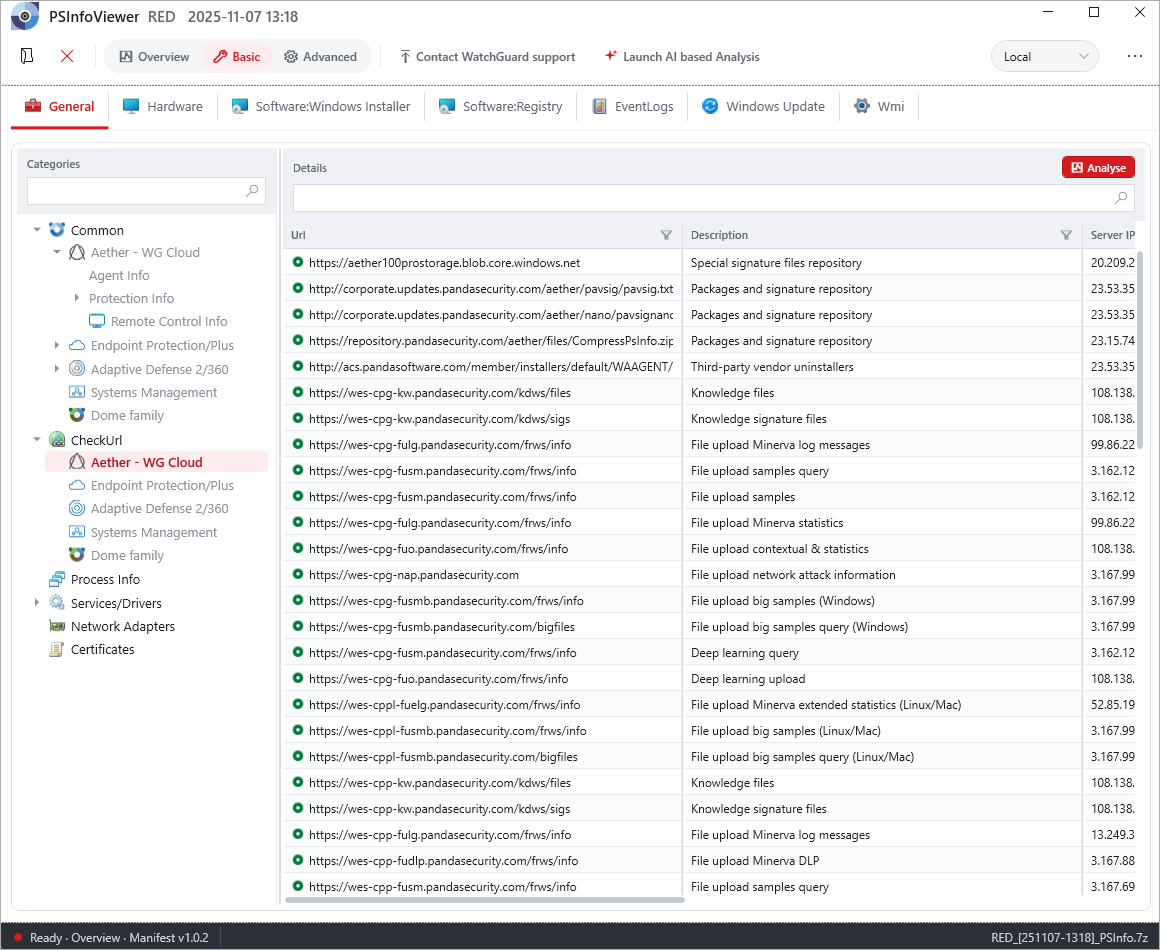
Information on the Basic page is divided into these tabs:
On each page, use the Categories and Details search boxes to search for specific information. Click Analyse to show the information as a dashboard.
General
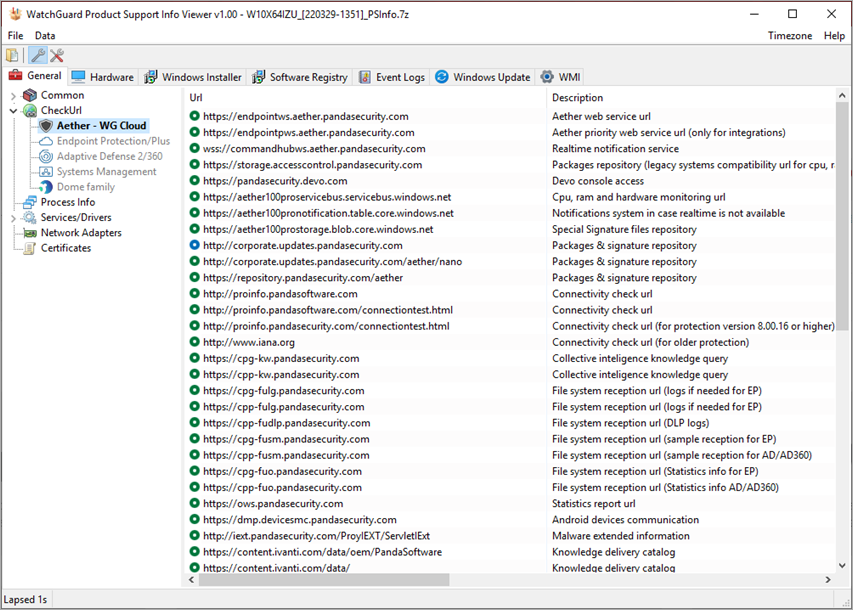
On the General page, you can review general information on the affected computer and selected endpoint security product.
Common
To review general information for the endpoint, select Common, thenthe product. Expand the product name to view specific information (for example, WatchGuard Agent or protection information). You can use this information to verify that the endpoint has the latest version of the software installed.
Check URL
To verify the endpoint has access to all of the URLs required by the WatchGuard Agent, select Check URL, then the product. This information can be helpful to resolve license activation and expiration issues.
For a complete list of URLs, go to WatchGuard Cloud URLs and Network Access Requirements.
Process Info
To view a list of the processes that run on the computer, select Process Info. This information includes the percentage of CPU and the amount of memory the process uses.
Services/Drivers
To view lists of the services or drivers that run on the computer, select Services/Drivers. This includes the state and start type, as well as any dependencies and the load order.
You can use this information to verify that all endpoint security product services are installed and running.
Network Adapters
To view information related to the network adapters on the computer, select Network Adapters.
Certificates
To review certificate information, select Certificates.
Hardware
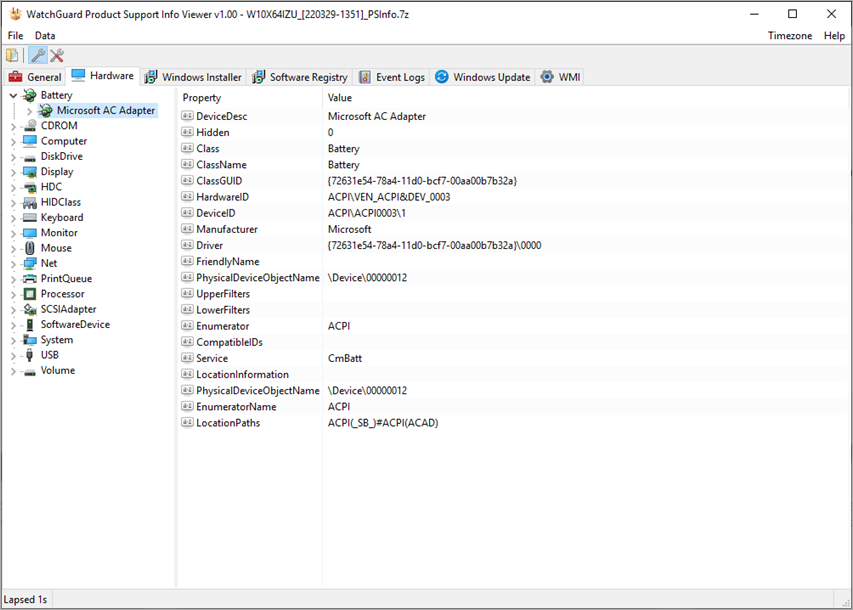
On the Hardware page, you can review information on the hardware devices on the computer (for example, audio endpoint, battery, camera, disk drives, and firmware). Select a device to review the available properties and values.
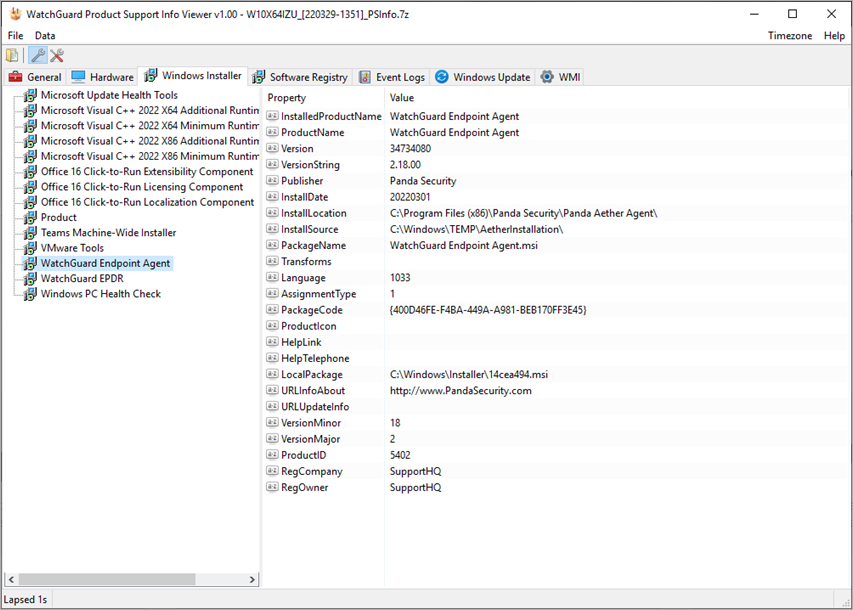
Software: Windows Installer
On the Software: Windows Installer page, you can review information on software that was installed, upgraded, fixed, or uninstalled by the Windows Installer. Select a product to review installation properties and values.
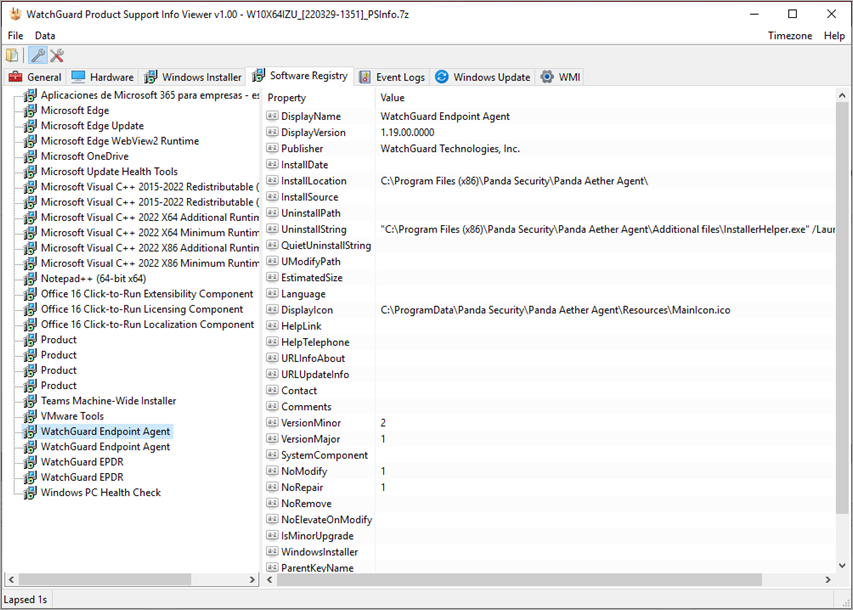
Software: Registry
On the Software: Registry page, you can review information from the Uninstall registry key (HKEY_LOCAL_MACHINE\Software\Microsoft\Windows\CurrentVersion\Uninstall\). This key contains information on all installed software, including software that was installed by the Windows Installer as well as external and custom installer systems.
Select a software product to review the installation properties and values that could be useful to uninstall or repair an installation.
Event Logs
On the Event Logs page, you can review information registered in the Windows event log. The Windows event log is a detailed record of system, security, and application notifications stored by the Windows operating system that administrators can use to diagnose system problems and predict future issues.
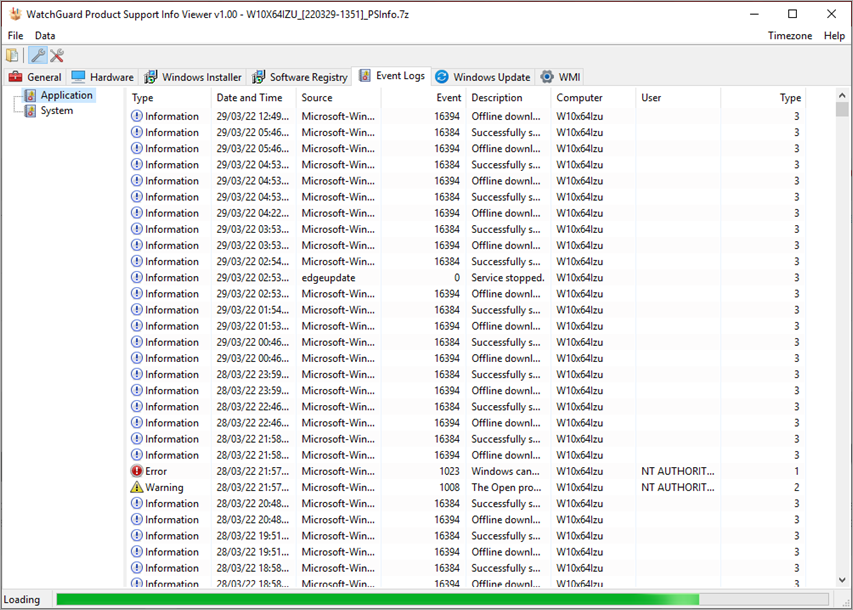
- To review application events, select Application.
- To review system events, select System.
When you troubleshoot protection errors, review the application events for product errors. For installation and upgrade errors, review the application events for MSI Installer error messages.
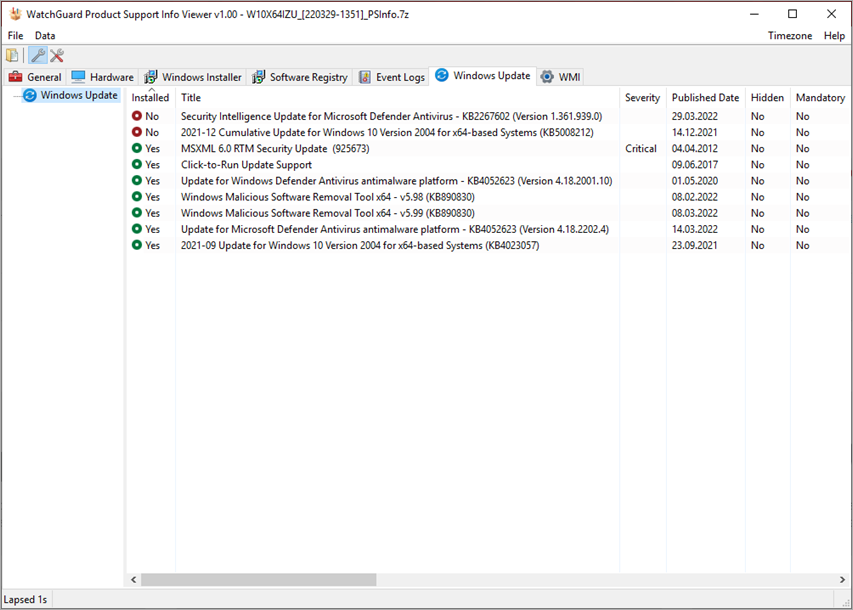
Windows Update
On the Windows Update page, you can view a list of Microsoft security patches installed on the computer.
WMI
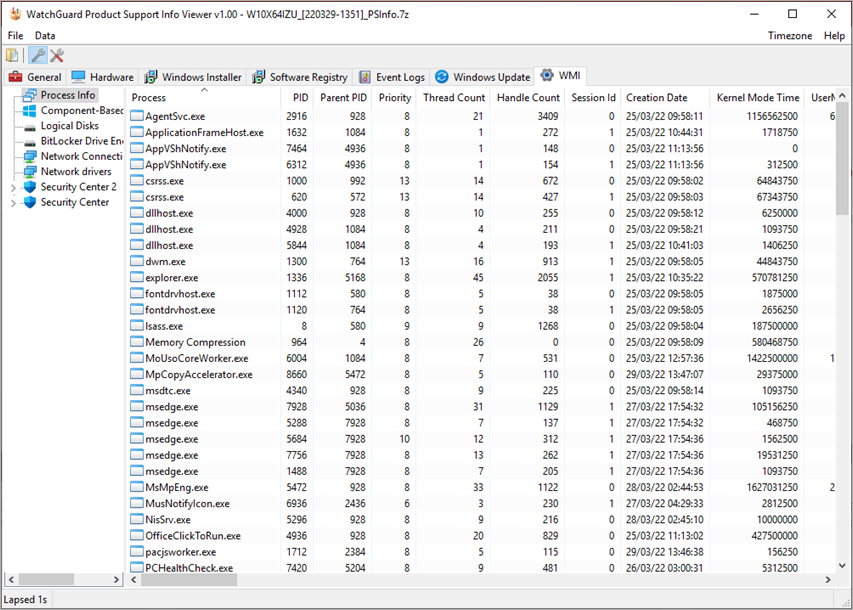
On the WMI page, you can view a list of processes on the computer, component-based servicing (or quick fix engineering) information, disk information, and Windows Security Center-related information. From the left pane, select the area to review. This tab includes information on Microsoft Knowledge Base (KB) updates that were installed separately from a Windows update.
Advanced
On the Advanced page, you can review additional information on the endpoint and the installed products, including:
From the Collected Files tab, you can see this information:
- Dir — Review the directory listings of the WatchGuard Agent and security product folders.
- Files — Review relevant log and configuration files from the endpoint security product and Windows folders.
- Reg — Review registry information that is useful for troubleshooting.
- PSInfo.log — Review the log generated when the PSInfo tool started.

Use the search text box to find text on the page. Click Highlight to highlight matches, then click Next to move to the next match.