Applies To: PSInfoViewer
Install PSInfoViewer to review troubleshooting files created from the Product Support Information (PSInfo) tool. For information about the PSInfoViewer interface, go to About PSInfoViewer.
For information on the PSInfo tool, go to About PSInfo.
System Requirements
To run and review files in PSInfoViewer, make sure that your computer meets these system requirements:
- Minimum Requirements: Windows 7, 2 GB RAM
- Recommended: Windows 10 or higher, 4 GB RAM or more
Start PSInfoViewer
To download and start PSInfoViewer:
- Download PSInfoViewer from: https://cdn.watchguard.com/SoftwareCenter/Files/ENDPT_SW/0_2/94f08db2f5242428/PSInfoViewerV2.zip.
- Extract the contents of the .ZIP file. The password is panda.
- Double-click the PSInfoViewer.exe file.
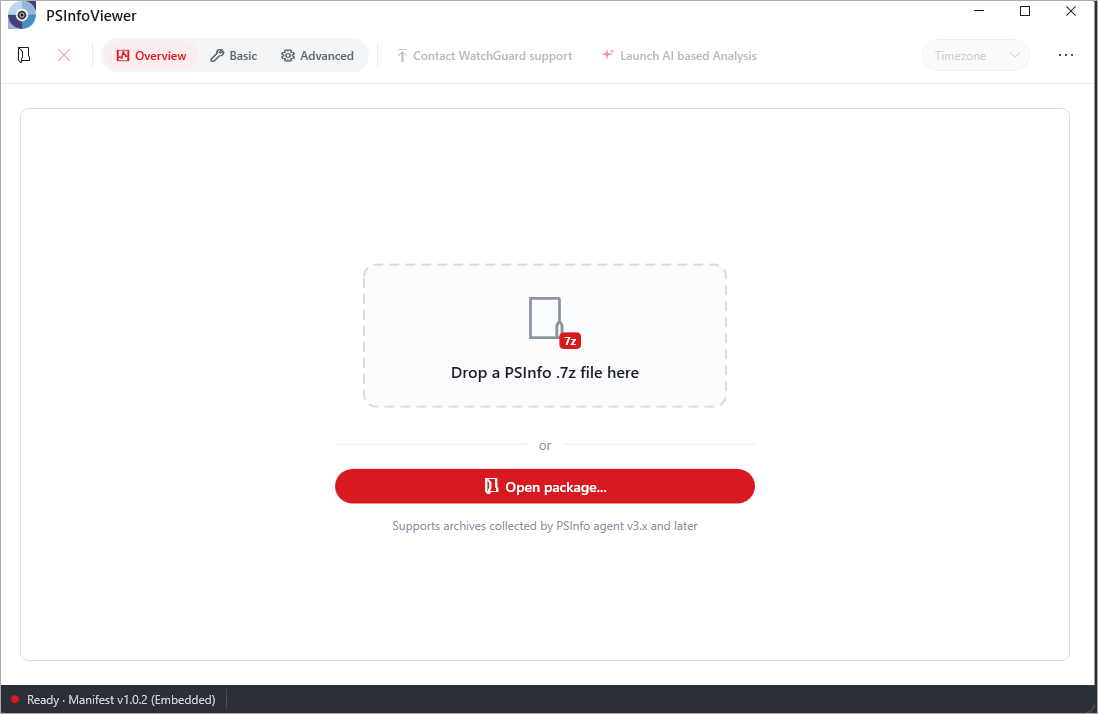
The PSInfoViewer window opens.
Open a .7Z File in PSInfoViewer
PSInfo collects support-related information that you can then use to escalate a WatchGuard or Panda support case. The troubleshooting file uses the .7Z file format. Open the .7Z file in PSInfoViewer to review the logs and information within.
To open a .7Z file in PSInfoViewer:
- Drag a .7Z file to the window, or click Open Package and select the .7Z file. You do not have to extract the contents of the file first. PSInfoViewer supports archives collected by PSInfo v3.x and higher.
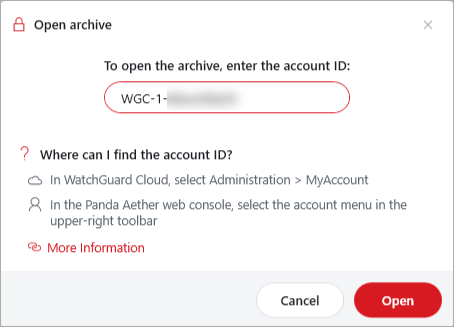
- Enter the account ID associated with the file. The account ID is the account number of the account with the affected endpoint.
- For WatchGuard Endpoint Security products such as Endpoint Security Elite, 360, Prime, EDR, or Endpoint Security Basic, the account number is available in WatchGuard Cloud on the Administration > My Account page.
- For Panda products such as Adaptive Defense 360 or EPP, the account number is available in the Panda Aether web console from the account menu in the upper-right toolbar.
- Click Open.
PSInfoViewer opens the extracted data and shows the Overview page.

You can change the time zone of the data displayed in the window. For more information, go to Set the Time Zone in PSInfoViewer.