To install the plug-in for ConnectWise RMM, WatchGuard provides an onboarding application to connect to the WatchGuard API and map accounts between WatchGuard and ConnectWise RMM.
The interface for the onboarding application is divided into these sections:
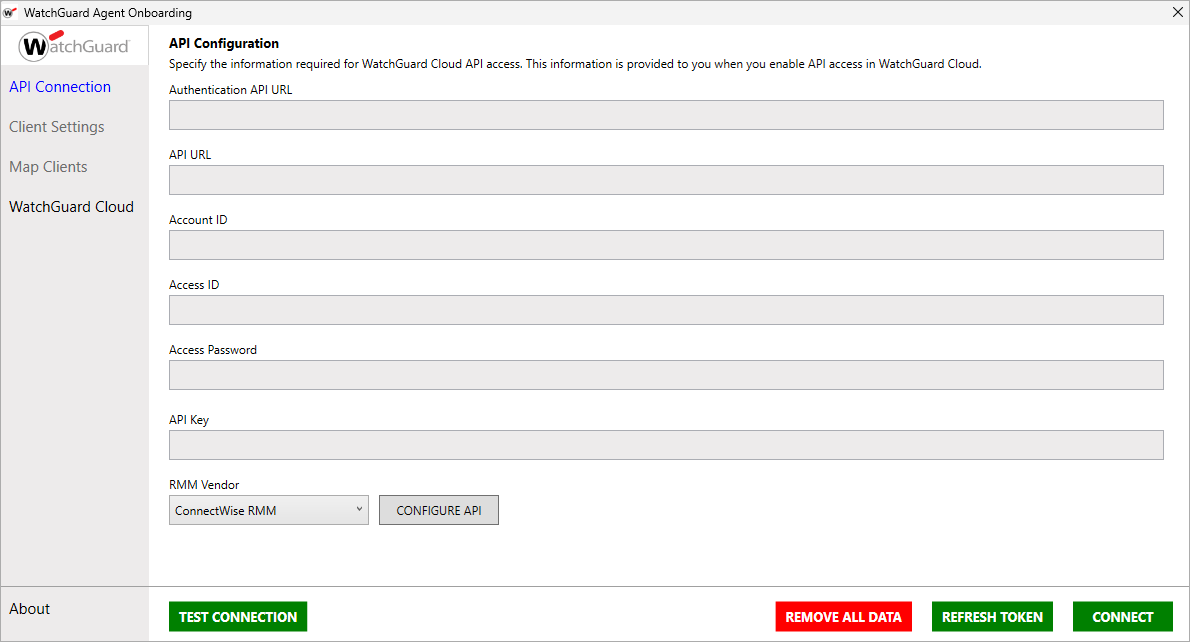
API Connection
Use the API Connection page to connect the plug-in with your WatchGuard Cloud account. The API Connection page has two sections:
Administrator Login
To establish the connection to ConnectWise RMM, use the Administrator Login interface to enter the authentication and API URLs, and the access ID and password, as well as the API key you received when you enabled API access in WatchGuard Cloud.
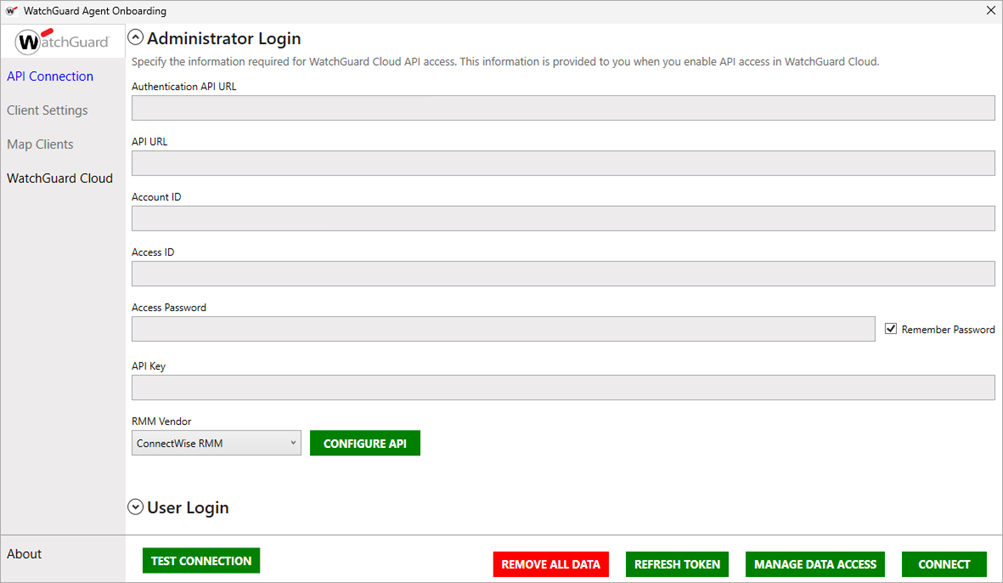
When you are logged in as an administrator, you can use the onboarding application to:
- Manage Data Access — For more information, go to Manage Data Access.
- Manage Client Settings — For more information, go to Client Settings.
- Map Clients — For more information, go to Map Clients.
- Manage the Plug-in — For more information, go to Manage the WatchGuard Agent Plug-in for ConnectWise RMM.
For more information on how to establish the connection between WatchGuard Cloud and ConnectWise RMM, go to Configure the WatchGuard Cloud and ConnectWise RMM Connection. For more information about additional actions you can perform in the Administrator Login interface, go to Manage the WatchGuard Agent Plug-in for ConnectWise RMM.
User Login
When an administrator invites a user to register a device and establish the connection between WatchGuard Cloud and ConnectWise RMM, the user can log in and manage clients and mappings in the onboarding application from the User Login interface. This interface only requires a registration code to establish the connection, instead of potentially sensitive authentication information and keys. Administrators send email invitations to users from the Manage Data Access interface.
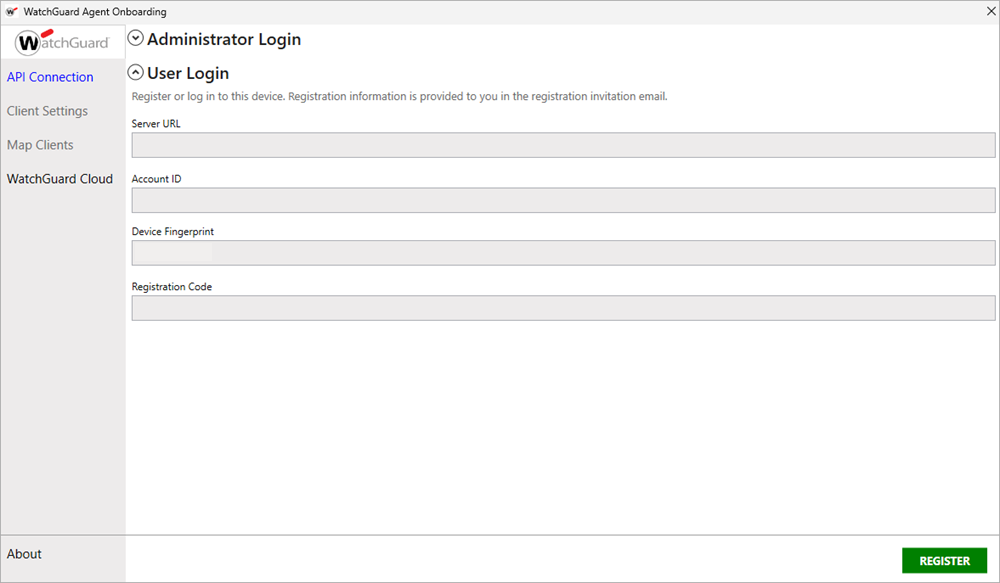
When you are logged in as a user, you can use the onboarding application to:
- Manage Client Settings — For more information, go to Client Settings.
- Map Clients — For more information, go to Map Clients.
For more information on how to establish the connection between WatchGuard Cloud and ConnectWise RMM, go to Configure the WatchGuard Cloud and ConnectWise RMM Connection.
Client Settings
Use the Client Settings page to specify the network settings for the client devices in your managed accounts. You can also copy script parameters for an account and download a .CSV file with the network settings and script parameters for your WatchGuard Cloud accounts.
For more information, go to Export Client Settings.
Map Clients
Use the Map Clients page to associate ConnectWise RMM company accounts with accounts you manage in WatchGuard Cloud. For more information, go to Map ConnectWise RMM and WatchGuard Cloud Accounts.
WatchGuard Cloud
To open the WatchGuard Cloud login page at cloud.watchguard.com, click WatchGuard Cloud. You can use this page to manage your WatchGuard Cloud account while you use the plug-in. You must log in with your credentials if you are not already authenticated to WatchGuard Cloud.
About
The About page shows information about the plug-in version, build date and time, links to the WatchGuard Endpoint Security documentation, and a link to the WatchGuard website.
Install the WatchGuard Agent Plug-in for ConnectWise RMM
Configure the WatchGuard Cloud and ConnectWise RMM Connection