In the onboarding application, the Map Clients page shows these tabs:
- Mapped Clients — The WatchGuard Cloud client accounts mapped to a ConnectWise RMM vendor client.
- Unmapped Clients — The WatchGuard Cloud clients not mapped to a ConnectWise RMM vendor client.
On each tab, the WatchGuard Client column shows the WatchGuard Cloud client account. TheVendor Client column shows the ConnectWise RMM clients returned by the ConnectWise RMM API. The provided scripts are used to automate agent installation when you have manually mapped accounts to the custom fields.
Vendor Client information updates periodically through the ConnectWise RMM API connection.
To map the WatchGuard Cloud client account with a ConnectWise RMM vendor client, from the onboarding application:
- Select Map Clients.
The Map Clients page opens. The page can take a few minutes to load.

- Select the Unmapped Clients tab.
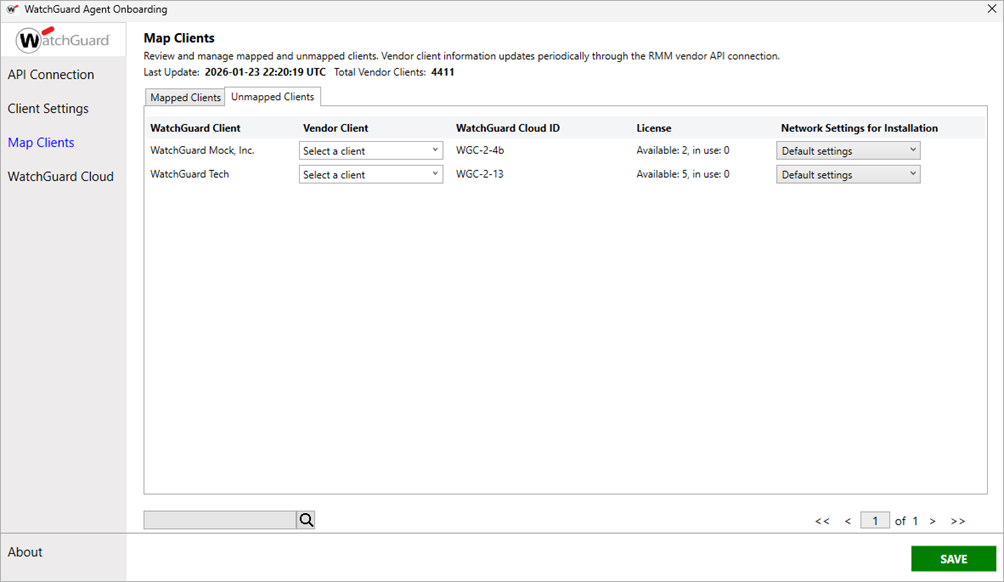
- From the Vendor Client drop-down list, select the ConnectWise RMM vendor client to associate with the selected WatchGuard client account.
- The WatchGuard Cloud ID column shows the WatchGuard Cloud account ID of the selected account.
- The License column shows product license use and availability for the selected WatchGuard account.
- (Endpoint Security licenses only) From the Network Settings drop-down list, select the network settings profile to assign to this client.
For clients with an Endpoint Security product license, the network settings contain the necessary network information such as proxies, cache, and discovery services required to install the Endpoint Security product, and are configured in the Endpoint Security product management UI. For information on network settings profiles, go to Configure Network Settings in the Endpoint Security Help.
- Click Save.
- Click OK.
- Repeat these steps for all ConnectWise RMM companies you want to map. When you finish, close the onboarding application.
If you are logged in as an Administrator, the plug-in calls the API to automatically create and update these custom fields in the ConnectWise RMM after you save the mappings:
- WatchGuard Account ID (Service Provider account ID)
- WatchGuard Token (API key)
Troubleshooting
If your WatchGuard managed accounts do not appear in the WatchGuard Client list for an account, check the following:
- The account has an active product license for one of these WatchGuard Cloud products:
- Endpoint Security Elite
- Endpoint Security 360
- Endpoint Security Prime
- Endpoint Security Basic
- Endpoint Detection and Response (EDR)
- EDR Core
- The account has users or endpoints allocated from the product license.
- You have users or endpoints available for allocation or an unlimited license (the account is not overallocated).
Configure the WatchGuard Cloud and ConnectWise RMM Connection