From the Administrator Login interface in the onboarding application, you can perform these actions:
Test the Connection
You can use the Test Connection function in the onboarding application to troubleshoot issues with the API connection. When you test the connection and there are connection issues, an error message appears with information about the cause.
We recommend that you test the connection before you try to connect the plug-in and ConnectWise RMM for the first time.

- Select API Connection.
- Select Administrator Login.

- Click Test Connection.
If the connection is successful, a confirmation message opens.
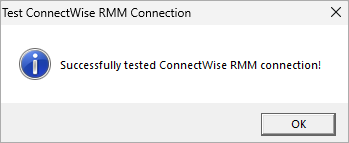
- Click OK.
Manage Data Access
An Administrator can use the Manage Data Access feature in the onboarding application to invite and manage device users. After registration, the user can log in and manage client settings and map clients in the onboarding application.
- Select API Connection.
- Select Administrator Login.
- Click Manage Data Access.
The Manage Data Access window opens. - Click Add Invitation.

- In the text box, enter the email address of the user you want to invite, then click Send Invitation.

Remove Devices Users
Administrators can also use the Manage Data Access interface to review and remove registered device users.
- Select API Connection.
- Select Administrator Login.
- Click Manage Data Access.
The Manage Data Access window opens. - Select a user from the list and click the number in the Registered Devices column for that user.
The Registered Device Users window opens for that user.
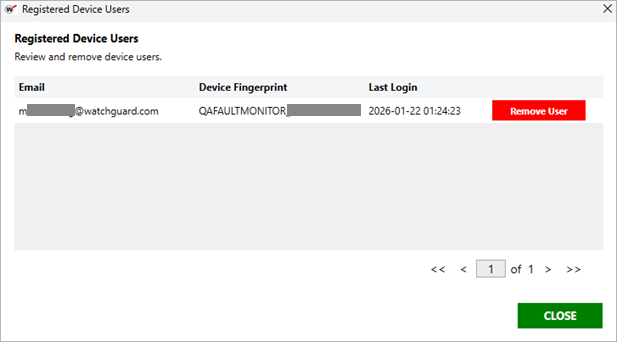
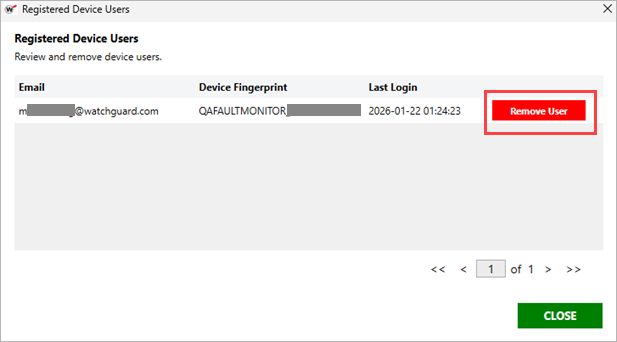
- Select the device for the user you want to remove, then click Remove User.
- Click OK.
Refresh the API Token
If you detect or suspect a security breach, you can use the onboarding application to change the API token for the plug-in.
- Select API Connection.
- Select Administrator Login.
- Click Refresh Token.

- Click Yes.
The token used to authenticate with the WatchGuard API refreshes. After you refresh the token, we recommend that you save your client mappings.
- Select API Connection.
- Click Connect.
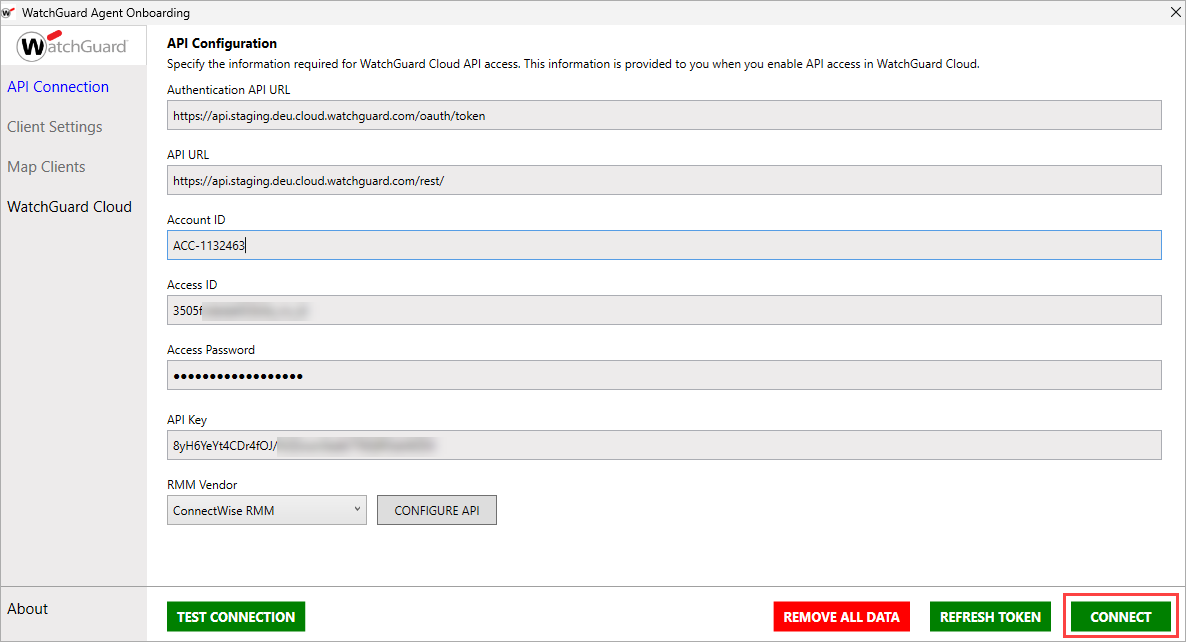
- In the confirmation dialog box, click Yes.

- Select Map Clients from the left navigation menu.
- Click Save.
Remove Data and Uninstall the Plug-in
When you remove the plug-in, you delete the API connection and all data shared between WatchGuard Cloud and ConnectWise RMM. We recommend you remove all data before you uninstall the plug-in.
- From the onboarding application, select API Connection.

- Click Remove All Data.
A confirmation message opens. - To confirm that you want to remove all plug-in data, click Yes.
This removes all connections and data related to the integration. - In the ConnectWise RMM tool, manually remove downloaded WatchGuard scripts, tasks, and custom fields.
Install the WatchGuard Agent Plug-in for ConnectWise RMM
Configure the WatchGuard Cloud and ConnectWise RMM Connection