Applies To: WatchGuard Account
From the Manage Profile page on the WatchGuard website, you can see and manage your WatchGuard account profile.
To see your account profile on the WatchGuard website:
- Go to www.watchguard.com and log in with your WatchGuard user account credentials.

- On the Partner Portal Home page, click Support Center.
- Select My WatchGuard > Manage Profile.
The Manage Profile page opens.
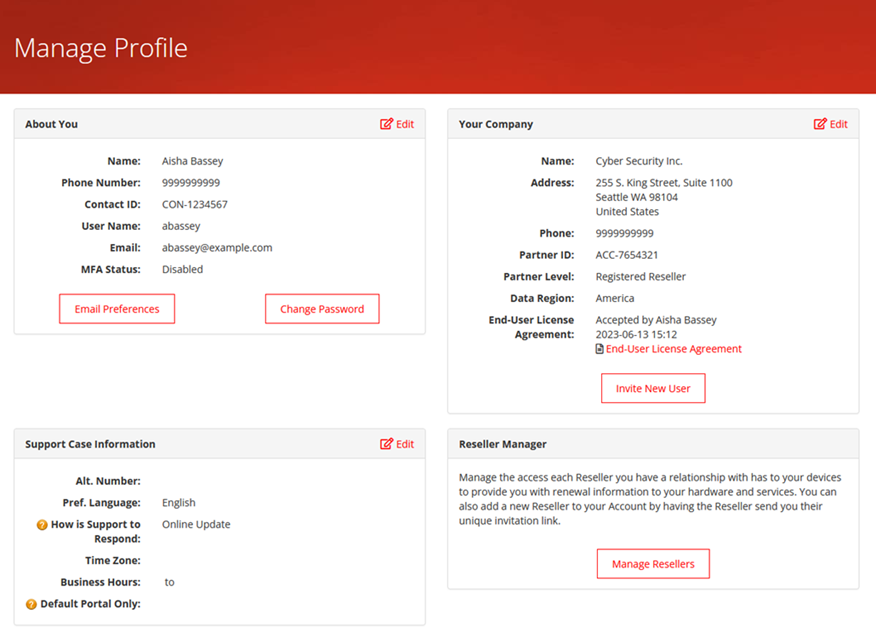
From the Manage Profile page you can:
- Change Your Personal Information
- Change Your Password
- Change Your Email Preferences
- Edit Your Company Information
- View Your End-User License Agreement
- Invite New Users
- Edit Support Case Contact Information
Change Your Personal Information
From the Manage Profile page, you can open WatchGuard Cloud and change your personal information, including your first name, last name, and phone number.
To change your personal information:
- On the Manage Profile page, in the About You section, click Edit.
WatchGuard Cloud opens. - Select Administration > Operators and Roles.
The Operators and Roles page opens.
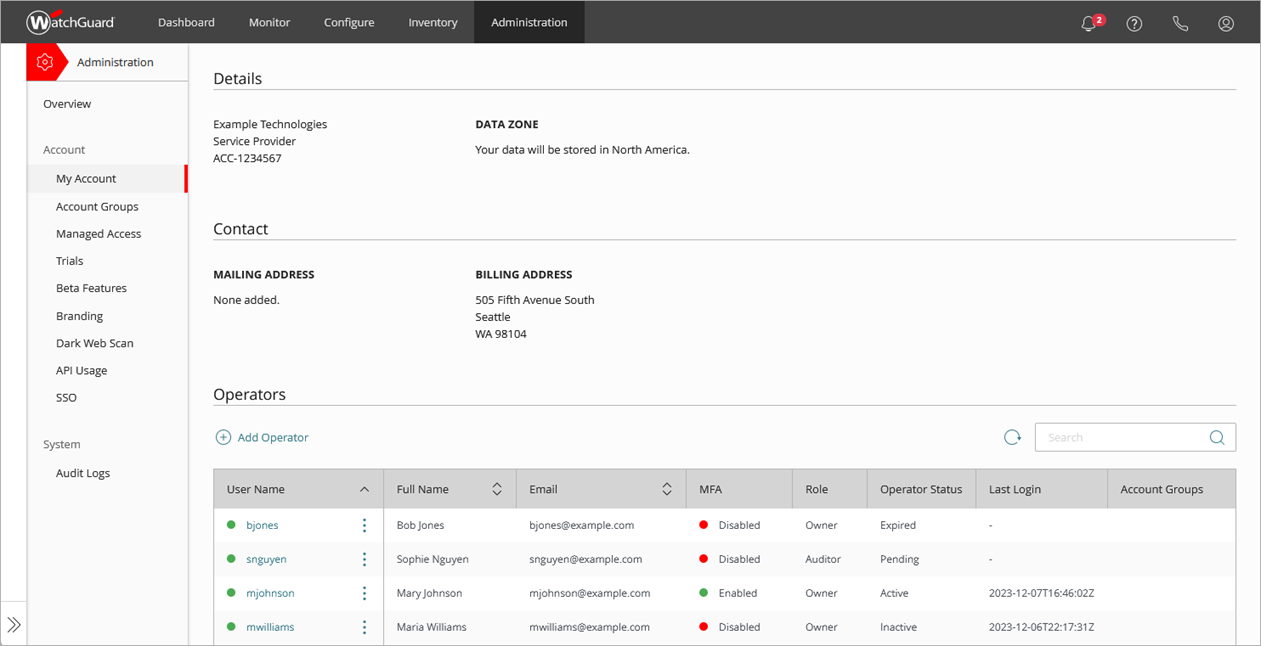
- On the Operators page, select your user name.
- Edit your first name, last name, or phone number.
- Click Save.
Change Your Password
From the Manage Profile page, you can open WatchGuard Cloud and change your password.
To change your user account password:
- On the Manage Profile page, in the About You section, click Change Password.
WatchGuard Cloud opens. - In the upper-right corner, click
 .
.
The My Account menu opens.
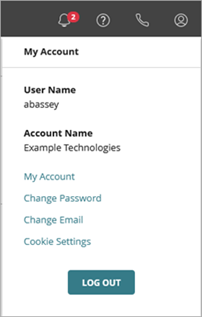
- Click Change Password.
For more information about how to change your password, go to Change Your User Account Password.
Change Your Email Preferences
You can choose to opt out of third-party emails, event invitations, promotional offers, software update alerts, expiration notices, general notices, education notices, and marketing emails.
To change your email preferences:
- On the Manage Profile page, in the About You section, click Email Preferences.
The Email Preferences window opens.
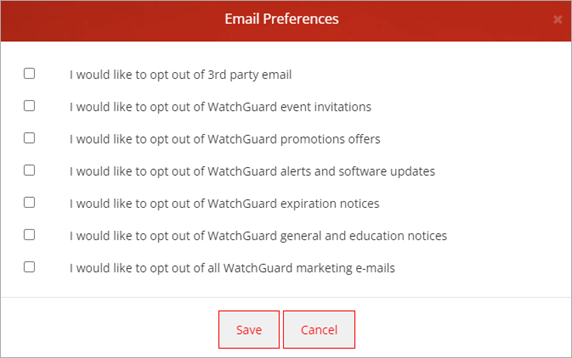
- To opt out of an email category, select the check box. To opt in, clear the check box.
- Click Save.
Edit Your Company Information
You can edit your company phone number from the Your Company section of the Manage Profile page.
To edit additional company information, you must contact WatchGuard Support.
To edit your company phone number:
- On the Manage Profile page, in the Your Company section, click Edit.
The Edit Your Company Info window opens.
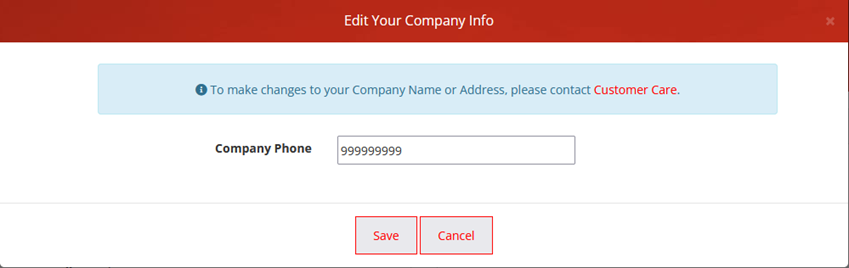
- In the Company Phone text box, enter your phone number.
- Click Save.
View Your End-User License Agreement
In the Your Company section, you can see the WatchGuard End-User License Agreement (EULA), who accepted it, and when it was accepted.
To see your end-user license agreement:
- On the Manage Profile page, in the Your Company section, click End-User License Agreement.
The EULA document opens in a new browser tab.

You can see who at your company accepted the end-user license agreement and when it was accepted in the End-User License Agreement row.
Invite New Users
If your Service Provider account has the Admin role, you can invite new users to join your account as operators in WatchGuard Cloud.
To invite a new user:
- From the Manage Profile page, click Invite New User.
WatchGuard Cloud opens. - In the upper-right corner, click .
The My Account menu opens.
- Click My Account.
The My Account page opens. - In the Operators section, click Add Operator.
For more information on how to create and manage users, go to Add Operators to Your Account.
Edit Support Case Contact Information
The Support Case Information section shows your contact preferences for support cases that you open. You can change how WatchGuard Support contacts you when you open a case.
To edit your support case preferences:
- On the Manage Profile page, in the Support Case Information section, click Edit.
The Support Info window opens.

- Edit this information for your account, as needed:
Alt. Number
Enter an alternate phone number for WatchGuard Support to use when they cannot reach you with the phone number listed in the About You section.
Pref. Language
Select your preferred communication language from the drop-down list.
How is Support to Respond
Select your preferred method to receive case updates from WatchGuard Support. You can select:
- Online Update — Receive an email message from WatchGuard Support when they update your case.
- Return Phone Call — Receive a phone call from WatchGuard Support when they update your case.
- No Preference — The WatchGuard Support team member assigned to your case determines whether to call or email message when they update your case.
Time Zone
Select your time zone from the drop-down list.
Business Hours
Select the hours when you are available for calls from the Available From and Available To drop-down lists.
Default Portal Only
Select whether you want case update email messages from WatchGuard Support to include case update details, or only a link to your case. You can select:
- Yes — All case update email messages contain only a link to your case.
- No — All case update email messages contain a link to your case and the case update details.
- Click Save.
Manage Resellers
Click Manage Resellers to open the Reseller Manager page. Use this page to manage how much of your information the resellers associated with your WatchGuard account can see.
For more information on how to manage resellers, go to Manage Resellers on the WatchGuard Website.
Related Topics
Change Your User Account Password
Change Your User Account Email Address