Applies To: WatchGuard Account
On the Reseller Manager page on the WatchGuard website, you can manage how much of your information the resellers associated with your WatchGuard account can see.
To open the Manage Resellers page:
- Go to www.watchguard.com and log in to the WatchGuard website with your WatchGuard user account credentials.
- On the Partner Portal Home page, click Support Center.
- Select My WatchGuard > Manage Profile.
The Manage Profile page opens. - Click Manage Resellers.
The Reseller Manager page opens.

From the Reseller Manager page you can:
Select a Preferred Reseller
You can select one WatchGuard reseller to use as your primary source for WatchGuard products and services. This is your preferred reseller. The preferred reseller can see all devices and licenses registered to you, regardless of where you purchased them, and can see expiration and renewals information. Preferred resellers work directly with WatchGuard to create quotes for your WatchGuard services and renewals.
The Preferred Reseller tab includes all WatchGuard resellers associated with your account. You can select only one preferred reseller for your account.
To select the preferred reseller for your account:
- On the Reseller Manager page, select the Preferred Reseller tab.
- In the Preferred Reseller column, select your WatchGuard preferred reseller.
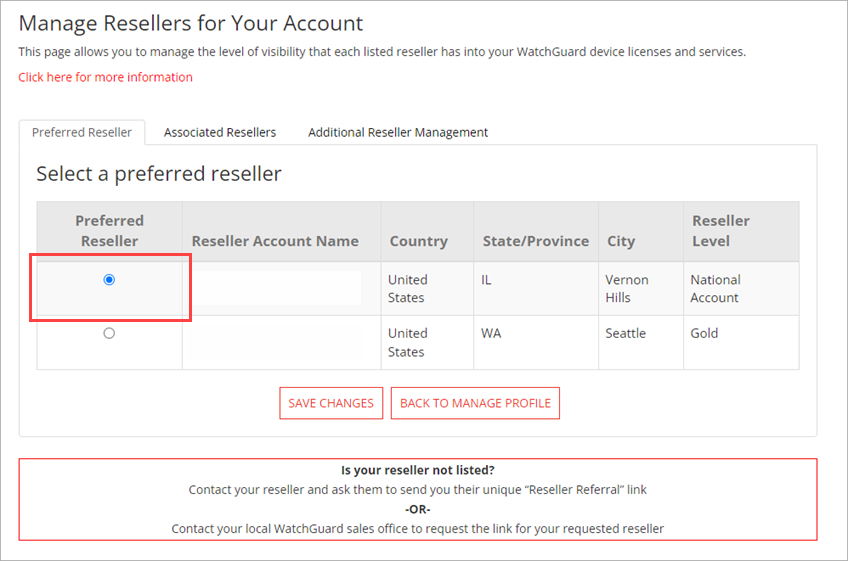
- Click Save Changes.
Select Associated Resellers
After you select your preferred reseller, you can select associated resellers. Associated resellers can see all device licenses registered to your account, regardless of where you purchased them. Associated resellers cannot see your renewal information. You can select multiple associated resellers.
You must select a preferred reseller before you can select associated resellers.
To select associated resellers for your account:
- On the Reseller Manager page, select the Associated Resellers tab.
- In the Associated Reseller column, select your WatchGuard associated resellers.

- Click Save Changes.
Remove Resellers
You can remove resellers from your account on the Additional Reseller Management tab. The resellers listed in this tab either sold you a device, registered a claim on a device, or are resellers you removed from the Additional Resellers list.
To remove resellers from your account:
- On the Reseller Manager page, select the Additional Reseller Management tab.
- In the Remove column, select the WatchGuard resellers you want from remove.

- Click Save Changes.