Applies To: Endpoint Security Elite, Endpoint Security 360, Endpoint Security Prime, WatchGuard EDR, WatchGuard EDR Core, Endpoint Security Basic
Configure security settings profiles to define how Endpoint Security protects the workstations and servers on your network against threats, malware, and network attacks. Some features available in a workstations and servers profile vary by platform.
| Feature | Windows (Intel & ARM) |
Linux |
Mac (Intel & ARM) |
Android |
iOS |
|---|---|---|---|---|---|
| Privacy | Supported | Supported | Supported | Not Supported | Not Supported |
| Network usage | Supported | Supported | Supported | Not Supported | Not Supported |
| Zero-Trust Application Service | Supported | Supported | Not Supported | Not Supported | Not Supported |
| Antivirus protection | Supported | Supported | Supported | Not Supported | Not Supported |
| Windows Anti-Malware Scan Interface (AMSI) | Supported | Not Supported | Not Supported | Not Supported | Not Supported |
| Anti-exploit protection, including code injection and vulnerable driver detection | Supported (Not available on ARM systems) | Not Supported | Not Supported | Not Supported | Not Supported |
| Network attack protection | Supported | Not Supported | Not Supported | Not Supported | Not Supported |
| Advanced security policies and blocked programs (Endpoint Security Elite only) | Supported | Not Supported | Not Supported | Not Supported | Not Supported |
| Firewall and IDS | Supported | Not Supported | Not Supported | Not Supported | Not Supported |
| Web access control | Supported | Not Supported | Supported | Not Supported | Not Supported |
| Global Audit mode | Supported | Supported | Supported | Not Supported | Not Supported |
Settings vary for Endpoint Security Elite, 360, Prime, Basic, WatchGuard EDR, and EDR Core. Throughout this documentation, Endpoint Security refers generally to all products. If a setting is not visible in the Endpoint Security management UI, it is not supported by your product.
Your operator role determines what you can see and do in WatchGuard Cloud. Your role must have the Configure Security for Workstations and Servers permission to view or configure this feature. For more information, go to Manage WatchGuard Cloud Operators and Roles.
To configure a workstations and servers security settings profile:
- In WatchGuard Cloud, select Configure > Endpoint Security.
- Select Settings.
- From the left pane, select Workstations and Servers.
- Select an existing security settings profile to edit, copy an existing profile, or in the upper-right corner of the page, click Add to create a new profile.
The Add Settings or Edit Settings page opens.
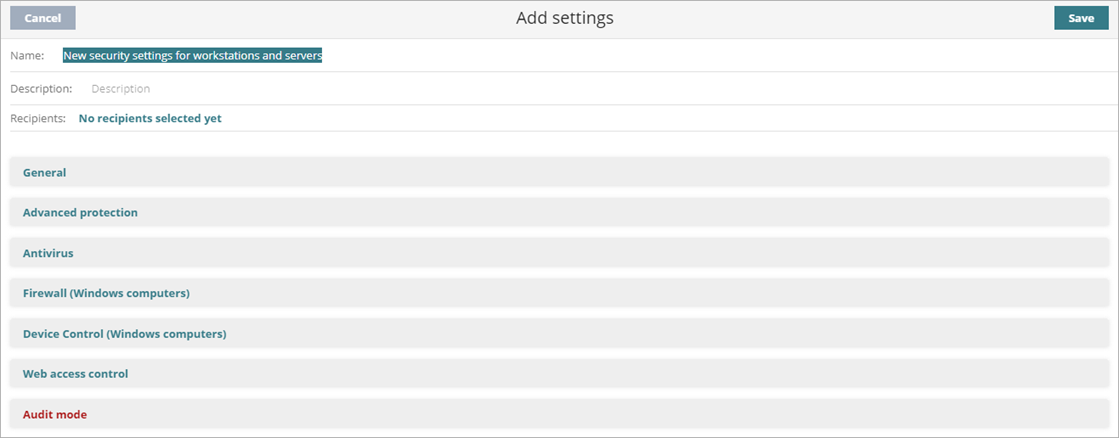
- In the Name text box, type a name for the settings profile.
- (Optional) In the Description text box, type a brief description of the settings profile.
- Select General to configure:
- Local alerts — For more information, go to Configure Local Alerts.
- Updates — For more information, go to Configure Automatic Knowledge (Signature File) Updates.
- Removal of other security products — For more information, go to Automatic Removal of Security Products.
- File and path exclusions from scans — For more information, go to Exclude Files and File Paths from Scans.
We recommend that you only add exclusions for programs that might cause performance issues. When you add an exclusion, Endpoint Security does not scan the specified files and your computers could be at risk of an attack. To make sure that the Zero-Trust Application Service does not block an unclassified program, add it to the Authorized Software list. For more information, go to Configure Authorized Software Settings (Windows Computers). - Privacy — For more information, go to Configure Privacy.
- Network Usage — For more information, go to Configure Network Usage.
- To configure the behavior of the Zero-Trust Application Service, select Zero-Trust Application Service. For more information, go to Configure the Zero-Trust Application Service.
- To configure parameters that control the anti-malware protection against viruses and threats, including decoy files, select Antivirus. For more information, go to Configure Antivirus Scanning.
When you allocate WatchGuard EDR or EDR Core to a new account, and the account does not have a workstations and servers settings profile assigned, the default profile assigned to the All group has decoy files and anti-exploit disabled.
- To configure anti-exploit protection against APTs, targeted attacks, and advanced malware, select Anti-exploit. For more information, go to Configure Anti-Exploit Protection (Windows Computers)
- To configure network attack protection, select Network Attack Protection. For more information, go to Configure Network Attack Protection (Windows Computers).
- (Endpoint Security Elite only) To configure policies to detect and block suspicious scripts and unknown programs that use advanced infection techniques, select Advanced Security Policies. For more information, go to Configure Advanced Security Policies (Windows Computers).
- To configure parameters that control the firewall and the intrusion detection system against network attacks, select Firewall. For more information, go to Configure Firewall Settings (Windows Computers).
- To configure parameters that control user access to the peripheral devices connected to the computer, select Device Control. For more information, go to Configure Device Control (Windows Computers).
- To restrict access to Web content categories and unknown pages, select Web Access Control. For more information, go to Configure Web Access Control.
- To enable global Audit mode, select Audit mode. For more information, go to Configure Audit Mode.
- Click Save.
- Select the profile and assign recipients, if required.
For more information, go to Assign a Settings Profile.
Configure Privacy
Endpoint Security collects the name and full path of the files it sends to the cloud servers for analysis, as well as the name of the logged in user. This information is used in the reports and forensic analysis tools shown in the management UI (console).
By default, the anti-exploit protection in Endpoint Security sends diagnostic information for any detection to the WatchGuard Security team for review. The team reviews the diagnostic information to improve the protection. Sensitive information is automatically removed from the data before it is sent for analysis. If you disable this option, WatchGuard has limited ability to improve your protection and resolve false positives.
Your operator role determines what you can see and do in WatchGuard Cloud. Your role must have the Configure Security for Workstations and Servers permission to view or configure this feature. For more information, go to Manage WatchGuard Cloud Operators and Roles.
To disable collection of data and diagnostic information from anti-exploit protection, in the Privacy section, disable these toggles:
- Collect and show in the console the name and full path of the data files accessed by malicious programs
- Collect and show in the console the user that is logged in at the time threats are detected on computers
- Allow anti-exploit protection to send diagnostic information to the WatchGuard Security team
Configure Network Usage
Endpoint Security sends every unknown executable file found on user computers to WatchGuard Cloud for analysis. This behavior is configured so that it has no impact on the customer’s network bandwidth:
- Endpoint Security only sends a compressed file up to 50 MB to WatchGuard Cloud each hour for each client.
- The WatchGuard Agent sends each unknown file once only for all customers who use Endpoint Security.
- Endpoint Security implements bandwidth management mechanisms to prevent intensive usage of network resources.
Your operator role determines what you can see and do in WatchGuard Cloud. Your role must have the Configure Security for Workstations and Servers permission to view or configure this feature. For more information, go to Manage WatchGuard Cloud Operators and Roles.
To configure network usage, in the Network Usage section:
- In the Maximum number of MBs that can be transferred in an hour text box, type the maximum number of MB to transfer between the computers and devices on your network and WatchGuard Cloud.