Applies To: Endpoint Security Elite, Endpoint Security 360, and WatchGuard EDR
In the Zero-Trust Application Service settings of a workstations and servers settings profile, you configure settings to track the activity of programs run on your computers and detect and block malicious programs. This includes systems and processes that run on removable storage devices such as USB devices.
The Zero-Trust Application Service is not available with Endpoint Security Prime or Basic licenses. For more information on supported features by product, go to Supported Features by Endpoint Security Product.
Your operator role determines what you can see and do in WatchGuard Cloud. Your role must have the Configure Security for Workstations and Servers permission to view or configure this feature. For more information, go to Manage WatchGuard Cloud Operators and Roles.
To configure Zero-Trust Application Service settings:
- In WatchGuard Cloud, select Configure > Endpoint Security.
- Select Settings.
- From the left pane, select Workstations and Servers.
- Select an existing security settings profile to edit, copy an existing profile, or in the upper-right corner of the window, click Add to create a new profile.
The Add Settings or Edit Settings page opens. - Enter a Name and Description for the profile, if required.
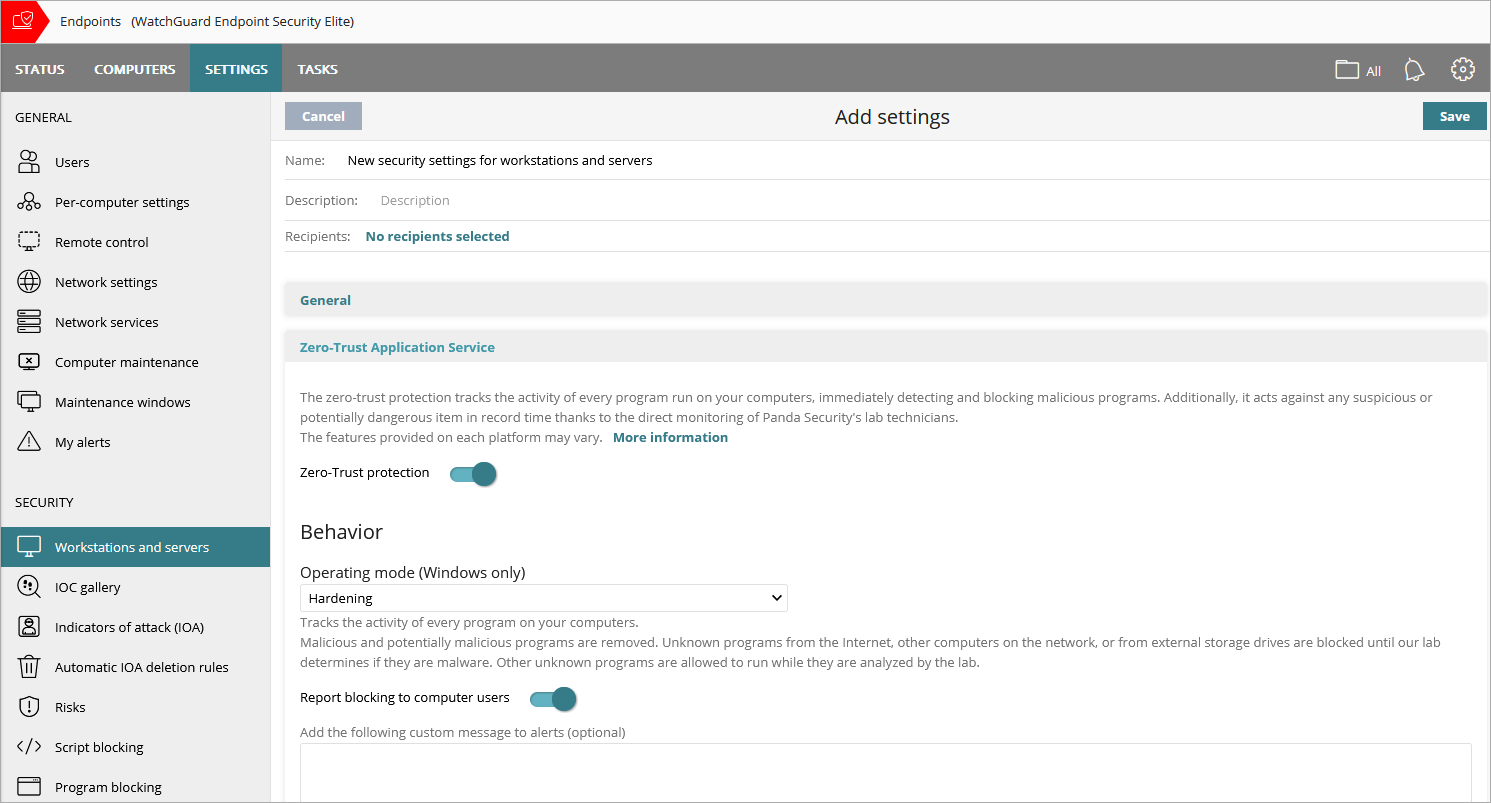
- Select Zero-Trust Application Service .
- Enable the Zero-Trust Protection toggle.
- For Windows computers, select an Operating Mode behavior from the list (Learning, Hardening, or Lock). For more information on operating modes, go to Windows Operating Mode Behaviors. (Operating Mode is not available in EDR Core.)
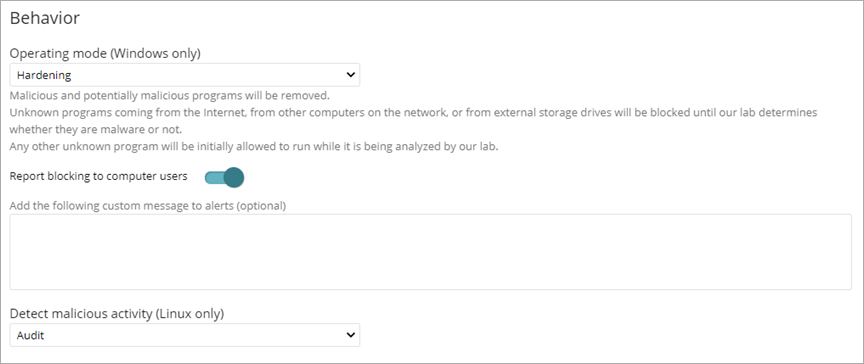
- To show a message in a pop-up alert on the user computer when Zero-Trust Application Service blocks or reclassifies a file, enable the Report Blocking to Computer Users toggle.
- (Optional) Type a custom message to include in the blocking alert.
- For Linux computers, from the Detect Malicious Activity drop-down list, select the action to take when Endpoint Security detects malicious activity.
- Audit — Reports detected threats, but does not block malware.
- Block — Reports and blocks detected threats. This is the default option.
- Do Not Detect — Malware is not detected or reported.
- (EDR only) To enable advanced scanning of programs that use Windows Anti-Malware Scan Interface (AMSI), enable the toggle. For more information, go to Configure AMSI Advanced Scanning (Windows Computers).
- To exclude scanning of programs that use AMSI and might cause performance issues, in the Programs text box, type the name of the programs, separated by commas. Include the file extension for the program. For example, Chrome.exe.
- Click Save.
- Select the profile and assign recipients, if required.
For more information, go to Assign a Settings Profile.
About Anti-Exploit Protection (Windows Computers)
Zero-Trust Application Service for Windows, Linux, and Mac Devices