Applies To: Endpoint Security Elite, Endpoint Security 360, Endpoint Security Prime, Endpoint Security Basic
In the Antivirus settings of a workstations and servers settings profile, you can configure Endpoint Security Elite, 360, Prime and Basic to scan for viruses in files, email messages, and the websites that users visit. You can specify the types of threats to detect and files to scan, as well as enable decoy files.
When Endpoint Security detects malware or the WatchGuard anti-malware laboratory identifies a suspicious file, Endpoint Security takes one of these actions:
- Known malware files when disinfection is possible — Replaces the infected file with a clean copy.
- Known malware files when disinfection is not possible — Makes a copy of the infected file and deletes the original file.
Your operator role determines what you can see and do in WatchGuard Cloud. Your role must have the Configure Security for Workstations and Servers permission to view or configure this feature. For more information, go to Manage WatchGuard Cloud Operators and Roles.
To configure antivirus settings, from WatchGuard Cloud:
- Select Configure > Endpoint Security.
- From the left pane, select Workstations and Servers.
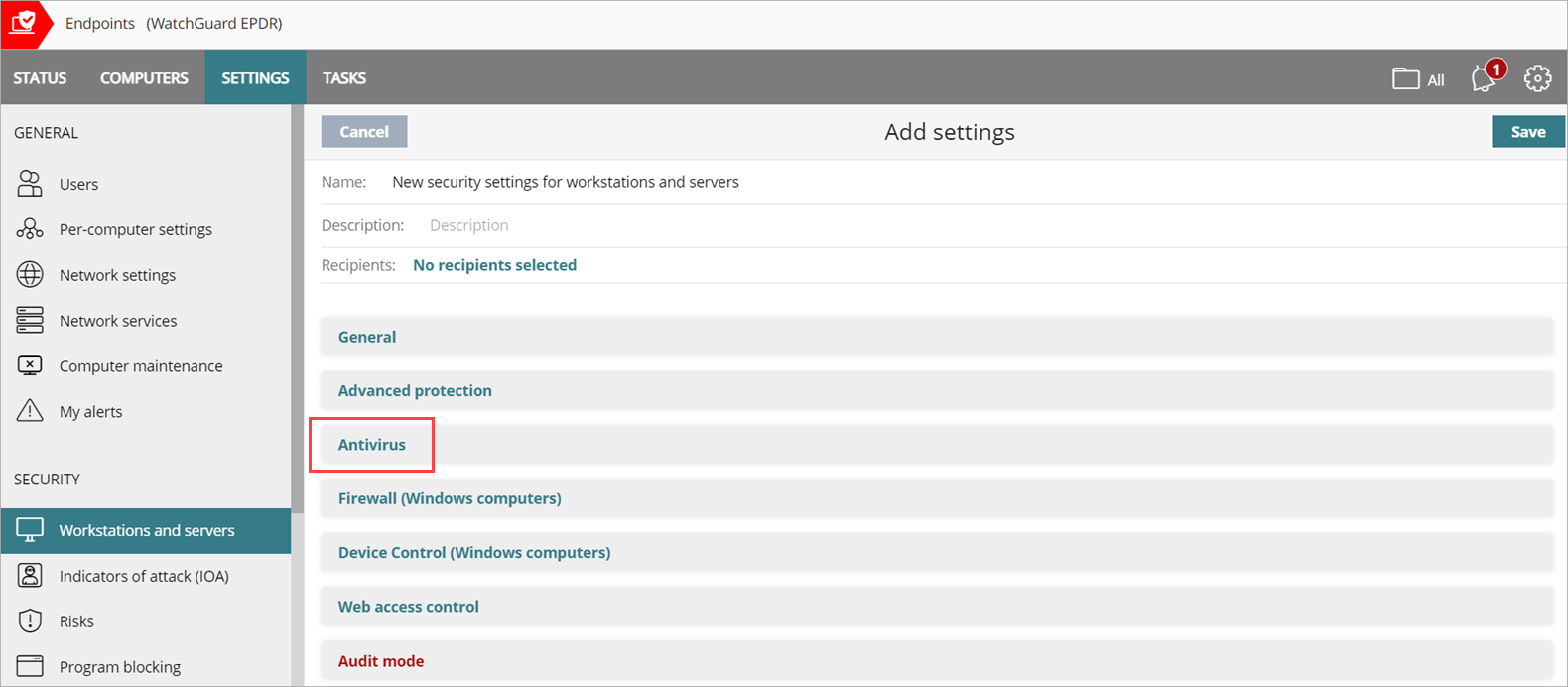
- Select an existing security settings profile to edit, copy an existing profile, or in the upper-right corner of the window, click Add to create a new profile.
The Add Settings or Edit Settings page opens. - Enter a Name and Description for the profile, if required.
- Select Antivirus.
- To enable virus scanning of the file system, enable the File Antivirus toggle.
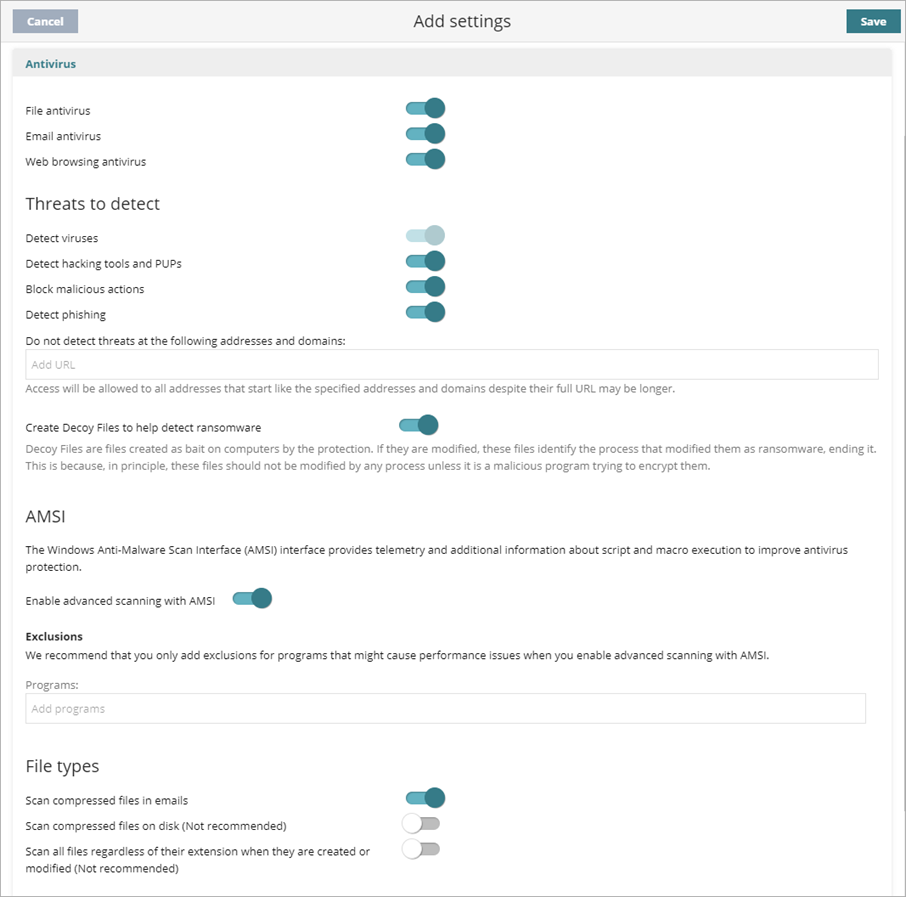
- To enable virus scanning for email applications, enable the Email Antivirus toggle.
When you enable Email Antivirus to scan email messages, WatchGuard Endpoint Security detects threats received over the POP3 protocol . Email Antivirus scans attachments and URLs in the email. When something malicious is detected, WatchGuard Endpoint Security deletes the email or attachment. - To enable virus scanning on web browsers to detect threats received over HTTP and HTTPS protocols, enable the Web Browsing Antivirus toggle.
- Configure Threats to Detect, as required.
- To create decoy files, enable the toggle. Decoy files help detect ransomware. Endpoint Security creates decoy files as bait on computers. If the files are modified, they identify the process that modified them as ransomware. The file ends the process that modified it and reports it as malware.
- To enable advanced scanning of programs that use Windows Anti-Malware Scan Interface (AMSI), enable the toggle. For more information, go to Configure AMSI Advanced Scanning (Windows Computers).
- To exclude scanning of programs that use AMSI and might cause performance issues, in the Programs text box, type the name of the programs, separated by commas. Include the file extension for the program. For example, Chrome.exe. These exclusions apply specifically to script and memory-based scanning with AMSI.
- Exclusions you add in the General section do not automatically apply to AMSI. For information on general exclusions, go to Exclude Files and File Paths from Scans.
- General and AMSI exclusions can be useful together in certain scenarios such as a development environment where compiler and development tools might write files (covered by the General exclusions) and execute scripts or dynamic code (covered by the AMSI exclusion).
- Configure File Types to Scan, as required.
- Click Save.
- Select the profile and assign recipients, if required.
For more information, go to Assign a Settings Profile.
Configure Threats to Detect
Configure the types of threats that Endpoint Security searches for and removes from the file system, mail client, and Endpoint Security management UI installed on user computers. To add an extra layer of protection, you can also enable decoy files.
To configure the threats you want to detect, in the Threats to Detect section:
- Enable the threats you want to detect and block:
- Detect Viruses — Detects files that contain patterns classified as dangerous.
- Detect Hacking Tools and PUPs — Detects unwanted programs (such as programs with intrusive ads and browser toolbars) and tools used by hackers to gain access to your system.
- Block Malicious Actions — Enables anti-exploit and heuristic technologies that analyze process behavior locally and detect suspicious activity.
- Detect Phishing — Detects fraudulent emails and websites.
- If you enable Detect Phishing, in the Do Not Detect Threats at the Following Addresses and Domains text box, type IP addresses and domains you want to exclude from phishing scans, separated by commas.
This text box is not case-sensitive. Access is allowed to all addresses that start with the specified IP addresses and domains, even if the full URL is longer.
Decoy files are used as bait on computers and help detect ransomware. When there is an attempt to modify a decoy file, WatchGuard Endpoint Security identifies the process as ransomware and ends the process. In the Threats to Detect section, enable Create Decoy Files to Help Detect Ransomware.
Configure AMSI Advanced Scanning (Windows Computers)
Windows Anti-Malware Scan Interface (AMSI) provides telemetry and additional information about script and macro execution to improve antivirus protection for Windows computers. In a workstations and servers settings profile, advanced scanning with AMSI is enabled by default.
If you experience performance issues, you can add exclusions for problematic programs or disable advanced scanning with AMSI. We recommend that you only add exclusions for programs that might cause performance issues. AMSI adds additional inspection depth. When you add an exclusion, Endpoint Security does not scan the specified files and your computers could be at risk of an attack. Protection scope is reduced.
Your operator role determines what you can see and do in WatchGuard Cloud. Your role must have the Configure Security for Workstations and Servers permission to view or configure this feature. For more information, go to Manage WatchGuard Cloud Operators and Roles.
To add exclusions, in the AMSI section:
- Enable the toggle, if necessary.
- In the Programs text box, enter the file name for a program you want to exclude for advanced AMSI scanning.
Configure File Types to Scan
Specify the types of files to be scanned by Endpoint Security. To configure file types to scan, in the File Types section, enable the file types you want to scan.
Scan compressed files in emails
Decompresses email attachments and scans their contents for malware.
Scan compressed files on disk
Decompresses compressed files and scans their contents for malware. All compressed files are scanned when they are extracted, modified, or run. For the best performance, we recommend that you do not scan all compressed files on disk.
Scan all files regardless of their extension when they are created or modified
Many types of data files do not pose a threat to the security of computer networks. When you enable this option, Endpoint Security scans all files when they are created or modified. For best performance, we recommend that you do not enable this option.