Applies To: Endpoint Security Elite, Endpoint Security 360, Endpoint Security Prime, Endpoint Security Basic
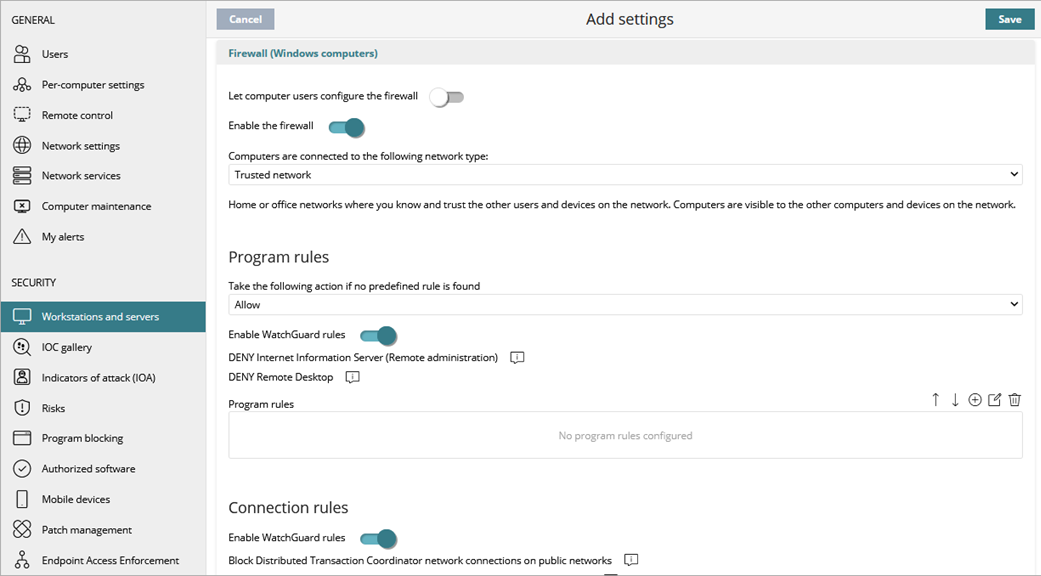
In the Firewall settings of a workstations and servers settings profile, you can configure Endpoint Security to enable a firewall on Windows computers. These settings are compatible with both IPv6 and IPv4 and include multiple tools for filtering network traffic:
-
System rules: Describe communication characteristics (ports, IP addresses, protocols, etc.), allowing or denying the data flows that match the configured rules.
-
Program rules: Allow or prevent the programs installed on users’ computers from communicating with other computers.
-
Intrusion detection system: Detects and rejects malformed traffic patterns that can affect the security or performance of protected computers.
When Endpoint Security detects malware or a suspicious file is defined by the WatchGuard anti-malware laboratory, Endpoint Security takes one of these actions:
- Known Malware Files When Disinfection Is Possible — Replaces the infected file with clean copy.
- Known Malware Files When Disinfection Is Not Possible — Makes a copy of the infected file and deletes the original file.
Your operator role determines what you can see and do in WatchGuard Cloud. Your role must have the Configure Security for Workstations and Servers permission to view or configure this feature. For more information, go to Manage WatchGuard Cloud Operators and Roles.
To configure Firewall settings:
- In WatchGuard Cloud, select Configure > Endpoint Security.
- Select Settings.
- From the left pane, select Workstations and Servers.
- Select an existing security settings profile to edit, copy an existing profile, or in the upper-right corner of the page, click Add to create a new profile.
The Add Settings or Edit Settings page opens. - Enter a Name and Description for the profile, if required.
- Select Firewall.
- To allows end users to manage firewall
protection from the Endpoint Security management UI on their computers, enable the Let computer users configure the firewall toggle.
If this toggle is disabled, the administrator configures firewall protection of all computers on the network through security settings profiles. - Select Enable the Firewall.
- From the drop-down list, select the network type that computers connect to.
For more information, go to Firewall Settings – Network Types. - Configure these settings, as required:
- Click Save.
- Select the profile and assign recipients, if required.
For more information, go to Assign a Settings Profile.
Configure Program Rules
Configure program rules to allow or prevent communication to and from programs installed on user computers. They apply if the computer is connected to a public network. To enable firewall rules when the user computer connects to a public network, you can enable predefined WatchGuard rules to prevent incoming connections:
- Deny remote administration of Internet Information Server (IIS)
- Deny remote desktop connections
When these rules are enabled, the computer is not visible to other users on the network and resource sharing is limited.
To configure program rules:
- From the Take the following action if no predefined rule is found drop-down list, select the action to take for traffic that does not match a predefined firewall rule:
- Allow — Accept connections for all programs for which you have not configured a specific rule in step 3. This is the default mode.
- Deny — Deny connections for all programs for which you have not configured a specific rule in step 3. This is an advanced mode. It requires that you add rules for frequently used programs. If a rule is not created, then the programs are not able to communicate.
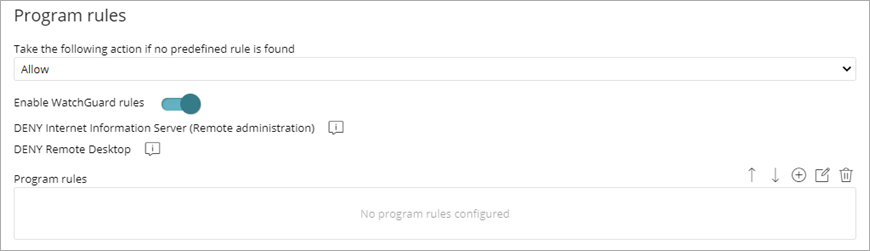
- To enable predefined rules to deny remote administration of IIS and Remote Desktop, select the Enable WatchGuard Rules toggle.
The rules only apply if the computer is connected to a public network. - To add and configure custom program rules, click
 .
.
For more information, go to Configure Custom Program Rules (Windows Computers).
Enable Connection Rules
Enable predefined rules to block and deny communication to and from programs installed on user computers. They only apply if the computer is connected to a public network.
To enable connection rules:
- Enable the Enable WatchGuard Rules toggle.
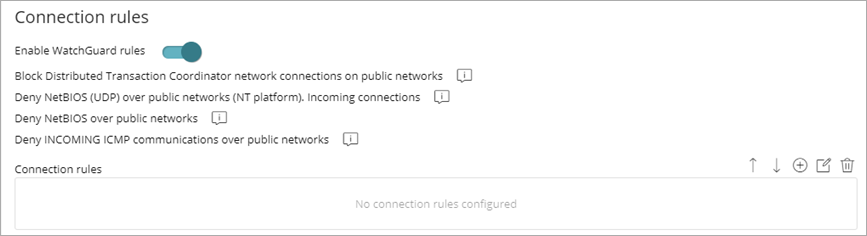
- To add and configure custom connection rules, click .
For more information, go to Configure Connection Rules (Windows Computers).
Configure Intrusions to Block
The intrusion detection system (IDS) allows administrators to detect and reject malformed traffic specially crafted to impact the security and performance of protected computers. This traffic can cause malfunction of user programs, lead to serious security issues, and allow remote execution of applications by hackers, data theft, and more.
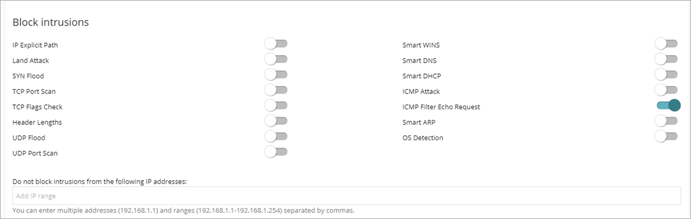
In the Block Intrusions section, enable the toggle for intrusions you want to block.
IP Explicit Path
Rejects IP packets that contain an explicit source route field. These packets are not routed based on their target IP address. Routing information is defined beforehand.
Land Attack
Stops denial-of-service attacks that use TCP/IP stack loops. Detects packets with identical source and target addresses.
SYN Flood
This attack type launches TCP connection attempts to force the targeted computer to commit resources for each connection. The protection establishes a maximum number of open TCP connections for each second to prevent saturation of the computer under attack.
TCP Port Scan
Detects if a host tries to connect to multiple ports on the protected computer in a specific time period. The protection filters both the requests to open ports and the replies to the malicious computer. The attacking computer is unable to obtain information about the status of the ports.
TCP Flags Check
Detects TCP packets with invalid flag combinations. It acts as a complement to the protection against port scanning. It blocks attacks such as “SYN&FIN” and “NULL FLAGS”. It also complements the protection against OS fingerprinting attacks as many of those attacks are based on replies to invalid TCP packets.
Header Lengths
IP: Rejects inbound packets with an IP header length that exceeds a specific limit.
TCP: Rejects inbound packets with a TCP header length that exceeds a specific limit.
Fragmentation Overlap: Checks the status of the packet fragments to be reassembled at the destination, which protects the system against memory overflow attacks due to missing fragments, ICMP redirects masked as UDP, and computer scanning.
UDP Flood
Rejects UDP streams to a specific port if the number of UDP packets exceeds a default threshold in a particular period.
UDP Port Scan
Protects the system against UDP port scanning attacks.
Smart WINS
Rejects WINS replies that do not correspond to requests sent by the computer.
Smart DNS
Rejects DNS replies that do not correspond to requests sent by the computer.
Smart DHCP
Rejects DHCP replies that do not correspond to requests sent by the computer.
ICMP Attack
Small PMTU: Detects invalid MTU values used to generate a denial-of-service attack or slow down outbound traffic.
SMURF: Attacks involve sending large amounts of ICMP (echo request) traffic to the network broadcast address with a source address spoofed to the victim's address. Most computers on the network reply to the victim, which multiplies traffic flows. Endpoint Security rejects unsolicited ICMP replies if they exceed a certain threshold in a specific time period.
Drop Unsolicited ICMP Replies: Rejects all unsolicited and expired ICMP replies.
ICMP Filter Echo Request
Rejects ICMP echo request packets.
Smart ARP
Rejects ARP replies that do not correspond to requests sent by the protected computer to avoid ARP cache poisoning scenarios.
OS Detection
Falsifies data in replies to the sender to trick operating system detectors. It prevents attacks on vulnerabilities associated with the operating system. This protection complements the TCP Flag Checker.
Exclusions
To prevent false positives, you can add exclusions to the blocked intrusions list in the Do not block intrusions from the following IP addresses text box. In the text box, add IP addresses or an address range separated by commas.