Applies To: Cloud-managed Fireboxes

This document applies to Fireboxes you manage in WatchGuard Cloud. For information that applies to Fireboxes managed in Fireware Web UI or WatchGuard System Manager, go to: Administer Your Firebox.
Overview
The Firebox system settings in the device configuration establish how your cloud-managed Firebox identifies itself, keeps time, and communicates on the network. These settings also include options for monitoring and diagnostics such as SNMP, NetFlow, and device feedback. Together, they support accurate logging, time synchronization, and integration with network tools and services.
For a cloud-managed Firebox or FireCluster, system settings include:
Firebox Name or FireCluster Name
The friendly name of the Firebox or FireCluster. The friendly name appears in your log files and reports.
Time Zone
The time zone for the physical location of the Firebox. The time zone setting controls the date and time that appear in the log file and in tools such as WebBlocker.
NTP Servers
Network Time Protocol (NTP) synchronizes computer clock times across a network. Your Firebox can use NTP to automatically get the correct time from NTP servers on the Internet to set the system clock. You can also enable your Firebox as an NTP server. When you enable your device as an NTP server, client devices on your private networks can contact your Firebox to synchronize the time. For more information, go to Configure NTP Server Settings for a Cloud-Managed Firebox.
Device Feedback
Firebox devices return detailed device feedback by default. WatchGuard uses this data to improve our products and assess threats. This data includes basic configuration settings and additional device information, such as which security services are enabled, the results of their operation (for example, the number of viruses detected in email and the number of web requests blocked), and policy reporting. For more information, go to Configure Device Feedback Settings for a Cloud-Managed Firebox.
Networking
You can configure ICMP error handling and TCP settings such as connection verification, idle timeout, maximum segment size control, and the path maximum transmission unit (MTU) discovery method. For more information, go to Configure Networking System Settings (ICMP and TCP) for a Cloud-Managed Firebox.
FireCluster Settings (FireClusters only)
After you add a cloud-managed FireCluster, you can edit the FireCluster identification, interface, and communication settings. For more information, go to Edit the FireCluster Settings.
SNMP
SNMP (Simple Network Management Protocol) is used to monitor devices on your network. You can configure the Firebox to accept SNMP polls from an SNMP management station. Your device reports information to the SNMP management station such as the traffic count from each interface, device uptime, the number of TCP packets received and sent, and when each network interface was last modified. For more information, go to Configure SNMP Settings for a Cloud-Managed Firebox.
NetFlow
NetFlow is a protocol that is used to collect and analyze IP network traffic. To gain more insights into your network traffic, you can configure the Firebox as a NetFlow exporter. For example, you can use NetFlow data to troubleshoot network performance issues or investigate security concerns. For more information, go to Configure NetFlow Settings for a Cloud-Managed Firebox.
Recurring Reboots
If you regularly reboot the Firebox as part of your maintenance routine, you can schedule the Firebox to reboot on a weekly or daily basis. For more information, go to Schedule Recurring Reboots for a Cloud-Managed Firebox.
You can configure these features in an individual Firebox configuration or, for some features, in a Firebox template. If a Firebox subscribes to a template with a feature configured, a lock icon shows next to the feature toggle or setting in the Firebox configuration, and you cannot configure it in the Firebox configuration for that device. To view the name of the template where feature is configured, hover over the lock icon. For more information about Firebox templates, go to About Firebox Templates.
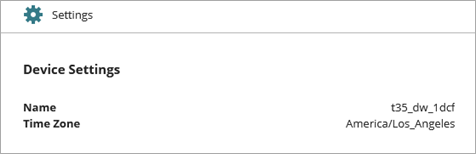
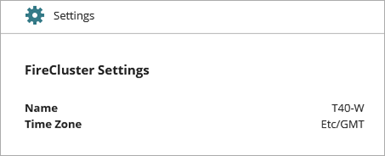
On the Device Configuration page for a cloud-managed Firebox or FireCluster, the Settings widget shows a summary of configured system settings.
Your operator role determines what you can see and do in WatchGuard Cloud. Your role must have the Devices permission to view or configure this feature. For more information, go to Manage WatchGuard Cloud Operators and Roles.
View and Manage Device Settings
To view and update the system settings for a cloud-managed Firebox or FireCluster:
- In WatchGuard Cloud, select Configure > Devices.
- Select the cloud-managed Firebox.
- Click Device Configuration.
- Click the Settings widget.
The Settings page opens.
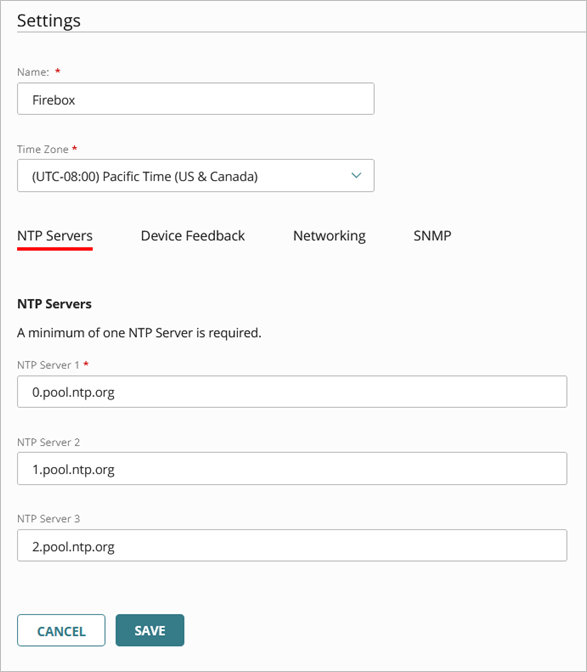
- In the Name text box, edit the Firebox name.
- From the Time Zone drop-down list, select the time zone at the location where the Firebox is installed.
- Configure additional system settings as appropriate:
- To save configuration updates to the cloud, click Save.
Add a Cloud-Managed Firebox to WatchGuard Cloud