Applies To: Cloud-managed Fireboxes, Locally-managed Fireboxes, WatchGuard Cloud-managed Access Points
For Service Provider accounts, the Account Manager pane provides a unified view to manage Service Provider and Subscriber accounts. Service Provider accounts include a  icon and Subscriber accounts include a
  icon.
icon.
The Account Manager is located in the left pane of the WatchGuard Cloud window. It is hidden by default when you log in to WatchGuard Cloud and opens automatically when you select one of the menus (Monitor, Configure, Inventory, and Administration).
In the Account Manager, to quickly select an account, type an account name in the Search box. If there are more than 100 accounts in the results, you must enter more specific search criteria.
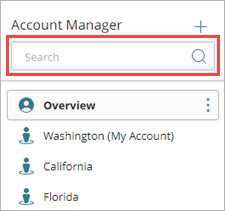
You can enter letters and numbers to match the displayed account name. Search terms can match the account ID in the background. If the account name does not become bold, then the search term letters or numbers match the account ID behind the account name.
To expand the Account Manager pane, in the upper-left corner of the window, click  . To close Account Manager, click
  in the upper-right corner of the Account Manager.
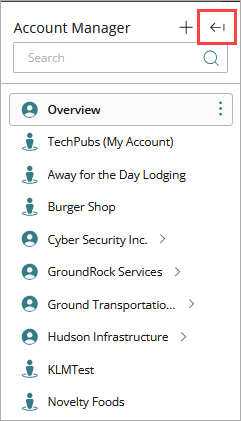
From Account Manager, you can:
- View aggregate data across multiple accounts — Select Dashboard > Overview.
- Add a new account — Click
 . Or, click
  next to Overview or the Service Provider where you want to add the account, and then select Add Account. For more information, go to Add or Delete a Managed Account.
 - Create a new folder — Click next to the account where you want to add a folder. Select Create a New Folder.
- Add a device — Select Configure > Devices. Click next to the Subscriber account where you want to add a device. Select Add Device.
- View inventory for all accounts — Select Overview. Select Inventory > Summary.
- Filter endpoints with the WatchGuard Agent installed by endpoint groups — Select Monitor > Endpoints. When there are endpoints and endpoint groups in a Subscriber account, you can select an endpoint group folder to filter the list on the Endpoints page. You create endpoint groups in the Endpoint Security management UI. For more information, go to Manage Endpoint Groups in Endpoint Security.
When you select a device from Account Manager, the page displays content specific to the device.
- To monitor a device, from Account Manager, select the device, and then select Monitor > Devices. For more information, go to Monitor Devices in WatchGuard Cloud.
- To configure settings for a device, from Account Manager, select the device, and then select Configure > Devices. For more information, go to Configure Device Settings in WatchGuard Cloud.
Device Status
The icon next to a device in Account Manager shows the device type, management type (cloud-managed or locally managed with cloud reporting), and the device status. A yellow triangle indicates that there are undeployed, saved changes.
| Device Type | Offline | Online | Never Connected |
|---|---|---|---|
| Cloud-managed Firebox |

|

|

|
| Cloud-managed Access Point |

|

|

|
| Locally-managed Firebox (with cloud reporting) |

|

|

|
| Cloud-managed FireCluster |

|

|

|
| Locally-managed FireCluster |

|

|

|
About Account Groups and Account Delegation
You can use Account Groups to simplify account access management and assign operator permissions to manage a group of similar accounts instead of each individual account. For more information, go to Manage Account Groups.
If Subscribers need help with the management of their accounts, they can delegate their account to a Service Provider. When a Subscriber delegates their account, this enables the Service Provider to manage the account and its products and services. Services Providers can also manage inventory allocation for delegated Subscribers with a WatchGuard account (tier-1 Subscribers). For more information, go to Manage Delegated Account Access — Service Providers.
About Endpoint Groups
With WatchGuard Endpoint Security, you can add endpoint groups to group computers that meet specific criteria for hardware, software, or security. Endpoint groups can also be used to configure deployment behavior for products installed by the WatchGuard Agent. For more information, go to Configure WatchGuard Agent Deployment in WatchGuard Cloud.
When there are endpoints and endpoint groups in a Subscriber account, you can select an endpoint group folder in Account Manager to filter the list on the Monitor > Endpoints page.
About the WatchGuard Cloud User Interface
Add a Firebox to WatchGuard Cloud
Add an Access Point to WatchGuard Cloud
Locally-Managed and Cloud-Managed FireClusters