Applies To: WatchGuard Cloud-managed Access Points (AP130, AP230W, AP330, AP332CR, AP340, AP430CR, AP432)
To view the specific details of a wireless client currently associated to a WatchGuard access point in WatchGuard Cloud:
- Select Monitor > Devices.
- Select an access point or folder that contains your access points.
- From the Devices menu, select Live Status > Clients.
- To select the date range for the data, click
 .
. - To pause auto-refresh for the displayed data, click
 . To restart auto-refresh, click
  .
. - In the Search text box, type a search query to search all columns in the client list.
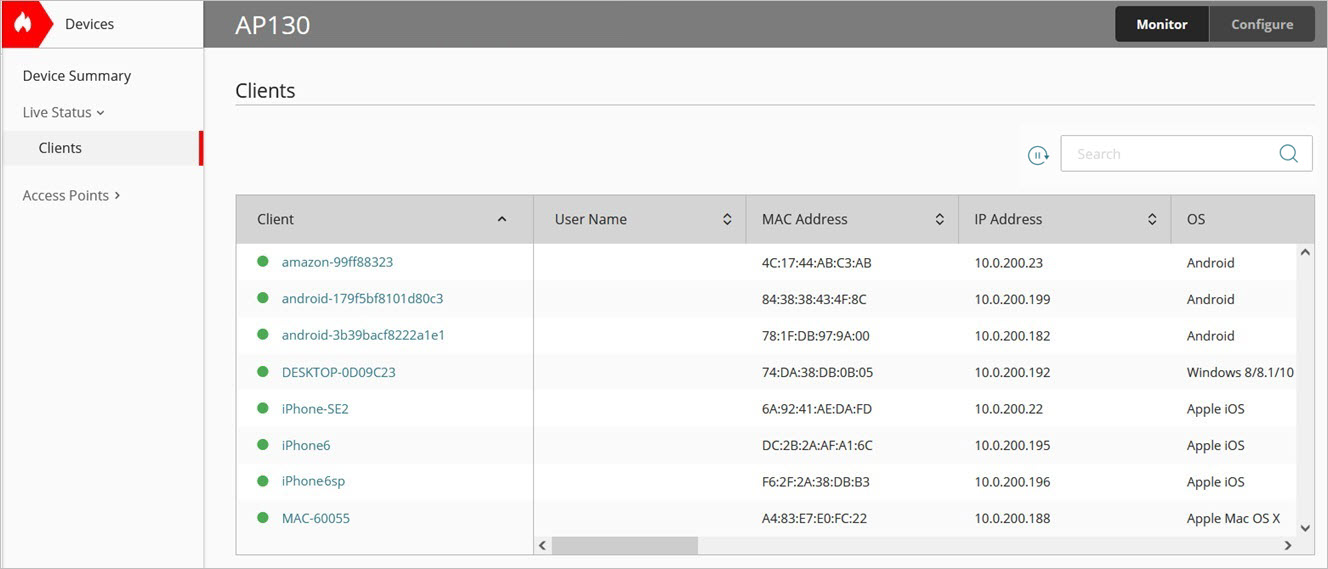
- Select a client.
The Clients page opens.
Client Details
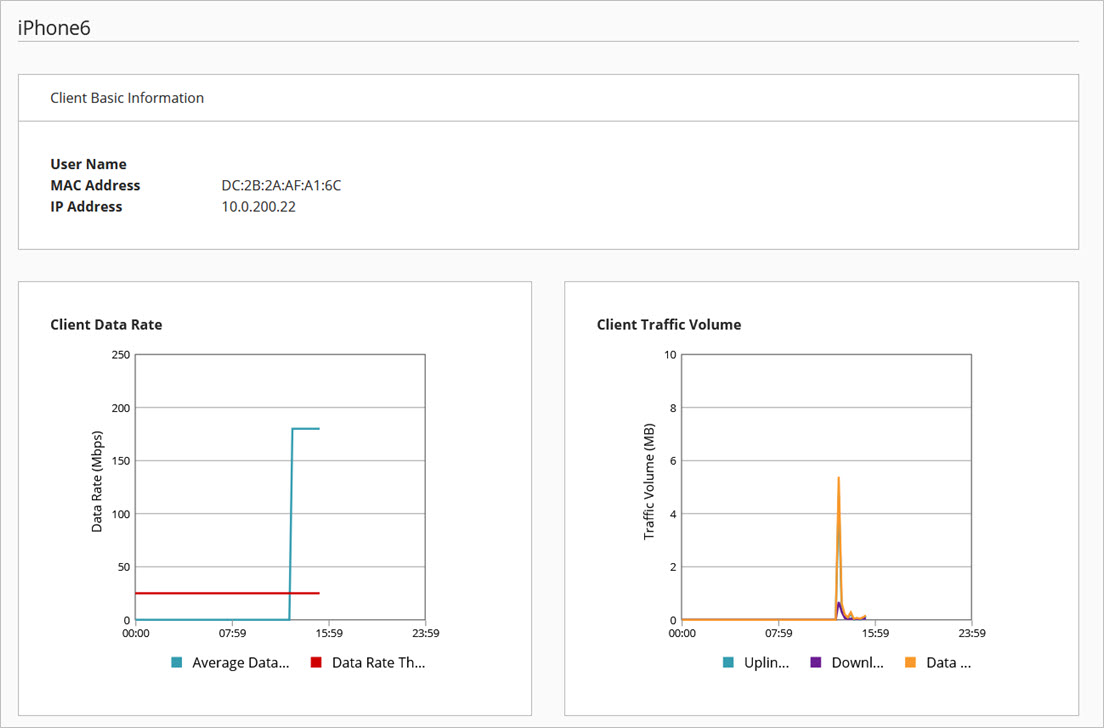
The wireless client details page includes this data:
Client Basic Information
Shows this basic information about the client:
- User Name — The name of the authenticated user of the wireless client. This field will not show any value if the authenticated name of the client is not available.
- MAC Address — The MAC address of the wireless client.
- IP Address — The IP address of the wireless client.
- Current RSSI — The current received signal strength indicator (RSSI) of the wireless client connection. Strong signal strength results in more reliable connections and higher speeds. Signal strength is represented in -dBm format (0 to -100). This is the power ratio in decibels (dB) of the measured power referenced to one milliwatt. The closer the value is to 0, the stronger the signal. For example, -40 dBm is better signal strength than -60 dBm.
- Current Data Rate — The current data rate of the wireless client connection (in Mbps).
- Security — The security protocol of the SSID that the wireless client connected to, such as WPA3 Personal.
- Wireless Mode — The current wireless mode in use by the client connection, such as Wi-Fi 6 (802.11ax).
- SSID — The SSID name that the wireless client is connected to.
- VLAN – The current VLAN ID (or Untagged VLAN status) of the client connection.
Client Traffic Volume
The Client Traffic Volume widget shows the total amount of data uploaded and downloaded (in MB) by the wireless client over the last 24 hours.
Client Timeline
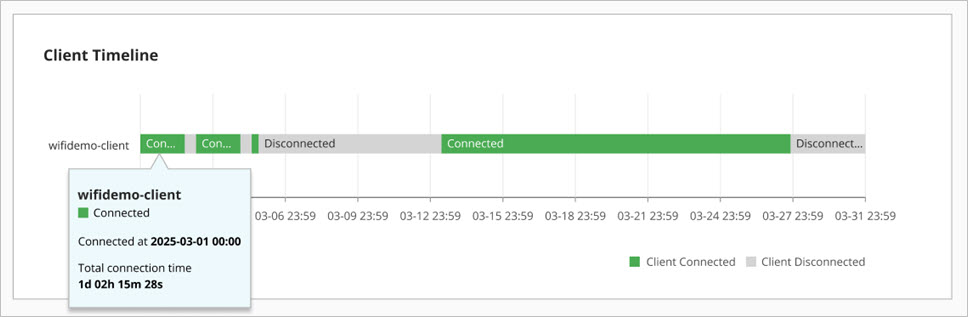
The Client Timeline widget provides a clear, current and historical overview of how a wireless client associates, authenticates, and connects to access points, making it easy to analyze and troubleshoot wireless activity.
- To select the date range for the data, click at the top of the page.
- Hover over an event on the timeline, such as Succeeded, Disconnected, or Failed to view detailed status information for the event.
Client Connection Events
This Client Connection Events widget shows a list of recent client events.
- The page can display a maximum of 1000 events.
You can download all events with the CSV download option. - Click
 to download a CSV list of all client connection events.
 - To customize and reorder the columns to show only the information you require, click
 .
. - To search for an event, enter text in the Search text box and press Enter.

- Date — The date and time of the event.
- Status — This is the status of the event, such as a successful connection or disconnection, password issue, or inactivity timeout event. Click on the status for a more detailed description of the event.
For more information, go to Client Connection Event Status Types. - Access Point — The access point to which the client is associated.
- Radio — The radio frequency band (2.4 GHz or 5 GHz) to which the wireless client is connected.
- Channel — The wireless channel in use by the client.
- Wireless Mode — The wireless mode in use by the client, such as Wi-Fi 6 (802.11ax).
- Wireless Modes Supported — The wireless modes supported by the client, such as Wi-Fi 4 (802.11n), Wi-Fi 5 (802.11ac), or Wi-Fi 6 (802.11ax).
The supported wireless modes listed for the client are based on the wireless mode of the client’s current connection to the access point. For example, if the wireless mode of the access point radio is configured for 802.11ax, the client will show supported wireless modes for 802.11ax, 802.11ac, and 802.11n. If the wireless mode of the radio is configured for 802.11ac, the connected client will show supported wireless modes for 802.11ac and 802.11n.
- Channel Width — The channel width in use by the client.
- BSSID — The MAC address of the access point radio to which the wireless client is associated. In some cases, the BSSID might show as "Unknown" when the access point's BSSID information is not available in the reported event data.
- SSID — The name of the wireless network to which the wireless client is associated.
- Security — The security protocol of the SSID that the wireless client connected to.
Client Connection Event Status Types
The Client Connection Events widget indicates conditions where the wireless client experienced a failure to connect and associate to an access point, or informational messages on successful connections and roaming behavior.
The event types and disconnect reasons depend on the firmware of the access point.
Client Connection Events (Firmware v3.2.10 and higher)
These wireless client connection events indicate conditions where the wireless client experienced a failure in the association, authentication, or network phase of the connection to an access point.
| Disconnect Reason | Disconnect Failure Type | Description |
|---|---|---|
| Exceeds client connection limits | Association Failure | Access point has exceeded the maximum number of wireless client associations. |
| AP busy | Association Failure | The CPU load on the access point is too high to allow the wireless client connection. There might be a high number of concurrent client connections to the access point. |
| Unsupported 802.11 capabilities | Association Failure | The client and access point do not share compatible wireless standards or features such as the required 802.11 mode, channel width, or security protocol. |
| Failed EAP authentication | Authentication failure | The user has failed to authenticate with WPA2 or WPA3 Enterprise authentication to a RADIUS server. The user might have entered incorrect credentials. |
| Incorrect password | Authentication failure | User has entered an incorrect SSID security passphrase for WPA2 or WPA3 Personal encryption. |
| Endpoint security missing | Network Failure | Wireless client must have a WatchGuard Endpoint Security product installed to connect to the network. Make sure the Endpoint Security agent is running on the client. |
| Account UUID mismatch | Network Failure | The Endpoint Security configuration for Network Access Enforcement requires the correct Account UUID and Authentication Key of the WatchGuard Cloud account that manages your devices. Verify the information on the Administration > My Account page in WatchGuard Cloud. |
| Authentication key mismatch | Network Failure | The Endpoint Security configuration for Network Access Enforcement requires the correct Account UUID and Authentication Key of the WatchGuard Cloud account that manages your devices. Verify the information on the Administration > My Account page in WatchGuard Cloud. |
| Missing UUID/auth key | Network Failure | The Endpoint Security configuration for Network Access Enforcement requires the correct Account UUID and Authentication Key of the WatchGuard Cloud account that manages your devices. Verify the information on the Administration > My Account page in WatchGuard Cloud. |
| Cannot get DHCP address | Network Failure | The client associated with the access point but failed to obtain an IP address from the DHCP server. Confirm that your DHCP server is reachable and has available addresses. |
| Cannot resolve DNS | Network Failure | The client associated with the access point but cannot translate domain names into IP addresses due to DNS configuration or reachability issues. Make sure the DNS server is reachable, and test resolution with a known hostname or IP address. |
| MAC address blocked | Other | Wireless client's MAC address is blocked by a MAC address Access Control List. Check the MAC address access control feature in the SSID settings of the access point to determine if a client's MAC address appears in the list. |
| Idle timeout | Other | Wireless client is inactive and has timed out of the connection. |
| Client disassociation | Other | Wireless client has disconnected from the access point. |
| AP disconnect | Other | Access point has disconnected the client. |
| Client disassociation | Other | The client was disconnected because the access point's SSID settings changed (such as security type, passphrase, or VLAN), making the existing connection invalid. The access point radios were restarted to reload the new configuration. |
| Target AP has lower client load | Other | Client balancing steered the wireless client to the target access point because it had a lower client load. |
| Target AP has stronger RSSI | Other | Client balancing steered the wireless client to the target access point because it had a stronger signal. |
| Target AP has similar RSSI but lower client load | Other | Client balancing steered the wireless client to the target access point because it had a similar signal strength but a lower client load than other access points. |
| Unspecified reason | Other | The system could not determine a specific reason for this wireless client event. |
| Client supports 2.4 GHz only | Other | The client device can connect only to the 2.4 GHz wireless band. |
| Client supports 5 GHz only | Other | The client device can connect only to the 5 GHz wireless band. |
| AP forced client to 5 GHz | Other | The access point steered the client to the 5 GHz band for better performance. |
| Client has high RSSI on 5 GHz | Other | The client has a strong signal strength on the 5 GHz band. |
| Client has low RSSI on 5 GHz | Other | The client has a weak signal strength on the 5 GHz band. |
| High client ratio on 5 GHz | Other | A high number of clients are already connected to the 5 GHz band. |
| Low client ratio on 5 GHz | Other | Few clients are currently connected to the 5 GHz band. |
| Client supports 802.11ac | Other | The client supports the 802.11ac (Wi‑Fi 5) standard, enabling higher throughput, eligibility for preferred 5 GHz operation, and advanced wireless optimization features. |
| Client does not support 802.11v | Other | The client does not support 802.11v, limiting network‑assisted roaming and steering. |
| Reached maximum client limitation | Other | The access point has reached the maximum number of supported client connections. |
| High channel utilization on 2.4 GHz | Other | The 2.4 GHz band is heavily congested with wireless traffic. |
| High channel utilization on 5 GHz | Other | The 5 GHz band is heavily congested with wireless traffic. |
Successful and Informational Client Connection Events (Firmware v3.2.10 and higher)
These wireless client connection events do not necessarily indicate connection failures, but describe successful or informational wireless events about client associations, authentication, voluntary disassociation, roaming, band steering, and client balancing.
| Informational Event | Description |
|---|---|
| Associated with [SSID] | The client successfully completed the 802.11 association process with the access point. |
| WPA authentication successful | The client successfully performed WPA2/WPA3 authentication to establish secure encryption keys. |
| EAP authentication successful | The client successfully performed 802.1X/EAP authentication with the network's RADIUS server. |
| Fast roam to AP successful | The client successfully completed a fast‑transition (802.11r) association for fast roaming. |
| Client status update | The system logged routine client status information to WatchGuard Cloud about the client's current wireless activity and connection state. |
| Disassociated from [SSID] | The client disassociated from the access point. |
| WPA authentication failed | Indicates the client was deauthenticated due to a WPA2/WPA3 security event, often caused by key mismatch, timeout, or AP‑initiated security cleanup. |
| EAP authentication failed | Indicates the client was deauthenticated during 802.1X/EAP authentication, usually due to failed credentials, timeout, or RADIUS rejection. |
| Network Access Enforcement check failed | Network Access Enforcement check failed because the wireless client does not have any WatchGuard Endpoint Security products installed, or the Endpoint Security agent is not running on the client, or there is a UUID or authentication key mismatch. |
| Network Access Enforcement check successful | The Network Access Enforcement check was successful. The client had WatchGuard Endpoint Security products installed and correctly configured. |
| WPA deauthentication | Indicates the client was deauthenticated due to a WPA2/WPA3 security event, often caused by key mismatch, timeout, or AP‑initiated security cleanup. |
| EAP deauthentication | The client was deauthenticated during 802.1X/EAP authentication, often caused by failed credentials, timeout, or RADIUS server rejection. |
| Band Steering suggestion to [radio band] | The AP attempted to steer the client to a better band before association to improve performance. |
| Client balancing suggestion [reason] | The AP used Client Balancing (802.11v BSS Transition Management) to encourage the client to roam to a more optimal AP. |
| Band steering initiated [reason] | The AP initiated Band Steering using 802.11v BSS Transition Management to steer the client to a better access point or band. |
| Received 802.11v BTM response from client [status] | The AP received the client's 802.11v BSS Transition Management response, indicating whether the client accepted or rejected the suggested transition for Client Balancing or Band Steering. |
| Fast handover successful | The client successfully performed fast roaming to enable a quick transition between APs. |
| Client successfully connected | Indicates the client's network connectivity is working normally, including association, authentication, and basic data exchange. |
| Client network failure | Indicates the client experienced a connectivity failure, such as inability to obtain an IP, gateway not reachable, or other inability to pass traffic. |
| Association failed with [SSID] | The client failed to associate with the AP, typically due to signal issues, unsupported capabilities, or AP capacity limits. |
| Client MAC address blocked by ACL. Client authentication denied by network policy | The client was blocked due to MAC address ACL control. The client's authentication attempt was explicitly rejected by a network or security policy. This includes MAC address restrictions, credential or certificate rejection, or other authorization or access rules. Additional authentication logs may be required to determine the exact cause. |
| Fast roam to AP failed | The client failed to complete a fast‑transition (802.11r) association for fast roaming. |
Client Connection Events (Firmware v3.1.25 and lower)
| Event | Reason | Troubleshooting |
|---|---|---|
| AP busy | The CPU load on the access point is too high to access the wireless client connection. | There might be a high number of concurrent client connections to the access point. Consider adding additional access points for appropriate sizing for your environment. |
| AP disconnect |
The access point has disconnected the client.
|
Check the Fast Handover and minimum RSSI transition settings in the access point radio settings. Check the Client Limit Per Radio settings in the advanced access point radio settings for each radio to check if the feature is enabled or if the limits are set too low. |
| Failed EAP Authentication | The user has failed to authenticate with WPA2 or WPA3 Enterprise authentication to a RADIUS server. | The user did not correctly authenticate to a RADIUS server. Check the user's credentials on the RADIUS server. Too many incorrect attempts might indicate unauthorized attempts to connect to the wireless network. |
| Disobey ACL policy |
MAC address blocked. The wireless client's address is blocked by a MAC address Access Control List. |
Check the MAC address access control feature in the SSID settings to determine if a client's MAC address appears in the list. |
| Exceeds client connection limits |
The access point exceeds the client number limitation. The device has reached the maximum number of wireless client associations. |
Check the Client Limit Per Radio settings in the advanced access point radio settings for each radio to check if the feature is enabled or if the limits are set too low. Consider adding additional access points to support the requirements of your environment and share the wireless client load. |
| Inactive station timeout | The client signal strength is too weak, or the client has moved out of the access point's signal range. | Check the client signal strength and access point coverage area to make sure you have enough access points and they are optimally placed for your environment. |
| Incorrect password | The user has typed an incorrect SSID security passphrase for WPA2 or WPA3 Personal encryption. |
Make sure the client is using the correct SSID passphrase. Too many incorrect passphrase attempts might indicate unauthorized attempts to connect to the wireless network. |
| Network Access Enforcement failure |
Network Access Enforcements is enabled and the wireless client does not have any WatchGuard Endpoint Security products installed, or the Endpoint Security agent is not running on the client, or there is a UUID or authentication key mismatch.
|
If you enable Network Access Enforcement on an SSID, a wireless client must have a WatchGuard Endpoint Security product installed to be able to connect to the network. Install one of these products on the wireless client (Endpoint Security Elite, 360, Prime, EDR, EDR Core, or Basic). Make sure the Endpoint Security agent is running on the client. For more information, go to Access Point Network Access Enforcement. The Endpoint Security configuration for Network Access Enforcement requires the correct Account UUID and Authentication Key of the WatchGuard Cloud account that manages your devices. This information is available on the Administration > My Account page in WatchGuard Cloud. |
|
Station disconnect Client disconnect |
The wireless client has disconnected/dissociated from the access point.
|
|
| Successful connection | The wireless client successfully connected to the access point SSID. |
Client Performance
Select the Performance tab to view the performance details for the client's connections to access points.
The chart shows the time periods when the client was impacted by low RSSI or low data rate.
- Low RSSI — An RSSI less than -75 dBm is considered a low signal strength for a client. The closer the value is to 0 dBm, the stronger the signal. For example, -60 dBm is a better signal strength than -75 dBm.
- Low Data Rate — A data rate of less than 25 Mbps is considered a low data rate for a client.
You can hover over specific areas of the chart to view details of the RSSI and data rate performance over time. The green dots indicate the start and end of the client's connection to the access point.

The Access Point Connections table includes this data:
- Access Point — The access point to which the client was connected. Click the access point name to go to the Performance Issues report page for the device. A client might connect to multiple access points if the client roams from one access point to another access point.
- Total Time Connected — The amount of time a wireless client was connected to the access point.
- Low RSSI % — The percentage of time when the client was impacted by low RSSI while connected to the access point.
- Low Data Rate % — The percentage of time when the client was impacted by a low data rate while connected to the access point.
- Average RSSI — The average RSSI of the client's connection to the access point.
- Average Data Rate — The average data rate of the client's connection to the access point.
- Lowest RSSI — The lowest RSSI of the client's connection to the access point.
Access Point Network Usage Report
Access Point Top Clients Report
Access Point Performance Issues Report