Applies To: WatchGuard Cloud
To synchronize users, groups, and devices from Entra ID to your WatchGuard Cloud authentication domain, you must enable a directory sync. After you enable the directory sync, WatchGuard Cloud connects to Entra ID and adds all users, groups, and devices to your authentication domain at one time.
You do not need to install the WatchGuard agent to use the directory sync feature with Entra ID.
You cannot delete synced users and groups in WatchGuard Cloud. To remove a user or group from your WatchGuard Cloud authentication domain, you must delete the user or group from Entra ID.
To add Entra ID users from your authentication domain in WatchGuard Cloud to AuthPoint, you go to the AuthPoint management UI and add an external identity with a group sync for the specific Entra users and groups that you want to add to AuthPoint. To learn more, go to Sync Entra ID Users to AuthPoint.
If the Directory Sync shows an error that says Insufficient privileges to fetch devices, this means that your registered app in Entra ID does not have the Device.Read.All and the Directory.ReadWrite.All permissions. These permissions are not required to sync users, groups, and devices, but will cause this error message if they are not granted.
Configure Directory Sync
To sync users, groups, and devices from Entra ID to your authentication domain, in WatchGuard Cloud:
- If you are a Service Provider, select the name of the managed subscriber account.
- Select Configure > Authentication Domains.
The Authentication Domains page opens.
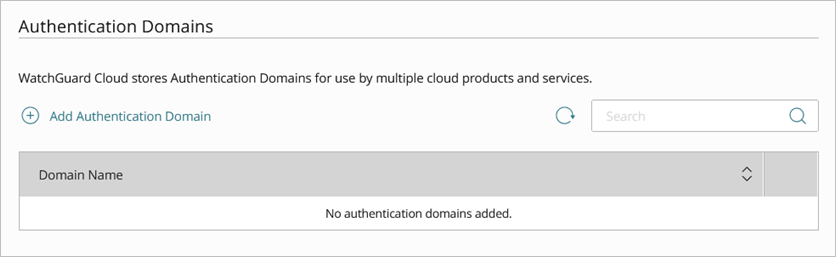
- Click the domain name to edit.
The Update Authentication Domain page opens.
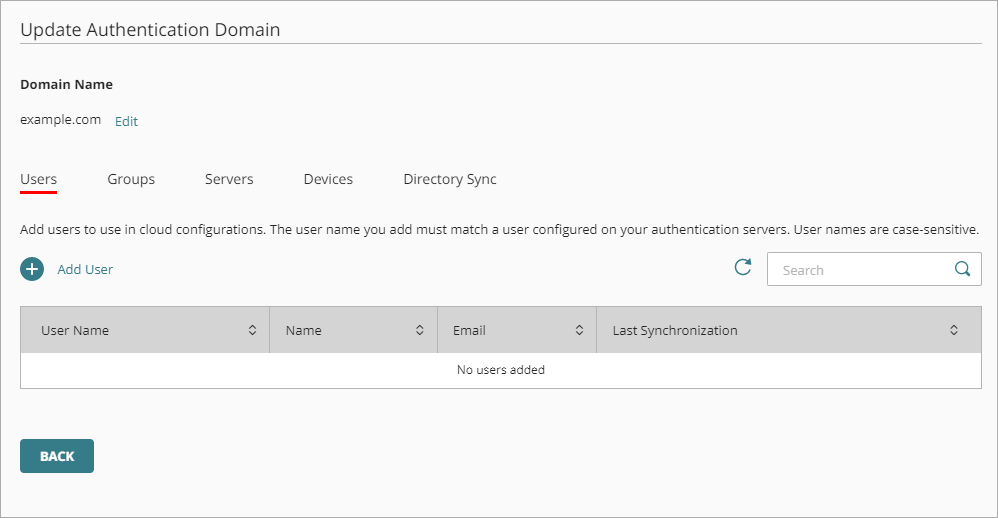
- Select Directory Sync.
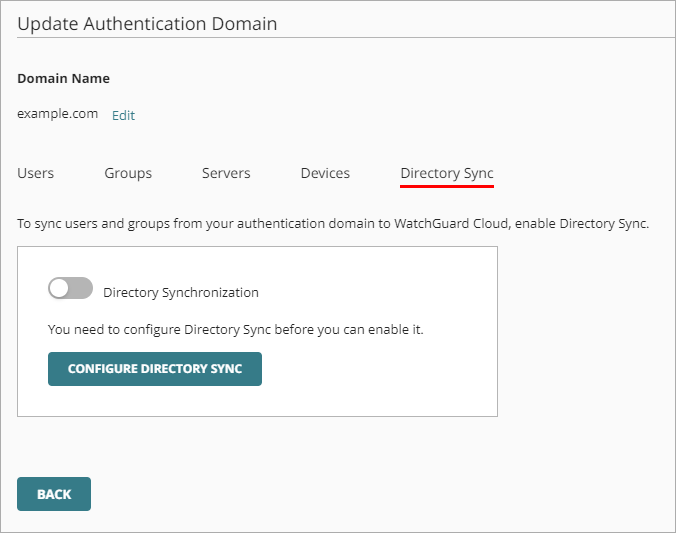
- Click Configure Directory Sync.
The Directory Sync page opens. - From the Synchronization Interval drop-down list, specify how often you want to synchronize users and groups from Entra ID.
- Click Save.
The Update Authentication Domain page opens and you can see the details of your Directory Sync.
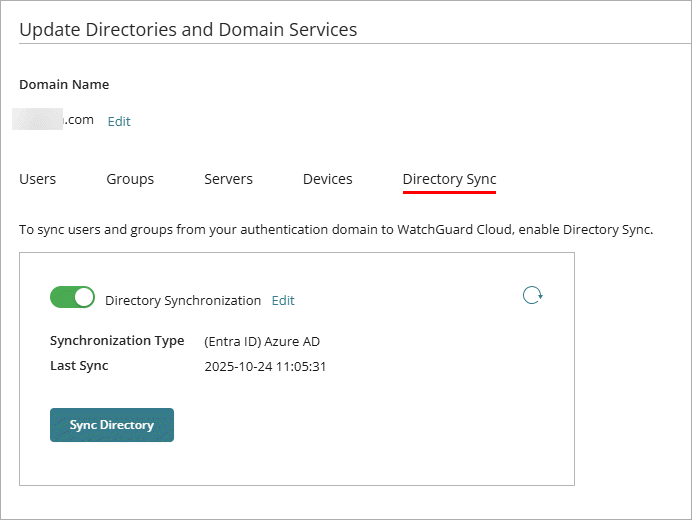
After you configure and save the directory sync settings, WatchGuard Cloud syncs with Entra ID and adds to your authentication domain:
- Your Entra ID users and groups
- Devices that belong to one of the Entra ID domains that you have added to this authentication domain
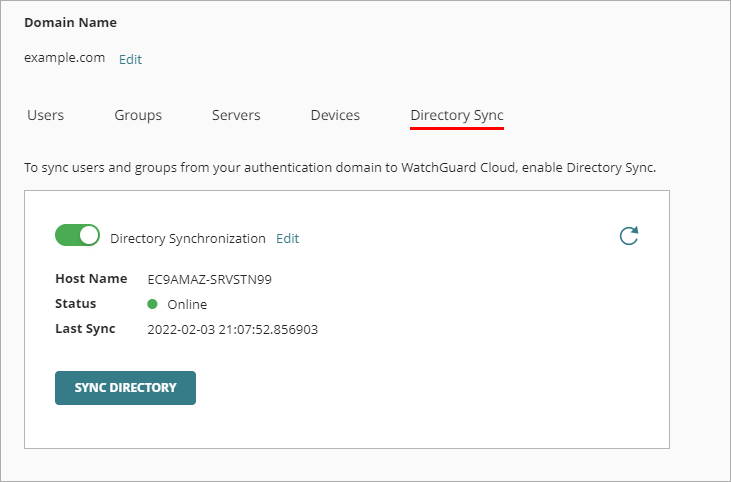
After you configure a directory sync, you can see these details on the Directory Sync tab:
- Synchronization Type — The type of directory synchronization that you have configured.
- Last Sync — The date and time that WatchGuard Cloud most recently synced users and groups from your LDAP server.
To refresh this information, click the Refresh icon  .
.
Manually Sync Users and Groups
After you configure a directory sync, WatchGuard Cloud syncs with Entra ID at each synchronization interval and adds all users and groups and devices from Entra ID to your authentication domain in WatchGuard Cloud.
If you want to sync users outside of the specified synchronization schedule, you can manually sync users at any time.
To manually sync users:
- If you are a Service Provider, select the name of the managed subscriber account.
- Select Configure > Authentication Domains.
The Authentication Domains page opens.
- Click the domain name to edit.
The Update Authentication Domain page opens.
- Select Directory Sync.
- Click Sync Directory.
Disable a Directory Sync
If you do not want to sync new users, groups, and devices to your authentication domain, you can disable the directory sync.
When you disable directory sync for an authentication domain, WatchGuard Cloud does not automatically sync with Entra ID. Users, groups, and devices that have already synced to your authentication domain remain available, but WatchGuard Cloud does not automatically sync new users, groups, and devices or update existing users, groups, and devices.
If you disable a directory sync, you can still manually sync users, groups, and devices to your WatchGuard Cloud authentication domain.
To disable a directory sync, in WatchGuard Cloud:
- Select Configure > Authentication Domains.
The Authentication Domains page opens.
- Click the domain name to edit.
The Update Authentication Domain page opens.
- Select Directory Sync.
- Disable the Directory Synchronization toggle.