To install the plug-in for ConnectWise RMM, WatchGuard provides an onboarding application to connect to the WatchGuard API and map accounts between WatchGuard Cloud and ConnectWise RMM.
The steps to install the plug-in include:
After you download and install the plug-in, you Configure the WatchGuard Cloud and ConnectWise RMM Connection.
Enable API Access in WatchGuard Cloud
To connect to the WatchGuard API, you must enable API access in your WatchGuard Cloud account to retrieve the required parameters for your plug-in configuration. For more information, go to Enable API Access.
To enable API access in WatchGuard Cloud:
- Log in to WatchGuard Cloud. (external link)
If you are a Service Provider, from Account Manager, select My Account or a managed account. - Select Administration > Managed Access.
- Click Enable API Access.
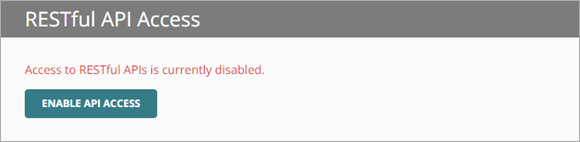
- Specify the readwrite and readonly passwords to use as your API access credentials.

Passwords must include an uppercase letter, a lowercase letter, a number, and a special character. The readwrite password and the readonly password must be different.
You must use the Read-write access ID and password for the plug-in configuration.
- Select the I agree to the terms and conditions in the WatchGuard APIs License Agreement check box.
- Click Save.
After you enable API access, the parameters that appear are required when you configure the connection with the ConnectWise RMM.
The base URL varies by region. The example in this image shows a US-based server.

Enable API Access in ConnectWise RMM
To automatically map the relationship between your WatchGuard Cloud managed accountss and the companies in ConnectWise RMM, you create an API key that includes the API access information required by the onboarding application.
If you do not require a tool to automatically map WatchGuard Cloud accounts to the companies in ConnectWise RMM, these steps are not required. For information on how to manually map accounts in the plug-in, go to Map ConnectWise RMM and WatchGuard Cloud Accounts.
To create an API key to access information in ConnectWise RMM:
- Go to Integrations > API Access.
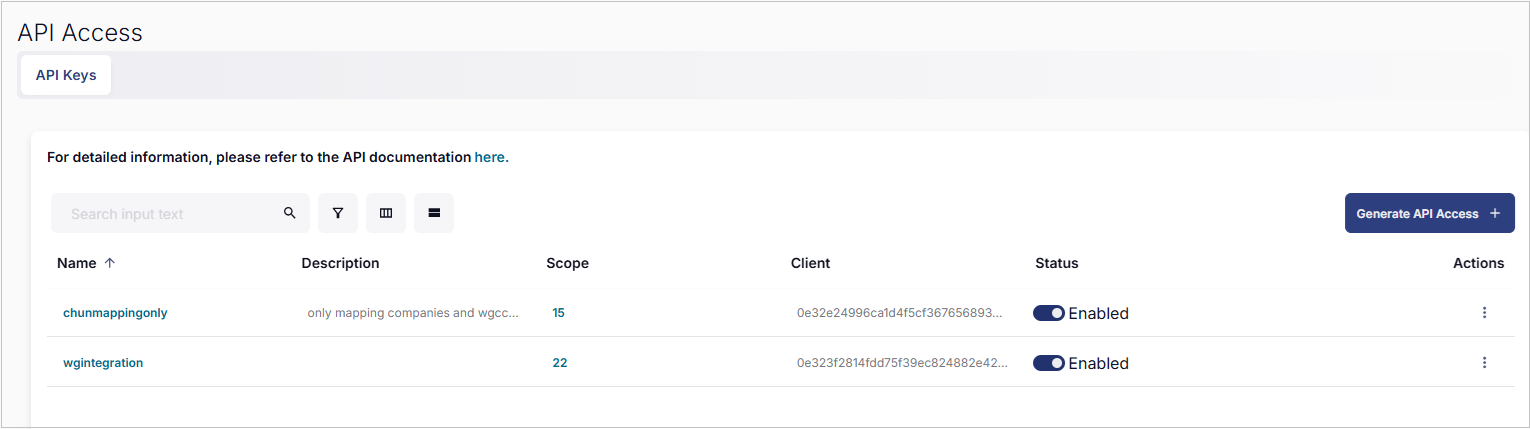
- Click Generate API Access +.
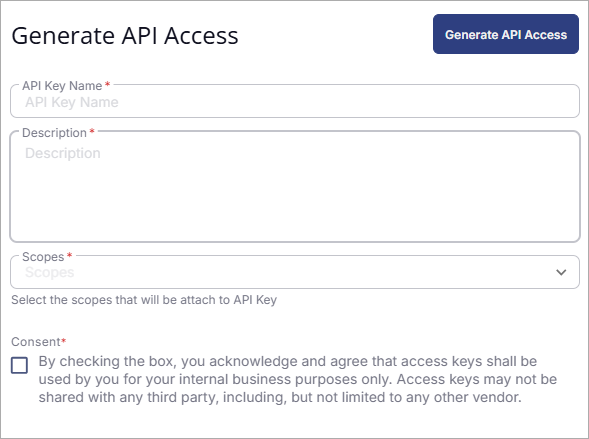
- In the API Key Name field, enter a descriptive name for the API key (for example, WatchGuard Agent).
- Enter a Description.
- From the Scopes drop-down list, select these check boxes:
- Platform – Companies – Read
- Platform – Custom Fields Definitions – Read
- Platform – Custom Fields Definitions – Write
- Click Generate API Access.
- Record the Client ID and Client Secret for the API key you created.
These values are required later to configure the plug-in.
Download the Plug-in
Before you download and install the WatchGuard Agent plug-in for ConnectWise RMM, make sure that:
- You have a valid product license for one of the supported WatchGuard products. For more information, go to About the WatchGuard Agent Plug-in for ConnectWise RMM.
- You have a ConnectWise RMM account with an Administrator role and an All access group.
To download the WatchGuard Agent plug-in for ConnectWise RMM:
- Go to the Software Downloads page. (external link)
- Click Endpoint Software.
- Click the ConnectWise RMM Plug-in link.
- Click ConnectWise RMM Plug-in (Latest) to download the ConnectWiseRMM .ZIP file.
- Save the ConnectWiseRMM .ZIP file to your computer.
- Extract the ConnectWiseRMM .ZIP file contents to a folder.
The ConnectWiseRMM folder contains these files:
- WatchGuard Agent Onboarding application (RMMOnboarding .EXE)
- Windows runner_shell.ps1 script
- macOS runner_shell.sh script
Use the provided scripts to automate agent installation when the account mapping is completed in the WatchGuard Agent onboarding application, or you have manually mapped accounts to the specified custom fields. Alternately, you could configure a Filter Schedule Task to periodically check for the WatchGuard Agent and automatically deploy it to devices where it is not installed.
To open the onboarding application, from the ConnectWiseRMM folder, double-click RMMOnboarding.EXE.
The onboarding application opens and automatically updates to the latest version.
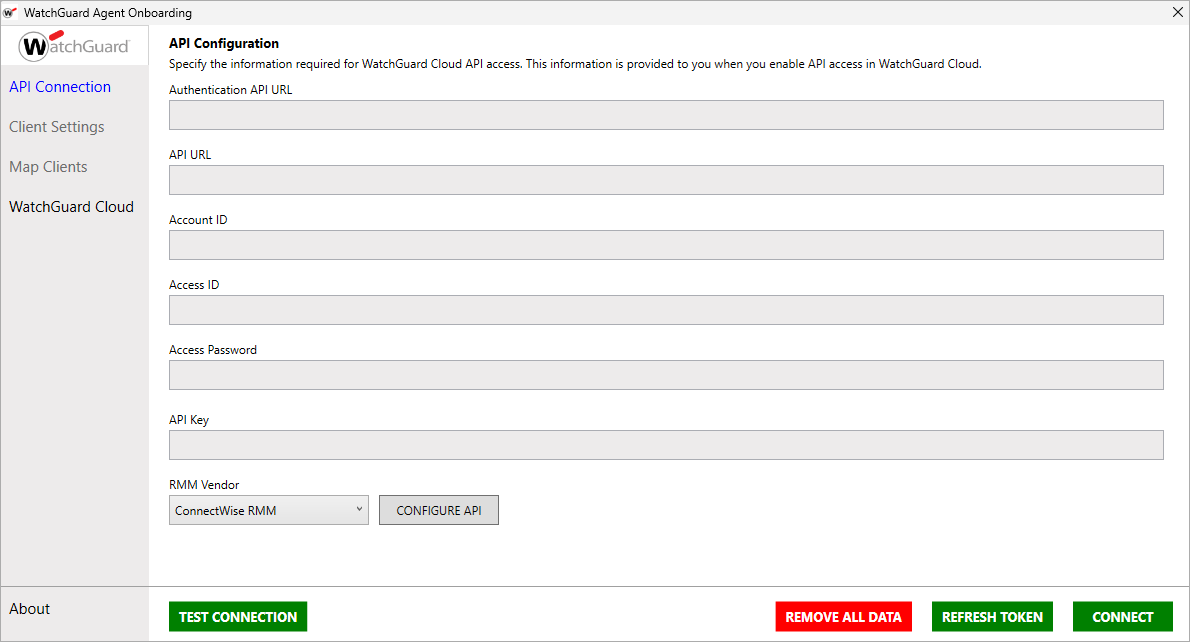
For information on the onboarding application, go to About the WatchGuard Agent Onboarding Application for ConnectWise RMM.
About the WatchGuard Agent Onboarding Application for ConnectWise RMM
Configure the WatchGuard Cloud and ConnectWise RMM Connection