Applies To: WatchGuard CloudDR
On the Issues > Rules page, you can review a list of the rules used across your integrated cloud applications. Rules are built-in policies that are applied against the applications and settings in your environment to identify issues.
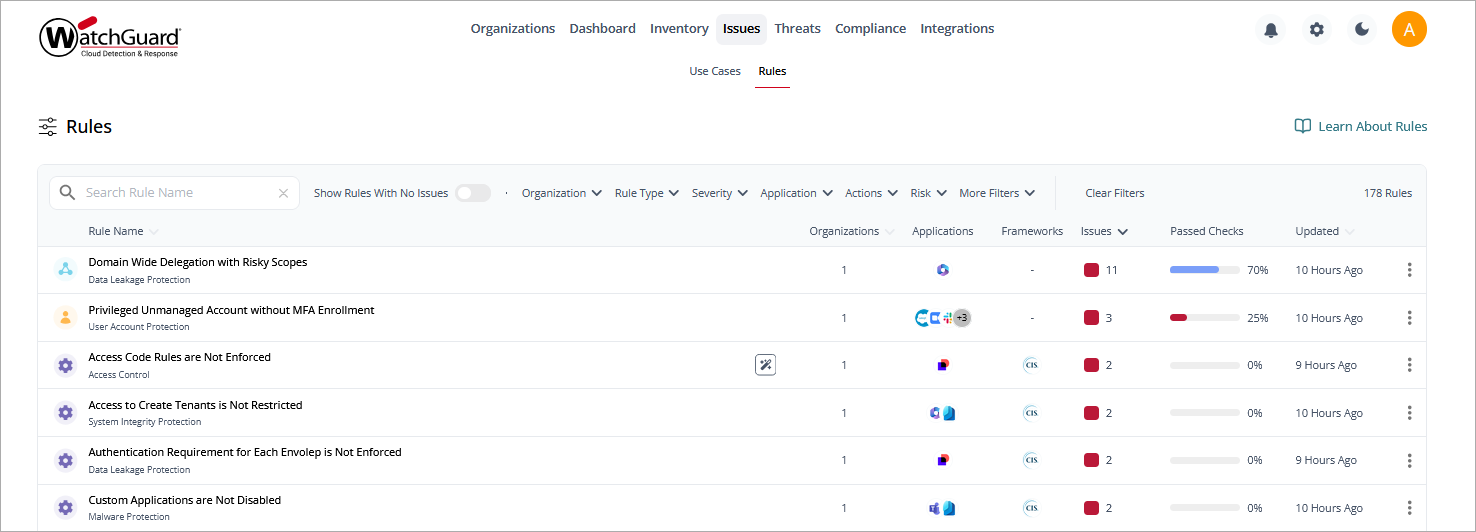
The rules list includes these columns:
- Rule Name — The name and category of the rule. Point to a rule name to show a detailed description of the rule.
- Organizations — The number of organizations where the rule is found.
- Applications — The cloud applications where the rule is in use.
- Frameworks — The compliance frameworks applicable to the rule.
- Issues — The number of occurrences of the issue across all integrated application instances.
- Passed Checks — The percentage of checks that meet the rule conditions.
- Updated — The number of days since the last activity on the issue (opened or resolved).
Throughout the CloudDR management UI, rule categories are differentiated by color and an icon.
| Icon | Rule Category |
|---|---|

|
Misconfigurations |

|
Identity |

|
Discovered Applications |

|
Data |
To search for a specific rule in the list, enter the rule name in the Search Rule Name box.
To email a .CSV file of the list of rules, click  .
.
On the Rules page, you can filter the list by:
- Organization
- Rule Type
- Severity
- Application
- Actions
- Risk
- Is Starred (favorite)
- Compliance
- Custom Rules
- Is Enabled
To show only rules with no issues in the list, enable Show Rules with No Issues.

To change the rule severity:
- Click
 in the row.
 - Select Change Severity.
- From the drop-down list, select a new severity level.
- Click Update Rule.
To enable a rule, click in the row, then select Enable Rule.
To enable a rule, click in the row, then select Disable Rule.
Rules Details Page
To view detailed information about a rule, select a rule in the table.
The rules details page opens.

The rules details page includes these tabs:
Select a tab to view additional information for the selected rule.
On the Organizations page, you can view a list of your managed organizations and the applications associated with the rule, the number of issues detected, and when the data was last updated. You can also confirm whether the rule is enabled or disabled, and whether notifications and automation have been configured.
On the Issues page, you can review active issues for the selected rule. To view archived issues, in the upper-right corner of the table, click  .
.
From the Issues page you can:
- Fix an issue. For more information, go to Resolve Issues in WatchGuard CloudDR.
- Accept the risk. For more information, go to Accept the Risk Associated with a Rule in WatchGuard CloudDR.
On the Details page, you can review the Rule Description and Associated Risks, as well as a summary of the number of Open Issues, their Severity, Risk, the affected Applications, and Ownership.
In the Rule Pass Criteria, you can edit the values for some parameters. For more information, go to Edit Rule Pass Criteria in WatchGuard CloudDR.
On the Notifications page, you can view a list of the notifications configured to notify a user when a new issue occurs, an issue closes, or an issue changes status. You can set up multiple channels to send notifications. For more information, go to Add Issue Notifications in WatchGuard CloudDR.
On the Automation page, you can set up a quick action to run when a new issue opens for the rule. For more information, go to Add Autofix Automation for Issues in WatchGuard CloudDR.
On the Remediations page, you can view the general instructions to resolve or remediate issues for an application.
On the Compliance page, you can view the compliance frameworks associated with the rule and the percentage of passed checks. For more information, go to Manage Compliance in CloudDR.
On the Logs page, you can view a list of each time the rule executed and whether it succeeded, with a timestamp. The most recent activities show first in the list.
Use Cases for Issues in WatchGuard CloudDR
Edit Rule Pass Criteria in WatchGuard CloudDR