Applies To: WatchGuard CloudDR
Add notifications to send an email message when an issue occurs, is resolved, or changes status. By default, WatchGuard Cloud sends the email message through WatchGuard.com.
You can add a notification for each integrated application you want to send the email message.
For information on available integrations, go to About WatchGuard CloudDR Integrations.
To add a rule notification, from WatchGuard Cloud:
- Select Configure > CloudDR.
- Select Issues > Rules.
- Select a rule you want to add a notification for.
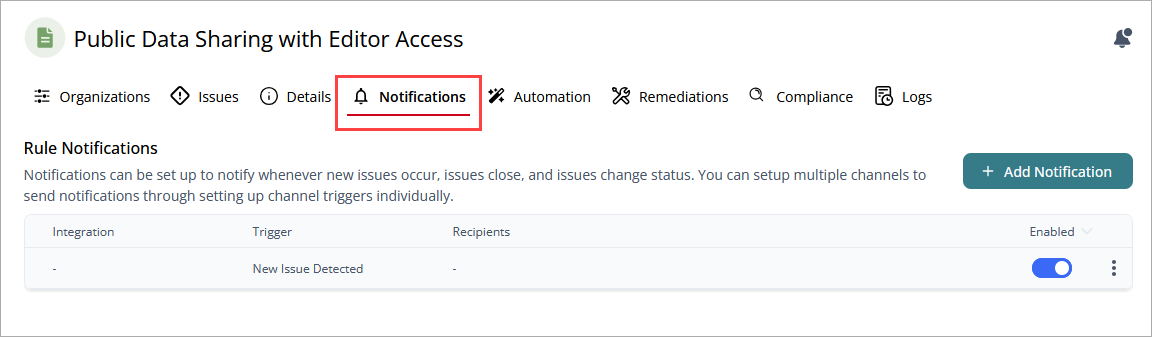
- Click Notifications.
- Click Add Notification.
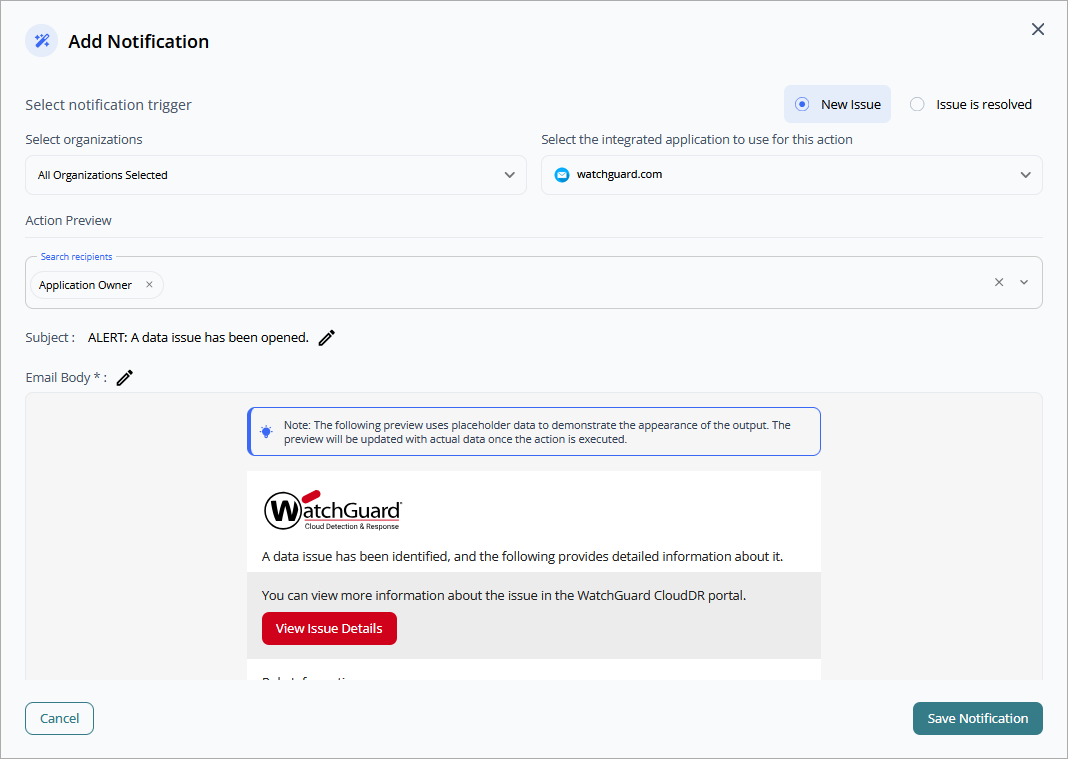
- Select the trigger that sends the notification (New Issues, Issue is Resolved).
- From the Select Organizations drop-down list, select the organizations you want to monitor with the rule.
- Select the integrated application you want to send the notification.
- In the Action Preview section, enter the recipients for the notification.
- Enter a Subject for the notification email message.
- In the Email Body text box, add placeholder text to include in the notification email message.
- Click Save Notification.
When you add a rule notification, it shows in the Rule Notifications table. In the table, you can use the Enabled toggle to enable or disable the rule notification.
To edit a notification, in the row for the notification you want to update, click  , then select Edit.
To edit a notification, in the row for the notification you want to delete, click , then select Delete.