Applies To: WatchGuard CloudDR
Add rule automation to automatically trigger an autofix action to run when a new issue opens for the rule. Automations are useful to start issue remediation without the need for manual interaction.
To add automation for a rule, from WatchGuard Cloud:
- Select Configure > CloudDR.
- Select Issues > Rules.

- Select the rule you want to add automation for.
- Click Automation.
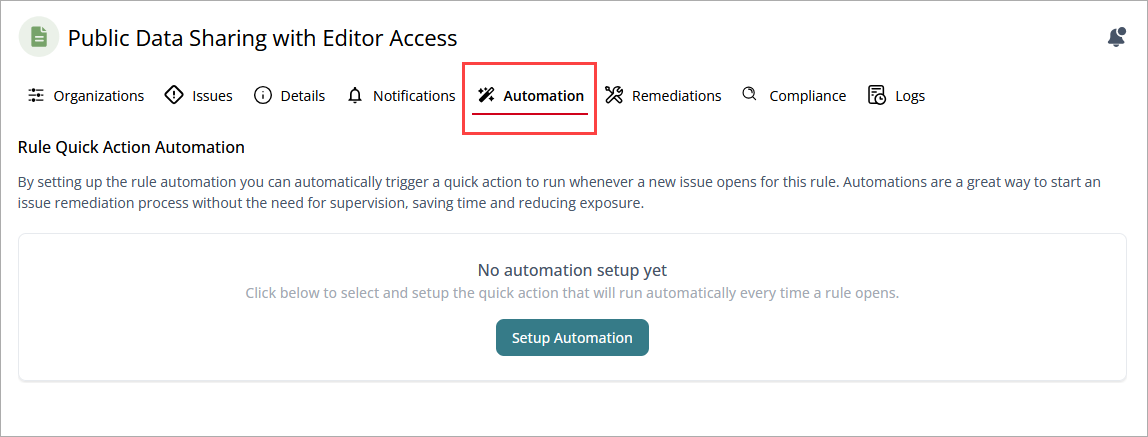
- Click Setup Automation.
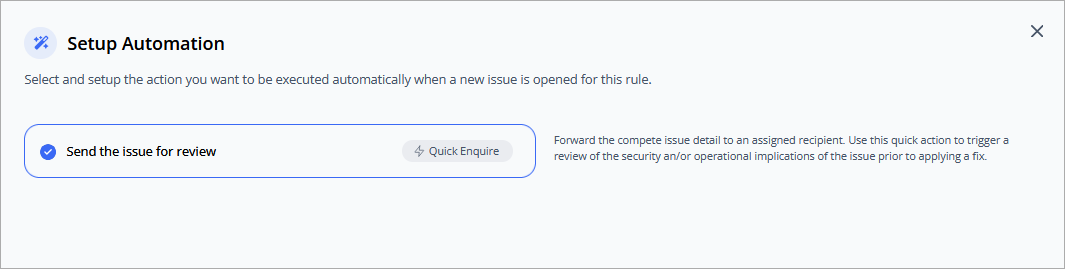
- Select the action you want to execute automatically when a new issue opens for this rule.
- Click Next.
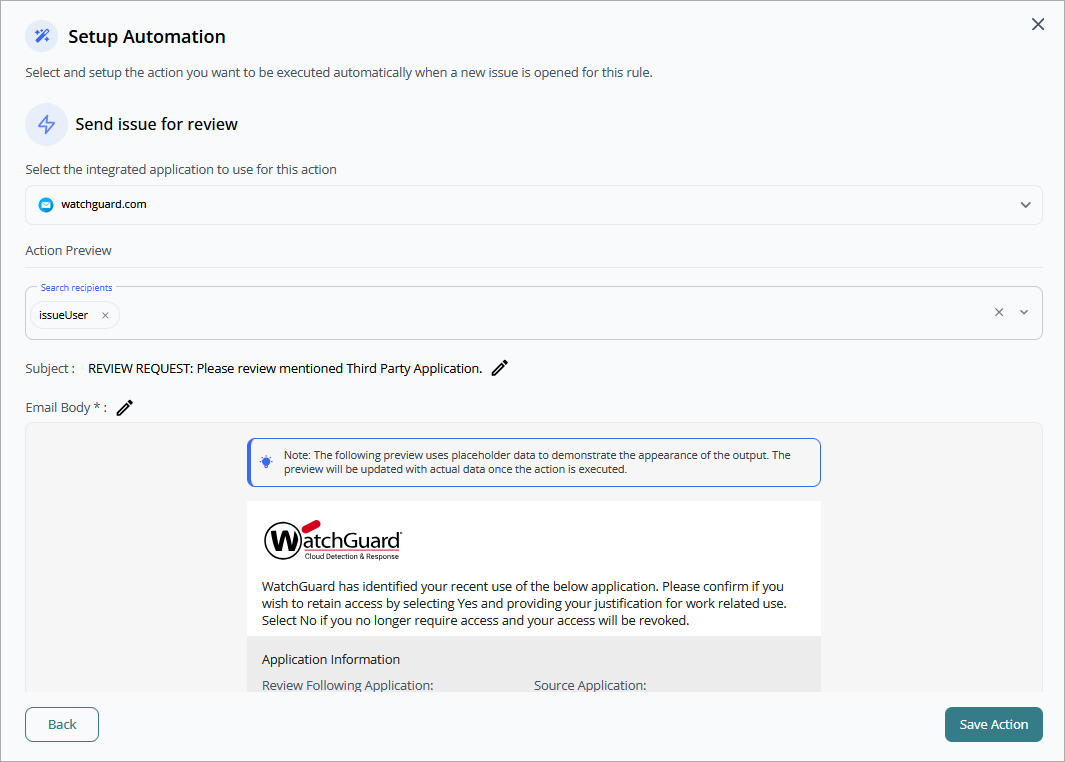
- The steps required to configure the automation depend on the action selected. For example, if the action is to Send Issue for Review, then you would complete these steps:
- Select the integrated application you want to perform the automation task.
- In the Action Preview section, enter the recipients you want to receive the automation email message.
- Enter a Subject for the email message.
- In the Email Body text box, add placeholder text to include in the email message.
- Click Save Action.
The Automation Created Successfully dialog box opens.
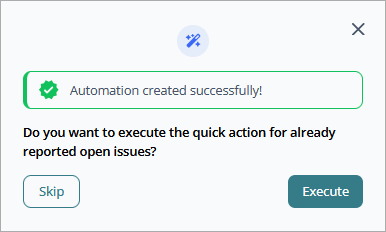
- If you want to execute the action now, click Execute.
You can view the status of the automation in the Operations status page. For more information, go to Operations Status in WatchGuard CloudDR.
Issue Rules in WatchGuard CloudDR