Applies To: WatchGuard Cloud
The Inventory menu in WatchGuard Cloud is where you manage the allocation of users, devices, and endpoints for your account and accounts you manage. You can also view product licenses.
The Usage and Allocation Report shows allocations and subscription usage for the last 12 months for all product licenses. You can also review changes to usage for a specific account and product in a month. For more information, go to Allocation and Usage Report .
You can allocate inventory from your Overview account to managed Service Provider and Subscriber accounts. Make sure to select Overview from Account Manager to view all available inventory.
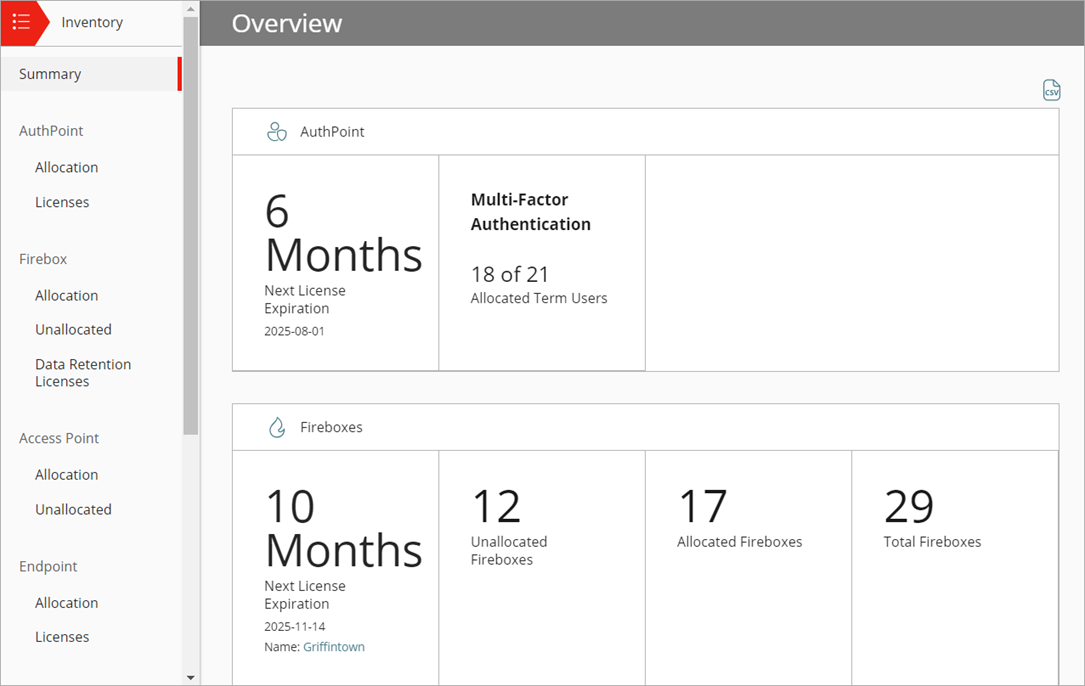
When you navigate to the Inventory > Summary page, an overview of the services and devices available in your Service Provider account appears. The overview can include these details:
- Months until the license expires
- Number of allocated and unallocated devices
- Number of total devices
- Number of data retention licenses (Firebox)
- Number of allocated and unallocated users (AuthPoint, FireCloud, WatchGuard NDR, WatchGuard SaaS DR, Compliance Reporting, Total NDR, and WatchGuard Core MDR for Microsoft)
- Number of total users (AuthPoint, FireCloud, WatchGuard NDR, WatchGuard SaaS DR, Compliance Reporting, Total NDR, and WatchGuard Core MDR for Microsoft)
- Number of allocated and unallocated endpoints (Endpoint Security products and modules)
- Number of total endpoints (Endpoint Security products and modules)
Use Account Manager to view the inventory for your Service Provider account and all of your managed accounts. The icon next to an account name denotes what type of account it is (Service Provider or Subscriber). Your own Subscriber account (My Account) appears below Overview. If you do not see any available inventory, make sure to select Overview from Account Manager to view all available inventory on the Inventory > Summary page.
To download an overview of the services and devices available in your Service Provider account in .CSV format, from the top-right corner of the Overview page, click  .
.
If you have delegated accounts, the Overview > Inventory > Summary page does not include any inventory that the delegated account activated. To view the inventory activated by a delegated Subscriber account, you must select the account in Account Manager.
Your operator role determines what you can see and do in WatchGuard Cloud. Your role must have the Manage Inventory permission to view or configure this feature. For more information, go to Manage WatchGuard Cloud Operators and Roles.
Select an account to see what has been allocated to that account.
- To allocate users to an account, from the Inventory menu, select Allocation below the product. For information, go to the appropriate topic:
- Allocate AuthPoint Users
- Allocate FireCloud Users
- Allocate WatchGuard NDR Users
- Allocate WatchGuard SaaS DR Users
- Allocate WatchGuard Compliance Reporting Users
- Allocate Total NDR Users
- Allocate WatchGuard NDR for Firebox Licenses
- Allocate WatchGuard MDR Users
- To allocate Fireboxes or Data Retention licenses to an account, from the Inventory menu, select the links below Firebox. For more information, go to Allocate Fireboxes and Allocate Data Retention Licenses.
- To allocate an Access Point to an account, from the Inventory menu, select Allocation below Access Point. For more information, go to Access Point Allocation.
- To allocate endpoints to an account, from the Inventory menu, select Allocation below Endpoints. For more information, go to Allocate Endpoints.
- To allocate a WatchGuard NDR for Firebox license, from the Inventory menu, select Allocation below NDR. For more information, go to Allocate WatchGuard NDR for Firebox Licenses.
Select a Service Provider account to see the licenses associated with the account. You can filter the list of licenses to view Expired or Active licenses only.
- To view licenses for a product, from the Inventory menu, select Licenses below the product. For more information, go to
- About AuthPoint Licenses
- About FireCloud Licenses
- About Wi-Fi in WatchGuard Cloud Access Point Licenses
- About Endpoint Security Licenses
- About WatchGuard NDR Licenses
- About WatchGuard SaaS DR Licenses
- About WatchGuard Compliance Reporting Licenses
- About Total NDR Licenses
- About WatchGuard NDR for Firebox Licenses
- About WatchGuard MDR Licenses
- To view Data Retention licenses, from the Inventory menu, select Data Retention Licenses below Firebox. For more information, go to About Data Retention Licenses.