Applies To: ThreatSync+ NDR
WatchGuard NDR for Firebox licenses enable you to add a ThreatSync+ NDR license to your Firebox based on Firebox model. When a Service Provider activates a WatchGuard NDR for Firebox license, it appears in the Service Provider Inventory in WatchGuard Cloud.
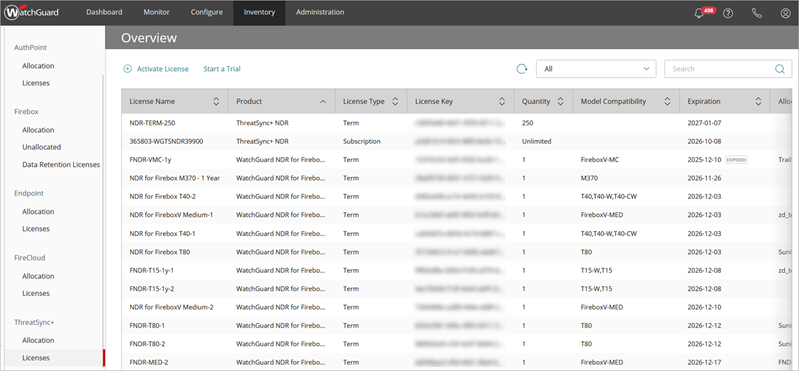
As a Service Provider, you allocate WatchGuard NDR for Firebox licenses to your own account or any account you manage. The Inventory page shows you a summary of the devices and licenses in your inventory for the selected account. For each WatchGuard NDR for Firebox license, the Overview > Inventory > ThreatSync+ > Licenses page shows this information:
- License Name — License name, assigned when the license was activated.
- Product — Product name. For example, WatchGuard NDR for Firebox.
- License Type — Subscription or Term license.
- License Key — License number.
- Quantity — Number of licenses.
- Model Compatibility — Firebox model that is compatible with the WatchGuard NDR for Firebox license. For example, M370.
- Expiration — Date the license expires.
- Allocated To — Account the license is allocated to.
After you allocate a WatchGuard NDR for Firebox license to a Subscriber account, the WatchGuard NDR for Firebox license shows on the License Details page in the Subscriber account. From the Subscriber account, you can assign the WatchGuard NDR for Firebox license to a Firebox.
Allocate an Unallocated Firebox to an Account
Before you can allocate a WatchGuard NDR for Firebox license to a Firebox, you must first allocate a Firebox with the same model as the WatchGuard NDR for Firebox license to a Subscriber account.
To allocate a Firebox to a Subscriber account:
- Log in to your WatchGuard Cloud Service Provider account.
- From Account Manager, select Overview.
- Select Inventory.
The Overview page for your Service Provider Inventory opens. - In the Firebox section, select Unallocated.
A list of all unallocated Fireboxes shows. - To allocate a Firebox to an account, click the name of the Firebox.
The Allocation Details page opens. - From the Allocated To drop-down list, select the Subscriber account to allocate this Firebox to.
- (Optional) To specify an allocation expiration date:
- Select Custom.
- Select an expiration date in the calendar.
- Click Save.
The device is removed from the Unallocated list and is added to the Allocation list for the account you selected.
For more information, go to Allocate Fireboxes.
Allocate a WatchGuard NDR for Firebox License to An Account
After you allocate a compatible Firebox model to a Subscriber account, you allocate the WatchGuard NDR for Firebox license to the same account you allocated the Firebox to.
To allocate a WatchGuard NDR for Firebox license to the account:
- Log in to your WatchGuard Cloud Service Provider account.
- From Account Manager, select Overview.
- Select Inventory.
The Overview page for your Service Provider Inventory opens. - In the ThreatSync+ section, click Allocation.
- From the drop-down list, select Subscribers.
- Click + Allocate.
The Allocation Details page opens.
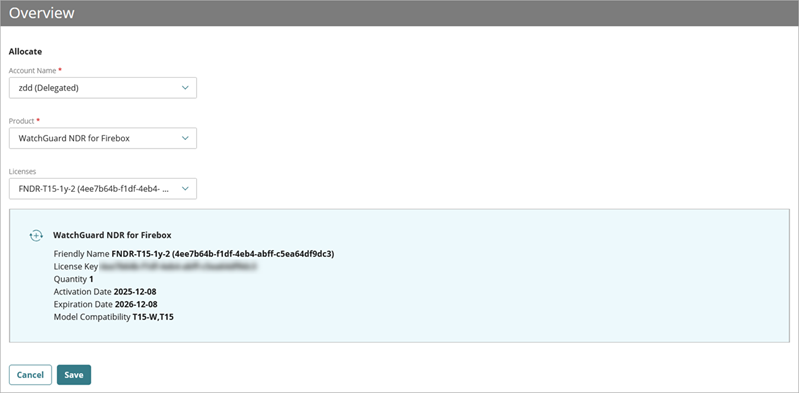
- From the Account Name drop-down list, select the account name to allocate this license to.
- From the Product drop-down list, select WatchGuard NDR for Firebox.
- From the Licenses drop-down list, select the compatible Firebox license.
The license details and allocation details appear. - Click Save.
The license is allocated to the selected account and shows as a Linked to License allocation type.
After you allocate a Firebox and WatchGuard NDR for Firebox license to a Subscriber account, you can assign the license to a Firebox in the account for ThreatSync+ NDR monitoring. For more information, go to Configure ThreatSync+ NDR Firebox Monitoring and Remediation.