Applies To: Cloud-managed Fireboxes

This document applies to Fireboxes you manage in WatchGuard Cloud. For information that applies to Fireboxes managed in Fireware Web UI or WatchGuard System Manager, go to Configure MAP-E.
This feature is available only to participants in the WatchGuard Cloud Beta program.
Mapping of Address and Port using Encapsulation (MAP-E) is an IPv6 transition technology (RFC 7597) that encapsulates IPv4 traffic in IPv6 so the Firebox can send IPv4 traffic across an IPv6 network. In WatchGuard Cloud, you configure MAP-E as the IP Address Configuration for an external network. When you configure MAP-E, the Firebox operates as a MAP-E customer edge (CE) device and retrieves MAP-E mapping rules from your ISP.
Before You Begin
Note: MAP-E support is intended for ISP environments that use MAP-E, primarily Japanese ISPs. Get connection requirements from your ISP before you configure MAP-E.
Before you configure MAP-E, make sure that
- The Firebox runs Fireware v2026.5 or higher.
- Your ISP supports MAP-E for your connection.
- IPv6 is enabled for the external interface that connects to the ISP. For more information about IPv6 settings, go to Configure a Firebox External Network.
Configure MAP-E for an External Network
Your operator role determines what you can see and do in WatchGuard Cloud. Your role must have the Devices permission to view or configure this feature. For more information, go to Manage WatchGuard Cloud Operators and Roles.
To configure MAP-E for an external network, from WatchGuard Cloud:
- Select Configure > Devices.
- Select the cloud-managed Firebox.
- Select Device Configuration.
- Click the Networks widget.
The Networks configuration page opens. - On the Networks page, click the tile of the external network to edit.
The network configuration page opens. - On the Network tab, in the Name text box, type a name for the network.
- From the IP Address Configuration drop-down list, select MAP-E.
- In the Vendor text box, type the vendor name provided by your ISP.
- Expand Advanced Settings and configure the MAP-E settings required by your ISP. For more information, go to MAP-E Advanced Settings.
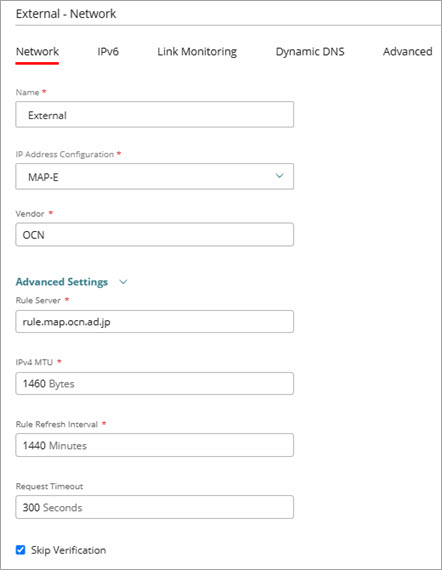
- In the Interfaces section, select the interface for this network.
- To save configuration changes to the cloud, click Save.
On the Networks page, the network widget shows MAP-E as the IP address.
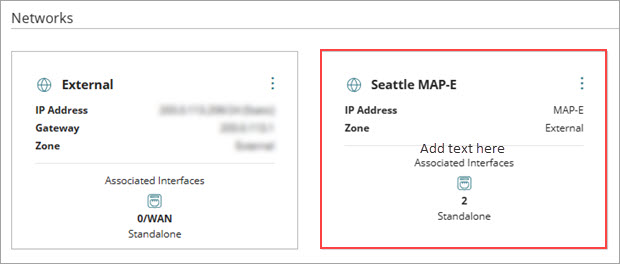
- Deploy the configuration to the Firebox. For more information, go to Manage Device Configuration Deployment.
Note: If your ISP requires dynamic DNS updates through ipoe-static.ocn.ad.jp, configure Dynamic DNS for the external network and select that provider. For OCN static MAP-E service, this host name registration is required. OCN uses the host name for address resolution to map an IPv6 prefix change to the assigned IPv4 address. For more information, go to Configure Dynamic DNS.
MAP-E Advanced Settings
When you select MAP-E as the IP Address Configuration, you can expand Advanced Settings to configure these options. Use the values provided by your ISP when available. Default values appear for common ISP configurations such as OCN.
Rule Server
Type the Fully Qualified Domain Name (FQDN) of the MAP-E rule server. The Firebox retrieves MAP-E mapping rules from this server.
IPv4 MTU
Specify the maximum transmission unit (MTU) for this interface, in bytes. The default value is 1460. Use the MTU value provided by your ISP. The MTU value provided by your ISP already accounts for encapsulation overhead.
Rule Refresh Interval
Specify how often, in minutes, the Firebox retrieves updated MAP-E mapping rules from the rule server. The default value is 1440 minutes (24 hours). The supported range is 720–1440 minutes. This setting does not control DHCP renewal.
Request Timeout
(Optional) Specify the timeout, in seconds, for MAP-E rule requests to the rule server. If a rule request does not complete before this timeout, the request fails. If you leave this text box empty, the Firebox uses the default timeout.
Skip Verification
To skip SSL certificate verification when the Firebox requests MAP-E rules from the rule server, select this check box. This option is selected by default.
Configure a Firebox External Network
About IPv6 Support in WatchGuard Cloud