Applies To: Cloud-managed Fireboxes, Locally-managed Fireboxes
This feature is available only to participants in the WatchGuard Cloud Beta program.
Overview
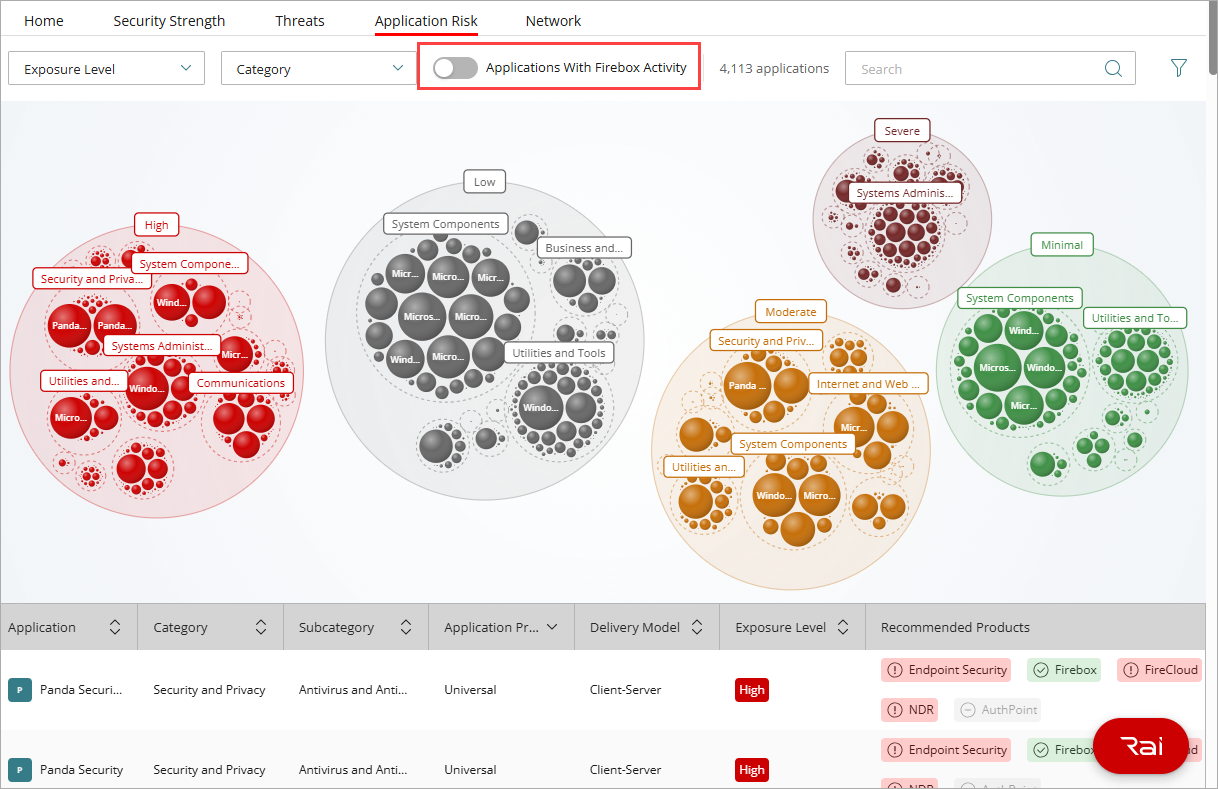
The Application Telemetry feature enables application discovery through Firebox network traffic logs streamed to WatchGuard Cloud. Discovered applications in a Subscriber account show on the Application Risk dashboard with information on the exposure level each application introduces, as well as recommendations for WatchGuard products that can help mitigate any risk. For information about the dashboard, go to About the Application Risk Dashboard.
For application discovery, including shadow AI, to show on the dashboard, you must enable the feature on an account with one of these Fireboxes with a Total Security Suite (TSS) or Prime Security Suite (PSS) license:
- T Series: T115-W, T125, T125-W, T145, T145-W, T175, T185
- M Series (Mx95): M295, M395, M495, M595, M695
- M Series (Mx850): M4850, M5850, M6850
Before you begin, make sure that the Fireboxes that you want to enable application telemetry on are cloud-managed or locally-managed with cloud reporting enabled. For more information, go to Disable or Enable Logging to WatchGuard Cloud.
Enable Application Telemetry for Firebox Application Detection
Your operator role determines what you can see and do in WatchGuard Cloud. Your role must have the Devices permission to view or configure this feature. For more information, go to Manage WatchGuard Cloud Operators and Roles.
You can enable application telemetry for a single device or multiple devices. To detect application use throughout your entire environment, we recommend that you enable application telemetry on multiple Fireboxes.
To enable application telemetry on a single device:
- (Service Providers) Select the Subscriber account where you want to enable application telemetry.
- Select Configure > Devices.
- Select the device you want to enable application telemetry for.
The Device Settings page opens.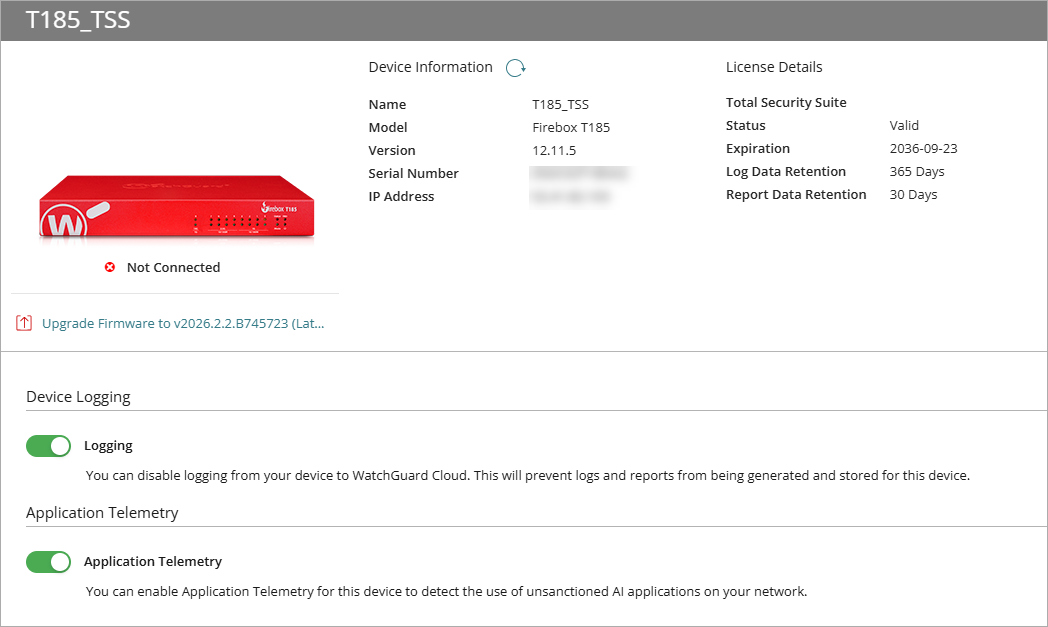
- Enable Application Telemetry.
This device will now detect application use through the Firebox.
To enable application telemetry on multiple devices:
- Select the Service Provider account where you want to enable application telemetry.
- Select Configure > Devices.
- From the Devices menu, select Application Telemetry.
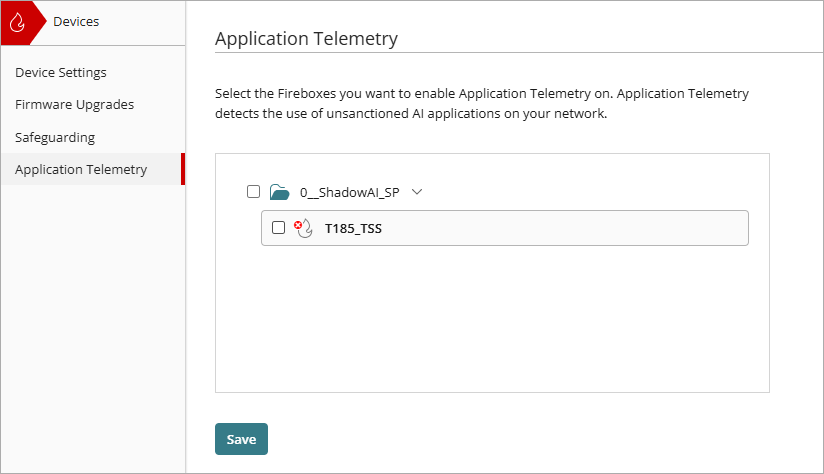
- Select the Fireboxes on which you want to enable application telemetry.
- Click Save.
- To view applications with Firebox activity in the account, go to Dashboard > Application Risk.
It can take up to 24 hours for application data to show on the dashboard. - Enable the Applications With Firebox Activity toggle.