Applies To: WatchGuard Cloud
The Security Strength dashboard provides a summary of your security strength across the WatchGuard product portfolio. Use the dashboard to quickly identify risks, prioritize remediation, and improve your security strength score.
For information on the security strength score, go to About the Security Strength Score.
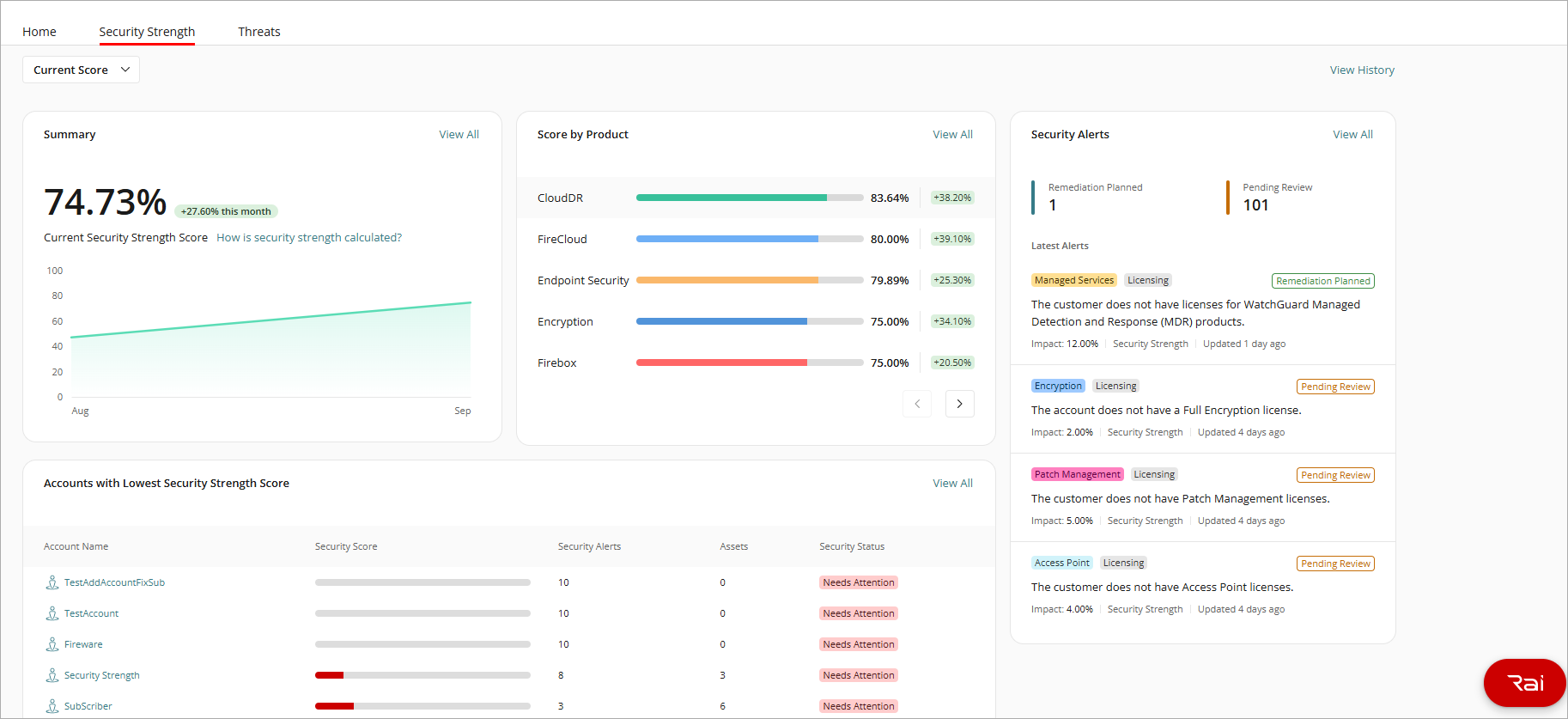
For Service Providers, the Security Strength dashboard provides a summary of the security strength of their managed accounts across the WatchGuard product portfolio. The dashboard helps Service Providers get answers to key questions about their managed accounts:
- Are my accounts protected?
- Which accounts have a greater chance of a security breach?
- Are there critical misconfigurations or missing protections I need to address?
- Is the overall security strength of my accounts improving over time?
- Should I add new products to improve a customer's security strength?
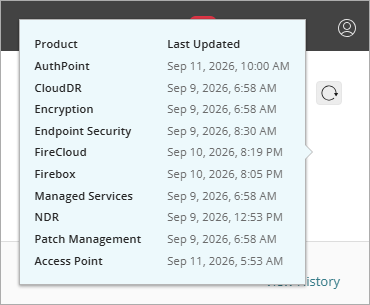
To view the time elapsed since the dashboard was last updated for each product, in the upper-right corner, point to  . Data refreshes at daily at a minimum across each product line. To improve performance, WatchGuard Cloud stores the refreshed data in the cache. To manually refresh all products on the dashboard, click .
To open the Security Strength History page, click View History. On this page, you can review the security strength trend for the last 24 hours, last 7 days, last month, or a custom time period. For more information about the Security Strength History page, go to Security Strength History.
The dashboard also shows security alerts from across the WatchGuard product portfolio and all changes made by operators that affect the Security Strength Score. For information on security alerts, go to Security Alerts. To open the Security Alerts page, click View All in any widget on the page. For more information, go to Manage Security Alerts.
About the Dashboard Widgets
Widgets on the dashboard show important information about your products. By default, the dashboard widgets show information that contributes to your current security score, but you can also select to view the dashboard with your planned actions taken into account.
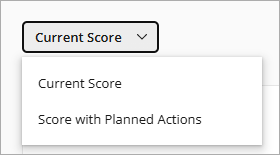
From the drop-down list at the top of the dashboard, select one of these filters:
- Current Score
- Score with Planned Actions
Your operator role determines what you can see and do in WatchGuard Cloud. Information in the widgets is limited to the accounts and products that your operator account has access to. For more information, go to Manage WatchGuard Cloud Operators and Roles.
Summary
The Summary widget shows the current security strength score as well as the score for the last six months. The change in score from the previous month shows next to the current score.
For Service Providers, the Summary widget shows the average security strength scores for your managed accounts. For example, if five managed accounts have security strength scores of 95%, 70%, 60%, 45%, and 100%, the Service Provider security strength score is 74%.
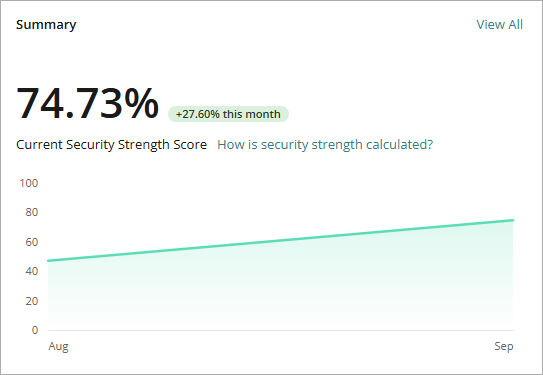
Point to the green line to view the security strength score for each product on a specific date.
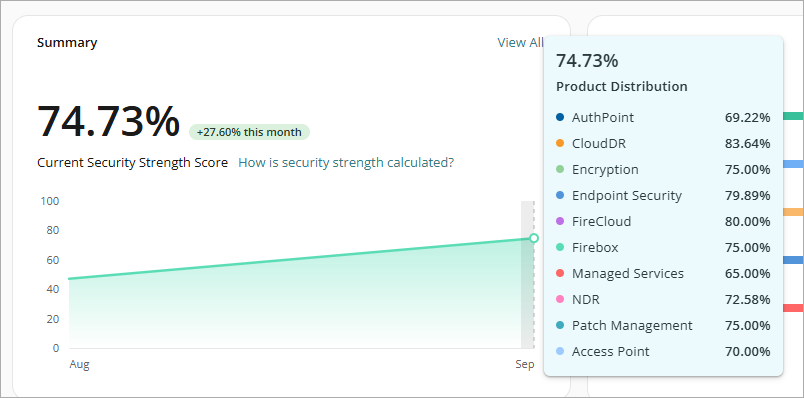
To view all security alerts that impact the score, click View All.
Score by Product
The Score by Product widget shows the current security strength score for each WatchGuard product in the account. It also shows the change in score from the previous month.
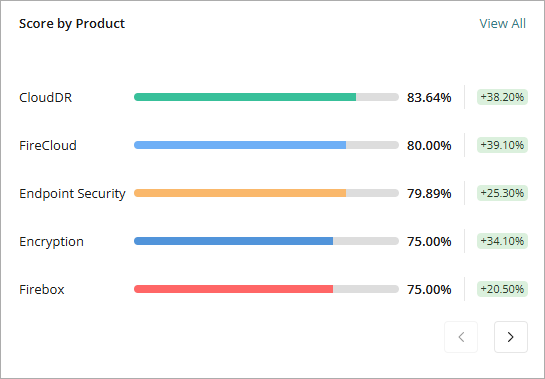
To open the Security Alerts page filtered for a product, click the product name. For information on the Security Alerts page, go to Security Alerts List.
Accounts with Lowest Security Strength Score (Service Providers only)
This widget shows a list of the accounts with the lowest security strength score, including the number of security alerts, the number of assets affected, and the overall security status of the account. Accounts with the lowest security strength score are highest in the list.
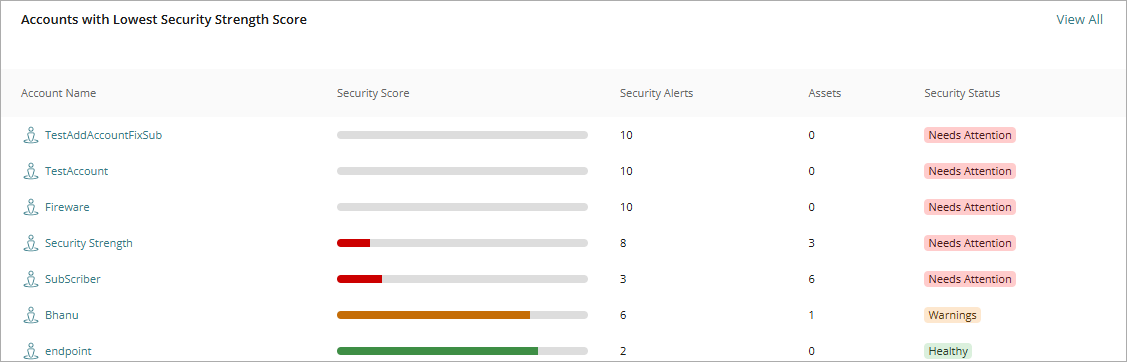
The Security Status can be Healthy, Moderate, Needs Improvement, or Needs Attention. This status is based on the security strength score:
- Healthy (76%–100%) — Strong security posture across core controls.
- Moderate (51%–75%) — Noticeable security risks or missing product layers.
- Needs Improvement (26%–50%) — Missing product layers, critical vulnerabilities, widespread deployment gaps, or substantial coverage blind spots.
- Needs Attention (0%–25%) — Missing important product layers to protect the whole attack surface, critical vulnerabilities, widespread deployment gaps, and important misconfigurations that require attention.
To open the Security Alerts page filtered for an account, click the account name. For information on the Security Alerts page, go to Security Alerts List.
Security Alerts
The Security Alerts widget shows a list of the latest alerts for the account, as well as the total number of alerts with a remediation action planned or pending review.
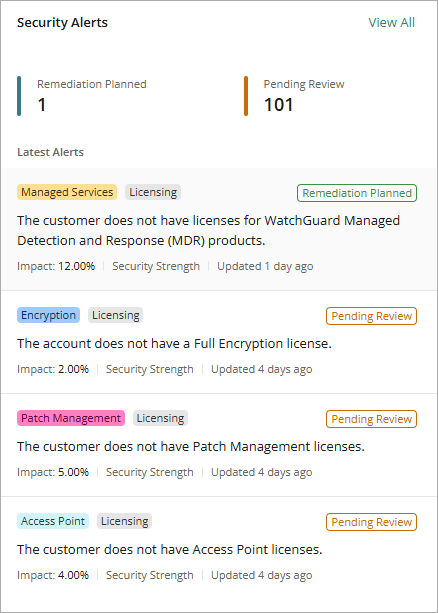
To open the Security Alerts page, select an alert or click View All. For more information, go to Security Alerts List.
In the widget, each security alert includes this information:
- Product — Each WatchGuard product has a label with a unique color for easy identification.
- Category — The category that the alert belongs to (Misconfiguration, Licensing, Deployment, or Exposure).
- Alert description — A brief description of the alert.
- Impact — The percentage that the alert affects the security strength score.
- Account — The affected account.
- Affected assets — The icon shows the number of affected assets (devices, endpoints, or users).
- Updated — The elapsed time since the alert was last updated.
The affected asset number includes all assets reported by the product as affected by a risk. This includes assets whose impact is suppressed because the risk was inherited from a parent asset. Security Strength Score calculations consider only assets whose impact is not suppressed. When you resolve a risk on some assets, it might not affect the Security Strength Score if those assets are excluded from score calculations.
Security Alerts List
The Security Alerts list provides a detailed list of security alerts. Their status and criticality show in each row.
To view alerts only for specific products, risk levels, or alert types, use the drop-down lists at the top of the page. To view alerts in a specific score impact range, status, or time period, click  . You can sort the list by:
- Highest Impact — Alerts with the highest impact percentage.
- Lowest Impact — Alerts with the lowest impact percentage.
- Newest First — Alerts that were most recently updated.
- Oldest First — Alerts that were least recently updated.
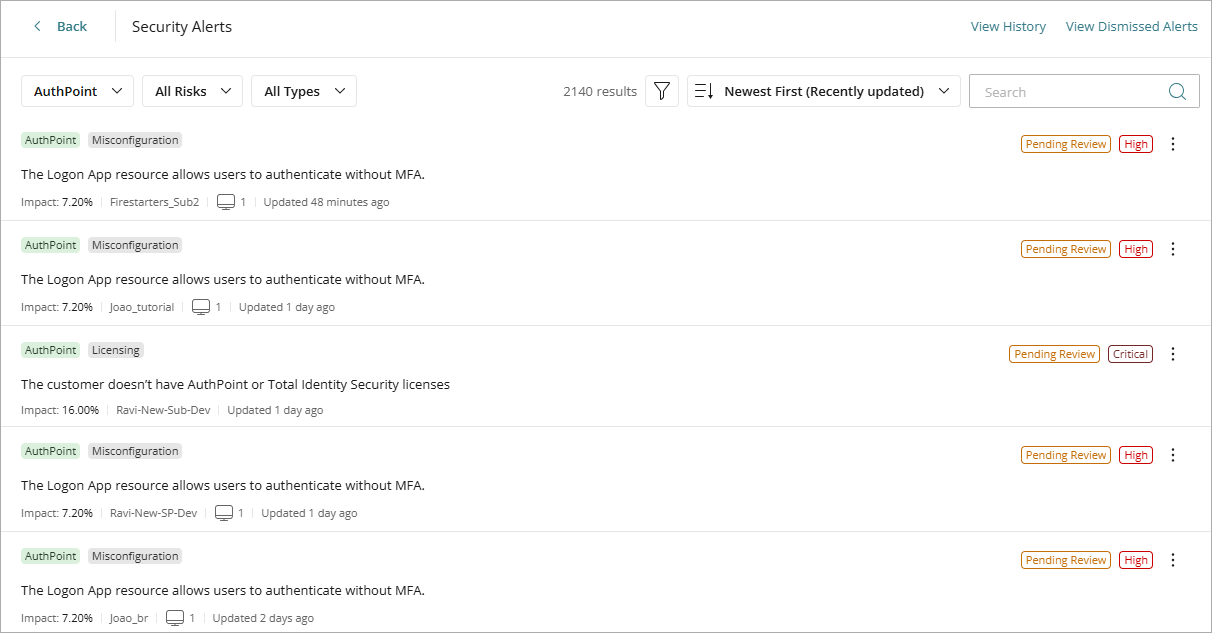
Enter text in the Search text box to find a specific security alert.
To open the Security Strength History page, click View History. For more information, go to Security Strength History.
To open the Dismissed Alerts page, click View Dismissed Alerts. On this page, you can quickly filter the dismissed alerts by reason, risk criticality, and risk type. For information on how to dismiss alerts, go to Manage Security Alerts.
The options menu for each alert provides quick access to frequently used features, including Mark as Planned, Dismiss Alert, Filter by Account, or Filter by Alert Type.
Manage Security Alerts
To view detailed information for a specific alert, including common causes, recommended actions, and affected entities, select an alert from the list. The Security Alert Details panel opens. In the panel, you can:
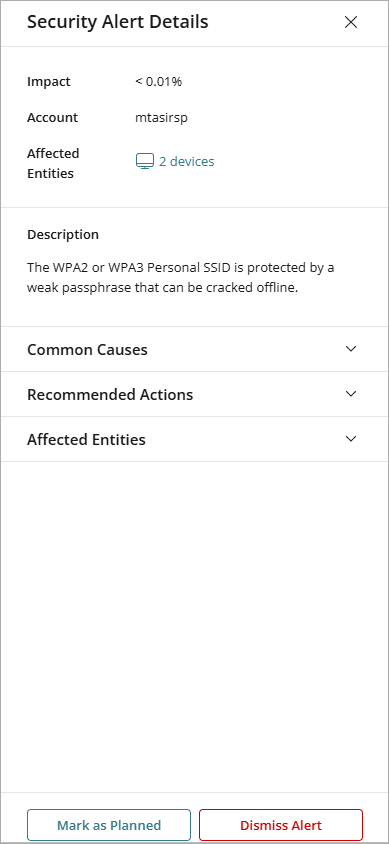
For information on how to restore an alert, go to Restore an Alert.
Mark an Alert as Planned
When you mark an alert as planned, you indicate that you plan to remediate or resolve the alert in the future.
To mark an alert as planned:
- From the Security Alerts list, select an alert.
The Security Alert Details panel opens. - Click Mark as Planned.
The Mark as Planned dialog box opens.
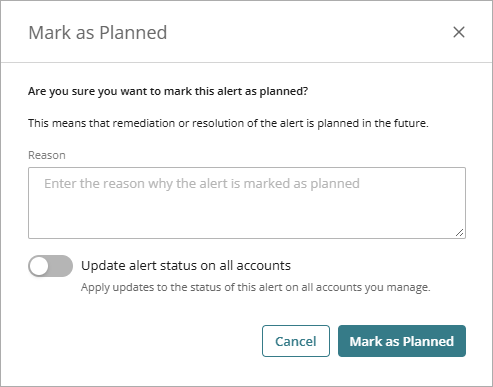
- In the Reason text box, type a description of the planned remediation or resolution.
- To update the alert status on all accounts you manage, enable Update Alert Status on All Accounts.
- Click Mark as Planned.
Dismiss an Alert
Dismiss an alert when you accept the risk associated with the alert or mitigate the risk with a third-party solution or alternate method. A dismissed alert can impact the security strength score. Status changes for exclusions that impact the security strength score (such as Risk Accepted or Resolved through Third Party) take effect immediately. All other data refreshes with the daily calculation cycle.
Status history is retained permanently, so you can review or change status updates at any time. For more information, go to Restore an Alert.
To dismiss an alert as accepted or resolved:
- From the Security Alerts list, select an alert.
The Security Alerts Details panel opens. - Click Dismiss Alert.
The Dismiss Alert dialog box opens. - Select the reason to dismiss the alert:
- Risk Accepted — You accept the risk and choose not to act on the recommendation now. The security strength score is not affected.
- Resolved through Third-Party Provider — The risk is mitigated by a third-party solution. The associated impact is added towards your security strength score.
- Resolved Independently — The risk is mitigated by an internal tool or alternate method. The associated impact is added towards your security strength score.
- If you selected Risk Accepted, type the reason why you accept the risk in the text box.
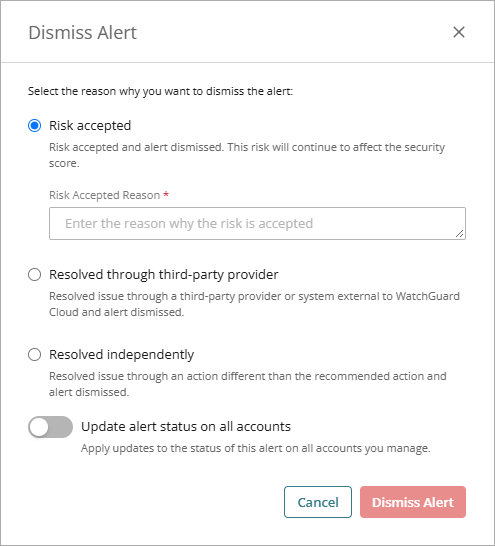
- To update the alert status on all accounts you manage, enable Update Alert Status on All Accounts.
- Click Dismiss Alert.
Restore an Alert
You can restore an alert at any time on the Dismissed Alerts page. When you restore an alert, the risk associated with the alert could impact your security strength score.
To restore a security alert:
- On the Security Alerts page, click View Dismissed Alerts.
The Dismissed Alerts page opens. - Select the alert to restore from the list.
- Review the alert details, then click Restore Security Alert.
A confirmation dialog box opens.
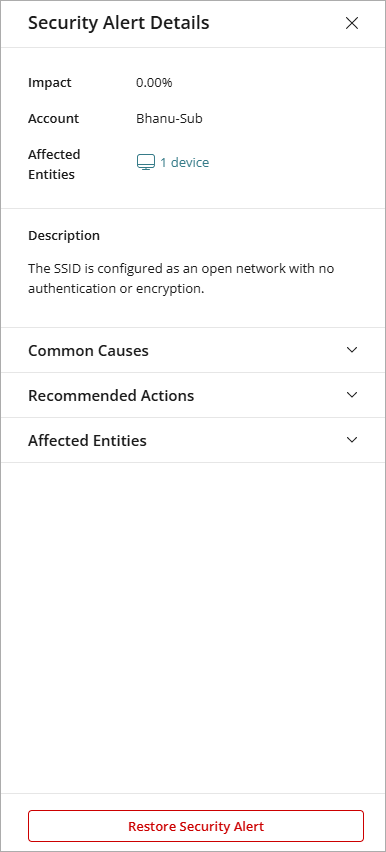
- To restore the alert on all accounts, enable Update Alert Status on All Accounts.
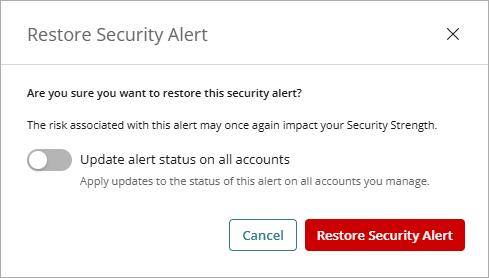
- Click Restore Security Alert.
About the Security Strength Score