Applies To: WatchGuard CloudDR
WatchGuard CloudDR fetches user inventory for each integrated application. These applications might use different domains, which means that multiple accounts might appear for the same user in CloudDR. For example, the Google Workspace account [email protected] and the Microsoft account [email protected] might belong to the same identity.
You can use the Domain Management page in WatchGuard CloudDR to specify which of the domains discovered from your directory and IdP applications are internal and external domains. For more information, go to Domain Management in WatchGuard CloudDR.
In CloudDR, you can attach multiple accounts to create a single identity.
To attach user accounts, from WatchGuard Cloud:
- From Account Manager, select the Subscriber account where you want to manage identities.
- Select Configure > CloudDR.
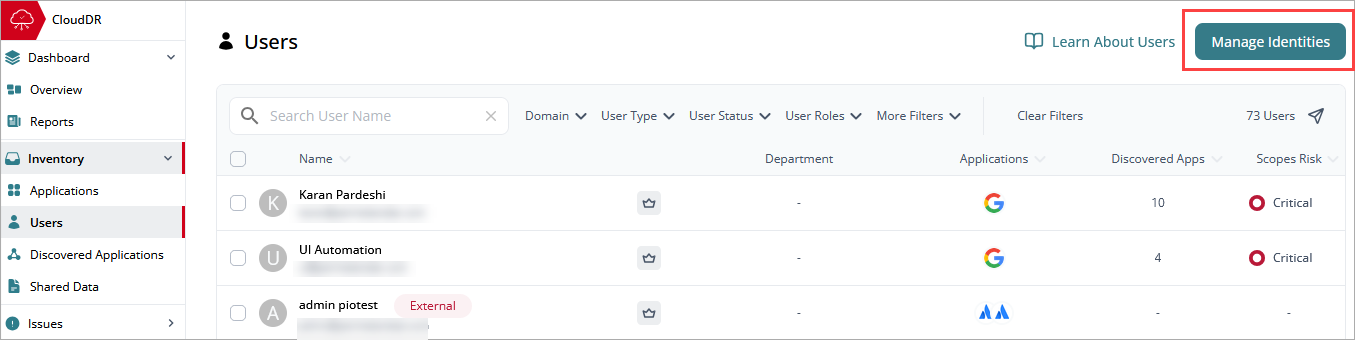
- Select Inventory > Users > Manage Identities.
- Search for a user name or email address. You can use the User Status and User Roles filters to help narrow down the results.
- To form an identity, select the Attach tab. Select the user you want to attach to the identity. To attach multiple identities at the same time, select the check box for each user.
- To detach identities, select the Detach tab. Select the user you want to detach from the identity. To detach multiple identities at the same time, select the check box for each user.
- To validate the results, click the Go to Users Inventory link to open the Inventory > Users page.