Applies To: WatchGuard CloudDR
On the Threats > Rules page, you can view a list of the rules used across your integrated cloud applications to identify threats.
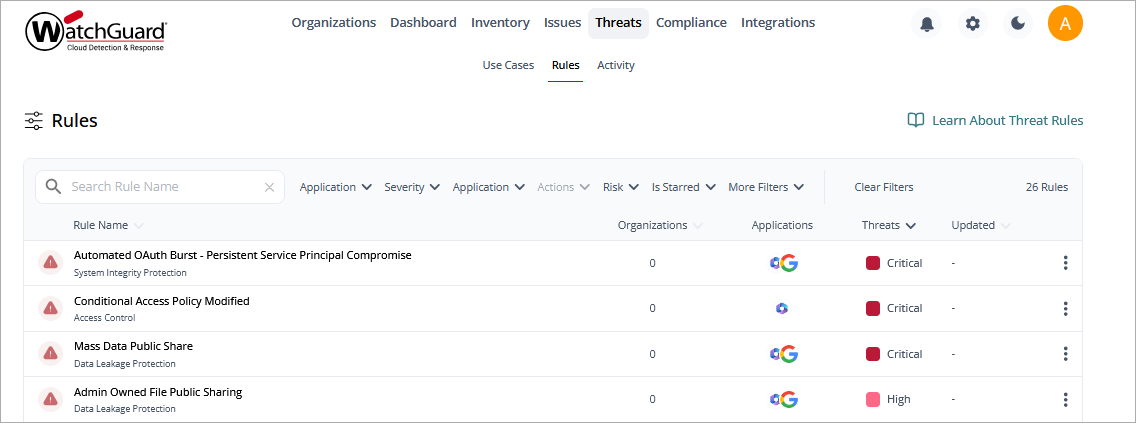
You can filter the rules list by:
- Application
- Severity
- Risk
- Custom Rules
To search for a specific rule, enter the rule name in the Search Rule Name box.
To email a .CSV file of the list of threat rules, click  .
.
Information in the list includes:
- Rule Name — The name of the threat rule and the related security domain. Point to the rule name for a detailed description.
- Organizations — The organizations where the threat was detected.
- Applications — The application where the threat was detected.
- Threats — The number and severity of the threats.
- Updated — The number of days since the threat was detected.
To change the rule severity:
- Click
 in the row.
 - Select Change Severity.
- From the drop-down list, select a new severity level.
- Click Update Rule.
To enable a rule, click in the row, then select Enable Rule.
To enable a rule, click in the row, then select Disable Rule.
Rules Details Page
To view more detailed information about a rule, click the rule name.
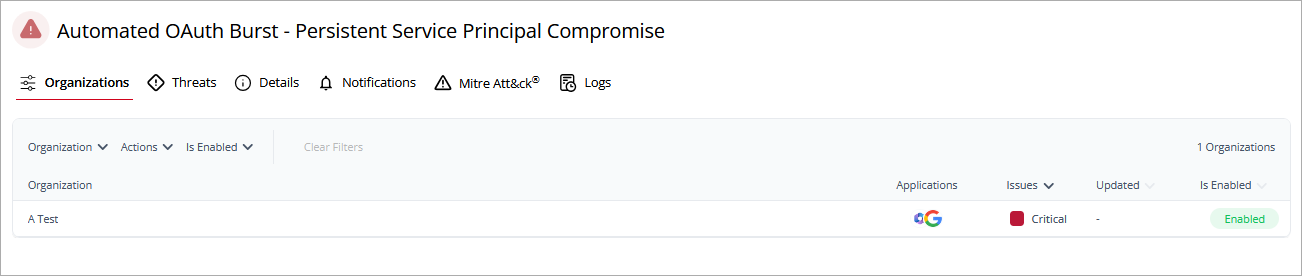
The rules details page include these tabs:
On the Organizations page, you can review the organizations where the rule is enabled, as well as the affected applications and the number of issues detected.
On the Threats page for the selected rule, you can review a list of the threat actors and their organization, the affected cloud applications, when the threat was detected, and its status.
To view available autofix operations, click  . Autofix operations enable you to resolve security issues in your cloud application from CloudDR. For information on how to create an automated response, go to Add Autofix Automation for Threats in WatchGuard CloudDR.
To investigate a threat, click  .
.
The options available in the table can differ for different threat rules.
- To report the threat, click and select Report Now.
- To set a notification to act on the threat at a later time, click and select Set Due Date.
- To dismiss the threat, click and select Dismiss Threat. Enter a comment and set a due date for the exception, if required. When the exception expires, the threat is open again.
Set a due date when you want to audit a threat again in the future. Click Initiate Action.
To view threat details for a specific actor, click the actor name. On the threat Details page you can review information about the threat, including the rule details and threat evidence.
On the Investigate page, review the full event details, including actions and resources targeted by the threat for a selected time period.
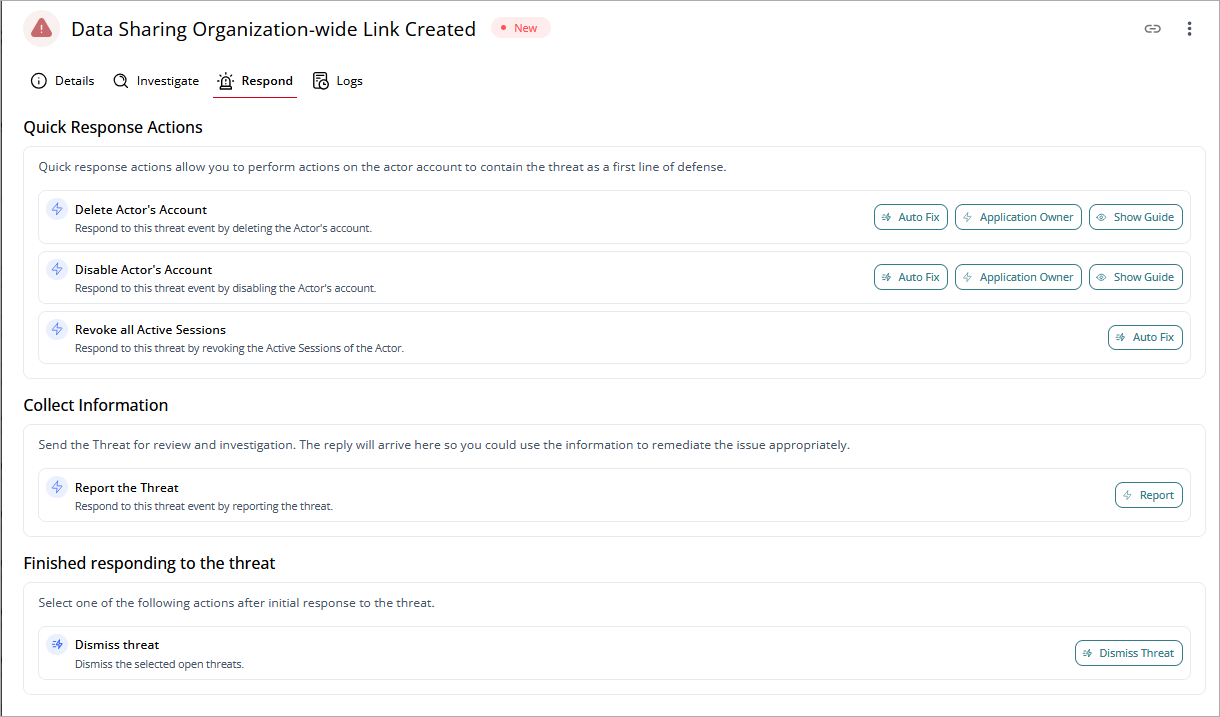
On the Respond page, select quick response actions or collect information for the threat. You can also dismiss the threat.
Actions taken show on the Logs page.
To copy the threat rule details to a shareable link, in the upper-right corner of the page, click  . Copy the link to your clipboard so that it can be pasted and shared in an email message.
To open the rule details for the threat, in the upper-right corner of the page, click and select View Rule Details.
On the Details page, review a description of the threat rule or policy, the number of open issues, severity, and risk. You can also review the applications affected and the rule owner. The rule pass criteria shows as a Boolean equation. If you can edit the rule pass criteria, the  icon shows. For more information, go to Edit Rule Pass Criteria in WatchGuard CloudDR.
On the Notifications page, create a notification rule to receive an email message when a threat is detected. For more information, go to Add Threat Notifications in WatchGuard CloudDR.
On the Automation page, you can set up a quick action to run when a new threat is detected for the rule. For more information, go to Add Autofix Automation for Threats in WatchGuard CloudDR
On the MITRE page, review the MITRE techniques and sub-techniques associated with the threat.
On the Logs page, review timestamped activities associated with the threat.
Respond to a Threat
After you review the details and legitimacy of the threat activity, you can respond to the threat. On the Respond page, you can use quick response actions to perform actions on the actor account to contain the threat. You could also send the threat for review and investigation, or dismiss the threat when appropriate.
For information on automated threat response actions, go to Automated Threat Response Actions in WatchGuard CloudDR.
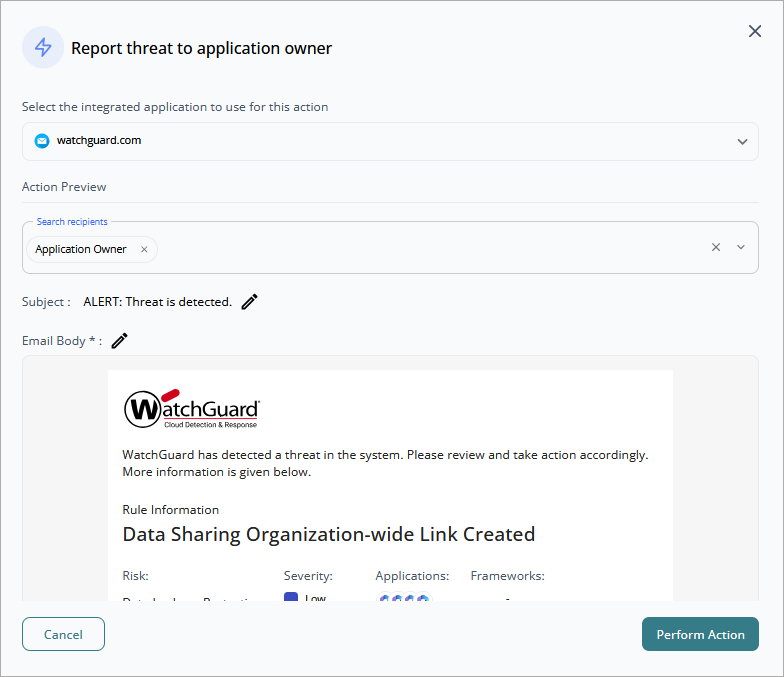
When you report the threat, CloudDR can send an email message to the CloudDR administrator, the issue user, or another account.
A use case groups multiple threats. You can respond to the individual threats in the use case. For example, you can enable or disable individual threats. For more information about use cases, go to Use Cases for Threats in WatchGuard CloudDR.
Automated Threat Response Actions in WatchGuard CloudDR