Applies To: WatchGuard CloudDR
Add notifications to send an email message when a threat is detected. By default, WatchGuard Cloud sends the email message through WatchGuard.com. You can add a notification for each integrated application you want to send the email message.
For information on available integrations, go to About WatchGuard CloudDR Integrations.
To add a rule notification, from WatchGuard Cloud:
- Select Configure > CloudDR.
- Select Threats > Rules.
- Select a rule you want to add a notification for.
- Click Notifications.
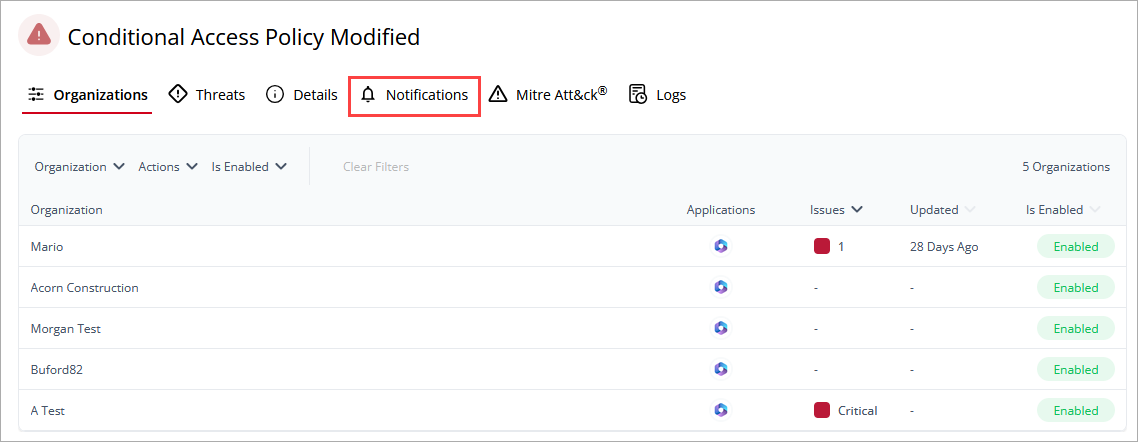
- Click Add Notification.
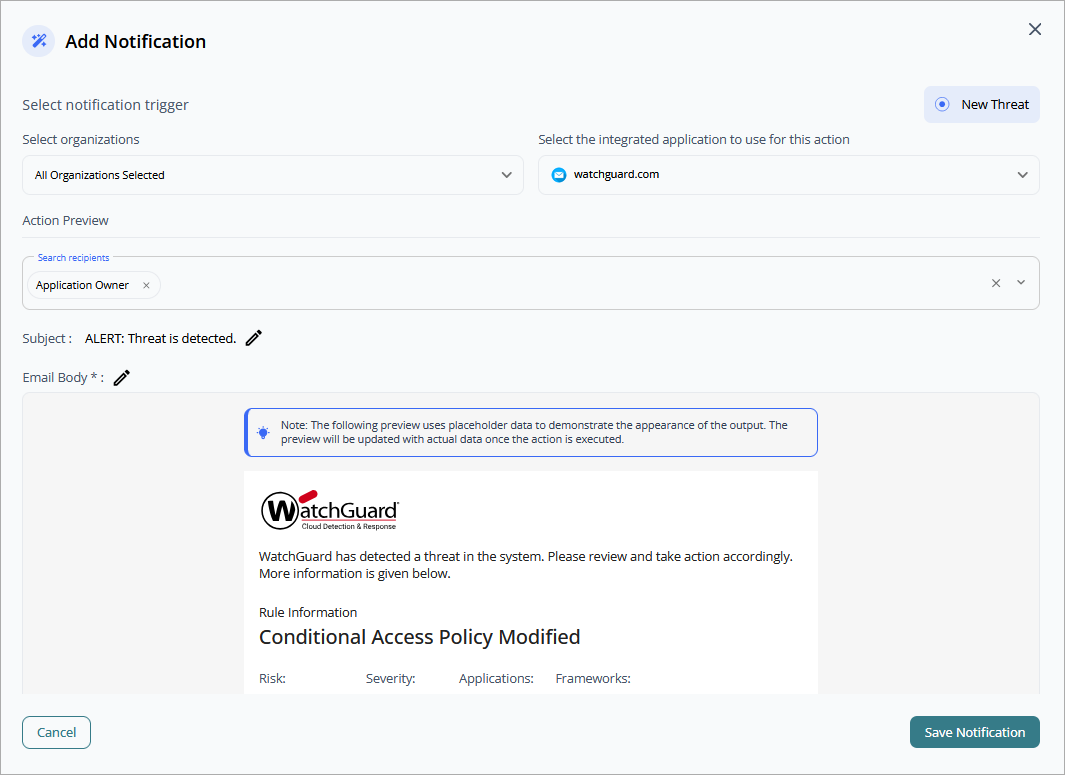
- From the Select Organizations drop-down list, select the organizations you want to monitor with the rule.
- Select the integrated application you want to send the notification.
- In the Action Preview section, enter the recipients for the notification.
- Enter a Subject for the notification email message.
- In the Email Body text box, add placeholder text to include in the notification email message.
- Click Save Notification.
When you add a rule notification, it shows in the Rule Notifications table. In the table, you can use the Enabled toggle to enable or disable the rule notification.
To edit a notification, in the row for the notification you want to update, click  , then select Edit.
To edit a notification, in the row for the notification you want to delete, click , then select Delete.