This document describes how to set up AuthPoint MFA alongside Microsoft MFA. In this integration guide, we configure:
- AuthPoint MFA for Entra ID users that use Mobile VPN with SSL
- Microsoft MFA for other protected Microsoft cloud apps, such as Office 365
The integration described in this guide requires that you have an Entra ID account with a Microsoft premium license. This configuration does not work with free Entra ID accounts.
If Per-user multifactor authentication is enabled for users in Azure, users can log in to Microsoft cloud apps with Microsoft MFA, but cannot connect to the Mobile VPN with SSL client because Microsoft attempts to use Microsoft MFA to authenticate the user. Per-user multifactor authentication is disabled by default.
Integration Summary
The hardware and software used in this guide include:
- Firebox with Fireware v12.11
- Microsoft Azure (Entra ID)
WatchGuard Firebox SSL VPN Authentication Data Flow with AuthPoint
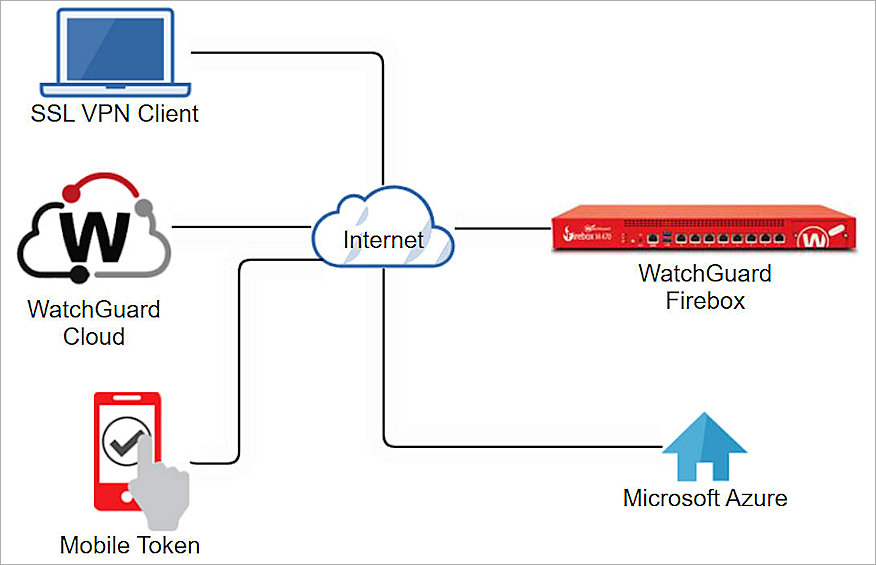
The diagram below diagram shows the authentication flow when an Entra ID user connects with the WatchGuard Mobile VPN with SSL client and AuthPoint MFA.
- The user initiates a connection with the WatchGuard Mobile VPN with SSL client.
- The Mobile VPN with SSL client sends the login request to the Firebox.
- The Firebox forwards the authentication request to AuthPoint.
- AuthPoint determines if the user is an Entra ID user.
- AuthPoint forwards the authentication request to Microsoft Azure (Entra ID).
- Microsoft verifies the user name and password and sends a responds to AuthPoint.
- AuthPoint verifies the user has a valid MFA policy.
- For Push:
- AuthPoint sends a push notification to the user's mobile phone.
- The user receives and approves the push notification.
- AuthPoint receives the push approval and contacts the Firebox.
- The Firebox receives the approval and allows the user to connect.
- For OTP:
- AuthPoint validates the OTP.
- The Firebox receives the approval and allows the user to connect.
- For Push:
Before You Begin
Before you begin these procedures, make sure that:
- Your WatchGuard Firebox must already be configured and deployed before you set up MFA with AuthPoint
- A token is assigned to a user in AuthPoint
- Per-user multi-factor authentication is disabled in Microsoft Azure
Configure AuthPoint MFA for Firebox Mobile VPN with SSL
For detailed instructions to set up AuthPoint multi-factor authentication (MFA) for Firebox Mobile VPN with SSL with Entra ID users, refer to Firebox Mobile VPN with SSL Integration with AuthPoint. Follow the steps for either of these configurations (in our example, we configure AuthPoint MFA for a locally managed Firebox):
- Configure AuthPoint MFA for Mobile VPN with SSL with a Cloud Managed Firebox (Fireware v12.7.2 or Higher)
- Configure AuthPoint MFA for Mobile VPN with SSL with a Locally Managed Firebox (Fireware v12.7.2 or Higher)
When you get to the Add Users to AuthPoint section, make sure you follow the steps to import users from an external user database (Microsoft Entra ID, formerly Azure AD). For more detailed steps to sync Entra ID users to AuthPoint, go to Sync Users from Azure Active Directory.
Configure Microsoft Entra MFA
- Log in to the Microsoft Azure Portal.
- Select Microsoft Entra ID.
- Select Security > Protect > Conditional Access > Policies.
- Click New policy.
- In the Name text box, type a descriptive name for the policy.
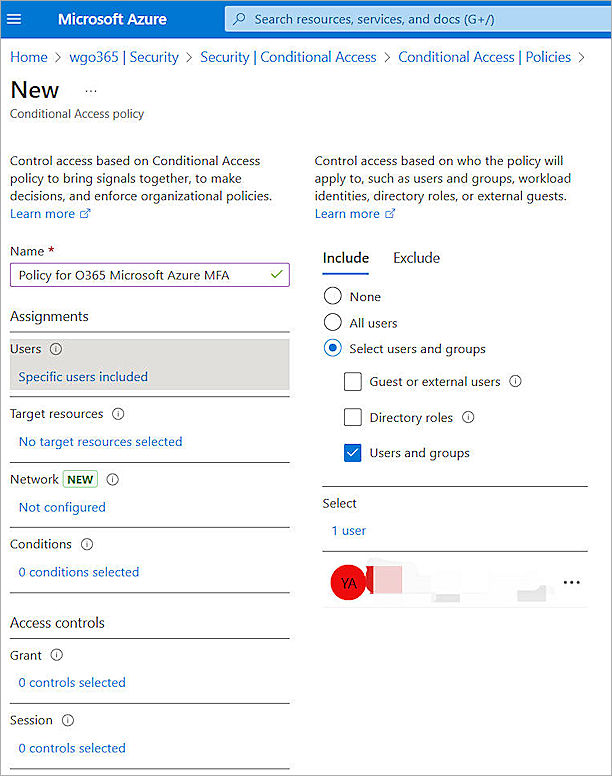
- For Users, select Include > Select users and groups.
- Select the Users and groups check box.
- Select the users and groups to enable Microsoft MFA for.
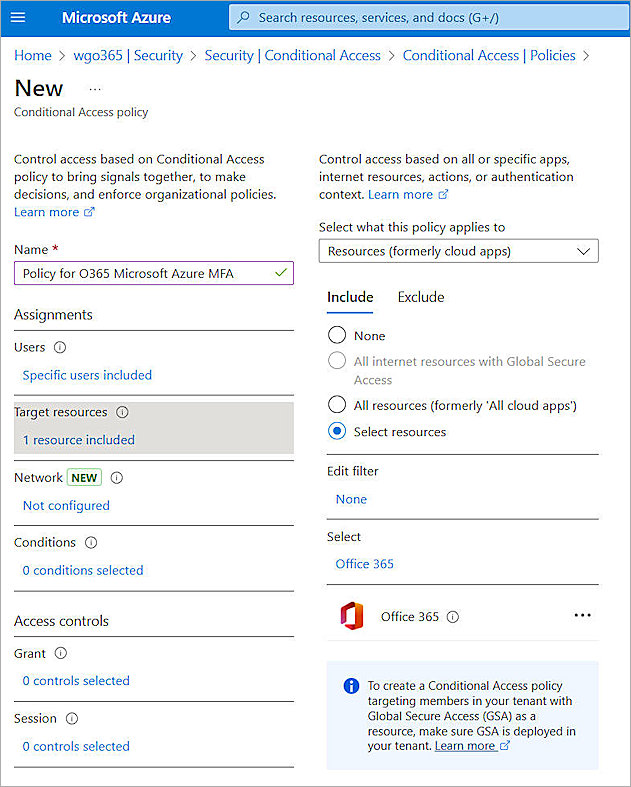
- For Target resources, from select what this policy applies to drop-down list, select Resources.
- Select Include > Select resources.
- In the Select section, select the apps that you want to enable Microsoft MFA for. In our example, we enable Microsoft MFA for Microsoft 365.

- For Grant, select Grant access > Require multifactor authentication.
- Click Select.
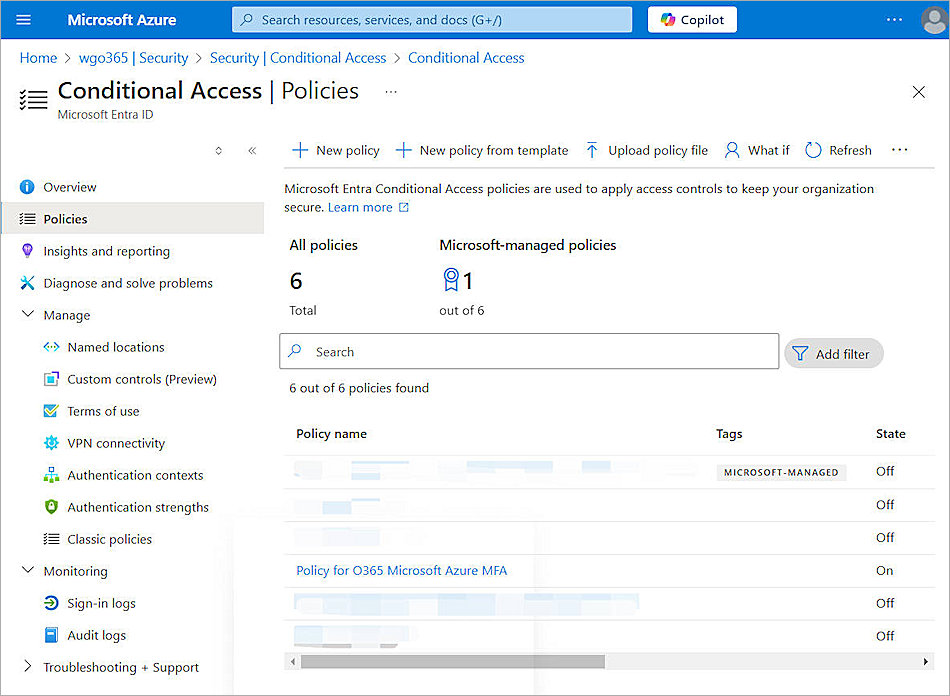
- For Enable policy, select On.
- Click Create.
Test the Integration
Now that the configuration is complete, you can test the setup. To do this, connect to the SSL VPN and authenticate with AuthPoint MFA. After you have confirmed that the VPN is protected with AuthPoint MFA, log in to a protected Microsoft cloud app and authenticate with Microsoft MFA.
Test AuthPoint MFA with the Mobile VPN with SSL Client
To test the integration of AuthPoint and the WatchGuard Mobile VPN with SSL client, you authenticate with a mobile token on your mobile device or a hardware token. For Firebox resources, you can authenticate with a one-time password (OTP) or a push notification.
If you configure Mobile VPN with SSL to use more than one authentication server, users who do not use the default authentication server must specify the authentication server or domain before the user name. For example, ad1_example.com\j_smith. For more information and examples, see Download, Install, and Connect the Mobile VPN with SSL Client.
To authenticate with push:
- Open your Mobile VPN with SSL client.
- Type your AuthPoint user name and password.
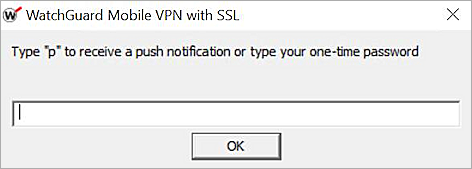
- Type p.
- Click OK.
- Approve the authentication request that is sent to your mobile device.
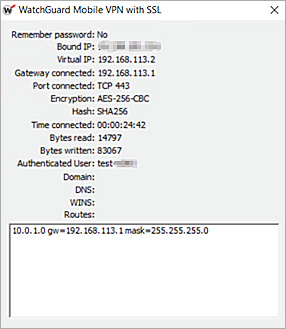
You are logged in successfully.
To authenticate with an OTP:
- Open your Mobile VPN with SSL client.
- Type your AuthPoint user name and password.
- Type the OTP shown for your token in the AuthPoint mobile app.
- Click OK.
You are logged in successfully.
Test Microsoft MFA with a Protected Cloud App
In our example, we test Microsoft MFA with Microsoft 365. This is the app that we selected in the previous section.
- Go to the Office 365 login page.
- Enter your user name and password.
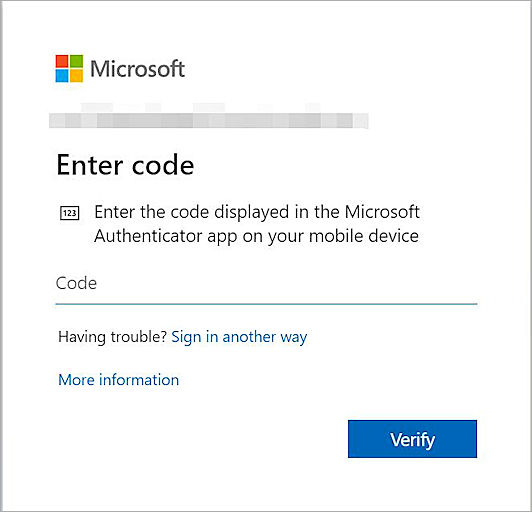
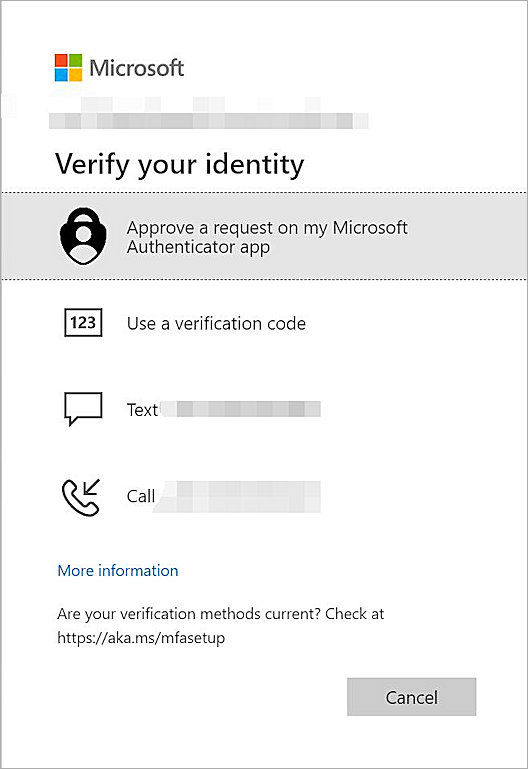
You are prompted to authenticate with the Microsoft Authenticator app. - Enter the code in your Microsoft Authenticator app. You might also be prompted to authenticate with other methods.