Applies To: Cloud-managed Fireboxes, Locally-managed Fireboxes
In WatchGuard Cloud, you can configure notification rules that generate alerts and send email notifications. Notification rules determine which events generate alerts. When WatchGuard Cloud generates an alert, the alert appears on the Alerts tab as an active alert until you acknowledge it. For more information, go to Configure Rules for Notifications. On the Rules tab, you can view the KCSiE rules created for your account.
View KCSiE Notification Alerts
WatchGuard Cloud alerts are notifications about your account or about specific events that occur in WatchGuard Cloud, AuthPoint, or an endpoint. The Alerts tab shows a list of the KCSiE alerts for your account. You can view information about each alert, and acknowledge active alerts so that they no longer show. For more information, go to Manage WatchGuard Cloud Alerts.
To view KCSiE notification alerts:
- Select Administration > System > Notifications.
- Select Alerts.
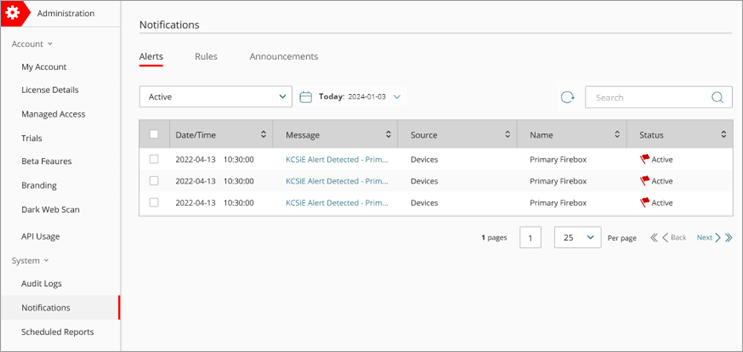
- From the Alerts tab, click an alert to view the specific details for that alert.
The Alert Details dialog box opens.
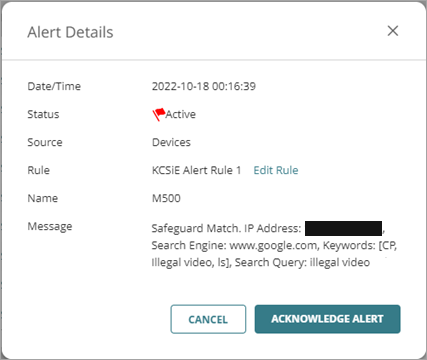
The Message text box contains the same text that the notification email recipient receives.
View KCSiE Notification Rules
Notification rules send an alert when a Firebox detects a search for a KCSiE keyword. In WatchGuard Cloud, you can configure notification rules that generate alerts and send notifications to email recipients. Rules determine which events generate an alert.
To view a KCSiE notification rule:
- Select Administration > System > Notifications.
The Notifications page opens. - Select Rules.
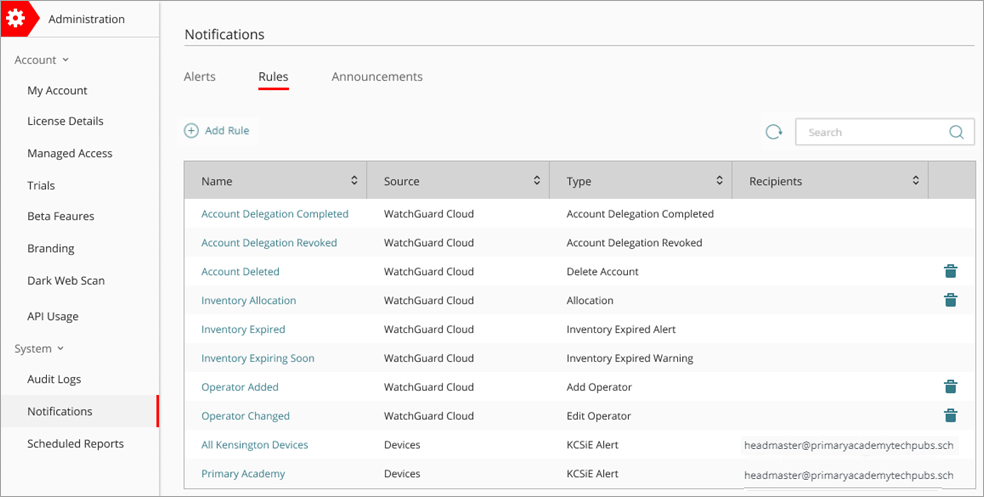
- To view details of the rule, click the rule name.
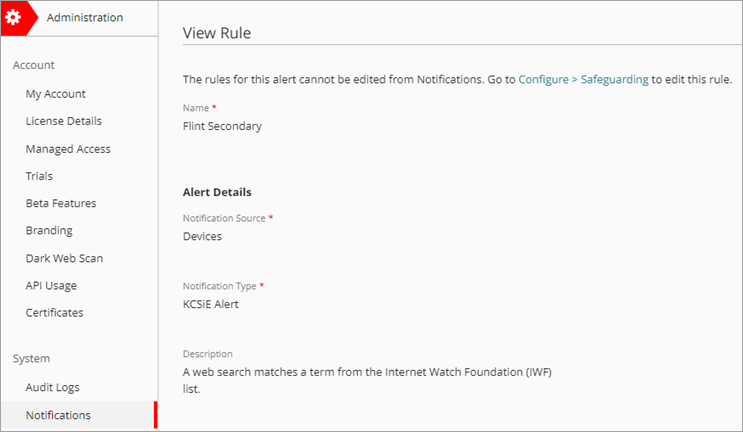
The View Rule page opens.
You cannot edit KCSiE rules from the Notifications page.
Edit KCSiE Notification Rules
You can edit any of the KCSiE notification rules that are on the Rules tab.
To edit a KCSiE notification rule, from Notifications:
- In the Notifications page, from the Rules tab, click a rule name.
The View Rule page opens and shows details of the rule. - Click the Configure > Safeguarding link.
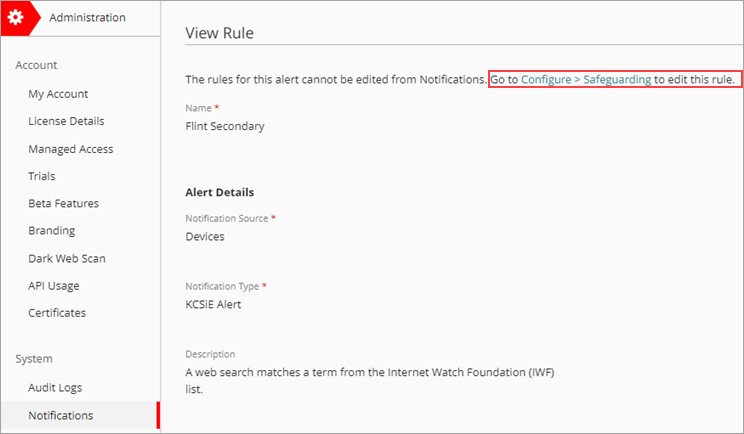
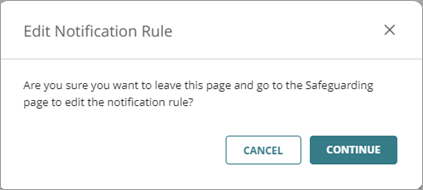
- In the Edit Notification Rule dialog box, click Continue.
The Edit Notification Rule page opens and you can edit the rule.