Applies To: Cloud-managed Fireboxes, Locally-managed Fireboxes
Safeguarding uses Keeping Children Safe in Education (KCSiE) notification rules to monitor the network for searches that include keywords. For more information, go to Safeguarding.
You can configure a rule to send an email notification when a user on the network searches for a predefined keyword. WatchGuard Cloud sends an email notification to specified recipients when a web search matches a keyword from the internal list of keywords or from the Internet Watch Foundation (IWF) list of keywords.
Add a KCSiE Notification Rule
You can configure KCSiE notification rules for all cloud-managed Fireboxes in the account, or for specific Fireboxes.
To add a KCSiE notification rule, from WatchGuard Cloud:
- From Account Manager, select the account you want to enable Safeguarding for.
- Select Configure > Devices.
- Select Devices > Safeguarding.
- Click Add Rule.
The Add Notification Rule page opens.
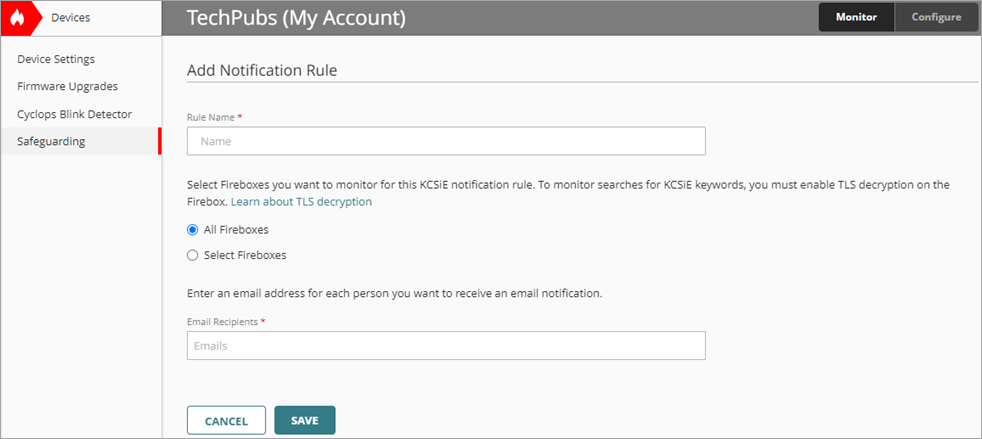
- In the Name text box, type a name for the rule.
- Select the Fireboxes you want to include in the rule:
- To include all devices in the account, select All Fireboxes.
If you select this option, the rule also applies to any Fireboxes you add to the account in the future. - To include specific devices, select Select Fireboxes, and then select the check box for each device or folder to include in the rule.
If you select a folder of devices, the rule includes all devices in that folder.
- To include all devices in the account, select All Fireboxes.
- Enter email addresses for notification recipients in the Email Recipients text box.
To monitor web searches for KCSiE keywords, you must enable TLS decryption on the Fireboxes you select. For more information, go to Download the Certificate for TLS Decryption.

- Click Save.
The new rule shows in the Notification Rules list.
