Applies To: WatchGuard Cloud
If you connect WatchGuard Cloud to ConnectWise Manage, Autotask PSA, or HaloPSA, you can configure an integration with the PSA tool to help manage accounts, synchronize license and inventory management data, and automate ticketing for Firebox, ThreatSync, Endpoint Security, and WatchGuard Cloud license alerts.
Your operator role determines what you can see and do in WatchGuard Cloud. You must be a tier-1 Service Provider and your role must have the Manage Integrations and Manage Tenants permissions to configure this feature. For more information, go to Manage WatchGuard Cloud Operators and Roles.
Configure the Connection to Your PSA Tool
Before you can connect to your PSA tool, you must configure settings in your PSA tool to enable communication with WatchGuard Cloud.
For ConnectWise, you must create a pair of API keys in ConnectWise Manage. For more information go to ConnectWise Manage PSA Tool Integration Settings.
For Autotask, you must create an API User, generate a pair of API keys, and assign a security level to the API user that meets the minimum required permissions. For more information, go to Autotask PSA Tool Integration Settings.
For HaloPSA, you must create a new API application in HaloPSA that uses a HaloPSA agent with the minimum required permissions. For more information, go to HaloPSA Tool Integration Settings.
When you connect WatchGuard Cloud to your PSA tool, WatchGuard Cloud fetches all active accounts and services from the PSA tool and automatically maps your PSA tool accounts with WatchGuard Cloud accounts that have the same name.
A tier-1 Service Provider account can only integrate with only one PSA tool at a time.
If you have an existing PSA integration for your cloud-managed Firebox or a locally-managed Firebox added to WatchGuard Cloud for reporting, we recommend you disable the integration in the Firebox configuration to prevent duplicate tickets or synchronization conflicts. For more information, go to About Firebox Technology Integrations (cloud-managed Fireboxes) or Technology Integrations (locally-managed Fireboxes).
To configure the connection to a PSA tool, from WatchGuard Cloud:
- Select Administration > Integrations.
The PSA Integrations page opens.

- From the PSA tile, click Connect.
The Connect to PSA dialog box opens. - Enter the connection information for the PSA tool:
- For ConnectWise Manage, enter the Company ID, Public Key, Private Key, and Site. For information about how to find this information in ConnectWise Manage, go to ConnectWise Manage PSA Tool Integration Settings.
- For Autotask, enter the User Name and User Secret. For information about how to find this information in Autotask, go to Autotask PSA Tool Integration Settings.
- For HaloPSA, enter the Client ID, Client Secret, and Site. The Site URL must use this format: https://<your-tenant>.halopsa.com. For information about how to find this information in HaloPSA, go to HaloPSA Tool Integration Settings.


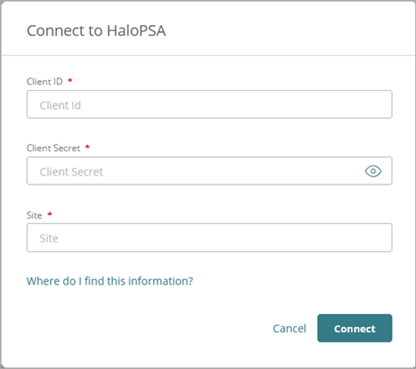
- Click Connect.
The Synchronizing dialog box opens.

If WatchGuard Cloud successfully connects with your PSA tool, data automatically starts to synchronize. When the synchronization is complete, the dialog box automatically closes and the Connected status shows in the tile.

- To close the dialog box before the synchronization completes, click Close.
After the synchronization completes, in the tile, select the Configure > Map Accounts tab and review your mapped accounts. You can manually map any unmapped accounts. For more information, go to Map PSA Tool Accounts and WatchGuard Cloud Accounts.
Manually Synchronize Data
If there are updates to your PSA tool accounts, services, or ticket static data, such as changes in status or priority, you can manually synchronize the data so that it is available in WatchGuard Cloud.
To manually synchronize the data:
- From the PSA tile, click Sync Now.
The Sync Information dialog box opens.

- Select one or more options:
Accounts
Select this option to synchronize accounts from the PSA tool to the Map Accounts page in WatchGuard Cloud. For more information, go to Map PSA Tool Accounts and WatchGuard Cloud Accounts.
Services
Select this option to synchronize services from the PSA tool to the Map Services page in WatchGuard Cloud. For more information, go to Map PSA Tool Services and WatchGuard Cloud Products
Ticket Information
Select this option to synchronize the static ticket data from the PSA tool to WatchGuard Cloud. You use the static ticket data to configure the PSA ticket options when you create or edit a notification rule.
For ConnectWise, the static ticket data includes Priority, Service Board, New Status, and Close Status.
For Autotask, the static ticket data includes Priority, Queue, Ticket Category, New Status, and Close Status.
For HaloPSA, the static ticket data includes SLA, Priority, Ticket Type, Ticket Category, New Status, and Close Status.
- Click Sync Information.
After the synchronization completes, you can click Connected to view the synchronization status for all data.
The Synchronization Status dialog box opens.

Troubleshoot PSA Tool Synchronization Errors
If the connection to the PSA tool or the synchronization fails, the tile shows a synchronization error status.

To see the synchronization error messages and details, click Synchronization Error.
The Synchronization Status dialog box opens.
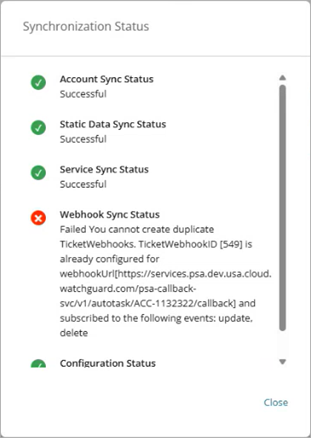
If the PSA integration fails to create webhooks during the first synchronization with the PSA tool, a Webhook Sync Status error shows in the Synchronization Status dialog box.
To try again:
- From the PSA tile, click Sync Now.
- From the Sync Information dialog box, select Webhooks.
- Click Sync Information.
You can also review audit logs and alerts. For more information, go to Manage WatchGuard Cloud Alerts for Subscribers.
Quick Start — Integrate WatchGuard Cloud with a PSA Tool
Autotask PSA Tool Integration Settings
ConnectWise Manage PSA Tool Integration Settings