Applies To: Cloud-managed Fireboxes, Locally-managed Fireboxes
Overview
From WatchGuard Cloud, you can reboot a locally-managed or cloud-managed Firebox that runs Fireware v12.5.2 or higher. You can reboot the Firebox immediately or you can also schedule a one-time reboot for a more convenient time.
For cloud-managed Fireboxes, you can also schedule reboots to recur on a weekly or daily basis. For more information, go to Schedule Recurring Reboots for a Cloud-Managed Firebox.
You cannot schedule recurring reboots for locally-managed Fireboxes from WatchGuard Cloud. For information about how to schedule recurring reboots for a locally-managed Firebox, go to Define Firebox Global Settings.
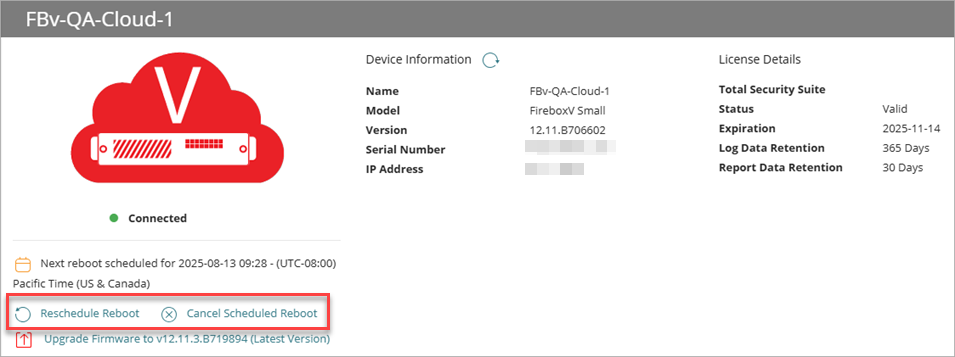
If a one-time reboot or recurring reboots are already scheduled, the scheduled date and time shows on the Device Settings and Device Summary pages. For locally-managed Fireboxes, the date and time is based on your browser time zone. For cloud-managed Fireboxes, the date and time is based on the time zone configured for the Firebox.
- If the next scheduled reboot is a one-time reboot, you can reschedule or cancel the reboot.
- If a one-time reboot is scheduled and you want to reboot the Firebox now but still perform the scheduled reboot, click Reschedule Reboot, then select Reboot Now.
- If a one-time reboot is scheduled and you want to reboot the Firebox now instead of at the scheduled time, click Cancel Scheduled Reboot, then select Reboot Now.
- If the next scheduled reboot is a recurring reboot, you cannot reschedule or cancel the recurring reboots from the Device Settings or Device Summary pages. You cannot schedule a one-time reboot, but you can reboot the device immediately.
If you want to reschedule or cancel a recurring reboot, you must update the schedule where it is configured. To determine if the recurring reboot was scheduled from the device configuration or a Firebox template, hover over the lock icon, next to the scheduled reboot date and time. For more information about Firebox templates, go to About Firebox Templates.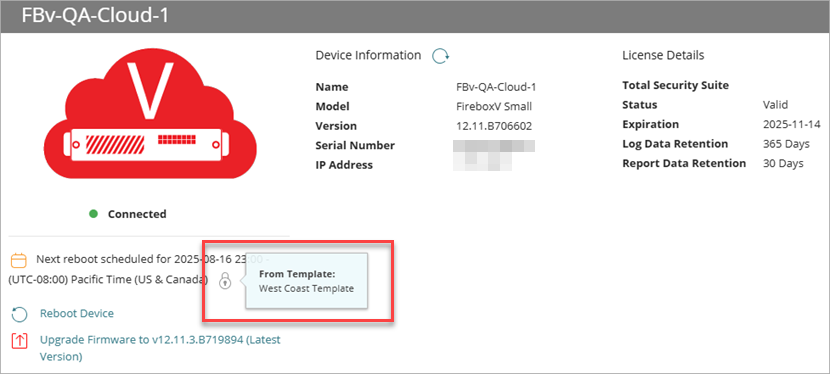
Your operator role determines what you can see and do in WatchGuard Cloud. Your role must have the Devices permission to view or configure this feature. For more information, go to Manage WatchGuard Cloud Operators and Roles.
Reboot a Firebox Now
To reboot a cloud-managed or locally-managed Firebox immediately, from WatchGuard Cloud:
- Select Configure > Devices.
Or, select Monitor > Devices > Device Summary. - Select the cloud-managed Firebox.
The Device Settings or Device Summary page opens for the selected Firebox.
- Click Reboot Device.
The Reboot Device dialog box opens. - Select Reboot Now.
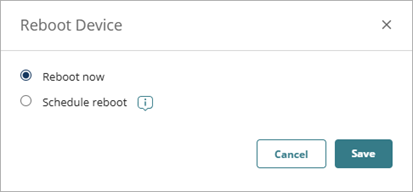
- Click Save.
A confirmation message appears.
- Click Reboot.
A message appears in the banner and the Firebox reboots.
This immediate reboot does not affect any future scheduled one-time or recurring reboots. If you need to cancel a scheduled one-time reboot or recurring reboot after the manual reboot, you must edit and cancel the scheduled reboot.
Schedule a Reboot for a Firebox
To schedule a cloud-managed or locally-managed Firebox to reboot at a later time, from WatchGuard Cloud:
- Select Configure > Devices.
Or, select Monitor > Devices > Device Summary. - Select the cloud-managed Firebox.
The Device Settings or Device Summary page opens for the selected Firebox. - Click Reboot Device.
The Reboot Device dialog box opens. - Select Schedule Reboot.
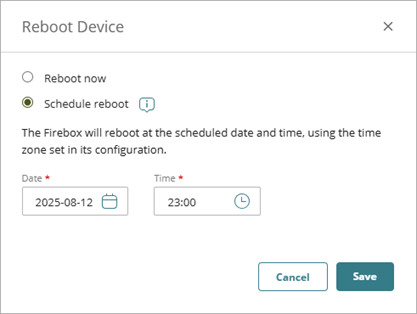
- In the Date text box, click
 and select a date for the reboot.
 - In the Time text box, type the time for the reboot in 24-hour format (for example, 23:59), or drag the Hours and Minutes sliders to select times, then select Done.
For locally-managed Fireboxes, the date and time are based on your browser time zone. For cloud-managed Fireboxes, the date and time are based on the time zone configured for the Firebox. Make sure that the selected date and time correspond to the local time at which you want to reboot the Firebox.
- Click Save.
A message appears in the banner. The Firebox reboots at the scheduled time.If you edit and change a scheduled one-time reboot to an immediate reboot (Reboot now), this immediate reboot will not change the future scheduled one-time you created, or any recurring reboots you have configured. If you need to cancel the scheduled one-time reboot, you must edit and cancel it.
About WatchGuard Cloud Account Manager (Service Providers)
About WatchGuard Cloud Device Manager (Subscribers)
Manage Backup Images for Locally-Managed Fireboxes in WatchGuard Cloud