Applies To: Locally-managed Fireboxes

This document applies to Fireboxes you manage or monitor in WatchGuard Cloud. For information that applies to Fireboxes managed in Fireware Web UI or WatchGuard System Manager, go to: Firebox Backup and Restore.
Overview
WatchGuard Cloud backup and restore features are available only for Fireboxes that run Fireware v12.5.2 or higher. FireClusters are not supported.
WatchGuard Cloud backup and restore features are not supported for cloud-managed Fireboxes. You can restore the configuration settings for a cloud-managed Firebox to a previous configuration version with the Revert Changes feature. For more information, go to Revert to a Previous Device Deployment.
A backup image is a file that you can use to restore your Firebox to a previous state. A backup image is unique to a specific device and includes:
- Configuration file
- Certificates
- Feature keys
- Passphrases
- DHCP leases
- Mobile security device information (DIM) database
- Event notification settings
- Customer logo
- Hotspot guest configuration files
- Serial number
- Platform and version information
For locally-managed Fireboxes with cloud reporting, you can see all backup images stored on the Firebox in WatchGuard Cloud. This includes backup images you create in WatchGuard Cloud and the backup images that the Firebox automatically creates when firmware is upgraded from WatchGuard Cloud. You can also restore a previously saved backup image and remove backup images to increase available storage on the Firebox.
Your operator role determines what you can see and do in WatchGuard Cloud. Your role must have the Devices permission to view or configure this feature. For more information, go to Manage WatchGuard Cloud Operators and Roles.
View Firebox Backup Images
To view and manage Firebox backup images, from WatchGuard Cloud:
- Select Configure > Devices.
- Select the locally-managed Firebox.
- Click Backup.
The Backup page opens.
Create a Firebox Backup Image
To make sure that you have a known good configuration available, you can create a backup of the current Firebox configuration. When you create a backup, the backup image file is stored on the Firebox as an .FXI file.
Make sure to keep a record of the IP address and passphrases for management user accounts for each backup image. If you restore a backup image, you must know this information to connect to the Firebox for management.
You cannot save a new backup image to the Firebox if the available storage space is less than 512 MB or less than 10% of the total storage capacity. For information about how to increase available storage space, go to Remove a Backup Image.
To create a Firebox backup image, from WatchGuard Cloud:
- Select Configure > Devices.
- Select the locally-managed Firebox.
- Click Backup.
The Backup page opens. - Click Add Backup.
The Add Backup dialog box opens.
- If you do not want to use the default backup name, in the Backup Name text box, type a new name. The default file name follows this formula: <Firebox name>-<Firebox model>-cloudbackup-<YYYY-MM-DD-HH-mm-SS>-<Fireware OS version>.<build number>.fxi. The file name can be up to 128 characters and must not include special characters (<>:”/\|?*).
- Click Add.
Status notifications appear in the message banner when the backup is in progress and when it completes. When the backup is complete, the backup image file is stored on the Firebox and a new row appears in the list.
Restore a Firebox Backup Image
The Restore feature is available only for backup image files created with Fireware v12.5.2 or higher. Backup images created with Fireware v12.5.1 or lower might be visible in WatchGuard Cloud, but you cannot restore them. FireClusters are not supported.
When you restore a backup image to the Firebox, you replace the existing configuration with the configuration in the backup file. Because configuration settings vary by Fireware version, each backup image is compatible only with the version of Fireware it was saved from. When you use WatchGuard Cloud to restore a backup, if the Fireware version of the backup file is different from the version installed on the Firebox, WatchGuard Cloud automatically upgrades or downgrades the Fireware version on the Firebox to match the version in the backup image.
To restore a Firebox backup image, from WatchGuard Cloud:
- Select Configure > Devices.>
- Select the locally-managed Firebox.
- Click Backup.
The Backup page opens. - Click the name of the backup you want to restore.
The Restore Backup dialog box opens.
- Click Restore.
- Click Close.
Status notifications appear in the message banner when the restoration is in progress and when it completes. The restoration process can take a few minutes to complete.
If the IP address of the interface you use to manage the Firebox changes, you must use the IP address from the restored configuration to connect to the Firebox.
Remove a Backup Image
You can remove a backup file from the Firebox to increase available storage on the device. You can see the available storage space on the Backup page.
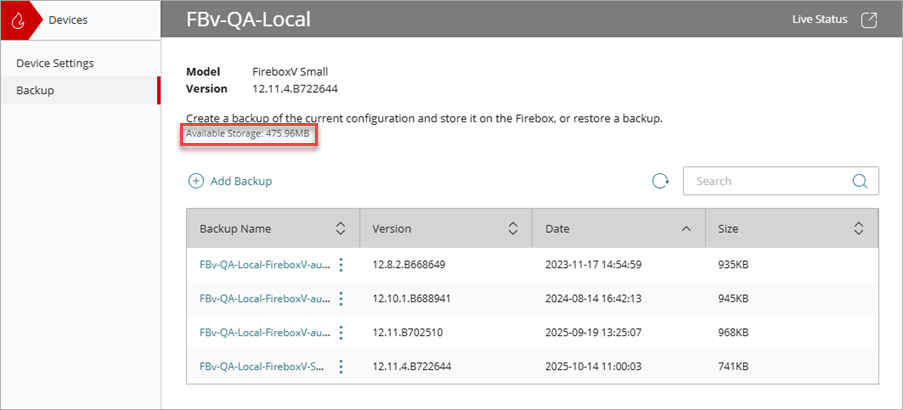
To remove a Firebox backup image, from WatchGuard Cloud:
- Select Configure > Devices.
- Select the locally-managed Firebox.
- Click Backup.
The Backup page opens. - Next to the backup image you want to remove, click
 and select Remove.
The Remove Backup dialog box opens.
- Click Remove.
Status notifications appear in the message banner when the removal is in progress and when it completes. The removal process can take a few minutes to complete.
About WatchGuard Cloud Account Manager (Service Providers)
About WatchGuard Cloud Device Manager (Subscribers)