Applies To: Cloud-managed Fireboxes

Overview
If you regularly reboot your cloud-managed Firebox as part of your maintenance routine to proactively manage device uptime, you can schedule recurring reboots at a low-traffic time on a weekly or daily basis.
If you want to schedule a one-time only reboot, go to Reboot a Firebox from WatchGuard Cloud. A one-time reboot does not affect any recurring reboots that are already scheduled.
You can configure recurring reboots in an individual Firebox configuration or in a Firebox template. If a Firebox subscribes to a template with recurring reboots configured, a lock icon shows next to the Recurring Reboots feature toggle in the Firebox configuration, and you cannot configure recurring reboots in the Firebox configuration for that device. To view the name of the template where the recurring reboots are configured, hover over the lock icon. For more information about Firebox templates, go to About Firebox Templates.

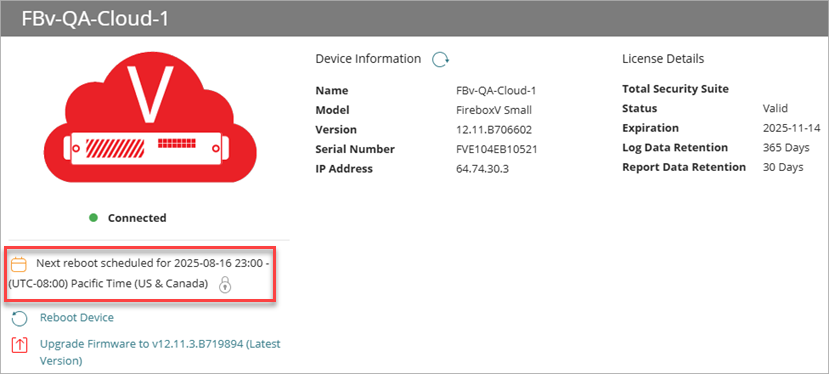
When recurring reboots are configured in the device configuration or in a template the Firebox subscribes to, the date and time of the next scheduled reboot shows on the Device Settings and Device Summary pages and in the Settings tile on the Device Configuration page.

When you configure recurring reboots for a cloud-managed FireCluster, the active member reboots at the scheduled time and the passive member becomes the cluster master. For more information about FireCluster reboot behavior, go to Reboot a Cluster Member in WatchGuard Cloud.
Your operator role determines what you can see and do in WatchGuard Cloud. Your role must have the Devices permission to view or configure this feature. For more information, go to Manage WatchGuard Cloud Operators and Roles.
Configure Recurring Reboots
To schedule recurring reboots for a cloud-managed Firebox:
- In WatchGuard Cloud, select Configure > Devices.
- Select a cloud-managed Firebox.
- Click Device Configuration.
- Click the Device Settings widget.
The device settings page opens.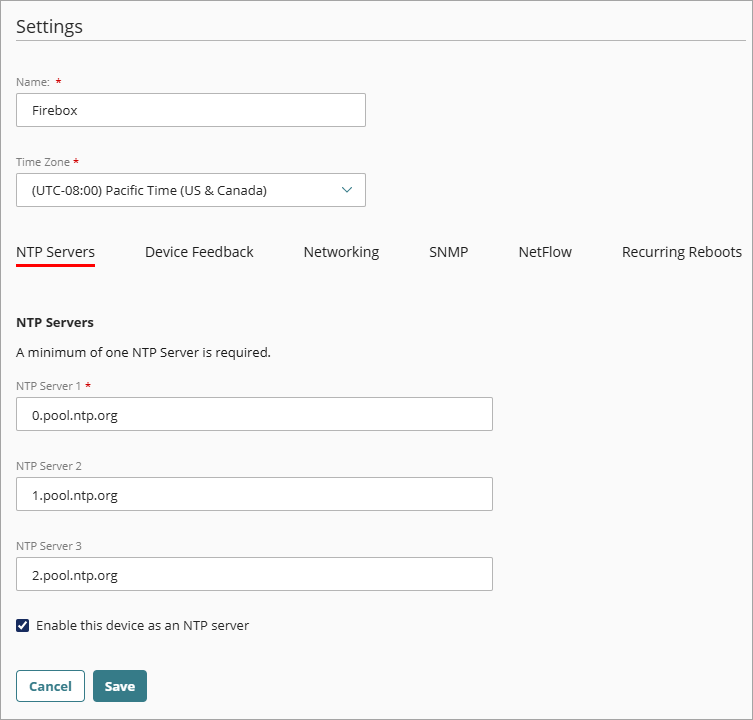
- Select the Recurring Reboots tab.
The Recurring Reboots settings page opens. - Enable Recurring Reboots.
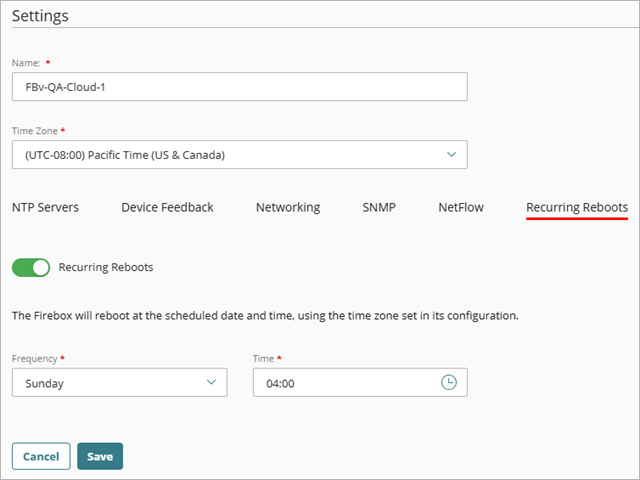
- From the Frequency drop-down list, select a day of the week or select Daily.
- In the Time text box, type the time for the reboot in 24-hour format (for example, 23:59), or drag the Hours and Minutes sliders to select times, then select Done.
The date and time set for recurring reboots are based on the time zone configured for the Firebox. Make sure that the selected date and time correspond to the local time at which you want to reboot the Firebox.
- To save configuration updates to the cloud, click Save.