Applies To: Cloud-managed Fireboxes, Locally-managed Fireboxes, WatchGuard Cloud-managed Access Points

This document applies to Fireboxes you manage in WatchGuard Cloud. For information that applies to Fireboxes managed in Fireware Web UI or WatchGuard System Manager, go to:
Overview
WatchGuard periodically distributes upgrades for Fireware and access point firmware. To keep your network secure, we recommend that you install the latest available firmware versions on your devices.
In WatchGuard Cloud, you can view and manage the firmware versions of your cloud-managed Fireboxes and access points. You can also manage the Fireware versions of locally-managed Fireboxes that have been added to WatchGuard Cloud.
From WatchGuard Cloud, you can:
- View Firmware Version Details for Devices
- Upgrade Firmware on a Device
- Upgrade Firmware on Access Points (Manual and Automatic)
- View Firmware Security Alerts (Firebox Only)
- Cancel a Scheduled Firmware Upgrade
- Downgrade Firmware on a Cloud-Managed Device
An individual Firebox must run Fireware v12.5.2 or higher to be able to update the firmware from WatchGuard Cloud. To upgrade a FireCluster in WatchGuard Cloud, cluster members must run Fireware v12.7.1 or higher (or v12.5.8 or higher for T15 and T35 Fireboxes).
Your operator role determines what you can see and do in WatchGuard Cloud. Your role must have the Devices permission to view or configure this feature. For more information, go to Manage WatchGuard Cloud Operators and Roles.
As a Service Provider, you can upgrade the firmware version for devices in any Subscriber account you manage.
- You can view which devices have firmware upgrades available from the Device Firmware widget on your Dashboard.
- You can immediately upgrade one or more devices, or schedule upgrades for your Subscriber devices. This enables you to automate the process for each Subscriber account and customize a schedule with appropriate times for each Subscriber to avoid network disruption.
- For access points, you can configure automatic firmware upgrade settings at the Service Provider level, and child accounts can inherit these settings. For more information, go to Update Access Point Firmware.
View Firmware Version Details for Devices
On the Firmware Upgrades page, the Firmware Upgrade Overview section shows these details:
- Total number of devices that are online and are ready to upgrade
- Total number of devices that have firmware security alerts (Firebox only)
- Total number of devices scheduled to upgrade at a later time
- Total number of devices that have an upgrade in progress
- Total number of devices that failed to upgrade
The number of devices available for upgrade also shows on the Monitor > Devices > Device Summary page when you select the top-level folder.
The device list shows these details for each device:
Account (Service Providers only)
The account the device belongs to.
Device Name
The friendly name of the Firebox, FireCluster, or Access Point.
Device Type
The type of device: Firebox, FireCluster, or Access Point.
Firmware Version
The version of firmware currently installed on the device and any Firebox firmware security alerts. For more information about security alerts, go to Firmware Security Alerts in WatchGuard Cloud.
Description
A description of the device's upgrade status. Indicates if the device is using the latest firmware version or if it is ready to upgrade. It can also indicate why an upgrade failed or a device is ineligible for upgrade in WatchGuard Cloud.
To view firmware details for your device, from WatchGuard Cloud:
- Sign in to your WatchGuard Cloud account.
For Service Provider operators, select Overview or a managed Service Provider account. - Select Configure > Devices.
- Select Firmware Upgrades.
The Firmware Upgrades page opens. There are two tabs, Firmware Upgrades and Settings.
Firmware Upgrades
The Firmware Upgrades tab enables you to view and manage the firmware versions of your cloud-managed Fireboxes and access points. You can also manage the Fireware versions of locally-managed Fireboxes added to WatchGuard Cloud.

Firmware Upgrades page for Subscriber account

Firmware Upgrades page for Service Provider account
To filter the device list on this page, click a widget, select the type of device, or select the view filter from the drop-down.
Settings (Access Points)
The Settings tab shows automatic firmware upgrade configuration settings for access points only.
For more information, go to Update Access Point Firmware.

Upgrade Firmware on a Device
You can upgrade the firmware version on your Fireboxes and access points. You can select to upgrade the firmware version immediately or schedule the upgrade for a future time.
For locally-managed Fireboxes only, the Firebox automatically creates a backup when the Fireware version is upgraded from WatchGuard Cloud. For information on how to create a backup image manually, go to Manage Backup Images for Locally-Managed Fireboxes in WatchGuard Cloud.
To upgrade the firmware version for one or more devices, from WatchGuard Cloud:
- Sign in to your WatchGuard Cloud account.
For Service Provider operators, select Overview or a managed Service Provider account. - Select Configure > Devices.
- Select Firmware Upgrades.
The Firmware Upgrades page opens. - To upgrade one or more devices, click Upgrade Firmware.
Or, to upgrade only one device, click next to the device and select Upgrade Firmware.
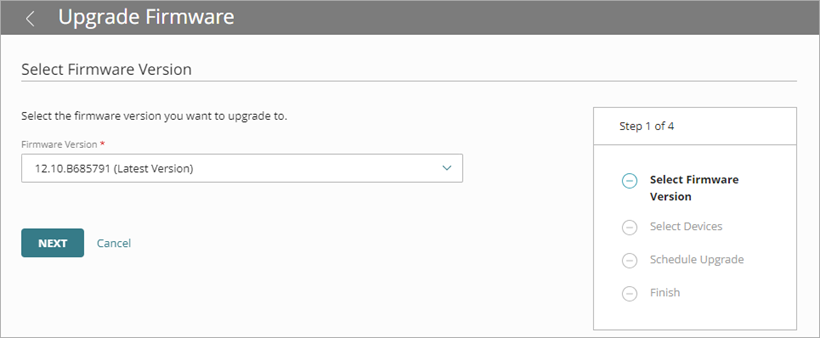
The Upgrade Firmware wizard opens. - If the Select Device Type page opens, select the device type, such as Firebox or Access Point. Click Next.
The Select Firmware Version page opens. - From the Firmware Version drop-down list, select the firmware version to upgrade to. The three most recently released versions appear in the list.
When you select a firmware version for a Firebox in the wizard, a security alert might appear. For more information, go to Firmware Security Alerts in WatchGuard Cloud.
This list includes beta releases when you enable the Device Firmware Beta Releases toggle. For information about how to enable beta releases, go to Enable Beta Features and Applications.
- Click Next.
The Select Devices page opens.
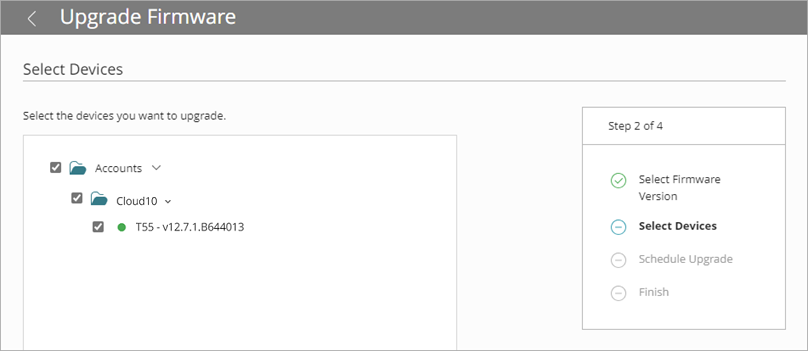
- From the list of devices, select the devices to upgrade.
- Click Next.
The Schedule Upgrade page opens.
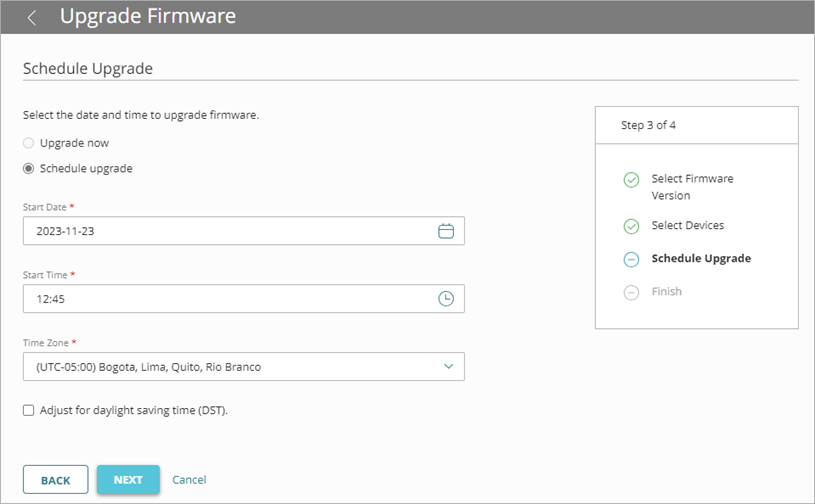
- Select when to upgrade the firmware version:
- To upgrade selected devices now, select Upgrade Now. This option is available only if all selected devices are connected to WatchGuard Cloud.
- To schedule the upgrade for a later time, select Schedule Upgrade. Specify the Start Date, Start Time, and Time Zone when the upgrade will occur.
- To automatically adjust the time for daylight saving time, select the Adjust For Daylight Saving Time check box.
- Click Next.
- Confirm the upgrade details, then click Save.
The default time zone for a scheduled upgrade is based on the time zone of the web browser. Make sure that the selected upgrade time and time zone correspond to the local time you want to upgrade each selected device.
Cancel a Scheduled Firmware Upgrade
To cancel a scheduled firmware upgrade:
- Sign in to your WatchGuard Cloud account.
For Service Provider operators, select Overview or a managed Service Provider account. - Select Configure > Devices > Firmware Upgrades.
- In the list, next to the device with the scheduled upgrade you want to cancel, click and select Delete Scheduled Upgrade.

- Click Delete.
Downgrade Firmware on a Cloud-Managed Device
If necessary, you can downgrade the firmware version on your cloud-managed device to an older version.
We recommend that, for a locally-managed Firebox, you restore an auto-backup. For more information, go to Manage Backup Images for Locally-Managed Fireboxes in WatchGuard Cloud.
Downgrade a Cloud-Managed Access Point
For access points, you can select an available lower version of firmware to downgrade to during the update process.
Downgrade a Cloud-Managed Firebox
If an auto-backup is not available or appropriate, you can manually downgrade your cloud-managed device. To downgrade the Fireware version, you must first remove the device from WatchGuard Cloud and then add it back. This ensures that when the device reboots, if it has DHCP, it automatically connects to WatchGuard Cloud as a cloud-managed device.
You must also have access to the sysa-dl file for the Fireware version you want to downgrade to. For more information, go to Download an Upgrade File.
When you downgrade the firmware, the Firebox automatically downloads a default configuration file. You can then restore a specific, previously deployed configuration in WatchGuard Cloud. For more information, go to Manage Backup Images for Locally-Managed Fireboxes in WatchGuard Cloud.
Caution: If you downgrade to a Fireware version from v12.5.3 to v12.5.6 or from v12.6.1 to v12.6.3, WatchGuard Cloud automatically upgrades the firmware to the latest general (non-Beta) release for cloud management.
You cannot downgrade a Firebox to a version of Fireware lower than Fireware v12.1.3 Update 8, v12.5.9 Update 2, or v12.7.2 Update 2, based on your device model.
After the downgrade, the network and security settings are reset to factory-default settings, but the admin and status passphrases are not reset. To manage the device, you must connect to it on Eth1, with the default IP address 10.0.1.1. For more information about the factory-default settings, go to About Factory-Default Settings.
If the Firebox (with TPM chip) uses DHCP and receives an IP address, it connects automatically to WatchGuard Cloud as a cloud-managed device. If the Firebox uses a Static IP address or PPPoE external connection, there must be someone onsite to run the Web Setup Wizard or to use a USB drive to gain Internet access to connect to WatchGuard Cloud. For more information, go to Connect the Firebox.
To downgrade the Fireware version on a cloud-managed Firebox:
- Remove your device from WatchGuard Cloud.
- Add your device again to WatchGuard Cloud as a cloud-managed device.
- Downgrade your device firmware from Fireware Web UI.
Remove Device from WatchGuard Cloud
To remove your device from WatchGuard Cloud:
- Sign in to your WatchGuard Cloud account.
For Service Provider operators, select Overview or a managed Service Provider account. - Select Configure > Devices.
- Select the cloud-managed device you want to downgrade.
The Device Settings page opens for the selected device. - In the Remove Device section, click Remove.
The Remove Device dialog box opens. - Click Remove.When you remove a device, it maintains the WatchGuard Cloud passwords, but is no longer cloud-managed.

Add Device to WatchGuard Cloud
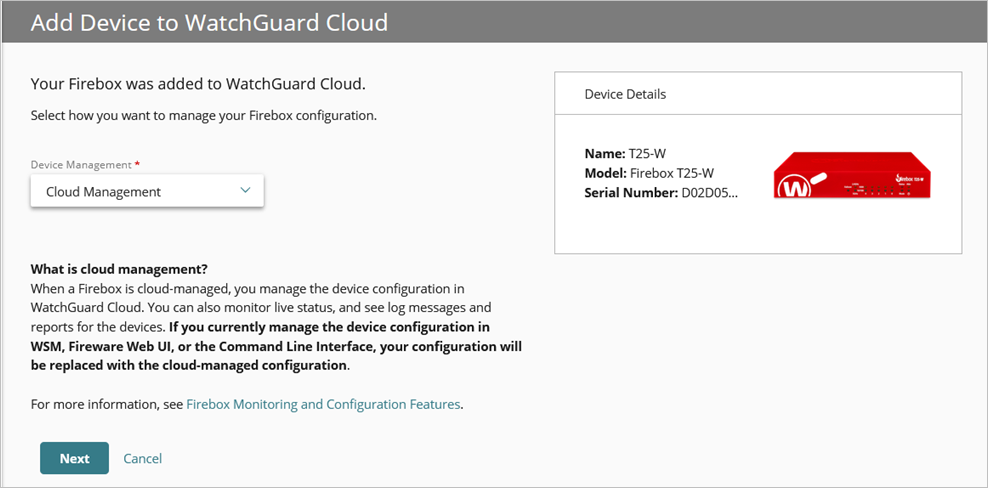
To add the Firebox back to WatchGuard Cloud as a cloud-managed Firebox, from Account Manager, click Add Device.
For more information, go to Add a Cloud-Managed Firebox to WatchGuard Cloud.
Downgrade Device Firmware
To downgrade your device firmware:
- From a computer on a network connected to the cloud-managed Firebox, open a web browser.
- In the web browser, go to https://<firebox IP address>:8080.
The Fireware Web UI login page opens. - Log in with the user name admin and the passphrase you previously set for this device in WatchGuard Cloud.
- From the navigation menu, select System > Upgrade OS.
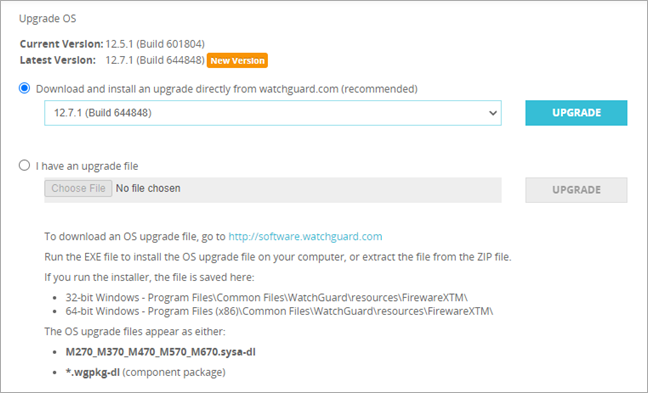
The Upgrade OS page opens. - Select I Have An Upgrade File and then select the sysa-dl file you want to downgrade to.
- Click Upgrade.
- When no backup image is available or appropriate, click No.
- To complete the downgrade and restart the device automatically, click Yes.
The Firebox completes the downgrade and restarts. This process might take 5 to 10 minutes.