Applies To: WatchGuard Cloud
For Service Providers, the Home dashboard provides a quick status view of the products, endpoints, and users in your account and accounts you manage. In the upper-right corner, you can view the time elapsed since the last dashboard update. To manually refresh the dashboard, click  .
.
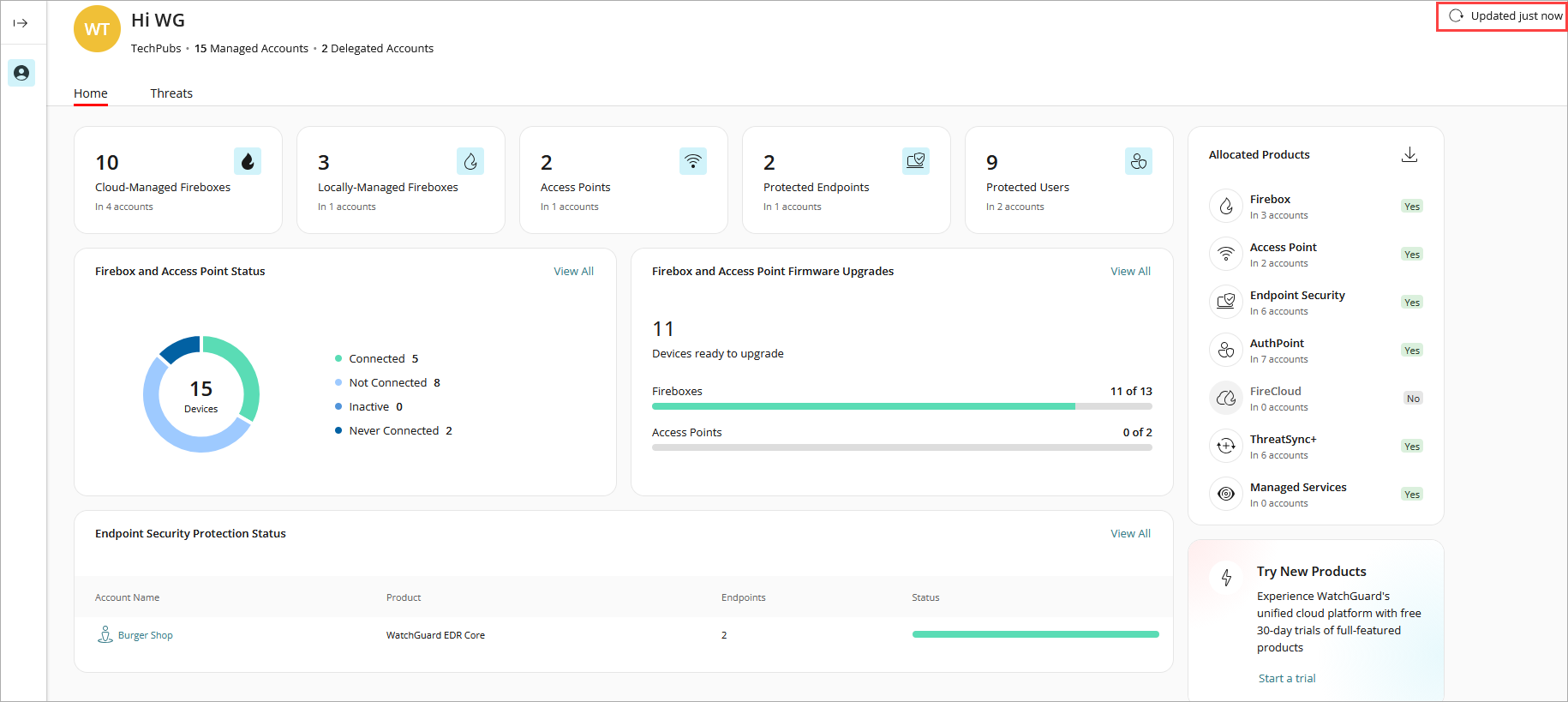
These widgets show important information about your products and provide useful links.

Cloud-Managed Fireboxes
The Cloud-Managed Fireboxes widget shows the number of Firebox devices managed by WatchGuard Cloud and the number of accounts the devices are installed in.
Click the widget to open the Account Devices page. From this page you can view a list of all the accounts where WatchGuard devices are installed. For more information, go to About the Account Devices Page for Service Providers.
If there are no cloud-managed Fireboxes in the account, click Learn more for more information about cloud-managed Fireboxes.
Locally-Managed Fireboxes
The Locally-Managed Fireboxes widget shows the number of Firebox devices managed locally and the number of accounts the devices are installed in.
Click the widget to open the Account Devices page. From this page you can view a list of all the accounts where WatchGuard devices are installed. For more information, go to About the Account Devices Page for Service Providers.
If there are no locally-managed Fireboxes in the account, click Learn more for more information about locally-managed Fireboxes in WatchGuard Cloud.
Access Points
The Access Points widget shows the number of access points managed by WatchGuard Cloud and the number of accounts the devices are installed in.
Click the widget to open the Account Devices page. From this page you can view a list of all the accounts where WatchGuard devices are installed. For more information, go to About the Account Devices Page for Service Providers.
If there are no access points in the account, click Learn more for information about access points managed in WatchGuard Cloud.
Protected Endpoints
The Protected Endpoints widget shows the number of endpoint devices that are protected by products installed by the WatchGuard Agent (for example, Endpoint Security 360, FireCloud). This includes product trials. The widget also shows the number of accounts that the endpoints are installed in. For more information on the WatchGuard Agent, go to About the WatchGuard Agent.
Click the widget to open the Endpoints page. From this page you can view a list of all the endpoints where the WatchGuard Agent is installed. For more information, go to Manage Endpoints in WatchGuard Cloud
If there is no Endpoint Security license in the account, click Learn more for information on the WatchGuard Agent.
Protected Users
The Protected Users widget shows the number of users that are protected by AuthPoint or FireCloud. This includes product trials.
Click the widget to open the Protected Users page. From this page you can view a list of all the accounts that have been allocated AuthPoint users and FireCloud users. For more information, go to About AuthPoint and About FireCloud.
Firebox and Access Point Status
The Firebox and Access Point Status widget shows the connection status of the Fireboxes and access points in your account:
- Connected — Devices connected to WatchGuard Cloud.
- Not Connected — Devices not connected to WatchGuard Cloud.
- Inactive — Devices no longer associated with your WatchGuard Cloud account.
- Never Connected — Devices that have never connected to WatchGuard Cloud.
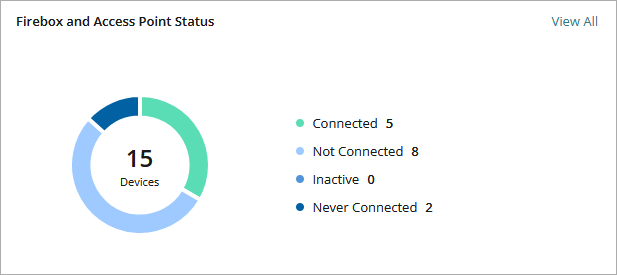
Click View All to go to the Devices Settings page for the account. For more information, go to Configure Device Settings in WatchGuard Cloud.
Firebox and Access Point Firmware Upgrades
The Firebox and Access Point Firmware Upgrades widget shows the number of Fireboxes and access points that have a firmware upgrade available. If there are no devices that require an upgrade, the message "All devices are up to date" appears.
Beta builds of Firebox and access point firmware are not included in the number of devices ready to upgrade.
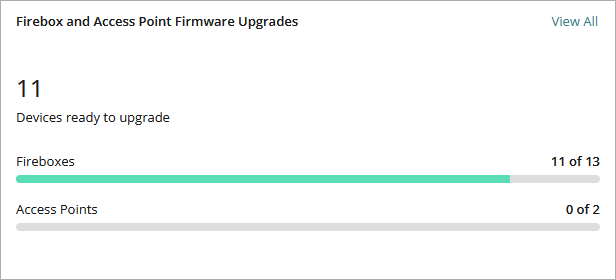
Click View All to go to the Firmware Upgrades page to view and manage the firmware versions of your Fireboxes and access points. For more information, go to Manage Firmware Versions for Devices in WatchGuard Cloud.
Allocated Products
In the Allocated Products widget, you can see a list of products available in WatchGuard Cloud. If you have a license for a product, the widget shows whether the license has been allocated to a Subscriber account (Yes) or not (No). Expired allocations are not included. The widget also shows the number of Subscriber accounts where the product is allocated.
Click a product to open the Inventory > Allocation page for the product. For more information, go to Allocate Fireboxes or Allocate Access Points.
If you do not have a license for a product, click the product name to learn more information about the product.
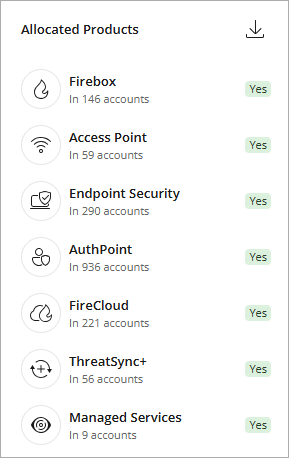
To download the inventory summary report for all of your accounts in CSV format, in the upper-right corner of the widget, click  .
.
Endpoint Security Protection Status
The Endpoint Security Protection Status widget shows the protection status for your managed and delegated accounts.
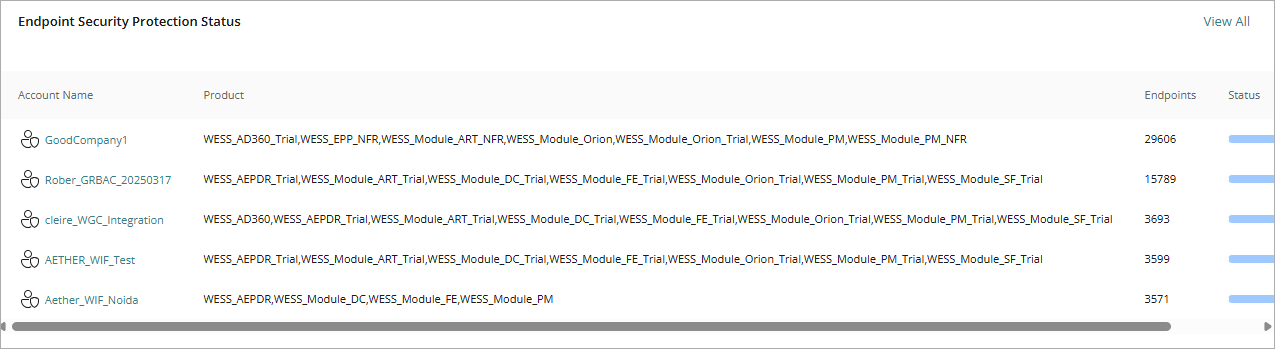
The widget lists the accounts, the Endpoint Security products available in the account, and the number of protected endpoints.
The status line shows the protection status for endpoints in a specific account. Point to the line to show a pop-up of the protection status and the number of endpoints, including these statuses:
- Protection Disabled
- Offline
- Protected
- Installation in Progress
- Protected with Errors
- Installation Errors
Click an account name to open the Security dashboard in the Endpoint Security management UI for the account. For more information, go to Monitor Threats in WatchGuard Endpoint Security.
Try New Products
On the Administration > Trials page in WatchGuard Cloud, you can start free 30-day trials for many WatchGuard products including:
- AuthPoint
- Compliance Reporting
- Endpoint Security products and modules
- FireCloud
- WatchGuard NDR
- WatchGuard SaaS DR
To get started, click Start a trial.
Provide Your Feedback
In the WatchGuard Idea Portal, you can:
- Submit ideas and product feedback directly from within WatchGuard Cloud
- Upvote ideas you want WatchGuard to prioritize
- Track idea status as ideas move from Under Review to Released
- Engage in the roadmap and influence what features we build next
We value your input. To get started, click Provide feedback.
If the browser has an ad-blocker enabled, the Idea Portal might not open. Disable the ad-blocker to open the portal.