Applies To: WatchGuard Cloud
The WatchGuard Agent is an application you install on endpoints in your network so that WatchGuard Cloud can communicate with them and deploy WatchGuard software. From the Endpoints page, you can view a list of all the endpoints where the WatchGuard Agent is installed. To open the Endpoints page, select Monitor > Endpoints.
To configure deployment of the WatchGuard Agent, in the upper-right corner, click Configure Deployment. For information on how to centrally deploy the agent on your endpoints, go to Configure WatchGuard Agent Deployment in WatchGuard Cloud.
On the Endpoints page in WatchGuard Cloud, operators can:
Subscriber account operators can also:
- Add an Endpoint in WatchGuard Cloud
- Move Endpoints in WatchGuard Cloud
- Delete Endpoints in WatchGuard Cloud (Windows, Mac, and Linux computers)
- Restart an Endpoint in WatchGuard Cloud (Windows computers)
To show detailed information about an endpoint, select an endpoint from the list. For more information, go to Endpoint Details in WatchGuard Cloud.
If the account has an Endpoint Security license, you can also complete some actions in the Endpoint Security management UI. For more information, go to Manage Computers and Devices in Endpoint Security.
Your operator role determines what you can see and do in WatchGuard Cloud. Your role must have the Manage Endpoints permission to view or configure this feature. You must also have the Endpoint Security permissions enabled (Add, Discover, and Delete Computers and Restart and Repair Computers). For more information, go to Manage WatchGuard Cloud Operators and Roles.
Add an Endpoint in WatchGuard Cloud
When you add an endpoint to WatchGuard Cloud, it provides cloud visibility into the software installed on the endpoint and enables you to automatically update software to the latest version. The WatchGuard Agent eliminates the need to reinstall software when you start a trial or add new WatchGuard software.
To add an endpoint to the list, you download and install the WatchGuard Agent on the endpoint.
You cannot install the WatchGuard Agent on Linux or iOS endpoints for FireCloud. For information on supported operating systems for FireCloud, go to Operating System Compatibility for FireCloud Components.
To download the installer and add an endpoint, from WatchGuard Cloud:
- Select Monitor > Endpoints.
The Endpoints page opens in alphabetical order. This image shows the Endpoints page for a Service Provider account.

- Click Add Endpoint.
- Select the operating system for the endpoint where you want to install the agent.
The available operating systems differ for Endpoint Security and FireCloud.

- The steps to configure and download the WatchGuard Agent installer differ for Endpoint Security and FireCloud. Go to the appropriate help topics:
- Download the WatchGuard Agent Installer for Endpoint Security Products and Install the Endpoint Software Locally
- Download and Install the WatchGuard Connection Manager
Filter the List of Endpoints in WatchGuard Cloud
Filters are useful when you have a large number of endpoints on the network.
To search for a specific endpoint or group, enter keywords in the Search box. You can also search for an endpoint based on the name of the user who last logged in to the endpoint.
To filter the list of endpoints:
- On the Endpoints page, click
 .
. - To filter the list to show a specific type of endpoint, select System Type. Select the check boxes for the type of system you want to show in the list.

- To filter the list to show endpoints with a specific operating system, select Operating System. Select the check boxes for the operating systems you want to show in the list.

- To filter the list to show endpoints for a specific product, select Installed Product.

- To filter the list to show results based on the last WatchGuard Agent connection to the WatchGuard Cloud servers, select Last Agent Connection.

- Click Apply Filters.
Customize Columns on the Endpoints Page
To change the information shown in the list, you can customize the columns displayed.
To customize columns:
- On the Endpoints page, click
 (in the upper, right corner).
 - In the Customize Columns dialog box, select the check boxes for the columns you want to include on the page.

- To change the order of the columns, drag the handle on the right side of a row to move columns and rows higher or lower in the list. The Endpoint column cannot move. It is always the first column in the list.
- Click Apply.
To return the columns to the default order, click Reset Columns.
Move Endpoints in WatchGuard Cloud
In a Subscriber account with an Endpoint Security license, you can move endpoints from one endpoint group to another. You can also move endpoints to the Active Directory path they belong to on the Active Directory server.
Endpoint groups are only available for endpoints with an Endpoint Security license. Endpoints with a FireCloud license automatically belong to the All group. For information on endpoint groups for endpoints with an Endpoint Security license, go to Manage Computers and Devices in Groups in Endpoint Security.
To move endpoints to a different group in a Subscriber account:
- From the Endpoints list, select the check boxes for the endpoints you want to move.
To only show endpoints from a specific account in the list, select the endpoint group in Account Manager. - In the toolbar, click Move To.
The Move To dialog box opens.
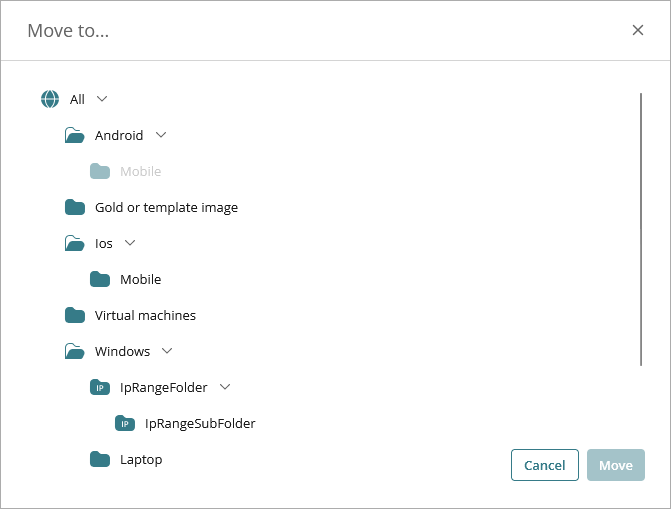
- Select the folder for the target group you want to move the endpoints to.
- Click Move.
The endpoints move to the selected group.
Active Directory Groups
In a Subscriber account, you can move endpoints from a group to the endpoint group that corresponds with its organizational unit or path in Active Directory. An endpoint that belongs to an Active Directory group is synchronized with your Active Directory server and cannot be moved to a different Active Directory group from the Endpoints page.
If you move an endpoint from an Active Directory group to a different group on the Endpoints page, changes made to the company’s Active Directory groups do not affect the endpoint in the endpoint group in WatchGuard Cloud.
Move Endpoints to their Active Directory Path
To move endpoints to a different Active Directory group, you must move them in Active Directory and then wait up to one hour for WatchGuard Cloud to synchronize the change. After one hour, you can then move the endpoint to the correct Active Directory group in Endpoint Security. The endpoint does not move automatically to the correct group.
When you move an endpoint to its Active Directory path, the settings and tasks associated with the current group do not automatically move to the new Active Directory path.
To move endpoints to their Active Directory path:
- From the Endpoints list, select the check boxes for the endpoints you want to move.
- In the toolbar, click Move to Active Directory Path.
- In the confirmation dialog box, click Move.

Delete Endpoints in WatchGuard Cloud (Windows, Mac, and Linux computers)
You can delete endpoints in a Subscriber account. When you delete an endpoint, the endpoint is removed from the Endpoints list. If you also uninstall the WatchGuard Agent, it uninstalls the WatchGuard software on the endpoint.
This feature is not available for mobile devices. For mobile devices, the user must remove the application from the endpoint.
If a deleted endpoint reconnects to the WatchGuard servers, the endpoint will show again in the Endpoints list. To prevent this, you must also uninstall the WatchGuard Agent.
To delete an endpoint from the Endpoints list for a Subscriber account:
- Select the check boxes for the endpoints you want to delete.
- In the toolbar, click Delete.
- To uninstall the WatchGuard Agent, and make sure that the endpoint does not reappear in the Endpoints list, select the Uninstall the WatchGuard Agent from the selected endpoints check box.
- Click Delete.

Endpoints with an Endpoint Security License
For endpoints with an Endpoint Security license, when you delete the endpoint and remove the WatchGuard Agent, the endpoint becomes unprotected. If it is encrypted, the device remains encrypted.
Endpoints with a FireCloud License
For endpoints with a FireCloud license, when you delete the endpoint and remove the WatchGuard Agent, the FireCloud service stops on the endpoint. Users cannot connect to the FireCloud service.
For Service Providers with multiple licenses, the most recently connected users up to your remaining license count can still connect to the FireCloud service. Users in excess of your license count are no longer licensed, and you must remove existing licensed users before they can connect and use the FireCloud service.
Endpoints with a WatchGuard Open MDR License
For endpoints with a WatchGuard Open MDR license, when you remove the WatchGuard Agent, the WatchGuard MDR Syslog Collector is also removed. WatchGuard MDR cannot collect the syslogs to monitor the third-party firewall. For more information, go to Configure Third-Party Firewall Syslog Collection for WatchGuard Open MDR.
Restart an Endpoint in WatchGuard Cloud (Windows computers)
If you need to restart a Windows endpoint in a Subscriber account to finish an update or to fix an issue, you can force the endpoint to restart from the Endpoints list.
To restart Windows endpoints in a Subscriber account:
- Select the check boxes for the endpoints you want to restart.
- In the toolbar, click Restart.
The Restart Endpoints dialog box opens.

- Specify whether to restart the computers immediately or delay restart for a selected duration.
- Restart Now — A message informs the end user that the computer will restart in one minute. If the computer is not connected to the WatchGuard server, the restart command is only valid for one hour. If the computer connects to the server within an hour, the message appears and the computer restarts after 1 minute.
- Restart Later — Select the time period to delay the restart. A message informs the end user of the time remaining before the computer automatically restarts.
- Click Restart.
Endpoint Details in WatchGuard Cloud
Configure WatchGuard Agent Deployment in WatchGuard Cloud