Applies To: Endpoint Security Elite
The GenAI Assistant is a tool for threat investigations in Endpoint Security Elite. It enables you to query the computer telemetry with natural language. With the GenAI Assistant, you can:
- Enter a prompt.
- Like or dislike the response to help us improve the results.
Chat history is only used to generate the SQL query and is not shared for any other purpose. Your queries are not used for model training.
Your operator role determines what you can see and do in WatchGuard Cloud. Your role must have the Access Advanced Telemetry permission to view or configure this feature. For more information, go to Manage WatchGuard Cloud Operators and Roles.
To start an investigation of the endpoint telemetry with the GenAI Assistant, from the Endpoint Security management UI:
- On the Security dashboard, click the Pending Incidents or Incidents Status tile.
- Select an incident from the list.
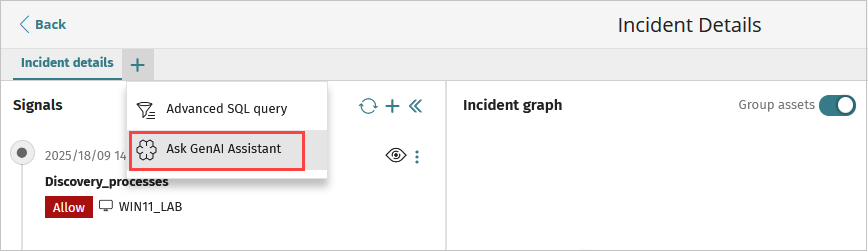
- Click
 .
. - Select Ask GenAI Assistant.
The GenAI Assistant window opens.

- In the text box, type a question and press Enter.
The GenAI Assistant generates a query of the telemetry in SQL. Results show below the query.

Query and Results Limitations
The GenAI Assistant uses a Large Language Model (LLM) that translates your questions into SQL statements and runs them to show the results in table format.
Each account is limited to 100 queries per month. When this number is exceeded, no more queries can be asked. Each query can be up to 500 characters long. The generated SQL statement cannot contain more than 1000 characters. The query results do not include more than 100 rows and 10 columns.
If your results contain more than 100 records, you can copy the generated SQL statement, remove "LIMIT 100" from it, and enter the query in the Advanced SQL Query Tool. For more information on the Advanced SQL Query Tool, go to Open the Advanced SQL Query Tool from the Incident Details Page.
Query results only show data for +/- 7 days from the date of the selected incident. If you request data outside of this timeframe, query results only show information within the +/- 7 days.
For each session, the GenAI Assistant stores associated context from the current query for the next query. This context includes, at a minimum:
- The last 10 queries
- The SQL statements and results for each of the previous 10 queries
- The top 10 results provided based on operator feedback
Queries should be related to the selected incident. When a query refers to something previously queried, the GenAI Assistant can relate its response to the previous 10 queries. You can also enter a query related to the current incident and whether it is present on other endpoints in the account.
To prevent SQL injection in the query, the GenAI Assistant filters keywords such as password, credential, token, api key, system configuration, insert, update, delete, drop, alter, create, and truncate.
Query results presented in a table format include applicable columns up to a maximum of 10 columns. The 10 most relevant results columns are: TimeStamp, Date, EventType, Operation, MUID, AccountId, ParentFilename, ChildFilename, CommandLine, RemoteIp. Results are limited to 100 records or rows.
Natural Language Queries to SQL Query - Examples
This section shows example queries written in natural language and the SQL query that the GenAI Assistant generates in the context of the selected incident.
Which users have executed the following commandline: 'example.exe x -y -ppanda testfiles.rar'?
SELECT DISTINCT LoggedUser FROM Telemetry WHERE CommandLine='example.exe x -y -ppanda testfiles.rar' LIMIT 100;
This query retrieves the users who ran a command line in the context of the incident.
Show me the computers where the file joke.exe has been created
SELECT DISTINCT Muid FROM Telemetry WHERE ChildFilename='joke.exe' AND EventType=1 AND Operation=1 LIMIT 100;
This query retrieves the computers where a specific file was created in the context of the incident.
Get all data from the last 100 events
SELECT DISTINCT TimeStamp, Date, EventType, Operation, Muid, AccountId, ParentFilename, ChildFilename, CommandLine, RemoteIp FROM Telemetry WHERE Date >= '2025-09-08' AND Date <= '2025-09-22' ORDER BY TimeStamp DESC LIMIT 100;
This query retrieves the last 100 system events, showing the most important data such as timestamp, date, event type, operation, machine ID, account ID, parent and child filenames, command line, and remote IP. The data is sorted by timestamp in descending order to show the most recent events first. There is a limitation on the number of columns displayed.
Manage Incidents in Endpoint Security