Applies To: Endpoint Security Elite, Endpoint Security 360, Endpoint Security Prime, WatchGuard EDR, WatchGuard EDR Core, Endpoint Security Basic
In Endpoint Security, an incident is a group of related signals that have a high probability of being a cyberattack. An incident groups signals found on the same device in your network, and helps you to identify, manage, and resolve the potential issue. Endpoint Security can add signals to an incident up to seven days after the incident is created. With the exception of Endpoint Security Basic, you can also manually add or delete signals from an incident.
The Security dashboard includes two widgets: Incidents with Action Required and Incidents Status. Click an area of the widget to open the Incidents list filtered to show the incidents selected in the widget. The Incidents list enables administrators to investigate and close incidents detected by Endpoint Security. For more information, go to Manually Close an Incident in Endpoint Security.
Incidents in Endpoint Security are not the same as those shown in ThreatSync. Incidents in Endpoint Security are a group of signals generated from events on the endpoint. The same Endpoint Security incident might also appear in ThreatSync as multiple incidents. For information on how to manage incidents in ThreatSync, go to Perform Actions in ThreatSync.
Your operator role determines what you can see and do in WatchGuard Cloud. Your role must have the Endpoint - Security Manage Incidents permission to view or configure this feature. For more information, go to Manage WatchGuard Cloud Operators and Roles.
To add the Incidents list in the Endpoint Security management UI:
- On the Status page, next to My Lists, click Add.
- In the Add List dialog box, select Incidents.

The Incidents list opens.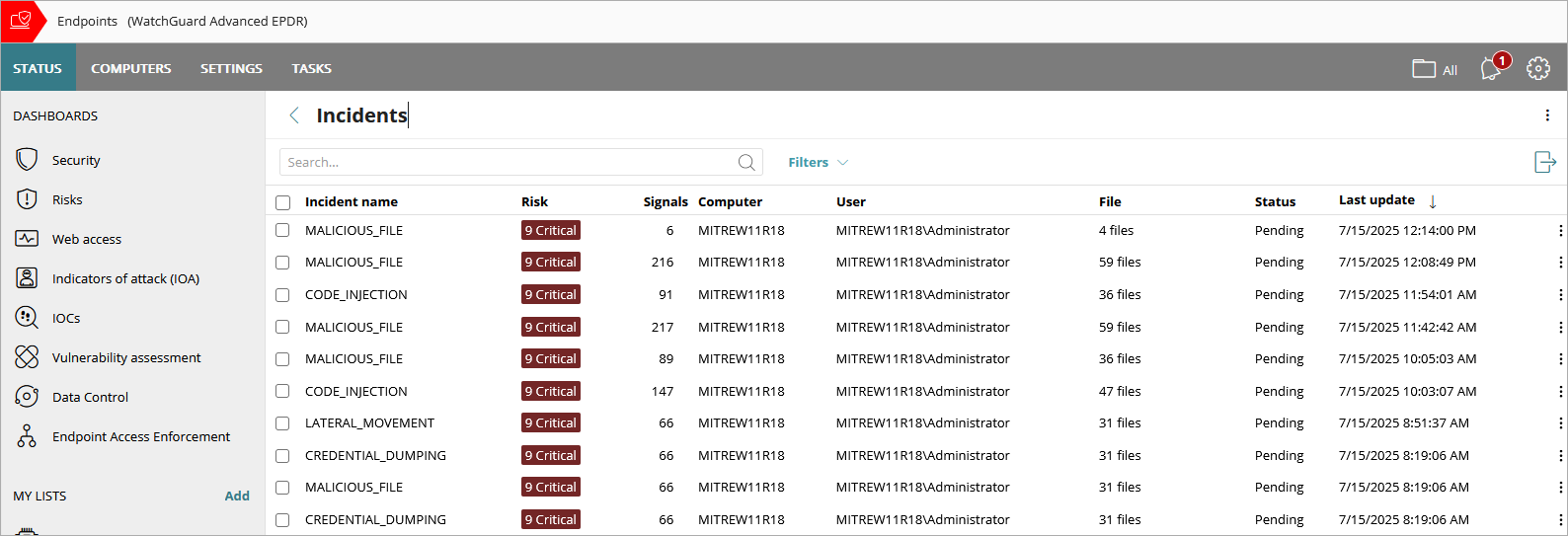
To filter the list to show fewer incidents, click Filters. You can filter the list by Risk level, Status, Incident type, and update Dates.

To view all incidents detected on a specific computer, from the Incidents list:
- Click
 in the row for an incident that occurred on the computer you want to see all incidents for.
 - Select View incidents detected on this computer.
The Incidents list is filtered for the computer.
To view all computers where an incident was detected, from the Incidents list:
- Click in the row for an incident you want to see all affected computers for.
- Select View computers where incident was detected.
To download the list to a .CSV file, click  , select Export. Select Export List and Details for more detailed information on the incidents and signals.
To create a new list from the existing list, click , then select Copy.
To view incident details, select an incident from the list. For more information, go to Review Incident Details in Endpoint Security.
About the Incidents List in Endpoint Security
The Incidents list in Endpoint Security includes this information:
Incident Name
The name of the incident provided by Endpoint Security.
When the Merged label shows next to the incident name, it indicates that incidents that were initially separate have merged into a single incident. A tooltip lists the merged incidents. If there are more than 5 merged incidents, click Show All Merged Incidents to open a dialog box of the merged incidents.
When the Updated label shows next to the incident name, it indicates that an already reported incident now includes another new incident or has received a significant signal. The Updated label does not show for new signals added manually by the operator. After the operator reviews the incident details, the Updated label no longer appears.
For more information about merged and updated incidents, go to Merged and Updated Incidents.
Risk
The risk score and level of the incident.
Endpoint Security determines the risk score for an endpoint based on the incident risk scores associated with the endpoint in the past 30 days. The endpoint risk score is the same as the value of the highest IOA risk score detected on the endpoint in the past 30 days. For example, if an endpoint has two open incidents in a 30-day period, one with an IOA risk score of 9 and the another with an IOA risk score of 7, the endpoint risk score is 9.
Endpoint Security uses only pending incidents to determine endpoint risk scores, not closed incidents. When a new incident occurs or an incident is closed, Endpoint Security recalculates the endpoint risk score. After the detection of a new incident, recalculated endpoint risk scores can take several seconds to appear in the Incidents list in the Endpoint Security management UI.
Endpoint Security determines the risk level for an endpoint based on its IOA risk score. Endpoint Security categorizes endpoint risk scores into these risk levels:
| Risk Level | Risk Score | Description |
|---|---|---|
| Critical | 9,10 | Endpoints with critical risk scores require immediate attention and investigation. |
| High | 7, 8 | We strongly recommend you investigate endpoints with high risk scores. |
| Medium | 4, 5, 6 | We recommend you investigate endpoints with medium risk scores. |
| Low | 1, 2, 3 | Investigate endpoints with low risk scores if you have the time and resources available. |
Signals
Number of signals or detections generated in response to potential threats or suspicious activities. Signals are the raw events that Endpoint Security combines to create the incident. For information on how to add or remove signals from an incident, go to Signals and Signal Details in Endpoint Security.
Computer
The name of the computer or number of computers affected by the incident.
User
The number of users or the name of the user affected by the incident.
File
The number of files or the file name affected by the incident.
Status
The status of the incident (Action Required, Manually Closed, or Automatically Closed). For more information, go to Incident Status.
Last Update
The date and time when incident details were last updated. This only appears for incidents that have been updated and show an Updated label.
Merged and Updated Incidents
To avoid showing redundant information in the Incidents list, Endpoint Security merges information about incidents detected within a 7-day interval that have the same cause or origin into a single incident.
Endpoint Security uses these rules to merge or update incidents:
- Only incidents with the Action Required status can be included in a merge or update operation.
- The incident creation date is the date when the last incident was added to the merged incident.
- The risk field indicates the highest risk level of the incidents in the merged incident.
- Endpoint Security automatically searches for and adds signals related to an incident from seven days before the date when the oldest merged incident occurred to seven days after the when of the newest merged incident occurred.
- Endpoint Security retains the signals you manually added to an incident when the incident is merged or updated.
- Endpoint Security retains the signals you manually hid for an incident when the incident is merged or updated. If Endpoint Security merges two or more incidents that contain the same signal, and you hid that signal for only one of the incidents, the merged incident hides the signal.
Incident Status
Endpoint Security automatically closes incidents to enable operators to focus on incidents that require attention. With automatic closure, resolved or low-risk events are removed from the active workflow and marked as Automatically Closed. You can change the status if action is required. Incident status can be one of these:
- Action Required — Action is required. Verify that the attack is real and take the necessary steps to mitigate it.
- Automatically Closed — Endpoint Security automatically closed the incident. Endpoint Security automatically closes incidents when the incident:
- Involves malware, a PUP (Potentially Unwanted Program), or a vulnerable driver and no other incidents have been detected on the same computer in the last 7 days. Endpoint Security deletes, disinfects, or blocks the item.
- Involves an Indicator of Attack (IOA) with a low or medium risk.
- Involves an IOA, the risk is high or critical, and Endpoint Security has not detected other incidents on the same computer in the last 7 days.
- Is an exploit that does not use advanced compromise techniques (for example, advanced computer memory manipulation, advanced evasion techniques, Metasploit, or Covenant frameworks) and no other incidents have been detected on the same computer in the last 7 days. Endpoint Security blocks it.
- Manually Closed — An operator manually closed the incident. The operator investigated the incident and completed the resolution actions, or if the incident was a false positive, closed the incident without any actions required.
Manually Close an Incident in Endpoint Security
This feature is not available in Endpoint Security Basic.
After you analyze and resolve an incident, you can mark it as closed.
To mark an Endpoint Security incident as closed, from the Incidents list:
- Click in a row for an incident with an Action Required status.
- Select Close Incident.
The incident status updates to Manually Closed.
You can also close multiple incidents at one time. Select the check boxes and then click Close Incident.

Review Incident Details in Endpoint Security