Applies To: WatchGuard Cloud
When you integrate WatchGuard Cloud with your PSA tool, you map your active PSA tool accounts with your WatchGuard Cloud Subscriber accounts and delegated accounts. This enables WatchGuard Cloud to send Firebox and access point device and license information to the PSA tool.
If an account in the PSA tool is not mapped to a tenant account in WatchGuard Cloud, but the device does exist, WatchGuard updates that device in the PSA tool based on the serial number.
The Map Accounts tab shows you all your WatchGuard Cloud managed and delegated accounts and active PSA tool accounts. After you connect WatchGuard Cloud to your PSA tool, your WatchGuard Cloud accounts automatically map with accounts in your PSA tool that have the same name. You can manually map accounts or change mapped accounts.

Your operator role determines what you can see and do in WatchGuard Cloud. You must be a tier-1 Service Provider and your role must have the Manage Integrations and Manage Tenants permissions to configure this feature. For more information, go to Manage WatchGuard Cloud Operators and Roles.
View Mapped PSA Tool Accounts
To view mapped accounts, from WatchGuard Cloud:
- Select Administration > Integrations.
- From the PSA tile, click Configure.
- Select the Map Accounts tab.
A progress bar shows the number of accounts mapped.
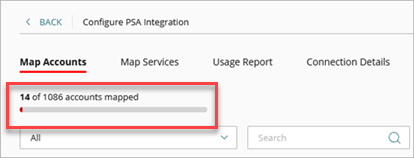
- To filter the list, from the drop-down list, select one of these options:
- All (default)
- Mapped Accounts
- Unmapped Accounts
- To search for an account, enter text in the search box.
- To export mapped accounts to a comma separated value (.CSV) file, click
 . When you export mapped accounts, they are saved to a .CSV file. The .CSV file downloads in a compressed .ZIP file to the default download location for your browser.
Map PSA Tool Accounts
You can manually map connected PSA tool accounts and WatchGuard Cloud accounts that were not automatically mapped. You can also change mapped accounts.
You can map a PSA tool account with only one WatchGuard Cloud account. If you use multiple WatchGuard Cloud accounts to manage separate products for the same organization, you must create additional accounts in the PSA tool to map to.
To map connected PSA tool and WatchGuard Cloud accounts, from WatchGuard Cloud:
- Select Administration > Integrations.
- From the PSA tile, click Configure.
- Select the Map Accounts tab.
A progress bar shows the number of accounts mapped.
- From the PSA Account column for the WatchGuard Cloud account you want to map, click Map Account.
The Map Account dialog box opens.
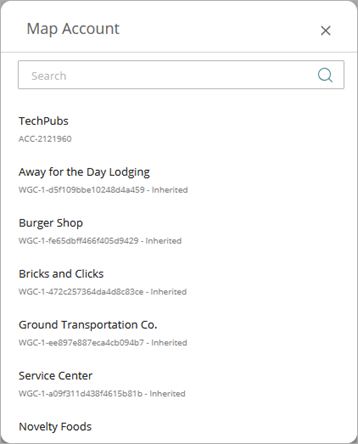
- From the list, select the PSA account you want to map with the WatchGuard Cloud account.
The Map Account dialog box closes.
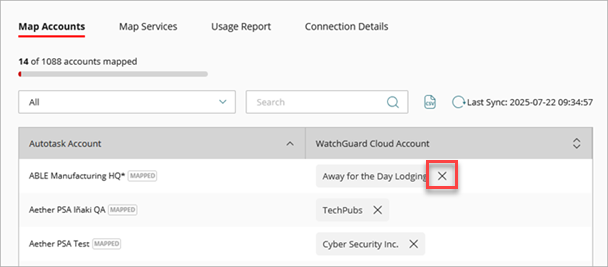
To remove the mapping for an account, click the X next to the PSA account.
After you map your PSA tool accounts and WatchGuard Cloud accounts, select the Usage Report tab to configure the information and reporting schedule to send Firebox and access point information to your PSA tool. For more information, go to Configure the Usage Report Setting for a PSA Integration.
Map PSA Tool Services and WatchGuard Cloud Products