Applies To: WatchGuard Cloud
When you connect WatchGuard Cloud to a PSA tool, you must provide the necessary PSA tool credentials for authentication. If the credentials in the PSA tool change, or if the API user does not have the correct permissions in the PSA tool, you can change the authentication information in the PSA Integration configuration.
Your operator role determines what you can see and do in WatchGuard Cloud. You must be a tier-1 Service Provider and your role must have the Manage Integrations and Manage Tenants permissions to configure this feature. For more information, go to Manage WatchGuard Cloud Operators and Roles.
To change connection details for a connected PSA tool, from WatchGuard Cloud:
- Select Administration > Integrations.
- From the PSA tile, click Configure.
- Select the Connection Details tab.
- Change the connection information for the PSA tool:
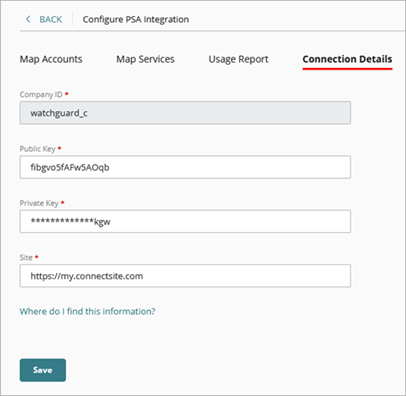
- For ConnectWise integrations, you can change the Public Key, Private Key, and Site. If you want to change the Company ID to connect to a different instance for your PSA tool, you must disconnect and then reconnect the PSA integration.
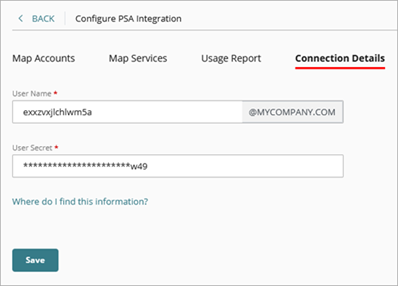
- For Autotask integrations, you can change the first part of the User Name and the User Secret. If you want to connect to a different instance for your PSA tool, you must disconnect and then reconnect the PSA integration.
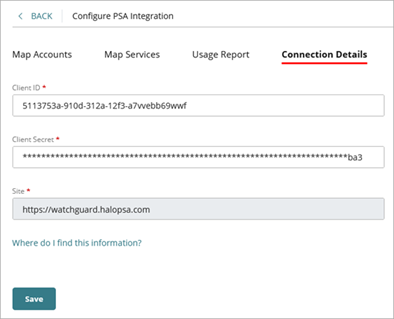
- For HaloPSA integrations, you can change the Client ID and the Client Secret. If you want to connect to a different instance for your PSA tool, you must disconnect and then reconnect the PSA integration.
- For ConnectWise integrations, you can change the Public Key, Private Key, and Site. If you want to change the Company ID to connect to a different instance for your PSA tool, you must disconnect and then reconnect the PSA integration.
- Click Save.
If you lose your private key for ConnectWise, your user secret for Autotask, or your Client Secret for HaloPSA, you must regenerate it in the PSA tool for your API user, then update the key in WatchGuard Cloud.
Map PSA Tool Accounts and WatchGuard Cloud Accounts
Map PSA Tool Services and WatchGuard Cloud Products