Applies To: Cloud-managed Fireboxes
Overview
You can configure network settings in templates and apply those settings to multiple cloud-managed Fireboxes. Template-defined networking helps you standardize configurations, validate device compatibility, and prevent interface conflicts before deployment.
When you configure networks in a template, WatchGuard Cloud manages those networks on subscribed cloud-managed Fireboxes and prevents local edits that could cause configuration drift.
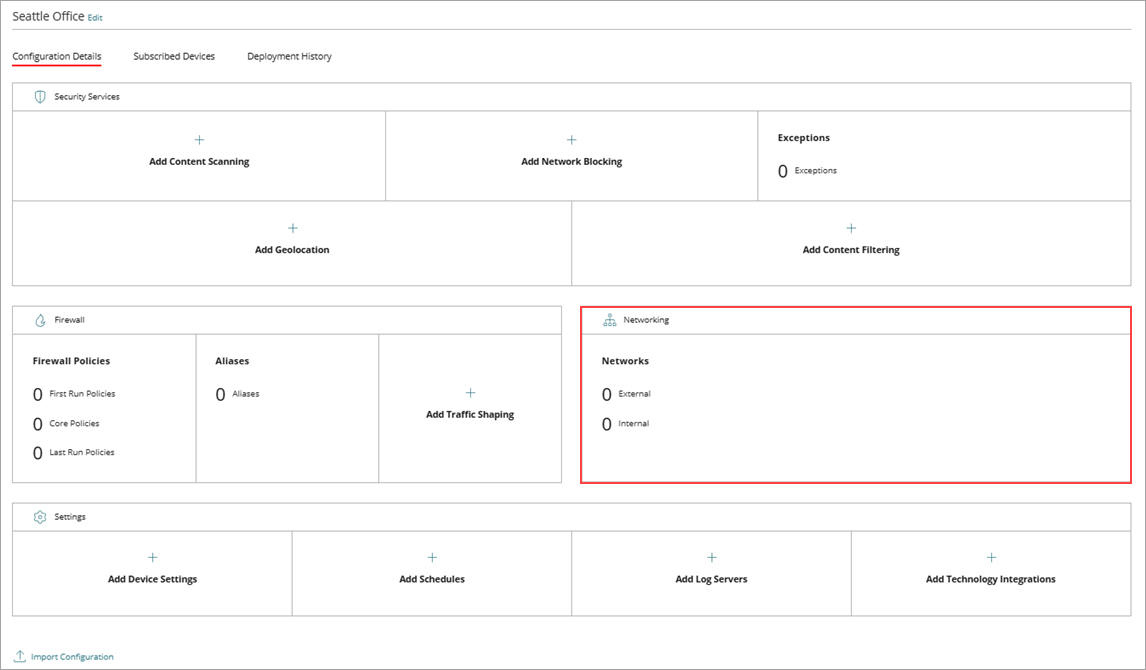
For more information about how to configure networks, go to About Firebox Networking Settings.
For information about how to apply a template, go to Manage Firebox Templates.
About Template-Defined Networks
Template‑defined networks standardize network configurations across cloud‑managed Fireboxes. They enforce compatibility checks, prevent interface conflicts, and centralize network management through templates.
When you add networks to a template, WatchGuard Cloud:
- Validates compatibility with all cloud-managed Fireboxes subscribed to the template.
- Applies the network configuration to all subscribed cloud-managed Fireboxes that meet compatibility requirements.
- Displays network details with a lock icon for template-defined networks in a subscribed cloud-managed Firebox configuration
- Prevents local edits to template-defined networks on subscribed cloud-managed Fireboxes.
- Enables other Firebox features, such as aliases, to reference template-defined networks.
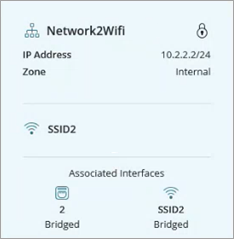
Template-Defined Networks on a Cloud-Managed Firebox
Template-defined networks are read-only in the configuration for a cloud-managed Firebox that subscribes to the template.
On a cloud-managed Firebox that subscribes to a template with networks configured:
- Networks show a lock icon.
- You cannot edit the networks on the cloud-managed Firebox.
- Networks identify the source template. You can point to a network entry to view the template source information.
- If multiple templates apply, an interface shows a list of all source templates.
Features That Reference Template-Defined Networks on a Cloud-Managed Firebox
You can reference template-defined networks in these features:
- Aliases
- Firewall policies
- Mobile VPN
- NetFlow
WatchGuard Cloud identifies template-defined objects with a lock icon so you can distinguish them from device-defined objects. If you remove a template, review dependent objects to confirm they reference valid networks.
Supported Network Types
WatchGuard Cloud templates support specific network types that WatchGuard Cloud validates before deployment.
You can add these network types to a template:
- Internal
- External (DHCP only)
- Guest
External template-defined networks support DHCP only. WatchGuard Cloud does not support static IP addresses or PPPoE for external networks configured in a template.
For information about how to configure internal, external, or guest networks, go to Configure Firebox Network Settings.
Interface Assignment and Validation
When you configure a network in a template, you can assign it to one or more physical interfaces.
Because different Firebox models have different numbers and names of physical ports, template-defined networking supports a common interface set (eth0–eth5). This provides compatibility across supported cloud-managed Firebox models and prevents template configurations that include interfaces that are not available on all devices.
Template-defined networking differs from cloud-managed Firebox configuration in that you select interfaces from available device interfaces rather than interfaces that were created at network setup.
Conflict Detection
Before WatchGuard Cloud applies a template to a cloud-managed Firebox, it validates the template configuration against the deployed device configuration.
WatchGuard Cloud blocks template deployment to a cloud-managed Firebox when:
- The template uses an interface that the target Firebox model does not support.
- The template uses an interface that is already in use on the Firebox.
When a conflict occurs, WatchGuard Cloud displays an error message that identifies the conflicting interface and network. You cannot deploy the template to the device until you resolve the conflict.
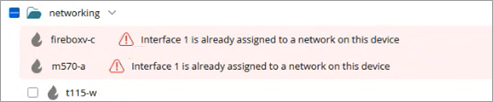
WatchGuard Cloud evaluates only the currently deployed configuration. Staged or unsaved changes do not affect conflict validation.
When you apply a template configured with networks to multiple cloud-managed Fireboxes, WatchGuard Cloud evaluates each device independently:
- Fireboxes without conflicts receive the template.
- Fireboxes with conflicts are skipped automatically.
Skipped devices remain unsubscribed until you resolve the conflict. This behavior allows broad template deployment for eligible devices.
External Networks and Global WAN
Global WAN settings control how the cloud-managed Firebox routes outbound traffic when multiple external networks are configured.
When you add an external network from a template:
- WatchGuard Cloud does not automatically add the network to Global WAN.
- The external network from the template shows as an available option in the Global WAN settings.
- You must manually add the network and update the network order in the Global WAN settings.
For more information, go to Configure Global WAN Settings.
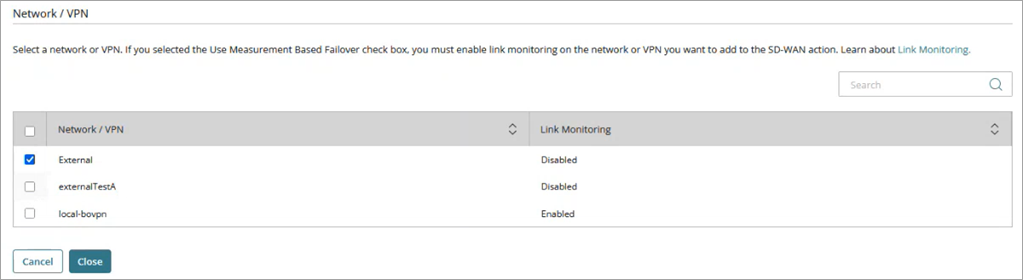
Configure Networks in a Template
You can configure internal, external, and guest networks in a Firebox template. WatchGuard Cloud validates the network before it applies the network to subscribed cloud-managed Fireboxes.
To configure networks in a template:
- Select Configure > Firebox Templates.
- Select an existing template or create a new template.
- Click the Networks tile.
The Networks configuration page opens. - In the Networks section, click Add Network.
- From the Network Type drop-down list, select Internal, External, or Guest.
- Configure the IP address settings for the network.
- In the Interfaces section, click Add Interface.
The Select Interfaces dialog box opens. - From the Interface Number drop-down list, select one or more interfaces.
Because different Firebox models have different numbers and names of physical ports, template-defined networking supports a common interface set (eth0–eth5).
- Click Add.
The interfaces show in the Interfaces section. - Configure any other network settings. For more information about networks, go to About Firebox Networking Settings.
- Review the Preview pane to verify the configuration.
- Click Save.
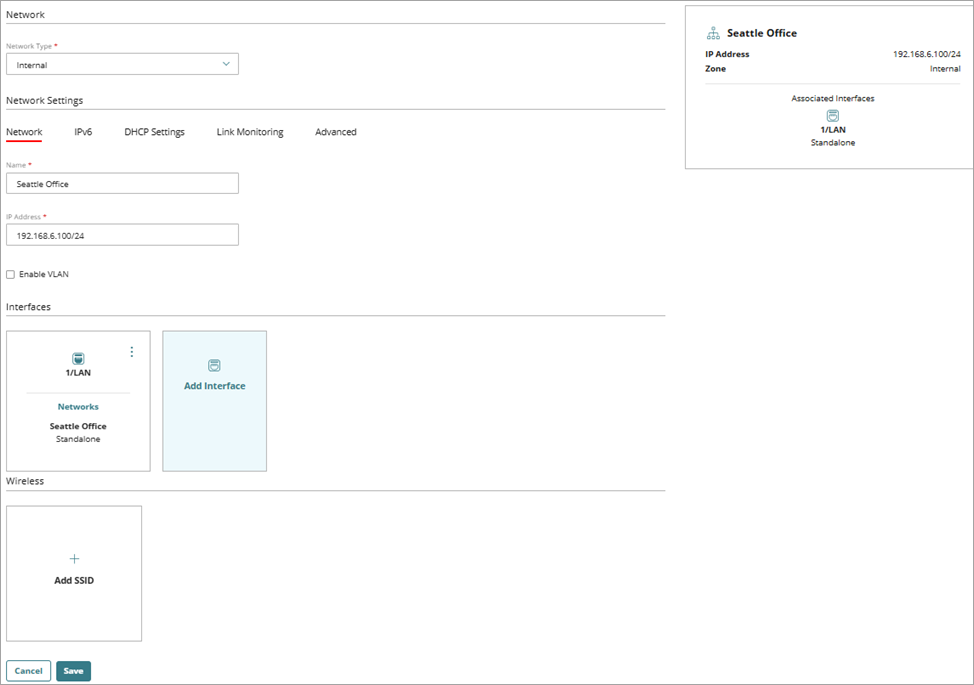
The Preview pane updates automatically and shows how the configuration applies to subscribed cloud-managed Fireboxes. WatchGuard Cloud applies the template only to devices without conflicts.
Add a Wireless Network to a Firebox Template
You can configure wireless networking in a Firebox template to define radio, SSID, and security settings that WatchGuard Cloud validates and applies to supported cloud-managed Fireboxes.
You can configure wireless settings for internal networks in templates. This includes:
- Wireless radio settings
- SSIDs and security settings
- Multiple radios
- Radio selection for each network
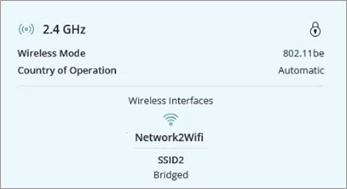
WatchGuard Cloud automatically adjusts template-defined wireless settings when a cloud-managed Firebox does not fully support the specified configuration:
- If the template does not define a radio, the cloud-managed Firebox selects an available radio automatically.
- If a cloud-managed Firebox does not support a specified wireless option, WatchGuard Cloud applies the closest supported configuration. For example, if the template specifies WPA3 security for a wireless network, wireless Firebox models that do not support WPA3 use WPA2 security.
These adjustments occur automatically to facilitate a successful deployment.
To configure wireless settings, from WatchGuard Cloud:
- Select Configure > Firebox Templates.
- Select an existing template or create a new template.
- Click the Networks tile.
The Networks configuration page appears. - In the Wireless Settings section, click Add Radio Settings.
The Wireless Settings page opens.
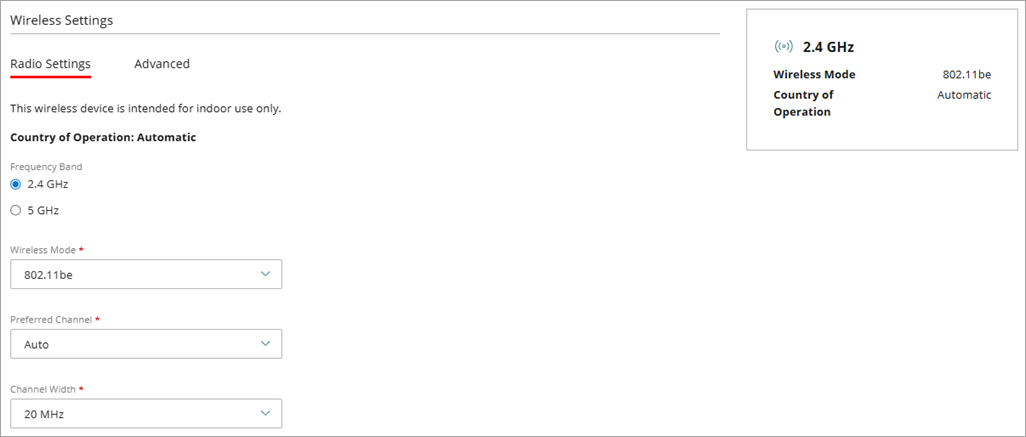
For more information about how to configure wireless settings, go to Configure Wireless Radio Settings.
Unsubscribe a Cloud-Managed Firebox from a Template with Networks
When you unsubscribe a device from a template with networks configured, WatchGuard Cloud prompts you to select how to handle template-defined networks.
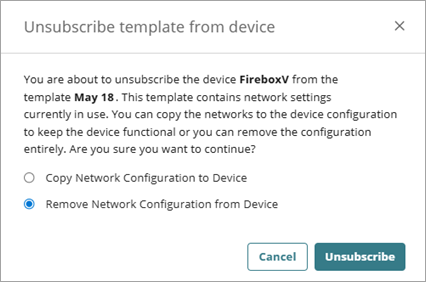
When you unsubscribe from a cloud-managed Firebox, you can:
Copy Network Configuration to Device
Converts template-defined networks to device-defined networks.
Remove Network Configuration from Device
Removes all networks that originated from the template.
These options apply only to network configurations. Other template settings remain unchanged.
Video tutorial: Cloud-Managed Firebox Templates