Applies To: Cloud-managed Fireboxes
A link aggregation group (LAG) is a group of physical interfaces that you configure to work together as a single logical interface for cloud-managed Fireboxes. You can use a LAG interface to increase the cumulative throughput beyond the capacity of a single physical interface and to provide redundancy if there is a physical link failure.
When you use link aggregation, you connect the link aggregation interfaces to a switch and configure the connected switch to use the same link aggregation mode and link speed.
For more information, go to: About Link Aggregation in WatchGuard Cloud.
FireCluster Configuration Example
This example provides an overview of how to configure link aggregation interfaces for a cloud-managed active/passive FireCluster and describes how to configure link aggregation groups on the connected switches.
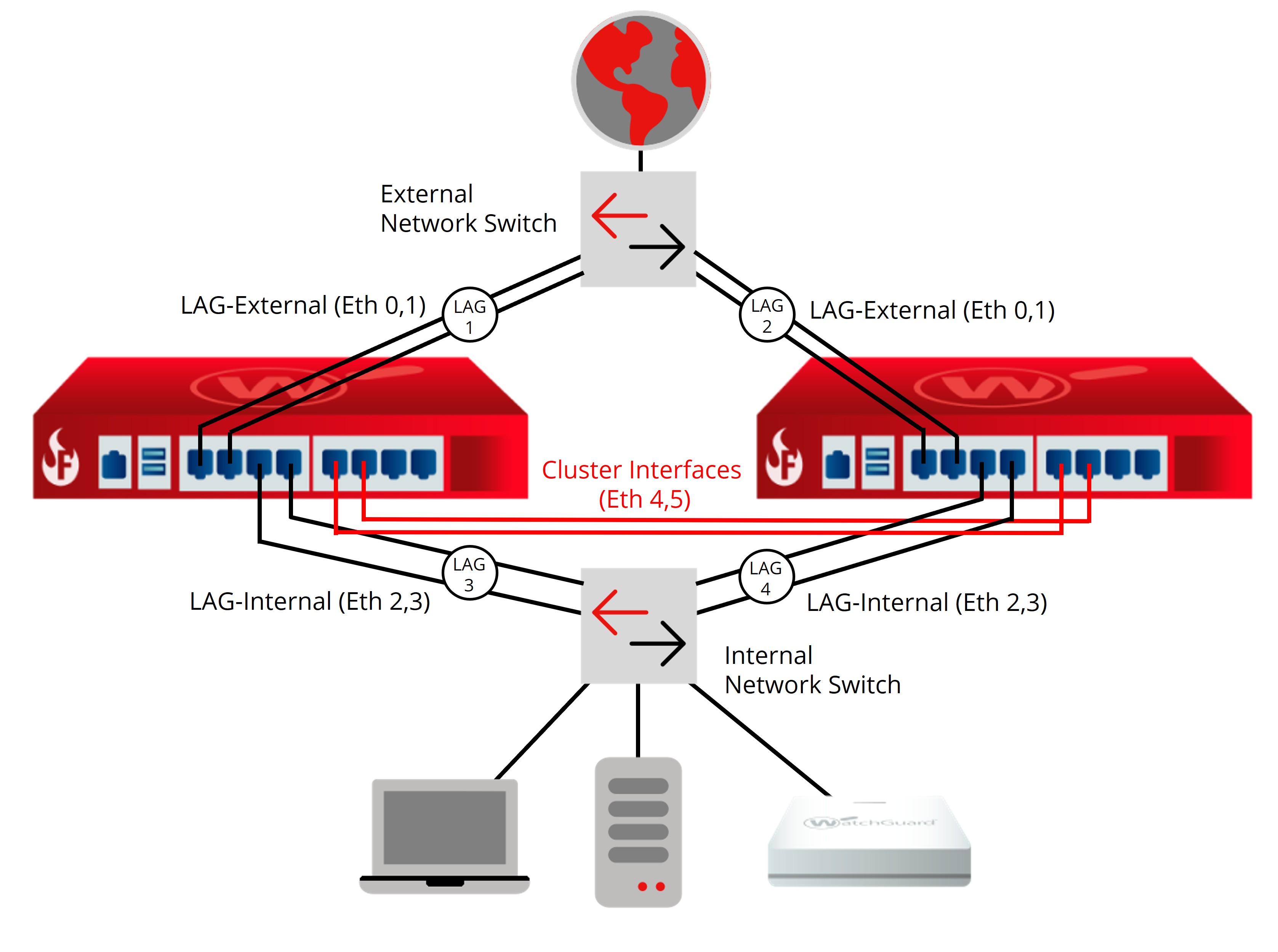
In this example:
- Interfaces 0 and 1 are members of an external LAG that connects to the external network switch and the Internet.
- Interfaces 2 and 3 are members of an internal LAG that connects to the internal network.
- Each connected switch is configured with two LAGs, one for each group of interfaces that connect to each cluster member.
FireCluster failover is triggered if all LAG interfaces fail. FireCluster failover is not triggered if only some LAG interfaces fail.
Configure Link Aggregation Interfaces
In your link aggregation configuration in WatchGuard Cloud, add two LAGs, each with two physical interfaces as members. You can configure each link aggregation group in Static or Dynamic (802.3ad) mode.
If you choose Static or Dynamic (802.3ad) mode, your connected network switch or router must also support and be configured to use the same mode.
For more information on how to configure link aggregation groups, go to Configure Link Aggregation in WatchGuard Cloud.
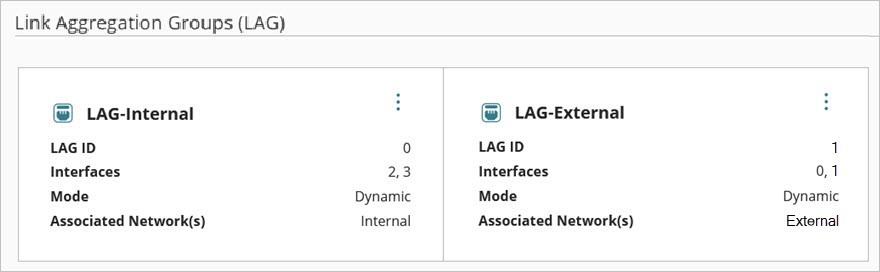
In this example:
- Interfaces 0 and 1 are members of the group LAG-External
- Interfaces 2 and 3 are members of the group LAG-Internal
Configure the FireCluster Communication Network Interface
To manage this FireCluster from the internal network, configure the FireCluster communication network to use the internal LAG interface.
- From WatchGuard Cloud, configure your FireCluster settings.
- Set the cluster Communication Network to the internal network LAG interface (LAG-Internal).
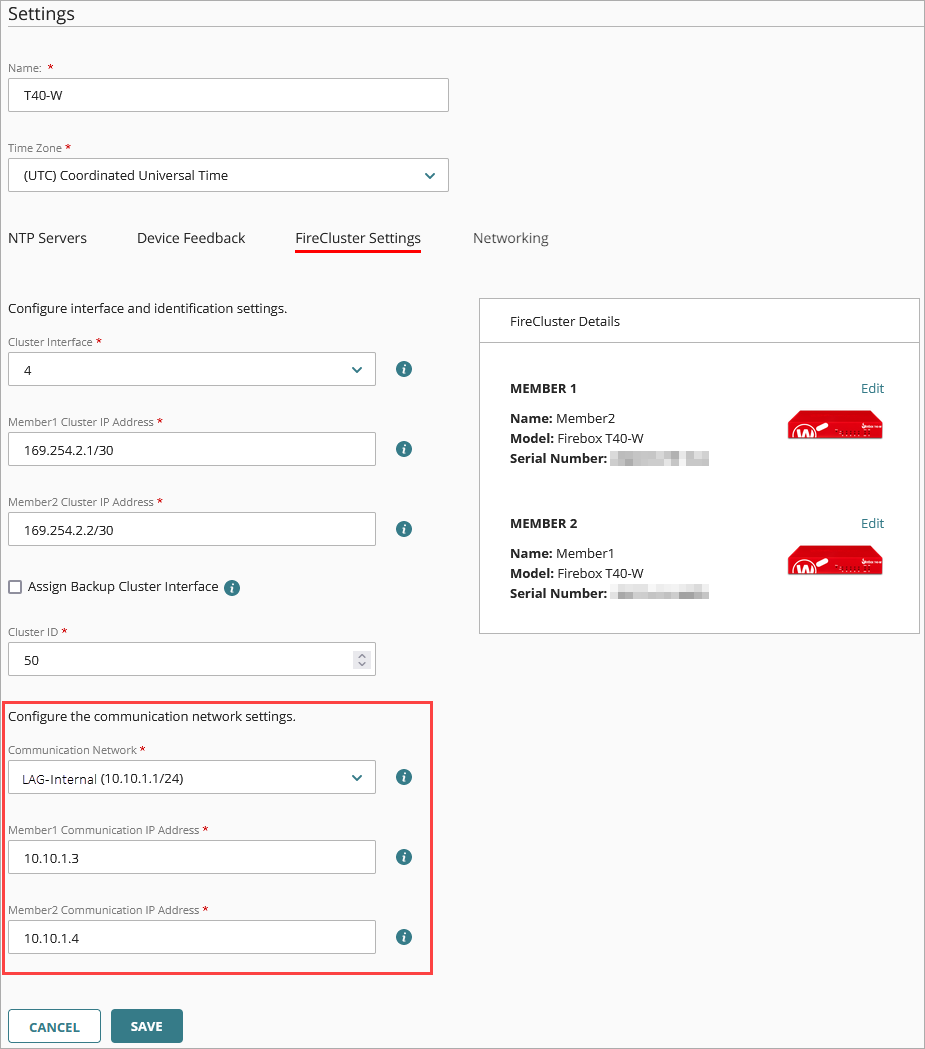
- For each cluster member, set the Member Communication IP Address to an address on the subnet of the internal network LAG.
In this example, the IP address of LAG-Internal is 10.10.1.1/24, and the Member Communication IP addresses are on the 10.10.1.1/24 subnet (10.10.1.3 and 10.10.1.4).
For more information on how to configure a FireCluster in WatchGuard Cloud, go to Add a Cloud-Managed FireCluster.
Configure Connected Switches
On each connected switch, configure separate LAGs for the ports that connect to each cluster member.
To configure the switch for the external network LAG interfaces:
- Connect interfaces 0 and 1 of each cluster member to a switch between the FireCluster and the Internet.
- On the switch, configure two LAGs, one for the ports that connect to Member1 and one for the ports that connect to Member2.
To configure the switch for the internal network LAG interfaces:
- Connect interfaces 2 and 3 of each cluster member to a switch between the FireCluster and the internal network.
- On the switch, configure two LAGs, one for the ports that connect to Member1 and one for the ports that connect to Member2.