Applies To: Cloud-managed Fireboxes
Use the URL Path Keyword Filtering feature on Outbound policies to allow or deny websites with URL paths that contain the text you specify. URL Path Keyword Filtering uses simple pattern matching syntax and can include wildcard characters.
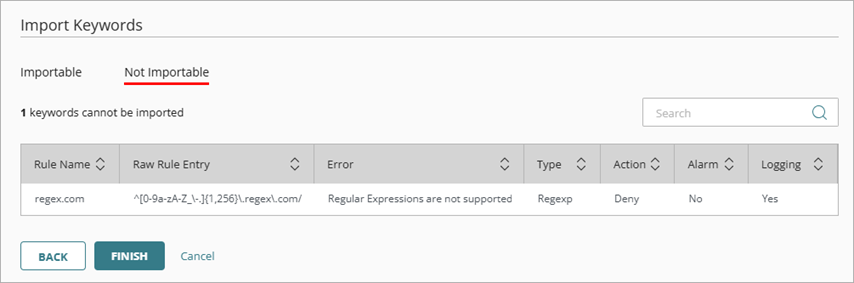
URL Path Keyword Filtering does not support regular expressions (RegEx).
URL Path Pattern Matching
To use URL Path Keyword Filtering you must specify the URL path patterns for the content you want to deny. The URL Path Keyword Filtering feature supports these wildcard characters with alphanumeric text:
- Asterisk (*) — Use * for zero or more instances of any alphanumeric character.
- Question mark (?) — Use ? for any one alphanumeric character.
For example:
- To deny an entire website and all its content, type /* after the domain name. To deny all pages that have the host name www.example.net, type www.example.net/*.
- To deny all pages that have a specific path after any host name, such as www.example.net/wpadmin, type */wp-admin/*.
- To deny all website URL paths that contain the word sex, such as www.example.net/sexuality, type *sex*. For a directory with the name of the individual word sex, such as www.example.net/sex/images, type */sex/*.
- To deny website URL paths that end with *.exe, type *.exe.
- To deny website URL paths that end in three characters, type example.???. This denies example.com, example.org, and example.gov, but not example.io.
Configure URL Path Keyword Filtering
To enable URL Path Keyword Filtering on an Outbound Policy:
- Add or edit an Outbound policy. For more information, go to Configure Firewall Policies in WatchGuard Cloud.
- Select the Web Traffic and Decrypt HTTPS Traffic check boxes.
Before you enable Decrypt HTTPS Traffic, make sure that network clients trust the certificate the Firebox uses to re-encrypt the content. To avoid browser errors for network clients, download the Firebox certificate and import it to all network clients. For more information, go to Download the Certificate for TLS Decryption.
- Enable URL Path Keyword Filtering.
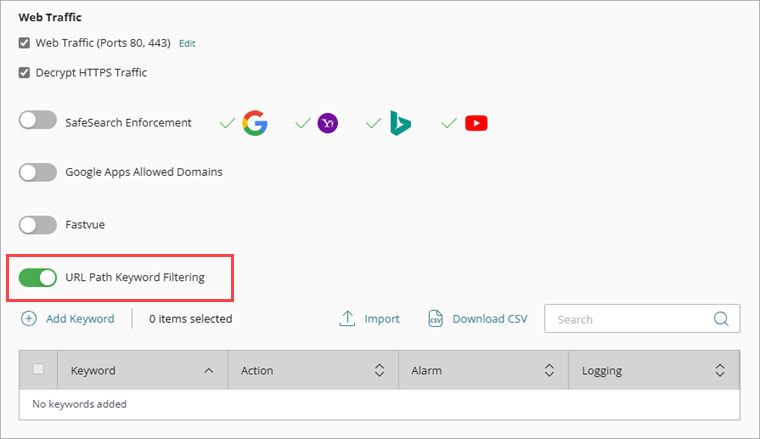
Add URL Path Keywords
You can add keywords individually or import a list of keywords to WatchGuard Cloud.

- Enable URL Path Keyword Filtering on the policy.
- In the URL Path Keyword Filtering section, click Add Keyword.
The Add Keyword dialog box opens.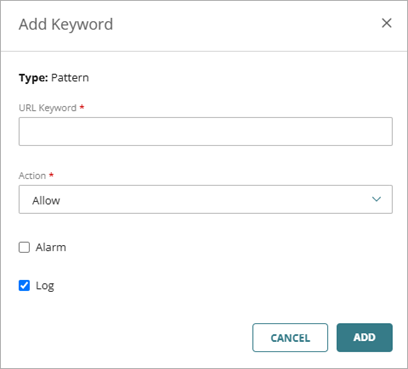
- In the URL Keyword text box, type the keyword you want to filter by. For more information, go to URL Path Pattern Matching.
- In the Action drop-down list, select the action (Allow or Deny) you want the Firebox to take for URLs that include the keyword.
- To generate an alarm for the keyword, select the Alarm check box.
- To generate a traffic log message for the keyword, select the Log check box.
- Click Add.
Import lists must be in comma-separated value (CSV) format or Extensible Markup Language (XML) format. For more information, go to Keyword List Import File Requirements.
- Enable URL Path Keyword Filtering on the policy.
- In the URL Path Keyword Filtering section, click Import.
The Import Keywords page opens.
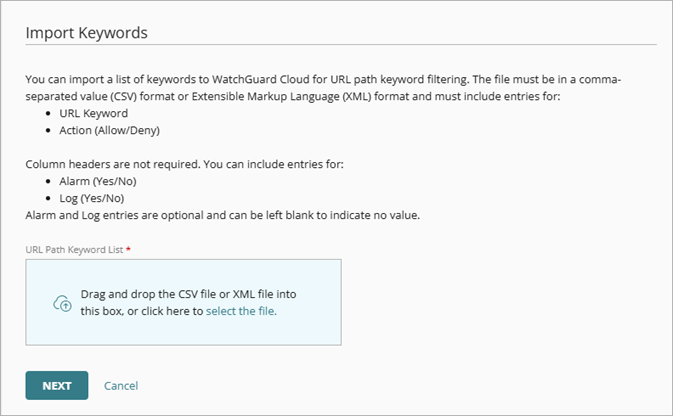
- Drag an import file from your computer to the URL Path Keyword List box, or click Or click here to select the file and select an import file.
- Click Next.
- To verify that the file imported correctly, review the Importable and Not Importable lists.
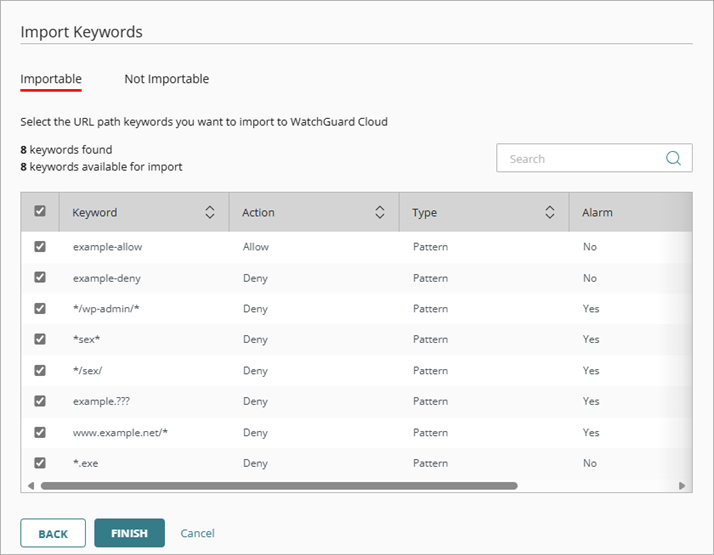
- Click Finish.
Keyword List Import File Requirements
Import lists must be in comma-separated value (CSV) format or Extensible Markup Language (XML) format. Column headers are not required in the .CSV or .XML import file for URL Path Keyword Filtering.
You can export a list of URL Path Keywords from a locally-managed Firebox to an XML file, then import that list to WatchGuard Cloud. For more information, go to HTTP Request: URL Paths.
For each keyword, include entries for:
- URL Keyword (Required) — Specify the keyword or simple pattern for the content you want to allow or deny. For more information, go to URL Path Pattern Matching.
- Action (Required) — Specify the action you want the policy to take when a user attempts to go to a URL path that includes your keyword. The supported actions are:
- Allow
- Deny
- Alarm (Optional) — Specify whether you want the Firebox to generate an alarm message when a user attempts to go to a URL path that includes the keyword. The supported entries for Alarm are:
- Yes
- No
- Log (Optional) — Specify whether you want the Firebox to generate a log message when a user attempts to go to a URL path that includes the keyword. The supported entries for Log are:
- Yes
- No
If there are no entries for Alarm and Log in your import file, WatchGuard assigns these default values:
-
Alarm — No
-
Log — Yes
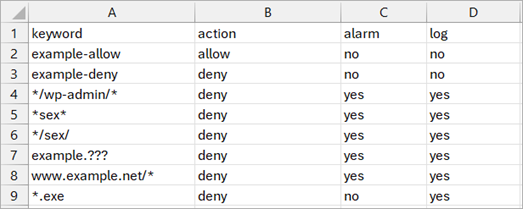
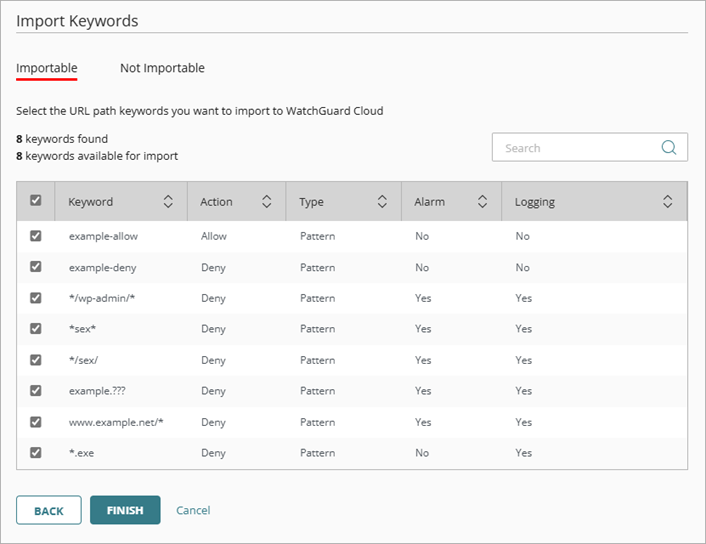
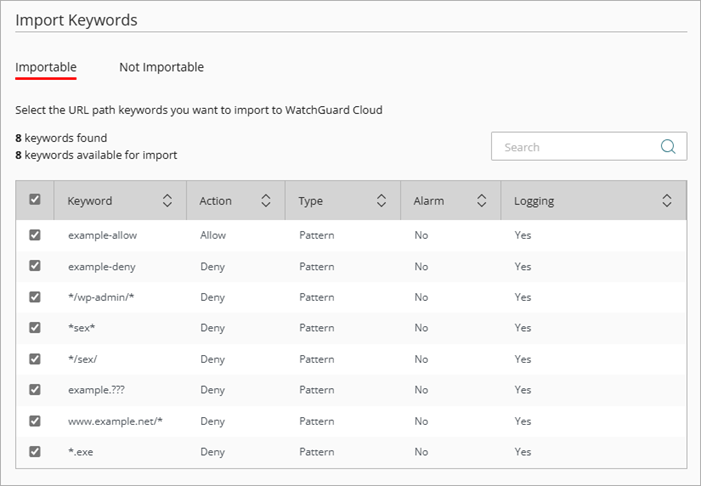
If we import this .CSV file to WatchGuard Cloud, it appears as:
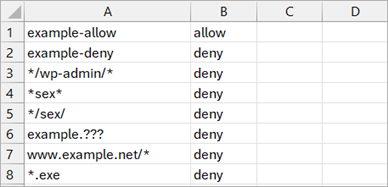
If we import this example .CSV file to WatchGuard Cloud, it appears as:
<rules proxy-type="HTTP" rule-type="URL Paths">
<rule>
<name>string.com</name>
<string>example-allow</string>
<allow/>
<log>true</log>
</rule>
<rule>
<name>pattern.com</name>
<pattern>pattern.com/*</pattern>
<deny/>
<log>true</log>
<alarm-enabled>true</alarm-enabled>
</rule>
<rule>
<name>regex.com</name>
<regexp>^[0-9a-zA-Z_\-.{1,256}\.regex\.com/</regexp><deny/>
<log>true</log>
</rule>
<fallthrough>
<scan/>
<log>false</log>
</fallthrough>
<match-length>0</match-length>
</rules>
If we import this example .XML file to WatchGuard Cloud, it shows 3 keywords found with 2 keywords available for import:

URL Path Keyword Filtering does not support regular expressions (RegEx). The regular expression entry in the .XML file appears on the Not Importable tab: