Applies To: WatchGuard Cloud
We recommend that you follow the best practices detailed in this guide to secure your WatchGuard access points, wireless clients, and your network from wireless security threats.
This guide includes these topics:
- About Wireless Threats
- Create a Secure Common Configuration with Access Point Sites
- Keep Access Point Firmware Up To Date
- Use Strong Device Passwords
- Enable Airspace Monitoring and ThreatSync Integration
About Wireless Threats
These are the most common types of wireless security threats to your users and networks:
- Misconfigured access points — Misconfigured or unknown access points connected to your corporate network with a configuration that does not conform to the security policies of your organization can be a significant security threat. For example, if your organization requires wireless SSIDs to use minimum WPA3 security, and the access point configuration allows an open, unencrypted SSID, the device can allow insecure connections that could pose a threat to your network.
To prevent misconfiguration of your access points, we recommend you create a secure common configuration with access points sites.
- Outdated device firmware — If your device does not run the latest firmware, you might be at risk of a known vulnerability or issue that malicious users could exploit.
We recommend you keep access point firmware up to date with the latest version for your device.
- Weak device passwords — If you use a weak device password that is easy to guess or steal through a brute force attack, attackers might get access to the device and the network.
We recommend you use strong, unique device passwords for your access points.
- Malicious access points — A malicious access point is a device intentionally set up by an attacker to masquerade as a legitimate access point for users to connect to. The attacker can then intercept and capture sensitive data, introduce malware, or gain access to sensitive areas of the network.
We recommend you enable Airspace Monitoring and ThreatSync integration to monitor your network for these threats and perform response actions to prevent connections from wireless clients to malicious access points.
Create a Secure Common Configuration with Access Point Sites
To prevent misconfiguration of your access points, use access point sites to manage and deploy shared wireless settings for multiple access points you manage in WatchGuard Cloud.
You can use an access point site to configure wireless SSIDs and radio settings, and then apply that configuration to access points in the accounts that subscribe to the access point site.
This makes sure that all the access points you manage use the same secure SSID configuration. If you configure each access point individually, you might apply inconsistent or insecure configurations to different devices.
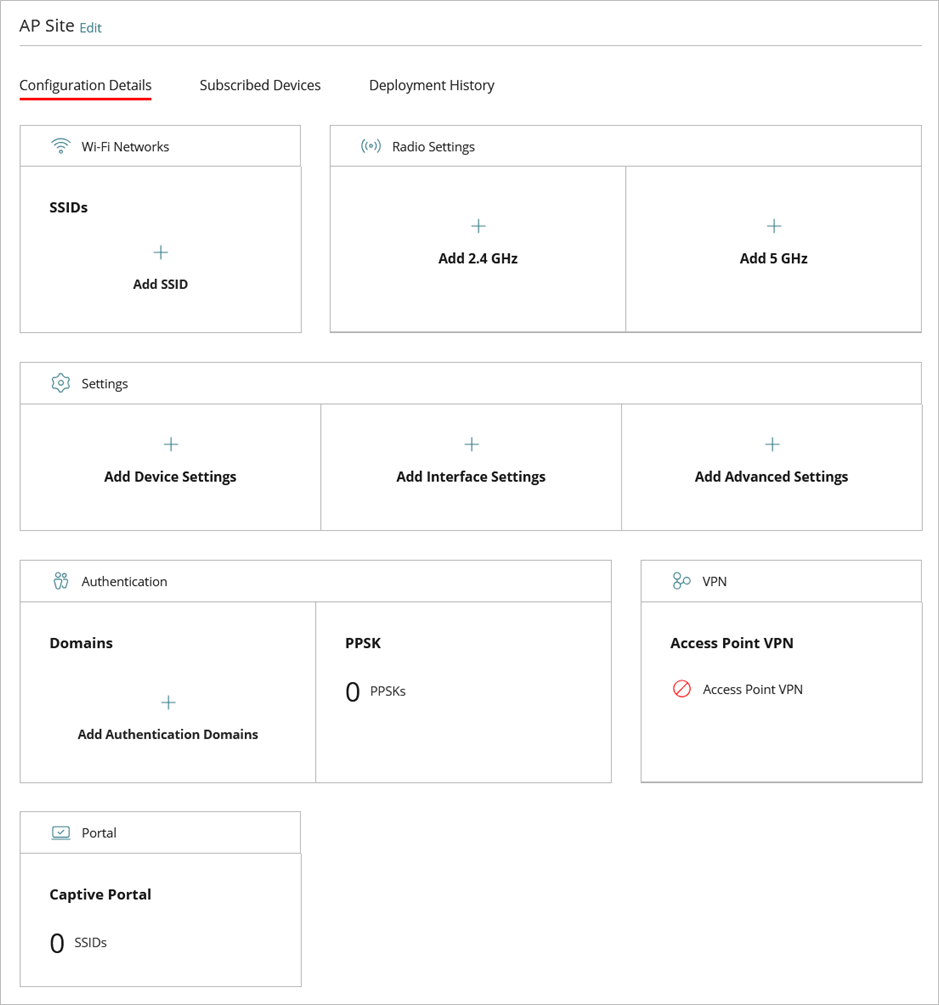
Note the following about access point sites:
- Each access point can subscribe to only a single access point site.
- Each access point site can have multiple subscribed devices. All devices that subscribe to a site share the same site configuration settings.
- When you update an access point site configuration and deploy the site, the site configuration settings immediately deploy to all subscribed devices.
For more information on how to create access point sites, add a site configuration, and subscribe access points to the site, go to About Access Point Sites.
Keep Access Point Firmware Up To Date
Make sure you install the latest access point firmware available for your device so that you always have the latest security updates, product updates, and fixes to known issues.
To upgrade the firmware on your access points to the latest version:
- View which devices have firmware upgrades available from the Device Firmware widget on your Dashboard or Monitor > Devices page.
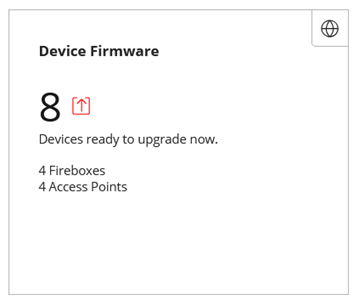
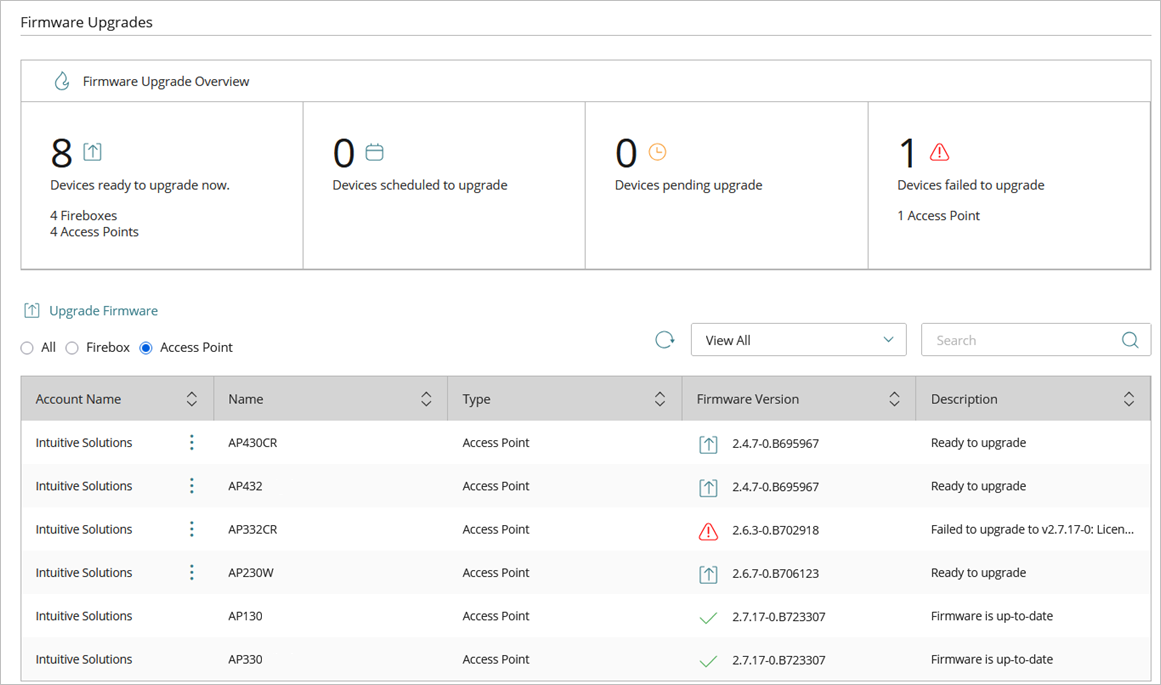
- Click the widget to go to the Firmware Upgrades overview page where you can immediately upgrade one or more devices, or schedule an update.
You can schedule firmware updates to run at a specific time to avoid network disruption.
To learn about new access point firmware and product releases:
- Subscribe to the WatchGuard Product and Support News blog for product updates, new firmware announcements, and support alerts.
- Read the Release Notes to review the new features and resolved issues in a product release:
- To view the Release Notes for access points managed in WatchGuard Cloud, go to Wi-Fi in WatchGuard Cloud Release Notes.
- For information on firmware releases, go to Access Point Firmware Releases.
For more information on how to configure and schedule firmware upgrades, go to Manage Firmware Versions for Devices in WatchGuard Cloud.
Use Strong Device Passwords
Wi-Fi in WatchGuard Cloud access points include a local Web UI and Command Line Interface (CLI) that enable you to troubleshoot access point issues from a secure direct connection to the device. To connect to the Web UI or CLI, you enter the device administrator password.
You initially specify the device password when you add the access point to WatchGuard Cloud. Make sure you use a strong password with a minimum length of 12 characters.
We recommend you specify unique device passwords for each access point you manage and store them in a password manager.
When you add multiple access points to a WatchGuard Cloud account at the same time, you can configure unique passwords for each device, and export the list to a file for use with a password manager. For more information, go to Add an Access Point to WatchGuard Cloud.
To change the password of an access point in WatchGuard Cloud:
- Select Configure > Devices.
- Select the access point.
- Select Device Password.
Enable Airspace Monitoring and ThreatSync Integration
We recommend that you enable Airspace Monitoring and ThreatSync integration on your access points to monitor your network for malicious access points and take response actions against these threat devices.
Airspace Monitoring uses WatchGuard's patented identification technology to scan your wired network and your wireless airspace for malicious access points such as Rogue, Suspected Rogue, and Evil Twin access points.
Rogue Access Point
A Rogue access point is an unauthorized access point that is physically connected to your wired network and broadcasts wireless SSIDs your clients might connect to instead of your legitimate access point SSIDs.
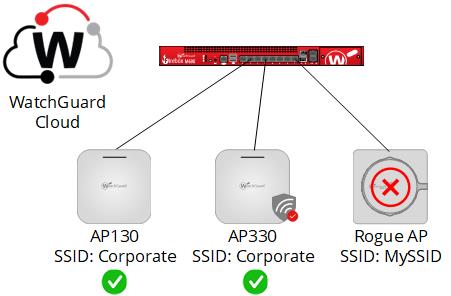
All WatchGuard access point models managed by WatchGuard Cloud can detect Rogue and Suspected Rogue access points on your network.
- WatchGuard access points scan the wired network for access points physically connected to the network, and also scan your wireless airspace for the SSIDs broadcast by these access points.
- WatchGuard Cloud can correlate the MAC addresses of the detected wired and wireless interfaces to determine whether the access point is a Rogue access point.
- If the correlation between the MAC addresses is uncertain, then the access point is classified as a Suspected Rogue access point which means it might be an unauthorized device that you must investigate. The access point might also be a legitimate device that you have not added to your Trusted Access Points list.
Evil Twin Access Point
An Evil Twin is a nearby access point operating in your airspace (not connected to your wired network) that broadcasts the same SSID name as your managed access points to appear as a legitimate access point on your network.
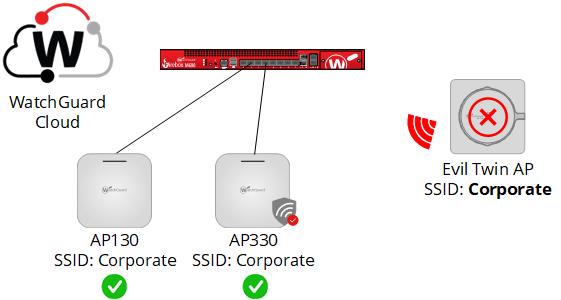
- Only WatchGuard access points with a wireless scanning radio (AP230W, AP330, AP340, and AP430CR) are able to detect Evil Twin access points that operate in your wireless airspace.
- WatchGuard Cloud uses patented signature-based identification to determine whether an access point is an Evil Twin and not a known WatchGuard managed access point or trusted access point.
- The device might be a legitimate access point on your network that is not configured in your Trusted Access Point list.
- This device might also be a legitimate access point operating in your airspace, such as a guest hotspot or private wireless network from a nearby business with the same SSID.
Enable Airspace Monitoring
We recommend you use an Access Point Site to apply the Airspace Monitoring configuration to multiple access points.
- Select Configure > Access Point Sites.
- Select an Access Point Site.
- In the Configuration Details, click Add Advanced Settings.
- Enable Airspace Monitoring.
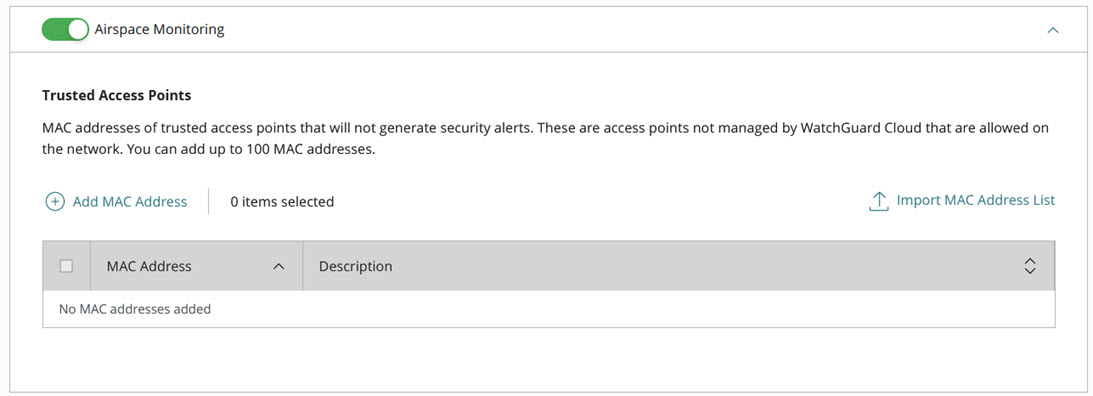
- Add the MAC addresses of any trusted devices in your deployment to your Trusted Access Points list.
WatchGuard access points and wireless Fireboxes managed by WatchGuard Cloud in the same account are automatically identified as trusted access points.
We recommend you add these devices to the Trusted Access Points list if they exist in your deployment:
- Wi-Fi 5 access points managed by WatchGuard Wi-Fi Cloud
- Wi-Fi 5 access points managed by a Gateway Wireless Controller on a Firebox
- Wireless Fireboxes not managed by WatchGuard Cloud
- Third-party access points
- Save the configuration.
- Deploy the configuration to your access points.
For more information about Airspace Monitoring requirements and configuration, go to Access Point Airspace Monitoring.
Enable ThreatSync Integration
You can integrate access point Airspace Monitoring with ThreatSync. ThreatSync is a WatchGuard Cloud feature that provides eXtended Detection and Response (XDR) technology for WatchGuard devices and products. You can receive incident alerts in ThreatSync when Airspace Monitoring detects malicious access points such as Rogue and Evil Twin access points. You can also perform response actions to block wireless client connections to Rogue and Evil Twin access points. For more information, go to About ThreatSync.
We recommend you enable ThreatSync on all your devices, and make sure you automatically enable ThreatSync on new devices you add to your account. For more information, go to Configure Device Settings in ThreatSync.
To configure which products and devices send data to ThreatSync:
- Select Configure > ThreatSync > Device Settings.
The Device Settings page opens. - To automatically enable ThreatSync for any new access points you allocate to the account in WatchGuard Cloud, select the corresponding check box for Access Points.
- To specify which specific access points send data to and receive actions from ThreatSync, clear or select check boxes next to the access point names.
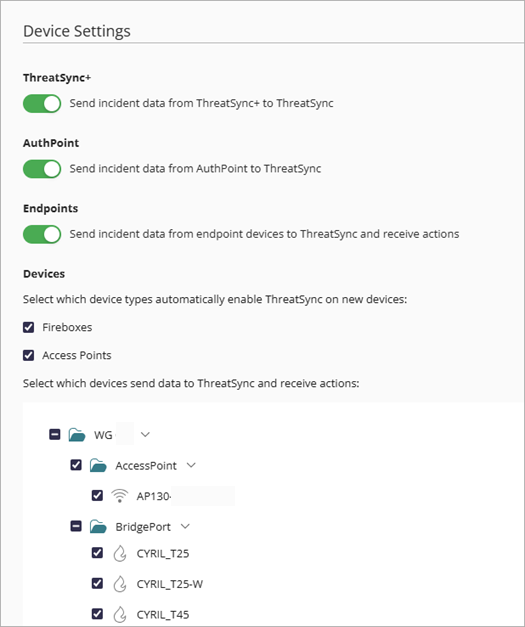
- Click Save.
ThreatSync Response Actions
With ThreatSync enabled, you can respond to Wi-Fi threat incidents in WatchGuard Cloud to block wireless client connections to detected malicious access points.
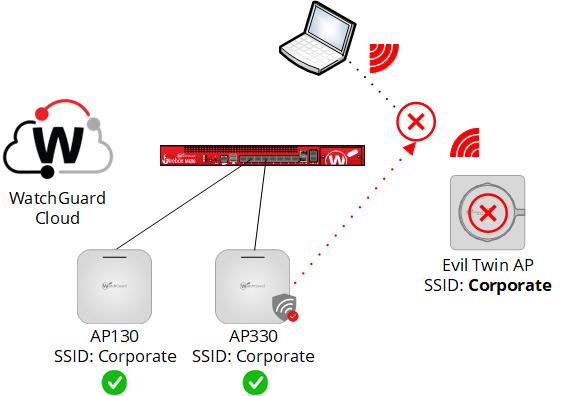
- The WatchGuard access point that detects the malicious device must have a dedicated scanning radio and run firmware v2.7 or higher to perform over-the-air response actions and block wireless client connections to the malicious access point.
- Wireless clients already connected to the malicious access point are disconnected from the device. Further connection attempts are blocked.
- You cannot perform over-the-air response actions against malicious access points that use WPA3 security, WPA2 security with Protect Management Frames enabled (802.11w), or OWE security.
- You cannot perform over-the-air response actions against malicious access points that broadcast on a channel not in the current country of operation of the detecting access point.
Before you block wireless client connections to a detected malicious access point, make sure that this is not a known access point in your deployment.
- The access point could be a wireless Firebox not managed by WatchGuard Cloud, a WatchGuard Wi-Fi 5 access point, or a legitimate third-party access point in your deployment. To prevent false positives, we recommend you trust these types of devices.
- For Evil Twin access points, the access point might also be a legitimate access point that operates in your airspace such as a guest hotspot or private wireless network from a nearby business with the same SSID.
Caution: Make sure you adhere to local regulations for the use of over-the-air response actions to disconnect wireless clients from an access point.
Monitor the ThreatSync Dashboard
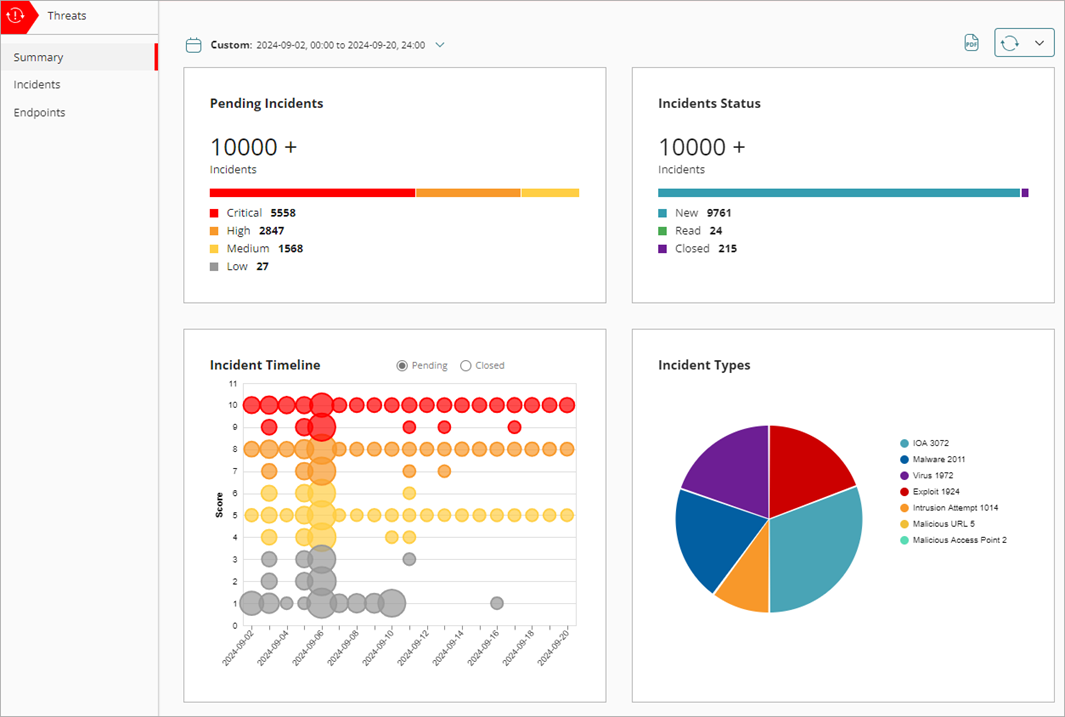
You can view threat information from Monitor > Threats. For more information, go to Monitor with ThreatSync.
The Summary page provides a snapshot of incident activity. This page includes graphs and incident data and provides a snapshot of incident activity over a specified period of time.
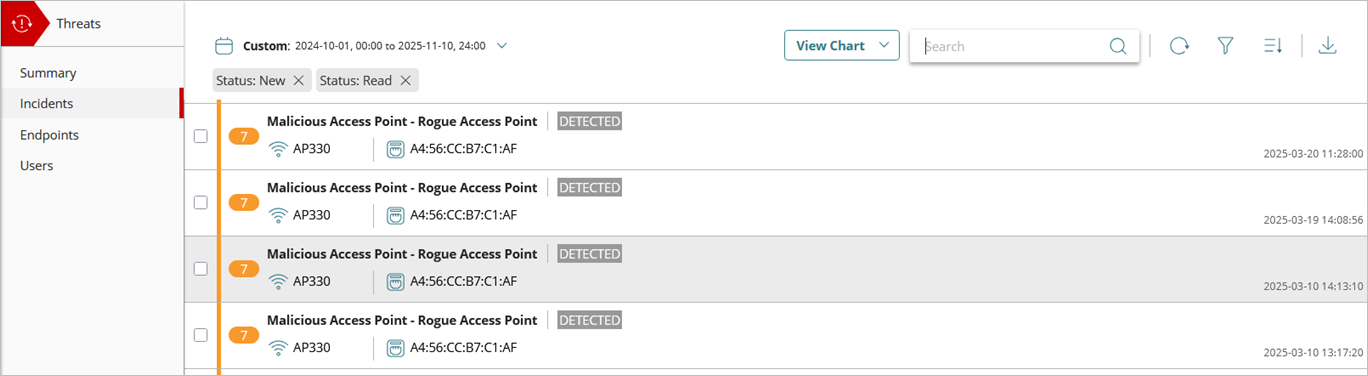
The Incidents page shows a list of incidents, such as malicious access points (Rogue and Evil Twin access points) for a specified time period and enables you to perform actions against these threats.
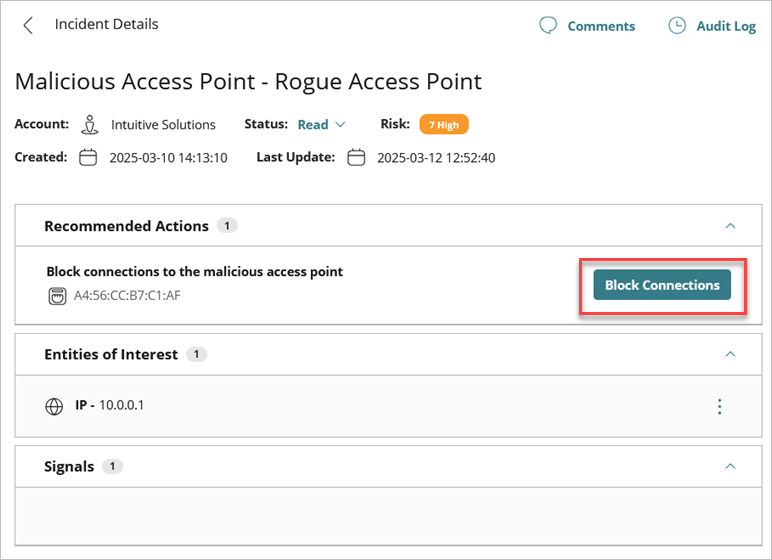
Select a specific incident to view the incident details. Click Block Connections to block wireless client connections to the malicious access points.
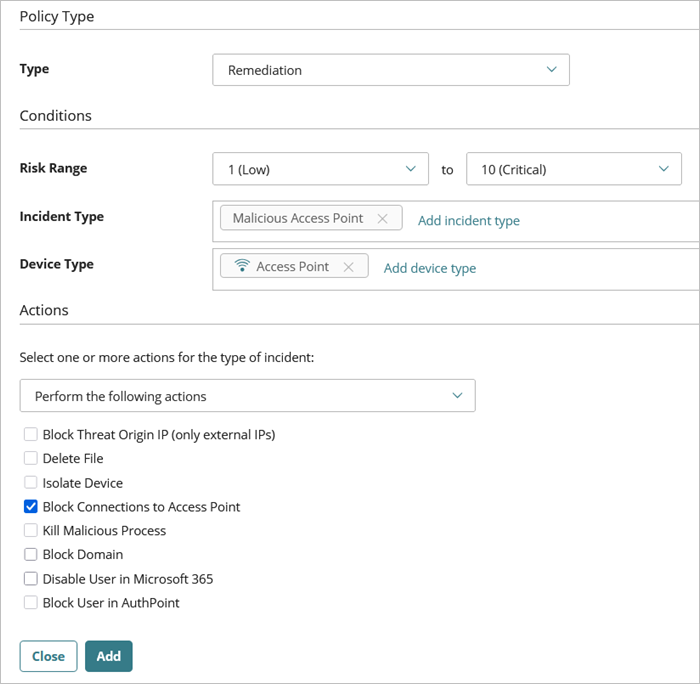
You can also create ThreatSync automation policy templates that include multiple automation policies and assign the template to the accounts or account groups you manage. Automation policy templates enable you to apply ThreatSync automation policies consistently across managed accounts, and save time when you set up ThreatSync for new accounts or account groups.
For example, you could create a policy that automatically blocks client connections to access points detected by ThreatSync as a Rogue or Evil Twin access point. This automates the process of detection and response and automatically blocks wireless client connections to a malicious access point.
For more information, go to Manage ThreatSync Automation Policy Templates (Service Providers).
Access Point Airspace Monitoring