Applies To: WatchGuard Open MDR
If you have a WatchGuard Open MDR license, you can enable WatchGuard MDR to monitor activity on your third-party firewalls. To configure third-party firewall monitoring, you must first download and install the WatchGuard Agent and then install the WatchGuard MDR Log Collector on the Linux endpoints you want to use as forwarding agents. After you install the Log Collector in your network, you configure your third-party firewall to forward syslog data to the IP address of the Log Collector endpoint.
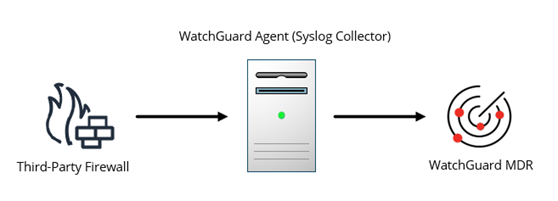
Do not configure WatchGuard Fireboxes to send syslog data to the Log Collector. WatchGuard MDR uses ThreatSync to gather detection data from Fireboxes connected to WatchGuard Cloud. To make sure WatchGuard MDR can monitor a locally-managed Firebox, add the device to WatchGuard Cloud.
System Requirements
The computer on which you install the WatchGuard Agent and Log Collector must meet these requirements.
Hardware and Software Requirements
- Operating System — Linux-based system (arm64 or amd64)
- Available Disk Space — Minimum 12 GB
- Third-party Software — Docker and the Docker Compose plugin must be installed
For information about how to install Docker, go to Installation Procedures for Support Platforms in the Docker documentation (external link).
Network and Firewall Rules
The Linux computer that runs the WatchGuard Agent and Log Collector must allow this traffic:
Incoming traffic
- UDP 514
- TCP 514
- TCP 6514
Outgoing traffic
- HTTP 443
Supported Linux Distributions
The computer on which you install the WatchGuard Agent and Log Collector must run one of these supported Linux distributions:
| Linux Distribution | Supported Versions |
|---|---|
| Ubuntu | 20.04 LTS, 22.04 LTS, 24.04 LTS |
| Debian | 11, 12, 13 |
| Red Hat Linux | 8, 9, 10 |
| AWS Linux | Amazon Linux, Amazon Linux 2, Amazon Linux 2023 |
| Fedora Linux | 42, 43 |
| CentOS | 7 |
| CentOS Stream | Stream 8, 9, 10 |
| openSUSE | Leap 15.x, Leap 16.x |
| Linux Mint | 21, 22.x |
| Arch Linux | Latest only |
| AlmaLinux | 8, 9, 10 |
Install the WatchGuard Agent
The WatchGuard Agent is an application that you install on endpoints in your network so that WatchGuard Cloud can communicate with them and deploy software. Install the WatchGuard Agent on each Linux computer you want to add a WatchGuard Agent MDR service to.
If the WatchGuard Agent is already installed on the endpoint, it shows in the Endpoints with WatchGuard Agent list on Monitor > Managed Services > Onboarding > WatchGuard Agent.
To install the WatchGuard Agent:
- Log in to your WatchGuard Cloud account.
- Select Monitor > Managed Services.
The Managed Services portal opens in a new browser tab. - If you are a Service Provider, select an account from the drop-down list.
- In the upper-right corner of the Managed Services portal, click
 .
. - From the drop-down list, select Onboarding.
- From the navigation menu, select WatchGuard Agent.
The WatchGuard Agent page opens.
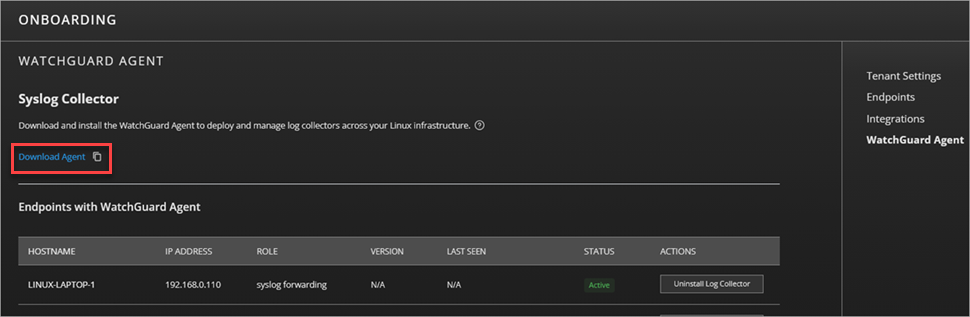
- Click Download Agent.
The WatchGuard Agent.RUN file downloads. - Copy the .RUN file to the Linux computer you want to install a WatchGuard Agent MDR service on.
- To install the WatchGuard Agent, from the Linux computer, run this command:
sudo bash "WatchGuard Agent.run" - To verify that the WatchGuard Agent installed successfully, make sure that the endpoint shows in the Endpoints with WatchGuard Agent list in the Managed Services portal.

Install the WatchGuard MDR Syslog Collector
The WatchGuard MDR Log Collector receives log data from third-party firewalls in your network and sends the data to WatchGuard MDR. You can install theLog Collector on Linux endpoints that have the WatchGuard Agent installed. Typically, you only have to install the Log Collector on one computer for each physical location in your network.
To install a Log Collector:
- Log in to your WatchGuard Cloud account.
- Select Monitor > Managed Services.
The Managed Services portal opens in a new browser tab. - If you are a Service Provider, select an account from the drop-down list.
- In the upper, right corner of the Managed Services portal, click .
- From the drop-down list, select Onboarding.
- From the navigation menu, select WatchGuard Agent.
The WatchGuard Agent page opens and shows a list of endpoints with the WatchGuard Agent installed.
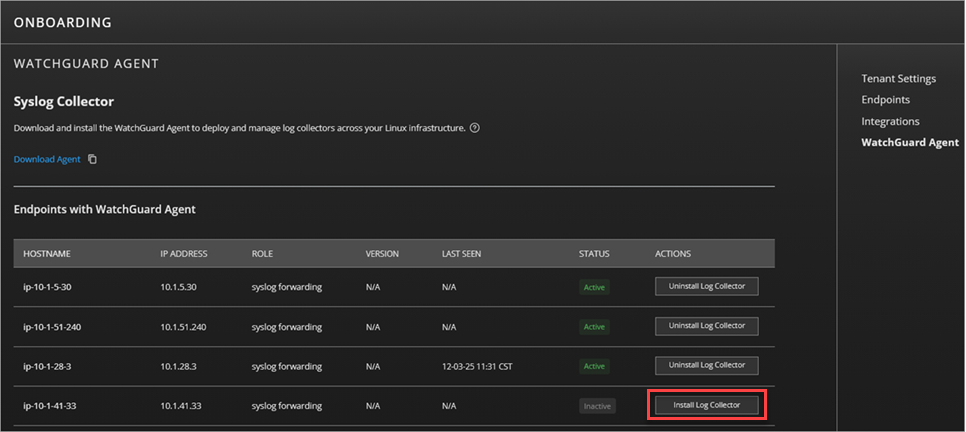
- In the Actions column for the endpoint, click Install.
After the installation completes, the Status column shows Active for the Log Collector.
Configure Syslog Forwarding on Your Third-Party Firewall
The steps to configure syslog forwarding are different for each firewall. For full instructions for each supported firewall, go to the Third-Party Firewall Integrations section in WatchGuard MDR Integration Guides.
The steps in this section describe the high-level steps for most firewalls.
To configure syslog forwarding on your firewall:
- Log in to the management interface for your firewall.
- Go to the log forwarding or syslog server settings.
- Add a new syslog server with these settings:
- IP/Hostname — WatchGuard MDR Syslog Collector IP Address
- Port — 514 (UDP by default)
- Protocol — Syslog
- Format — RFC 5424 or default; must use RFC 1918 private IPv4 addressing only
- Save or apply the firewall configuration.
Verify the Integration
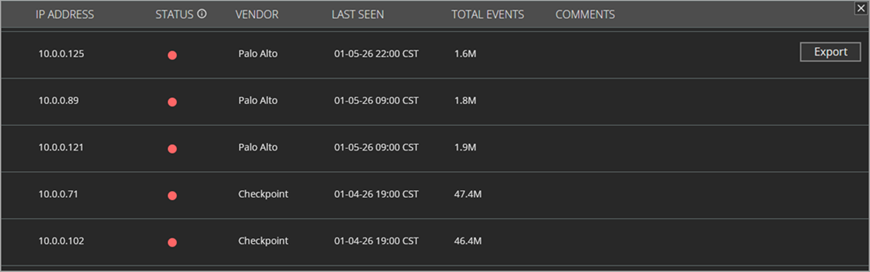
To verify the integration of WatchGuard Open MDR and the configuration of your third-party firewall, view the Connections > Service Status > Network Device List in the Managed Service portal in WatchGuard Cloud.
It can take up to six hours for incident data to appear in the Managed Services portal after you complete the integration steps.
To verify the integration:
- In WatchGuard Cloud, select Monitor > Managed Services.
The Managed Services portal opens in a new browser tab. - If you are a Service Provider, select your Subscriber account from the drop-down list.
- Select Connections > Service Status.
The Service Status page opens.

- From the Network tile, click Network Device List.
The IP address of your firewall shows in the list.
Uninstall the WatchGuard MDR Log Collector
If you no longer want to use a specific Log Collector, you can uninstall it from the WatchGuard Agent page in the Managed Services portal.
To uninstall the Log Collector:
- Log in to your WatchGuard Cloud account.
- Select Monitor > Managed Services.
The Managed Services portal opens in a new browser tab. - If you are a Service Provider, select an account from the drop-down list.
- In the upper, right corner of the Managed Services portal, click .
- From the drop-down list, select Onboarding.
- From the navigation menu, select WatchGuard Agent.
The WatchGuard Agent page opens and shows a list of endpoints with the WatchGuard Agent installed.
- In the Actions column for the endpoint with Log Forwarder, click Uninstall
The WatchGuard Agent uninstalls the Log Collector.
Uninstall the WatchGuard Agent
If you want to uninstall both the WatchGuard Agent and the Log Collector, you can uninstall the WatchGuard Agent from your Linux system.
To uninstall the WatchGuard Agent and the Log Collector from your Linux system, run this command:
/usr/local/management-agent/repositories/ma/install --remove
Troubleshoot the WatchGuard MDR Log Collector
Use the information in this section to help you diagnose and resolve issues with the WatchGuard MDR Log Collector.
To troubleshoot the WatchGuard MDR Log Collector:
- Make sure the computer running the WatchGuard Agent and Log Collector meets the requirements described in the System Requirements section.
- Make sure the log-forwarder is installed as a systemd service and that it is running without errors.
- To verify the service status, run this command:
- sudo systemctl status log-forwarder
- If the service is not active, investigate the reported errors or try to restart it.
- To verify the service status, run this command:
- Review the log-forwarder logs.
- To view the logs, run this command:
- sudo docker logs -f log-forwarder-service
- The logs show most of the log-forwarder internal processes. These include:
- Certificate generation and signing
- Container registration
- Heartbeat status
- Metrics being sent
- Look for errors or repeated failures that might indicate configuration or connectivity issues.
- To view the logs, run this command:
- Verify that the docker-compose.yml file is in the install location and includes the correct folder mappings between the host system and the container. Incorrect or missing volume mappings can prevent the log‑forwarder from accessing required files.
The standard installation path is /opt/log-forwarder - Verify that the settings.env file includes all required environment variables for the log-forwarder container. Missing or incorrectly defined values can prevent the service from starting or connecting correctly.
The file must contain the following variables:- ACCOUNT_ID
- API_USERNAME
- API_PASSWORD
- DEVICE_ID
- ENDPOINT_HOSTNAME
- ENDPOINT_IP_ADDRESS
- ENVIRONMENT
- REGION
- VERSION