Applies To: All WatchGuard MDR Products
WatchGuard MDR automatically delivers monthly and weekly reports on health status and service activity to help you mitigate and remediate identified threats. The reports you can view and the information they contain vary by WatchGuard MDR product.
Monthly Report (All WatchGuard MDR products)
For all WatchGuard MDR products, the monthly report summarizes security activity and service outcomes for the selected month. The report includes metrics for detections, investigations, vulnerabilities, remediation, security hygiene, and monitored data sources to help you assess your security posture and the effectiveness of your WatchGuard MDR managed service. The available data in the report depends on your WatchGuard MDR license and the monitored environments configured for your account.
Weekly Summary Report (WatchGuard Core MDR, WatchGuard Total MDR, and WatchGuard Open MDR only)
For WatchGuard Endpoint Security products, the weekly report includes information on health issues or significant misconfigurations that could degrade the overall security posture of the environment or negatively impact the protection, monitoring, investigation, or the ability to take response actions. The report also recommends actions to mitigate and remediate identified threats.
WatchGuard MDR sends reports to the recipient email addresses you provide on the portal Report Settings page. You can also view the reports directly from the MDR portal. For detailed instructions about how to add recipients and select the report language, go to Manage MDR Report Settings.
View MDR Reports in the Portal
After you add at least one report recipient to the Managed Services portal and WatchGuard MDR sends the report, you can find the report on the File Storage page in the portal.
To view MDR reports:
- In WatchGuard Cloud, select Monitor > Managed Services.
The Managed Services portal opens in a new browser tab. - If you are a Service Provider, select your Subscriber account from the drop-down list.
- Select Reports > Files.
The File Storage page opens.
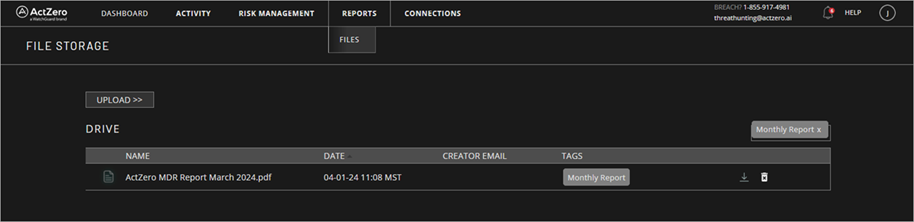
- From the File Storage list, click the report to view.
The report opens as a PDF in a new browser tab.
Share Files with WatchGuard MDR
To share files related to an investigation with WatchGuard MDR, upload those files to the File Storage page in the Managed Services portal.
To upload a file:
- In WatchGuard Cloud, select Monitor > Managed Services.
The Managed Services portal opens in a new browser tab. - If you are a Service Provider, select your Subscriber account from the drop-down list.
- Select Reports > Files.
The File Storage page opens.
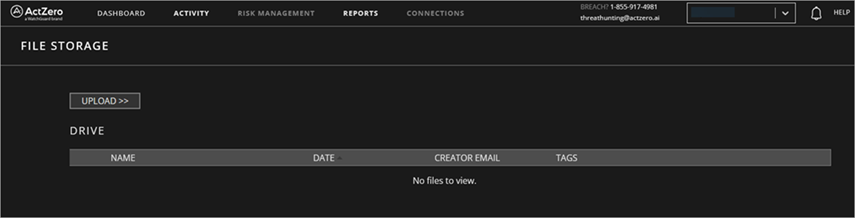
- Click Upload.
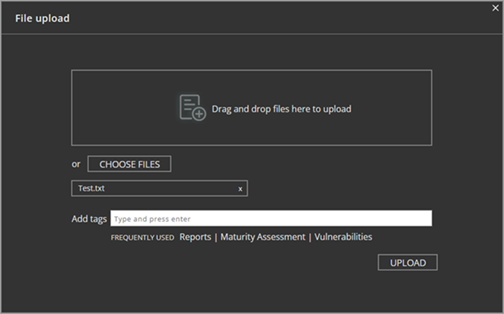
- Drag the file from your computer to the File Upload dialog box.
- Click Upload.